The Morning My Alarm Never Rang
I woke up at 9:40 to sunlight in my face and a cold feeling in my stomach. My alarm never went off. I grabbed my phone from the nightstand and the screen was black, then the logo appeared, then black again. Logo. Black. Logo. Black. It had been doing that all night, apparently, which is why my 7 AM alarm died quietly in a reboot loop.
That was the morning I learned a restarting phone is not just annoying — it quietly breaks your whole day.
I missed a client call that morning. By the time I borrowed my wife’s old phone to check my messages, there were eleven missed calls and a text from my boss that just said “??”. Have you ever tried explaining “my phone was possessed” to your boss? It does not land well.
Here’s what nobody tells you about this problem: it never starts as a crisis. Mine began a week earlier with one random restart while I was scrolling news at lunch. I laughed it off. Then it happened twice the next day. I told myself it was “just a glitch” and kept using the phone like normal. Big mistake. By the weekend, the reboots were coming every twenty minutes, and that night they chained together into the loop that ate my alarm.
And that is the part that messes with your head. A phone that restarts on its own feels untrustworthy. You stop relying on it for alarms, for two-factor codes, for maps when you are driving somewhere new. Every time the screen goes dark unexpectedly, your chest tightens a little. Is it dying? Are my photos safe? Will it turn back on this time?
Let me answer the scariest question first: in most cases, your phone is not dying, and your data is probably fine. Random restarts are usually software problems — a bad app, a corrupted update, a full storage drive — and software problems can be fixed. I have fixed this exact issue on three different phones now (mine, my brother’s, and my mother-in-law’s), and not one of them needed a repair shop.
So take a breath. We are going to work through this in the right order, from the easiest fix to the last resort. Do not skip ahead to the factory reset — I made that mistake once and lost every photo from my niece’s birthday. We will get to backups before anything drastic. Promise.

What Your Phone Is Actually Doing When It Reboots
It helps to know what a “restart” really is, because then the fixes make sense instead of feeling like magic tricks.
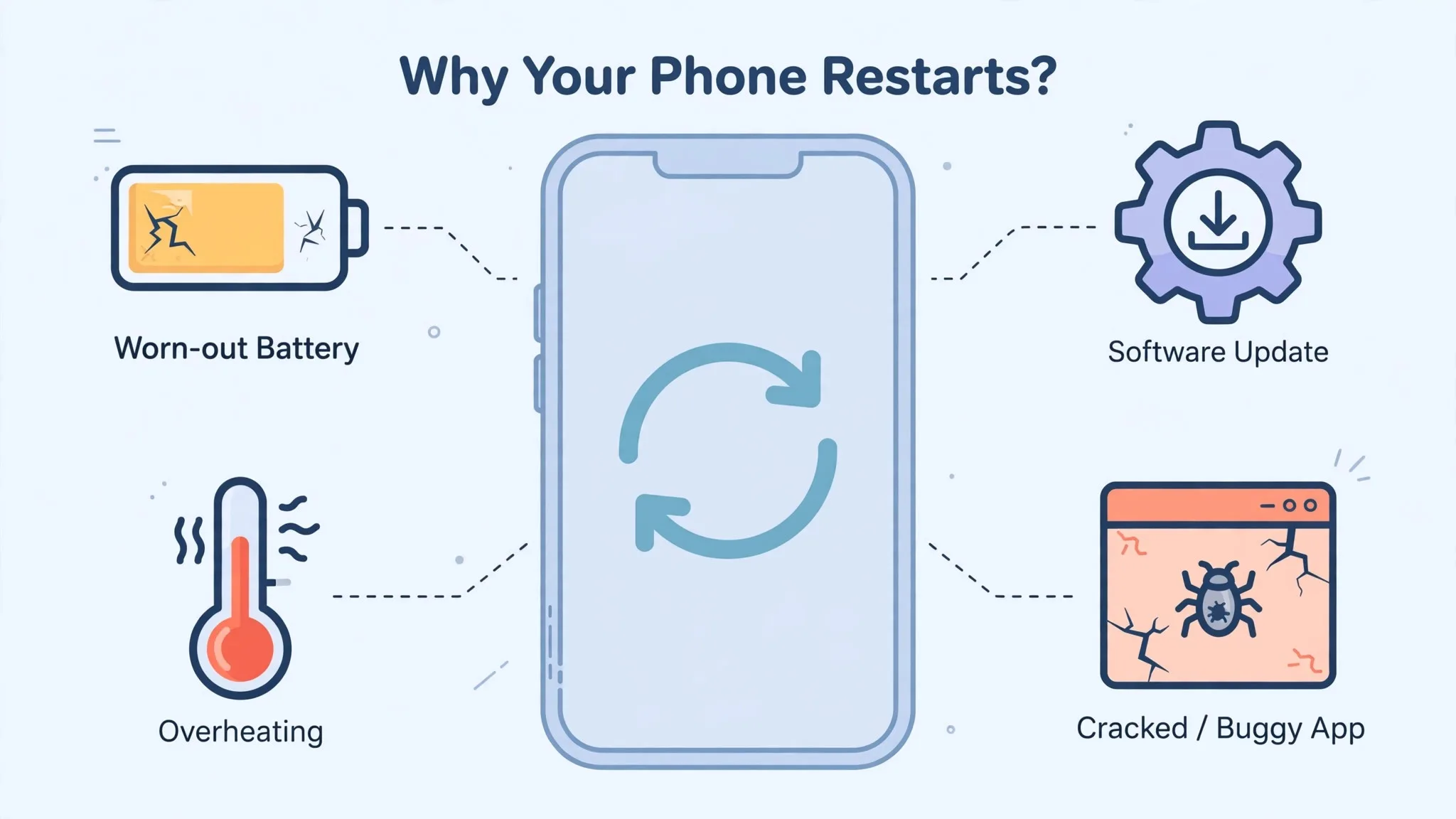
Your phone has a tiny internal watchdog — think of it like a security guard whose only job is to watch the system and shout “start over!” if something freezes badly. When an app crashes hard enough, or the system itself locks up, this guard pulls the plug and reboots the phone to protect it. Most of the time, that is a good thing. It is your phone saving itself.
But sometimes the guard gets trigger-happy. A corrupted system file can make the phone crash during startup, which triggers the guard, which restarts the phone, which crashes again. That is the dreaded boot loop — the logo-black-logo-black cycle I woke up to.
Batteries cause a sneakier version of this. As a battery ages, it cannot deliver steady power anymore. Booting up is the most power-hungry thing your phone does, so right when it needs the most juice, the voltage sags, the processor panics, and the phone reboots. This is why older phones often restart when the battery hits 20% or 30% — the percentage is a lie; the battery is emptier than it claims.
Once you understand the pattern, you can read the reboots like clues. A phone that restarts at the same time every night? That is a setting, not a failure. One that dies at 30% battery? That is the battery lying to you. One that loops on the logo forever? That is corrupted system software. Keep this in mind as we go — it will help you skip straight to your fix.
Fix It in the Right Order (Don’t Start With the Nuclear Option)
Order matters here. Each step below is gentler than the next, and most people never need to go past the first four. Work down the list and stop the moment your phone behaves.
Give It a Real Force Restart First
Not the polite restart from the power menu — a force restart. Hold your power button down for a full 30 seconds and ignore everything on the screen until it goes black and the logo comes back. On many phones, holding Power + Volume Down together for 10 to 20 seconds does the same job.
Why does this help? Because a normal restart lets the system shut down gracefully, which means a stuck process can survive it. A force restart cuts power to everything — it is the difference between asking someone to leave and turning off the lights. That stuck process? Gone.
If your phone was restarting every few minutes and now it has been calm for an hour, you might already be done. But stay suspicious for a day. If the reboots creep back, keep going down this list.
Turn Off the Auto-Restart You Probably Never Enabled
This one embarrassed me. After my force restart, my phone was fine for exactly one day — then it rebooted at 3 AM again. I was ready to throw it at a wall. Then a friend asked, “Did you check auto restart?”
Some phones, especially Samsung Galaxy models, have a feature that restarts the phone automatically on a schedule or “when needed” to keep things running smoothly. It lives in Settings under Device care, and it can get turned on by updates without you ever touching it. If your phone restarts at suspiciously regular times — like every night — this is almost certainly your culprit.
Samsung’s own support page walks through exactly where to find it and how to switch both the scheduled and “when needed” restarts off: Samsung’s official guide to stopping automatic restarts. Go to Settings, then Device care, then Auto optimization, and make sure both restart options are off. It takes thirty seconds, and I felt like an idiot for not checking it first. Learn from my embarrassment.
Check the Power Button (and Take the Case Off)
This sounds too simple to be real. It is real.
A power button that is slightly stuck — from a tight case, pocket lint packed around it, or a screen protector pressing on the edge — can send constant “restart” signals. Your phone is not broken; it is being poked. Take the case off completely, look at the power button, and press it a few times. Does it click cleanly? Does it feel mushy or sunken compared to the volume buttons?
While the case is off, blow out any dust around the buttons. Your mouth works fine for this, just don’t spit on it — I have done that, and it is as gross as it sounds. Then use the phone without the case for a day. If the restarts stop, your case was the villain all along. A cheap case once cost me a week of sanity. I am still a little mad about it.
Boot Into Safe Mode and Catch the Bad App
Okay. If you have made it this far, a misbehaving app is the most likely suspect. Some app you installed — maybe recently, maybe months ago — is crashing the system.
Safe Mode is how you prove it. In Safe Mode, your phone runs with only its built-in system apps, and every app you downloaded gets temporarily switched off. If the restarts stop in Safe Mode, you have your answer: one of your downloaded apps is guilty.
Getting there is easy: press and hold the power button until the power menu appears, then press and hold “Power off” on the screen until it offers you Safe Mode. Tap it. Your phone will restart with a little “Safe Mode” label in the corner.
Now use the phone normally for a few hours. Still restarting? Then it is probably not an app — skip to the battery section in Part 2. But if it is calm in Safe Mode, come back to normal mode and start uninstalling. Begin with whatever you installed or updated right before the trouble started. “Cleaner,” “booster,” and free game apps are the usual suspects — they dig deep into the system and break things.
Watch this: a clear walkthrough of the exact fixes in this guide, from force restart to safe mode, shown step by step.
The video above is “Android Phone Keeps Restarting? Try This to Stop Phone Rebooting Itself Over & Over Again Randomly” by Droigy, and it demonstrates every method in this section visually. Sometimes seeing the button sequence once is worth a thousand words.
One more thing about apps: pay attention to what permissions your apps demand. A flashlight app has no business reading your contacts, and apps that overreach are often the same ones that destabilize your phone. I wrote a separate guide on which app permissions are actually dangerous — it is worth ten minutes of your time, especially before you reinstall anything.
Free Up Storage — Your Phone Needs Room to Breathe
Here is a number to remember: 10%. When your phone’s free storage drops below about 10%, Android starts getting unstable. The system needs spare room for temporary files, updates, and basic housekeeping. Take that away and it starts crashing — and crashing means rebooting.
Check yours now: Settings, then Storage. If you are below that 10% line, that might be your entire problem. Delete the obvious stuff first — downloaded videos you already watched, duplicate photos, that game you haven’t opened in six months. Move photos to a cloud backup if you can.
I once found 11 GB of WhatsApp videos on my phone. Eleven gigabytes. Of forwarded “good morning” clips. My phone was basically drowning in well wishes. Clear yours out and see what happens.
Before you delete anything to get back above that line, clear space in a way that keeps your photos safe, and see how to free up storage on your phone without deleting your photos.
Wipe the Cache Partition (Your Photos Are Safe, I Promise)
This sounds scary. It is not. The cache partition is just a pile of temporary system files, and sometimes those files get corrupted — especially after a system update. Wiping them forces the phone to rebuild fresh ones, and it touches none of your photos, apps, or messages.
The catch: you do it from Recovery Mode, which looks intimidating. Turn the phone completely off. Then hold Volume Up + Power together until a menu appears (on some phones it is Volume Down + Power — if one combo does nothing, try the other). Use the volume buttons to highlight “Wipe cache partition,” press power to select it, and when it finishes, choose “Reboot system now.”
If Recovery Mode makes you nervous, the iFixit repair community has a plain-English walkthrough of the whole keeps-restarting troubleshooting path, including cache wipes: iFixit’s guide to phones that keep restarting. You are not the first person to stare at that menu feeling lost. Thousands have done this before you.
Update Everything, Then Update It Again
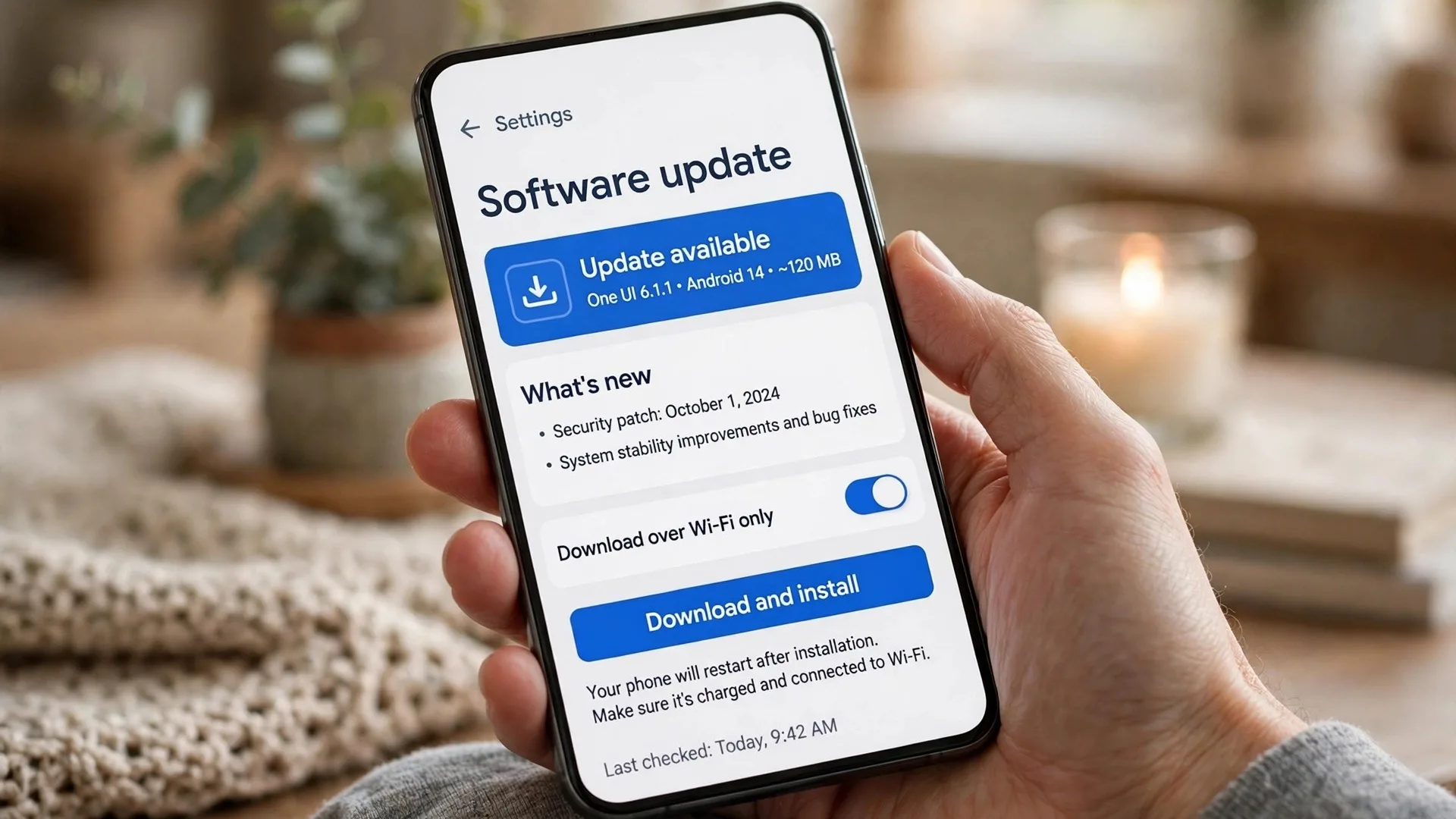
I know. Updates are annoying, they take forever, and they always seem to arrive when you are busy. But a huge number of restart problems come from software bugs that the manufacturer already fixed — in an update you keep postponing.
Go to Settings, then System, then System update, and install whatever is waiting. Then open the Play Store, tap your profile picture, and update all your apps too. Yes, all of them. Outdated apps crashing against a new system version is one of the most common reboot triggers there is.
Google’s own Pixel help pages say the same thing in plainer terms — most freezing and crashing issues clear up after updates: Google’s Pixel troubleshooting guide. The advice applies to any Android phone, not just Pixels.
My pro tip, learned the embarrassing way: back up your stuff BEFORE you try anything drastic. I once factory-reset a looping phone in a panic at 1 AM and wiped every photo from my niece’s birthday party. They are gone forever, and I still think about it. Plug into Wi-Fi, back up your photos tonight — then continue. Future you will be grateful.
When the Easy Fixes Don’t Cut It
Still here? Don’t lose hope. It just means your problem lives a little deeper — battery, heat, or system settings that the basic steps couldn’t reach. The fixes below take a bit more patience, but they solve the stubborn cases.
Your Battery Might Be Lying to You
Remember the voltage problem from Part 1? Let’s test it properly.
Think about WHEN your phone restarts. If it mostly happens when the battery is low — say under 30% — or if the phone feels fine on the charger but rebellious off it, the battery is your prime suspect. An aging battery can show 40% on screen while barely holding enough charge to keep the processor alive. The moment the phone asks for a burst of power, the voltage collapses and the watchdog pulls the plug.
Check your battery health if your phone offers it (Settings, then Battery, then Battery health on many models). Anything under 80% capacity on a phone that’s a couple of years old is a red flag. And look at the phone itself — is the back cover lifting slightly? Does the screen seem to bulge? A swollen battery is dangerous, not just annoying. Stop using the phone and get the battery replaced.
Batteries also die faster when we mistreat them daily without realizing it. I put together a full guide on the small habits that kill your smartphone battery — things like charging to 100% every night and gaming while plugged in. Fixing those habits now protects your next battery too.
Heat and Reboots Are Best Friends
Here is something most guides skip: your phone will restart itself on purpose when it gets too hot. It is a safety feature. The processor deliberately shuts things down before the heat can damage the chips.
So ask yourself — was the phone warm when it rebooted? Does it happen while gaming, video calling, or sitting in sunlight? Does the phone feel hot even when you are barely using it? If yes, you might not have a restart problem at all. You might have a heat problem wearing a restart costume.
The fix is the same either way: cool the phone down and find what’s generating the heat. Close heavy apps, take the case off during gaming, keep it out of direct sun, and never charge it under a pillow (I know someone who did this for a year — the phone survived, but barely). I wrote a whole breakdown of why phones overheat and the quick fixes that cool them down, including the warning signs that mean real danger. Read it if heat is even slightly part of your story.
The SIM Card Trick Nobody Talks About
This one sounds made up. It isn’t.
A loose, dirty, or damaged SIM card can make the phone’s cellular radio crash, and on some phones that radio crash takes the whole system down with it. If your restarts started around the time you switched carriers, traveled, or fiddled with the SIM tray, this is worth five minutes.
Power the phone off. Pop the SIM tray out with the little pin tool (a paperclip works — I have used one more times than I can count). Look at the gold contacts on the SIM. Wipe them gently with a dry, soft cloth. Blow into the empty tray slot to clear any dust. Slide everything back in firmly until it clicks.
Then watch. If the random reboots stop, you just fixed your phone with a paperclip. Feels pretty good, doesn’t it?
Reset All Settings (Your Stuff Stays Put)
There is a middle step most people don’t know about, sitting between “annoying” and “nuclear.” It is called Reset All Settings, and it does exactly what it says — it returns every system setting to default (Wi-Fi passwords, wallpapers, notification preferences) without deleting a single photo, app, or message.
Why does this help? Because sometimes the corruption lives in a setting, not in an app or a file. A broken network configuration, a mangled display setting from a bad update — these can crash the system on boot, and no amount of app uninstalling will touch them.
You will find it under Settings, then System, then Reset options. Yes, you will have to re-enter your Wi-Fi passwords afterward. Write them down first — I forgot mine once and had to call my internet provider while standing in my own hallway. Not my finest hour.
The Factory Reset — Done the Safe Way This Time
If nothing above worked, this is the last software fix, and it works more often than not. A factory reset wipes everything and reinstalls the operating system fresh. Corrupted files, rogue apps, broken settings — all gone in one shot.
But we do it MY way this time, not the panicked 1 AM way:
- Back up everything first. Photos to the cloud, contacts synced, WhatsApp backed up. Check the backup actually finished before you continue.
- Charge the phone to at least 60%, or keep it plugged in during the reset. A phone dying mid-reset is how bricks are born.
- Remove your Google account before resetting if you can (Settings, then Accounts). This avoids the lock screen asking for the old account afterward — a trap that has stranded many people.
- Go to Settings, then System, then Reset options, then Erase all data. Let it finish without touching it.
After the reset, set the phone up as a NEW device — do not restore from backup immediately. Use it bare for a day. If the restarts are gone, the problem was software, and you can restore your stuff knowing the phone is healthy. If the phone STILL restarts on a fresh system with no apps installed, you are looking at a hardware fault, and it is repair-shop time. That is valuable information too — at least now you know.
Habits That Keep It From Coming Back
Fixed phones stay fixed when you treat them a little better. None of this is dramatic:
Restart your phone yourself once a week — a voluntary two-minute reboot prevents the forced kind. Keep at least 15% of your storage free, always. Install app updates instead of ignoring them for months (guilty as charged — I once had 43 pending updates). And be picky about what you install: every random free app is a potential troublemaker renting space in your system.
Read your phone’s restart pattern like a dashboard warning light. It is trying to tell you something:
| What your phone does | What it usually means |
|---|---|
| Restarts at the same time every day | A scheduled auto-restart setting is on |
| Dies around 20–30% battery | The battery can’t hold voltage anymore |
| Loops on the logo, never reaches the home screen | Corrupted system software |
| Restarts only when it feels hot | Overheating protection kicking in |
| Started right after installing an app | That app is the troublemaker |

5 Mistakes That Turn a Small Glitch Into a Disaster
I have watched people — myself included — make every one of these. Learn from our pain.
1. Ignoring it for weeks and hoping it fixes itself. It won’t. Restart problems come from causes that get worse, not better — batteries degrade further, corrupted files spread, rogue apps dig deeper. The one-restart-a-day I laughed off became the boot loop that ate my alarm. Act on the first week, not the fifth.
2. Factory resetting without a backup. I have told this story twice already in this article because the wound is still fresh. My niece’s birthday photos. Gone. Because I panicked at 1 AM instead of spending twenty minutes on a backup. Whatever you do, back up first. There is no un-delete for a wiped phone.
3. Installing “phone booster” or “RAM cleaner” apps to fix it. Oh, the irony. The apps that promise to fix your phone are among the most common CAUSES of restart loops — they kill system processes they don’t understand and fight with Android’s own memory management. If you have one installed, uninstall it right now. Your phone manages its own RAM better than any third-party app. For the full story on how background apps actually behave, read my guide on stopping background apps from draining your phone.
4. Trying internet “hacks” like the freezer trick. Yes, people really put their phones in freezers. The logic — cooling a hot phone — sounds almost reasonable until you remember that condensation forms inside a freezing phone, and water plus electronics equals death. No freezer, no hairdryer, no hitting it. Please.
5. Panic-installing sketchy “antivirus” apps from random websites. When people fear their phone is hacked or infected, they grab the first “security” app they find — often from outside the Play Store. Those apps are frequently malware themselves, and malware absolutely can cause restarts. If you suspect something malicious, read my guide on how to tell if your phone has been hacked first, and only install security tools from the official app store.
Your Phone Can Feel Brand New Again
Here is the part I want you to hold onto: almost every restarting phone I have ever touched got fixed. Mine did. My brother’s did — his was just a swollen battery he couldn’t see. My mother-in-law’s did, and hers was a single rogue weather app with a mind of its own.
Your phone is probably not dying. It is probably just confused, or tired, or carrying one bad app like a splinter. Work the list, be patient with the deeper steps, and back up before the big ones.
I still remember the relief when my phone finally stayed on through a whole night. I woke up to my alarm like a normal person, and I swear I have never appreciated that annoying beeping more. You will get there too — and the next time a friend’s phone starts rebooting itself, you’ll be the one who knows exactly what to do. Funny how that works.
What Everyone Keeps Asking Me About Restarting Phones
Why does my phone restart by itself at night?
Nine times out of ten, it is the scheduled auto-restart feature — your phone is literally programmed to reboot while you sleep. Check Settings, then Device care (or Battery), and look for auto restart or scheduled restart options. Turn them off and see if the midnight reboots stop. If they don’t, check whether a system update is set to install overnight.
Can a virus make my phone keep restarting?
It is possible but less common than people think. Real malware more often steals data quietly than crashes your phone loudly — a rebooting phone is usually a buggy app, not a virus. That said, apps installed from outside the Play Store can absolutely destabilize things. If your restarts began after sideloading an app from a random link, that link might have been the real problem — here is what actually happens when you tap a phishing link and how to check yourself afterward.
Will a factory reset definitely fix my phone?
It fixes the problem if the cause is software — which covers most cases. But it cannot fix a dying battery, a stuck power button, or a damaged motherboard. That is why the order in this guide matters: rule out the hardware-ish causes first, so you don’t wipe your phone for nothing. And if a fresh, app-free phone still reboots, take it to a repair shop instead of resetting it a second time.
Does this mean I need a new phone?
Almost certainly not. In my experience, fewer than one in ten restarting phones has a fatal hardware fault. The rest are saved by the steps above — usually something embarrassingly simple like a setting or an app. Try everything in this guide before you even think about shopping for a replacement. Your wallet will thank you.
Why does my phone restart when the battery hits 30%?
Because the percentage is lying to you. An aging battery’s voltage drops sharply under load, and booting is the heaviest load there is. Your phone thinks it has 30% left, tries to do something demanding, the voltage collapses, and the watchdog reboots it. If this pattern sounds familiar, get the battery health checked — a replacement battery costs far less than a new phone and often solves it completely.
Disclaimer
This guide is for general informational purposes only and is based on personal experience and publicly available troubleshooting documentation. It is not professional repair advice. If your phone shows signs of battery swelling, physical damage, or water exposure, stop using it and consult a qualified repair technician. I am not responsible for any data loss or damage resulting from following these steps — always back up your data first.
If slow charging comes with restarts or other odd behaviour, why your phone charges so slowly helps you tell a charger problem from a battery or software problem.
If restarts come with fast draining, check your battery health in under a minute first — see How to Check Your Phone's Battery Health in Under a Minute.
Just switched to a new phone? Here is how to move everything from your old phone to a new one without losing a thing, photos, chats and all.
If your phone also keeps dropping Wi-Fi while it restarts or acts strangely, read my guide on why your phone Wi-Fi keeps dropping and how to fix it at home — the two problems often share the same weak-signal or settings cause.