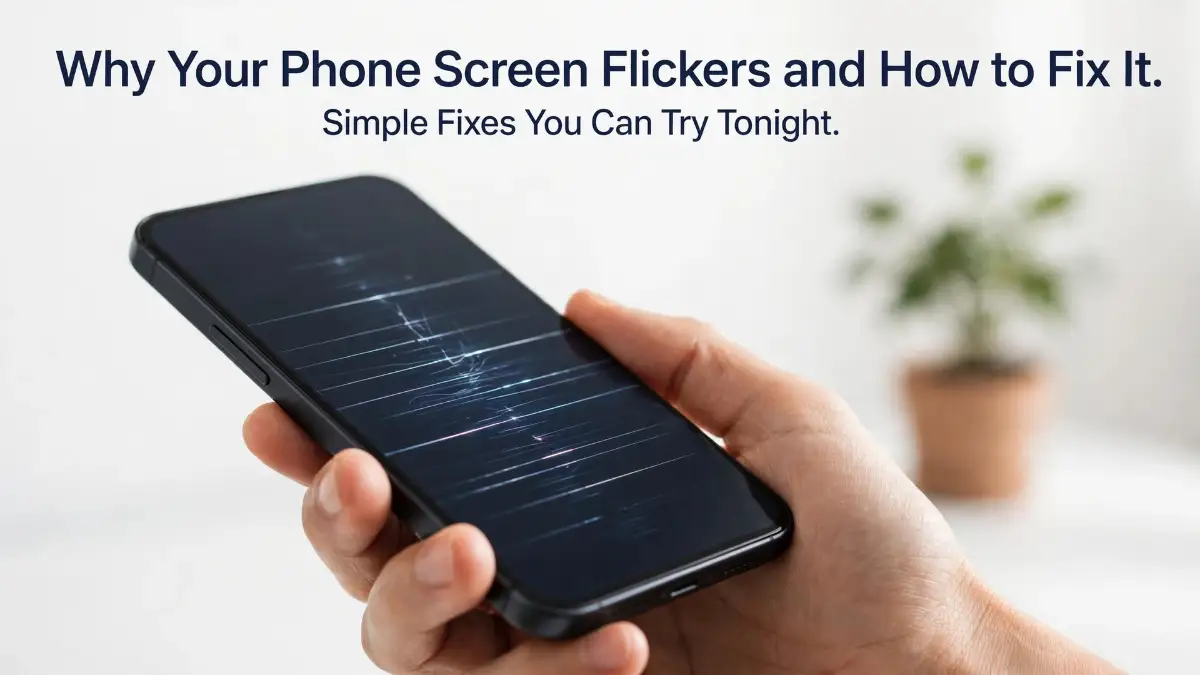
I spent months blaming my charger for a phone that died early. Then I found one number in my settings, and the guessing stopped. That number, your battery health, tells you more in a minute than a week of swapping cables ever will. This guide starts with that number, because everything else follows from it.
The One-Minute Check That Tells You More Than Your Battery Icon
My phone used to die at the worst times, and I always blamed the charger first. I swapped cables, changed wall plugs, even borrowed a charger from a friend. Nothing changed, and I felt a bit silly for guessing so much instead of just checking.
Then I found the battery health number hiding in my settings, and the whole mystery got simpler in under a minute. It told me more than the little battery icon ever had. Have you checked yours yet, or are you still guessing like I was?
Your battery icon only shows how much charge is left right now. It does not tell you how much charge your battery can still hold compared to when it was new. That second number is the one that matters when your phone starts dying early.
In a Hurry? Here Is What Actually Matters
Your battery health number matters more than the battery icon.
100 percent today can be smaller than 100 percent when the phone was new.
Find your number first, then decide. Do not guess and do not swap chargers blindly.
Heat wears a battery faster than normal use does.
Think of it like a water bottle that slowly shrinks over time. When it was new, it held a full bottle of water. After a few years, the same bottle only holds part of what it used to hold. You can still fill it to 100 percent, but that 100 percent is smaller than before.
That is exactly what happens inside your phone. The battery wears down a little with every charge, and heat speeds that wear up. So a phone that says 100 percent charged may still run out much sooner than it did on day one.
The good news is that you do not need any special tools to find this out. Your phone already keeps track of it for you, and I will show you where to look. And once you know your number, you can stop guessing and start making a clear choice.
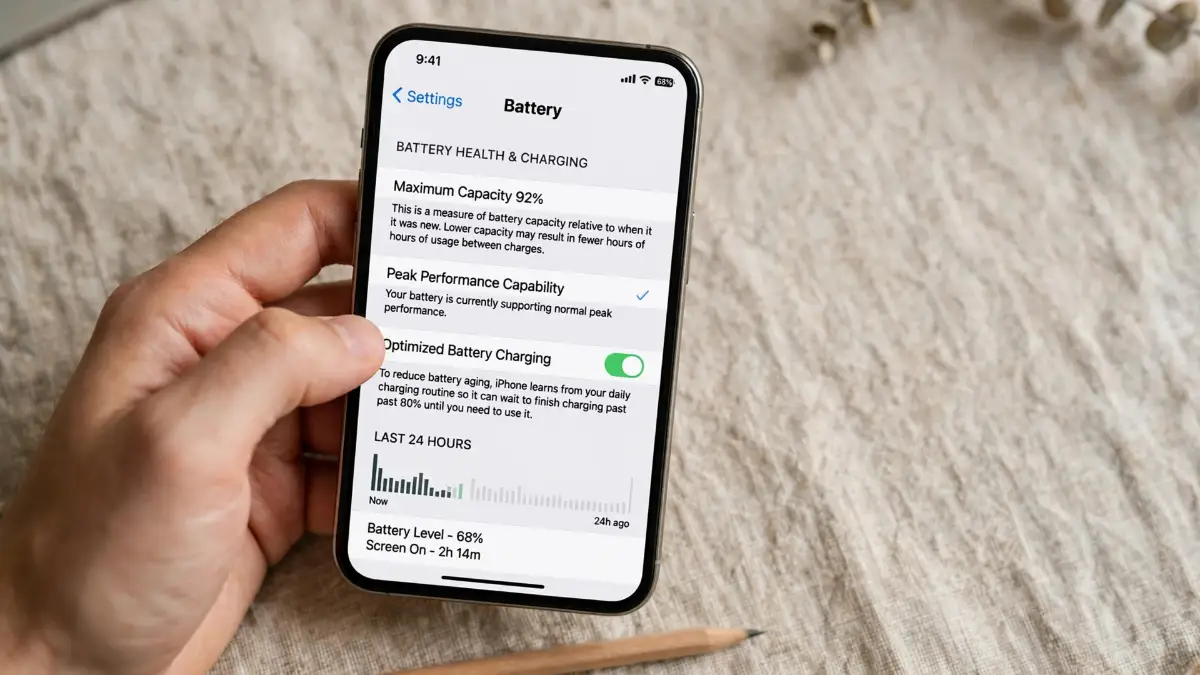
First, Find Your Number on Android
Android phones do not all hide this number in the same place, so do not worry if your menu looks a little different from mine. The steps below cover the most common phones, and one of them should match yours. Grab your phone now and follow along with me.
On a Samsung phone, open Settings, then tap Battery and device care, then Battery. Look for a battery health or battery status option, and tap it if you see one. Some Samsung models show this through the Samsung Members app instead, under Support and then Phone diagnostics and then Battery Status.
On a Google Pixel, open Settings, then tap Battery. Newer Pixel phones show battery health right there, with an estimated capacity percentage and simple tips. Older Pixel phones may only show battery usage, so you may need to look a little deeper.
On a Pixel running newer software, you can also try Settings, then System, then Device diagnostics, then Component health, then Battery status. That screen can show your cycle count, which is how many full charges and discharges your battery has gone through. It sounds technical, but it is just a count of how hard your battery has worked.
On other Android phones, start with Settings and then Battery. Look for Battery usage first, because that screen shows which apps are using the most power. It may not give you a health percentage, but it can still tell you if one app is draining your phone far faster than the rest.
If your phone has no built-in health screen at all, a trusted app can help. AccuBattery is a popular choice, and it learns your battery size over a few full charges. It will not give you a perfect number on day one, so give it a few days before you trust its estimate.
Some Android phones also respond to diagnostic codes typed into the phone dialer, and you may see those codes shared online. I would skip those unless you know exactly what they do on your exact model. A wrong code can open a menu you did not mean to open, and the built-in settings are safer for most people.
While you are in there, write your number down, even if it is just in your notes app. I keep a tiny note with the date and the percentage, and it helps me see if the number is dropping fast or slowly. But do not panic if the number is not 100 percent, because a small drop is completely normal after months of use.
If your phone feels slow to charge as well as quick to die, that is a separate clue worth checking. I wrote about slow charging in detail, and it may help you tell a tired battery apart from a tired cable. You can read it here: Why Is My Phone Charging So Slowly? 8 Reasons and Simple Fixes
Now Find Your Number on iPhone
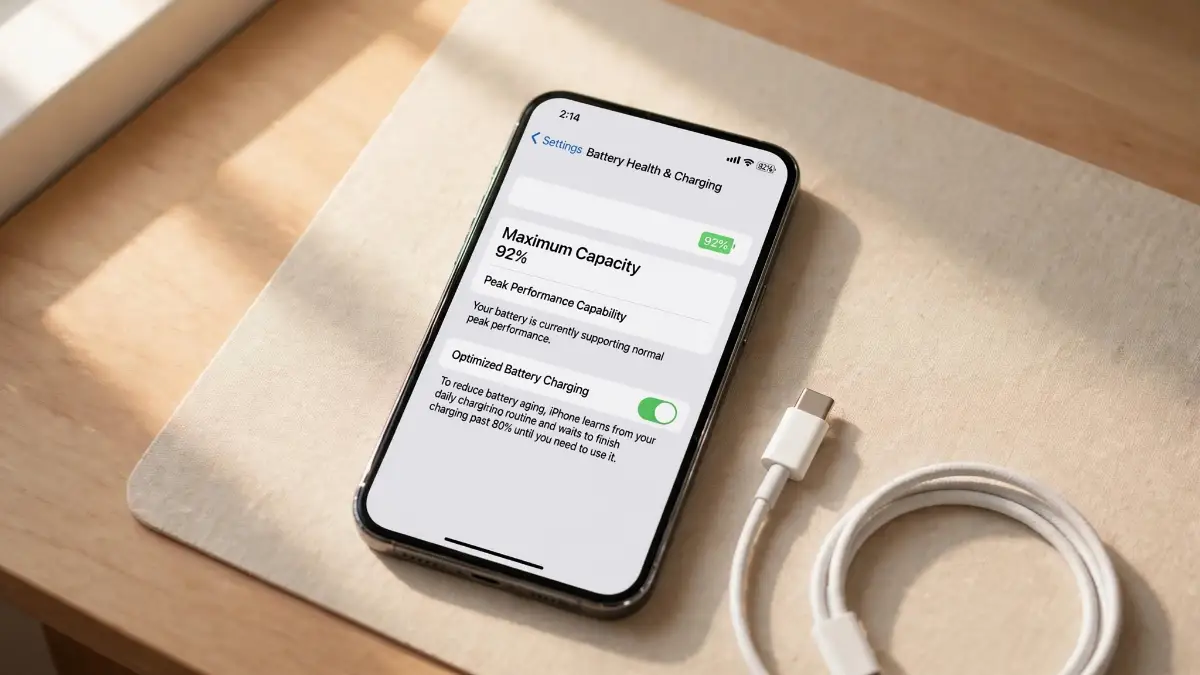
On an iPhone, the check is even quicker, and Apple gives you a clear number to look at. Open Settings, then tap Battery, then tap Battery Health and Charging. You should see Maximum Capacity right at the top, shown as a percentage.
Maximum Capacity tells you how much charge your battery can hold now, compared to when it was brand new. If it says 92 percent, your battery can hold about 92 percent of what it held on day one. If it says 85 percent, it holds about 85 percent, and so on.
On newer iPhones, you may also see Cycle Count on the same screen. A cycle count is not the same as the number of times you have plugged your phone in. One full cycle means you have used 100 percent of the battery in total, even if that happened across two or three smaller charges.
You may also see a line about Peak Performance Capability. If it says your battery is supporting normal peak performance, that is good news, and your phone can still run at full speed. If it says your battery health is degraded, or it suggests service, that is your phone telling you the battery is getting tired.
Optimized Battery Charging may also be on that screen, and I suggest leaving it on. It learns when you usually charge overnight, and it slows the last part of the charge to protect the battery. It can feel strange at first when your phone sits at 80 percent for a while, but that pause is doing your battery a favor.
Now, what if your iPhone shuts down without warning, even when the battery icon still shows charge left? That can be a sign that the battery cannot deliver enough power in a sudden burst. I covered sudden shutdowns and restarts in another guide, and it may help you sort out whether the battery is the cause. You can read it here: Why Does My Phone Keep Restarting? 9 Causes and Proven Fixes
Take a screenshot of your battery health screen before you leave it. I do this every few months, and it only takes a second. But it gives me a simple record to look back on, and it saves me from trying to remember a number I saw weeks ago.
Why Your Phone Sometimes Dies at 20 Percent
Have you ever watched your phone drop from 20 percent to dead in just a few minutes? It feels like a trick, and it can be scary when you are out and need your phone. But it usually has a simple explanation, and your battery health number is part of it.
As a battery wears down, it becomes less steady at delivering power, especially when it is low. Cold weather can make this worse, and so can a demanding app running at the same time. So the phone may shut down early to protect itself, even though the icon still showed a little charge left.
Heat can cause a similar surprise in the other direction. If your phone gets very hot while charging or gaming, the battery can age faster, and the phone may slow down to cool itself. I have felt my own phone get warm in my pocket on a hot day, and I learned to take it out of direct sun when I could.
If your phone often feels hot for no clear reason, do not just ignore it. Heat and battery wear often go together, and a quick check can save you a bigger problem later. You can read my guide on this here: Why Is My Phone Overheating? Causes and Quick Fixes
And if your battery drains fast but the health number still looks fine, something else may be using power in the background. A new app, a stuck update, or a setting that never turns off can all drain a healthy battery. That is why the battery usage screen matters just as much as the health number itself.
Look at the top three apps on your usage screen. Are any of them apps you barely use, or apps you did not expect to see there? If so, that app may be worth restricting, updating, or removing, and your battery life may improve without any new hardware at all.
The Quick Test You Can Do While You Wait
You do not need to run a long test to get a useful clue about your battery. Charge your phone to full, then use it normally for an hour, and note how far the percentage falls. Do the same thing the next day, with similar use, and compare the two days.
If the drop is about the same each day, your battery is probably behaving in a steady way. If one day drops far faster for no clear reason, think about what changed that day. Did you travel, use maps for hours, or play a heavy game? Those things can explain a fast drop without meaning your battery is broken.
I once thought my battery was failing, until I realized a video app had been running in the background all day. I had left it open after watching a short clip, and it kept using power while I did other things. Closing it fixed the problem, and my battery health number had been fine all along.
So treat your health number as one clue, not the whole story. Pair it with what you actually see day to day, and you will get a much clearer picture. And if both clues point the same way, then you can act with confidence instead of guessing.
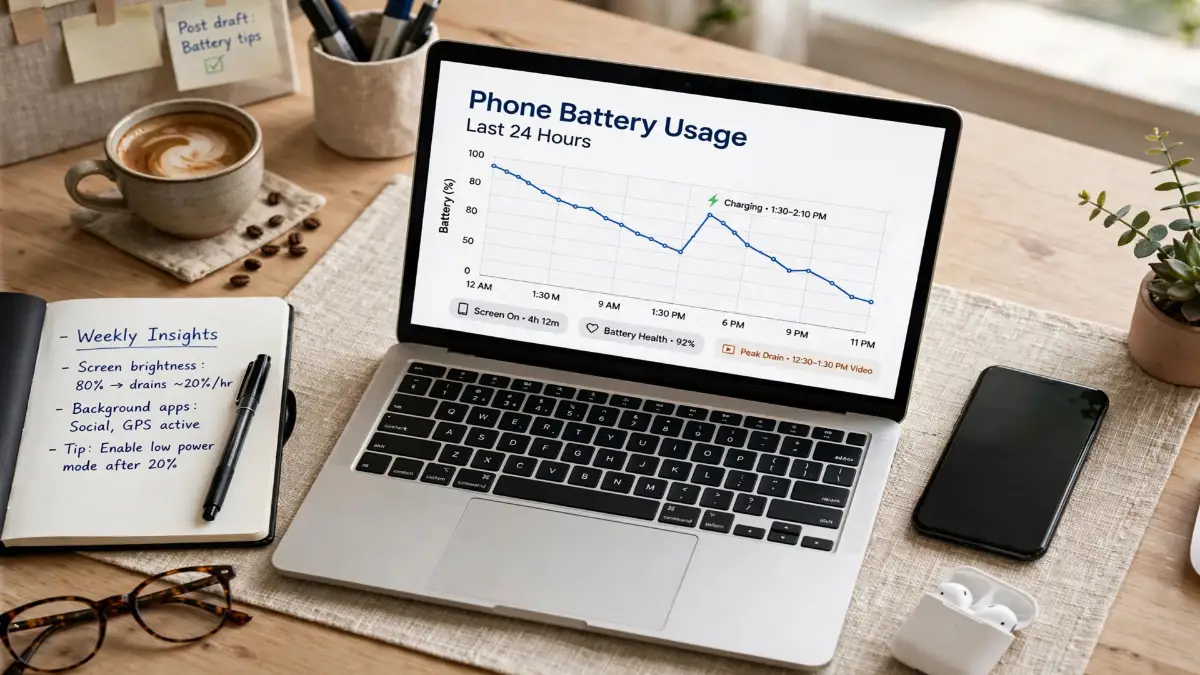
Before we move on, here is a simple habit I use now. Once a month, I check my battery health number and my top battery-using apps, and I write both down. It takes about two minutes in total, and it stops small problems from growing into big surprises.
What Your Number Means, From 100 Down to 80 and Below
Let us start with the simplest reading first. A number near 100 percent means your battery still holds close to what it held when it was new. That is normal for a new phone, and it is also normal for a phone that has been treated gently for a few months.
A number in the low 90s or high 80s is also normal for a phone you have used every day for a year or two. It means your battery has worn a little, but it should still get you through a normal day with sensible use. You may notice it dies a little earlier than it used to, but that change is usually gradual.
A number around 80 percent is the line most makers use as a rough guide. At about 80 percent, the battery has lost about one fifth of its original capacity, and many people start to feel the difference in daily life. You may need a top-up charge in the afternoon, even if you did not need one before.
Below 80 percent, the drop can feel sharper, and the phone may shut down early or slow down under heavy use. That does not mean the phone is useless, and it does not mean you must replace it today. But it does mean you should plan your next step, rather than hoping the number will climb back up on its own.
It will not climb back up, by the way, and that is worth saying plainly. Battery wear does not reverse itself, and no app can restore lost capacity for real. An app may show a slightly different estimate from day to day, but that is just measurement wobble, not a real recovery.
So what should you do with your number? Use it as a guide for how you use your phone, not as a reason to panic. A phone at 88 percent and a phone at 78 percent need different plans, and I will walk you through both below.
When 80 Percent Actually Matters
The 80 percent line matters most when it starts to change how you live with your phone. If you now carry a charger everywhere, or you avoid video calls because you fear the battery will die, then the number is no longer just a number. It is affecting your day, and that is a fair reason to act.
It also matters if your phone shuts down without warning, or if it slows down badly when you open the camera or a game. Those are signs that the battery cannot always deliver the power your phone needs in a burst. A new battery can often fix that, and it costs far less than a new phone.
But 80 percent does not automatically mean you must rush to a repair shop today. If your phone still lasts through your normal day, and you are happy with a midday top-up, you can keep using it for a while longer. Many people do, and there is nothing wrong with that choice.
Think about your own day, not just the number on the screen. Do you work near a charger, or are you out all day with no plug nearby? Do you rely on your phone for maps, work calls, or family photos? Your answers matter more than any single percentage.
If you are thinking about selling your phone, the number matters in a different way. A buyer will often ask about battery health, and a higher number can help you get a better price. So checking before you sell, and being honest about the number, can save you an awkward talk later.
And if you just bought a used phone, check the number on day one. I learned this the hard way with a second-hand phone that looked perfect on the outside. The battery was at 79 percent, and I only found out after a week of short battery life. A one-minute check would have told me right away.
What to Do Next, Based on Your Number
If your number is above 90 percent, you mostly need to keep doing what you are doing. Check it again in a month or two, and keep an eye on any app that suddenly drains power. You do not need a new battery, and you do not need to change your whole routine.
If your number is between 85 and 90 percent, start a few gentle habits now. Avoid leaving your phone in a hot car, and try not to let it sit at 0 percent for hours. Small changes now can slow the drop, and they cost you nothing.
If your number is between 80 and 85 percent, plan for a top-up charge during the day. A short charge at lunch can make a big difference, and it is easier than worrying about the battery all afternoon. You can also turn on battery saver on busy days, and lower your screen brightness a little.
If your number is below 80 percent, or your phone says service, it is time to price a battery replacement. Ask a trusted repair shop or the phone maker for a quote, and compare that with the cost of a new phone. In most cases, a new battery is far cheaper, and your phone can feel almost new again.
Before you decide, check one more thing: is your phone slow or hot for reasons that have nothing to do with the battery? A phone full of storage can also feel slow, and it can make battery life feel worse than it really is. I wrote about freeing space without losing photos, and it is worth a look before you spend money. You can read it here: How to Free Up Storage on Your Phone Without Deleting Your Photos
And if you see strange apps, odd data use, or signs that worry you beyond battery life, do not ignore them. A phone that acts strangely may have more than a tired battery going on. You can read my guide on warning signs here: How to Tell If Your Phone Has Been Hacked: Warning Signs and What to Do Next
Small Habits That Slow the Drop
You cannot stop battery wear, but you can slow it down, and the habits that help are simpler than most people think. Start with heat, because heat is the biggest enemy of a phone battery. Keep your phone out of direct sun, out of a hot car, and off a warm pillow while it charges overnight.
Next, think about how you charge. You do not need to follow a perfect rule every day, and I certainly do not. But charging from about 20 percent to about 80 percent most of the time is gentler on the battery than always going from empty to full.
If your phone has a battery protection setting, turn it on. Samsung calls it Battery Protection, iPhone calls it Optimized Battery Charging or a charge limit, and Pixel has its own charging optimization. These settings do the hard work for you, so you do not have to watch the percentage all day.
Fast charging is handy, and I use it myself when I am in a hurry. But using the fastest charger all day, every day, can add heat and wear over time. If you want to understand the trade-off better, I wrote about fast charging myths in detail. You can read it here: Fast Charging Myths vs Reality: Is Your High-Speed Adapter Safe
Also, update your phone and your apps when updates are ready. Updates often fix bugs that drain power, and they can improve how your phone manages your battery. I used to put updates off for weeks, and then I wondered why my battery seemed worse. Now I update when I have Wi-Fi and a charger nearby, and it takes far less effort than I feared.
Finally, do not leave your phone at 0 percent for days, and do not store it fully charged for months either. If you are putting a spare phone away, leave it at about half charge, and check it every few weeks. That small habit can save a battery that would otherwise go flat and refuse to charge again.
Mistakes That Make a Good Battery Look Bad
The first mistake is trusting a single reading from a new app on day one. Apps that estimate health need a few charge cycles to learn your battery, and their first number can be off by a lot. Give any app at least a few days, and compare it with your built-in settings before you act on it.
The second mistake is blaming the battery when an app is the real problem. A social app that keeps refreshing in the background can drain a healthy battery in hours. Check your battery usage screen first, and you may find a much cheaper fix than a new battery.
The third mistake is calibrating your battery by draining it to 0 percent over and over. That old tip comes from older battery types, and it does not help modern lithium batteries. In fact, deep drains can wear them faster, so do not do this as a regular habit.
The fourth mistake is using a cheap, damaged, or swollen cable and charger without checking them. A bad cable can make charging slow and unreliable, and it can make you think your battery is failing. Try a known good cable first, because that test costs nothing and takes a minute.
The fifth mistake is ignoring swelling, heat, or a screen that starts to lift. Those are not normal wear, and they are not something to fix with settings. Stop using the phone in that case, keep it away from heat, and get qualified help right away. I will say more about this in the note at the end, because safety comes first.
The sixth mistake is chasing a perfect 100 percent number. Batteries wear, and that is normal, even with perfect habits. A phone at 90 percent is not broken, and you do not need to replace a battery just because the number dropped a little. Judge by how your phone feels day to day, not by chasing a number that cannot stay perfect forever.
Your Battery Questions, Answered Plainly
Is 85 percent battery health good? Yes, for most people it is good enough for normal daily use. You may need a top-up on heavy days, but your phone should still work well, and you do not need to replace the battery just for that number alone.
How often should I check my battery health? Once a month is plenty for most people, and once every few months is fine if your phone feels steady. I check mine monthly because it takes less than a minute, and it helps me spot a fast drop early.
Does fast charging ruin my battery? Fast charging adds heat, and heat adds wear over time, but using it now and then is not a disaster. If you fast charge every day and your phone gets hot, try a slower charger overnight, and save the fast charger for days when you are in a rush.
Can an app really fix my battery health? No, an app cannot restore lost capacity, no matter what its ads promise. An app can help you see the number, track it over time, and spot apps that drain power. But any app that claims to repair a worn battery is selling you a story, not a fix.
Should I replace my battery at 80 percent? Not automatically, no. Replace it when the battery life or performance starts to limit your day, or when your phone says service, or when it shuts down without warning. The number is a guide, and your daily experience is the deciding factor.
Is it normal for battery health to drop after an update? A small drop after an update can happen, because the phone may measure the battery a little differently after new software. A large, sudden drop is worth watching, so check again after a few days of normal use before you worry.
A Short Video Walkthrough You Can Follow
Watch this first if you want to see the steps on screen: STOP Charging Your Phone Wrong! Keep Your Battery Healthy for Years (iPhone, Samsung, Pixel) by Tech Vault.
Watch here: https://www.youtube.com/embed/Rv8ANKXUGtk
The video walks through charging habits for iPhone, Samsung, and Pixel, and it includes a section on how to check your battery health on any phone. I like it because it shows the settings in action, which can be easier than reading steps alone. Watch it once, then check your own phone while the steps are still fresh in your mind.
Where to Read More Without Getting Lost
If you want a deeper look at why lithium batteries age the way they do, Battery University explains capacity, cycles, and charging voltage in plain detail. You can read it here: Battery University
If you want practical advice on when a battery is worth replacing, and how to think about swelling and heat safely, iFixit has a clear guide on smartphone battery health. You can read it here: iFixit
If you want Android-specific steps for different brands, including Pixel and Samsung, Android Authority walks through the menus and the apps that can help. You can read it here: Android Authority
Read one of those, not all three at once, and come back to your own number with fresh eyes. Outside reading should help you decide, not confuse you with ten different opinions at the same time.
So here is my simple takeaway for you. Check your number today, write it down, and judge it by how your phone actually feels in your hand. If it still gets you through your day, keep using it with a few gentle habits. If it no longer does, price a new battery before you price a new phone, because that one change can give a good phone a second life.
And remember, you just learned something most phone owners never check. That one minute of curiosity can save you money, worry, and a lot of guessing. Well done for taking it.
Disclaimer: A Short Note Before You Check
This guide is general information only, and it is not professional repair advice. Battery health numbers vary by phone, software version, and how the phone measures capacity, so treat your number as a guide, not as a medical-style diagnosis for your device.
If your battery is swollen, very hot, leaking, damaged, or your screen is lifting, stop using the phone, keep it away from heat and flammable items, and get qualified repair help right away. Do not try to open the phone yourself, puncture the battery, or keep charging a damaged battery. A qualified repair shop or the phone maker can check it safely and tell you the safest next step.
If your phone drops Wi-Fi again and again, read my guide on why your phone Wi-Fi keeps dropping and how to fix it at home — a weak battery and a weak signal can make each other feel worse.