My Desk Was Too Small for All My Windows
My spare laptop sat on a shelf for two years, and the only time I touched it was when I needed an old file. Then one Tuesday, my report, my video call, and my notes all tried to share one screen, and I lost the fight in front of a client. I spent the next hour trying every cable in my drawer, and not one of them worked. That hour taught me what this guide will teach you in five minutes: your old laptop can be a second screen, but only if you stop treating it like a monitor.
So I grabbed an HDMI cable, plugged one end into my main laptop and the other into the old one, and waited. Nothing happened. I wiggled the cable, I restarted both laptops, and still nothing. That was the day I learned the one fact nobody tells you first: a laptop screen is not a monitor, and an HDMI cable cannot fix that.
If you work from home, you know this feeling. One screen means your video call hides your notes, your notes hide your email, and your email hides the document you actually need. You spend more time hunting for windows than doing the work. And when you are on a call, you cannot even glance at your notes without everyone seeing your eyes move away.
Students feel it too. You watch a lecture on one half of the screen and type notes on the other half, and both halves are so small you can barely read them. And if you edit photos or videos, one screen is a joke. Your timeline, your preview, and your tools all fight for the same small space, and your neck starts to hurt from leaning in.
A second monitor fixes all of that, but a good one costs real money. And it takes up desk space you may not have. That is why the spare laptop sitting in your cupboard is such a good answer. It already has a screen, it already has Wi-Fi, and it costs you nothing. You just need the right way to turn it on as a second screen.
In a Hurry? Here Is What Actually Matters
- Your laptop HDMI port cannot take video in — it only sends video out, so a plain HDMI cable will never work.
- The free way is Windows Wireless Display — turn it on, press Windows key + K, and pick Extend.
- If that fails, SpaceDesk is free too — it works on most Windows laptops, even old ones.
- Use 5 GHz Wi-Fi or a cable — weak Wi-Fi is what makes the second screen lag.
- Keep the spare laptop plugged in — a second screen eats battery fast.
Key Takeaways: Try Them in This Order
- Start free: Turn on Wireless Display, press Windows key + K, and pick Extend.
- If that fails: Install SpaceDesk. It works on old laptops too, and Ethernet makes it fastest.
- Pay only if you need it: Duet Display is worth it for drawing and video, not for writing and calls.
- Buy hardware last: A capture card is only for games and streaming, and it mirrors. It does not extend.
I tried all four ways in this guide on my own two laptops, and I will show you each one in the order I would try them. The first one costs nothing and takes about five minutes, so we will start there.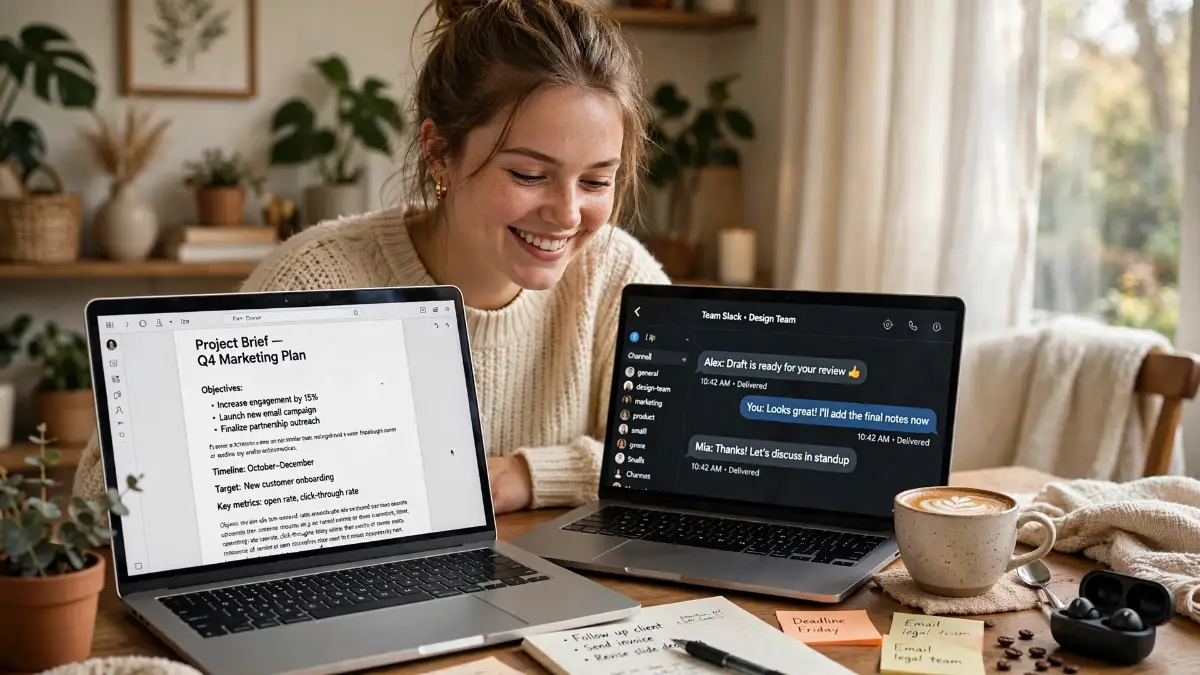
The HDMI Cable Myth (Read This First, It Saves You an Hour)
Here is the mistake almost everyone makes first, and I made it too. You see an HDMI port on both laptops, so you think a cable between them will just work. It will not, and the reason is simple once someone tells you.
The HDMI port on nearly every laptop is output-only. It sends a picture out to a TV or a monitor. It cannot take a picture in from another computer. So when you plug two laptops together with an HDMI cable, both of them are trying to send, and neither one is listening. Nothing shows up, and no setting can change that.
This is not a Windows problem or a driver problem. It is how the hardware is built. A few rare gaming laptops have an HDMI-in port, but if yours had one, the manual would say so in big letters. So if a plain cable is your whole plan, stop there and save yourself the hour I lost.
Myth vs Fact: The Cable Confusion
- Myth: Any cable with HDMI on both ends works between two laptops. Fact: Both ends only send video out, so nothing ever arrives.
- Myth: A USB-C cable fixes it. Fact: Only some USB-C ports carry video, and most laptops still cannot take video in.
- Myth: You need to buy a new monitor to get a second screen. Fact: Your old laptop already has a screen, Wi-Fi, and a keyboard. It just needs the right app.
There is one real wired way, and I will show it to you later in this guide. It needs a small piece of hardware called a capture card. But before you spend any money, try the free wireless way first. It works on most Windows laptops, and it is already sitting inside your Settings app.
And one small thing about cables: not all USB-C ports carry video, and the port names can confuse anyone. If you want to know which of your ports can actually carry a picture, my guide on the evolution of USB standards, Type-C vs Thunderbolt, explained walks through it in plain words.
The Free Way: Windows Wireless Display
This is the method I use most days now. Windows has a built-in feature that lets one PC send its screen to another PC over Wi-Fi. Microsoft calls it Wireless Display, and it uses a standard called Miracast. You do not need to buy anything or install any app from the internet.
First, set up the spare laptop, the one that will act as the screen. Open Settings, go to System, then Projecting to this PC. If you see a note about an optional feature, click Optional features, search for Wireless Display, and install it. It is a small download, about one megabyte, and it only takes a minute.
On that same page, set the first dropdown to Available everywhere on secure networks. That just means your laptop will show up when your own home Wi-Fi asks. Then open the Wireless Display app from the Start menu and leave it open. The screen will say your PC is ready to connect. Keep that window open, because if you close it, your laptop disappears from the list.
Now go to your main PC, the one you work on. Press the Windows key + K. A small panel opens on the right side with nearby wireless displays. Click the name of your spare laptop. Your spare laptop will ask you to allow the connection, so click Yes there. Give it a few seconds, and your main screen will appear on the spare laptop.
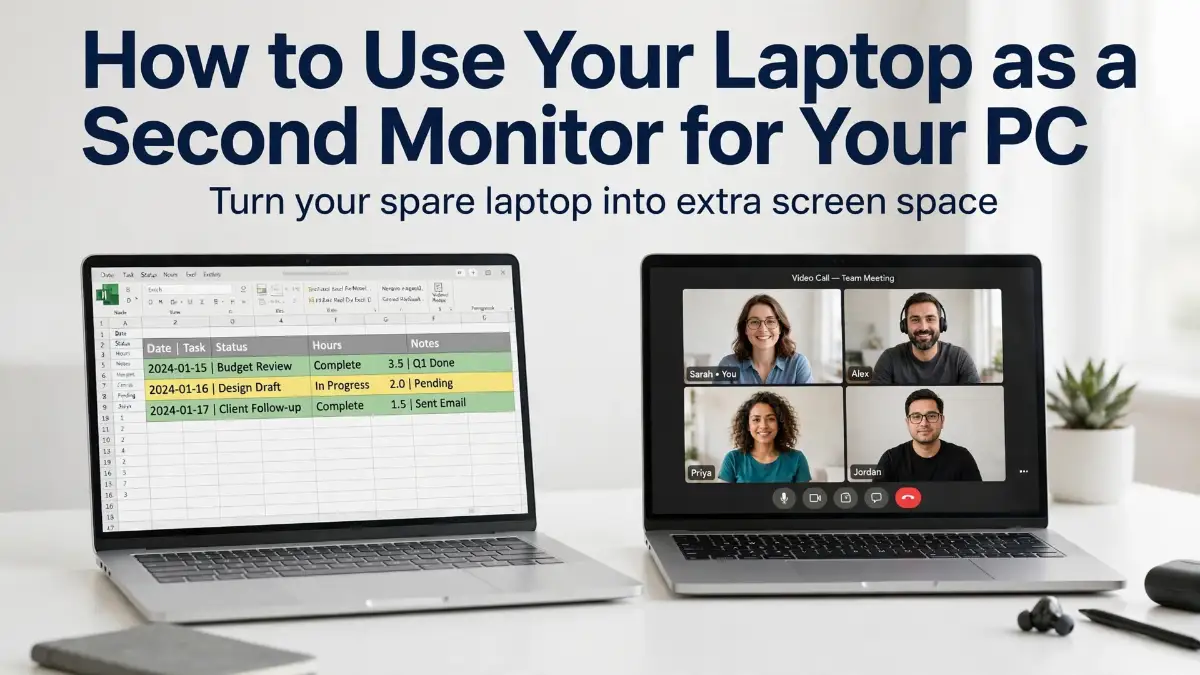
Then press the Windows key + P on your main PC. You will see four choices: PC screen only, Duplicate, Extend, and Second screen only. Pick Extend. That is the one that turns the spare laptop into a real second monitor, with its own extra space. Now you can drag a window to the edge of your main screen and watch it slide onto the spare laptop.
If your spare laptop never shows up in the list, check two things before anything else. First, make sure Wi-Fi is turned on in both laptops, because Miracast runs over Wi-Fi even when you are not really using the internet. Second, check that the spare laptop supports Miracast at all. Press the Windows key + R, type dxdiag, press Enter, and look for the Miracast line in the report. If it says Not Supported, this method will not work on that laptop, and you should jump to the SpaceDesk method below.
One more detail that trips people up: on Windows 11, version 22H2 and later, the receiver app is called Wireless Display. On older Windows 11 and Windows 10, it is called the Connect app. They do the same job, so just open whichever name you see. Microsoft keeps the full official steps on its screen mirroring and projecting to your PC support page, and that page is worth a bookmark if you ever get stuck.
And here is the honest part: this free way is great for writing, browsing, email, and video calls. But it has a small delay, a fraction of a second, because the picture travels over Wi-Fi. You will not notice it while typing a document. You will notice it if you try to play a fast game on the second screen. So use this method for work, and keep your games on the main screen.
If the picture stutters or freezes, your Wi-Fi is almost always the reason. A weak signal or a crowded 2.4 GHz network makes the second screen lag, and no setting can fix a bad signal. My guide on fixing slow Wi-Fi and why your connection lags covers the exact checks I run first, and most of them take less than a minute.
When Windows Says No: SpaceDesk
Sometimes the built-in way just refuses to work. The spare laptop might be too old for Miracast, or the two laptops might not see each other on your network. That is when I reach for SpaceDesk, and it has saved more than one of my setups.
SpaceDesk is a free app with two parts. You install the Driver on your main PC, the one whose screen you want to extend. And you install the Viewer on the spare laptop, the one that will act as the screen. The driver sends the picture, the viewer shows it, and Windows treats the spare laptop like a normal second monitor.
Start on your main PC. Download the SpaceDesk Driver from the official SpaceDesk site, install it, and restart your computer when it asks. The restart matters, so do not skip it. Then on your spare laptop, install the SpaceDesk Viewer. You can get it from the same site, or from the Microsoft Store if your spare laptop runs Windows 10 or 11.
Open the Viewer on the spare laptop. It will show your main PC by name or by its network address. Click it, and your desktop extends onto the spare screen. Then open Display settings on your main PC and arrange the screens the same way I describe in the next sections.
Why do I like SpaceDesk so much? Three reasons. It works on old laptops that Miracast gave up on, even ones running Windows 7 or 8 as the viewer. It works over Ethernet cable too, which is the fastest and steadiest link you can get between two laptops. And it is free for personal use, with no watermark and no time limit.
The speed depends on your network, so here is my rule of thumb. On a 5 GHz Wi-Fi network, the delay is small, around 20 to 40 milliseconds, and that is fine for writing, spreadsheets, and video calls. On a 2.4 GHz network, the delay grows and the picture can break up when someone else starts streaming. So if you can, use 5 GHz, or plug both laptops into your router with Ethernet cables. A direct Ethernet cable between the two laptops works too, and it is the smoothest link I have tested at home.
My Own Delay Test at Home
- 5 GHz Wi-Fi — about 30 ms: Smooth for calls and writing. This is my daily setup.
- 2.4 GHz Wi-Fi — about 120 ms: Stuttered every time someone started streaming in the next room.
- Ethernet cable — about 10 ms: The smoothest link I tested. No stutter at all, even during a long call.
If you want a second opinion before you install anything, the Android Authority guide to using a laptop as a second monitor walks through the same methods with screenshots, and it matches what I found on my own machines.
The Smooth Paid Option: Duet Display
If you want the smoothest picture and you do not mind paying a little, Duet Display is the app I hear about most. It started as a tool for turning an iPad into a Mac screen, and now it works with Windows laptops too.
The big difference is the cable. With Duet, you can connect the two laptops with a USB cable, and a cable beats Wi-Fi every time for speed. The mouse feels instant, video looks clean, and there is no stutter when you drag a window across. It also works wirelessly if you pay for the Air plan, but the wired link is the reason most people buy it.
The setup is simple. Install Duet on both laptops, plug in the USB cable, and the spare screen lights up as an extended display. It also works if one of your machines is a Mac, which neither Miracast nor SpaceDesk can do on their own. And if you ever want to use a tablet as a third screen, Duet handles that too.
Is it worth paying for? It depends on your work. If you write, browse, and take calls, the free methods above are enough, and I would not spend the money. But if you draw, edit video, or move windows all day, the smooth feel of a wired link is easy to notice. Try the free ways first, and only pay if the small delay in the free ways keeps bothering you.
The Hardware Way: A Capture Card (For Games and Zero Lag)
Now back to that HDMI cable that did nothing. There is a way to make a cable work, but it needs a small box in the middle called a capture card. This is the only true wired route, and it is the one gamers and streamers use.
A capture card takes the HDMI signal from your main PC and turns it into USB data your spare laptop can read. You plug the HDMI cable from your main PC into the capture card, plug the capture card into the spare laptop with USB, and then open an app like VLC or OBS on the spare laptop to show the picture. Popular cards like the Elgato Cam Link work well, and there are cheaper generic 4K capture cards that do the same job for basic use.
The picture quality is excellent and the delay is tiny, which is why this method is the best one for games, video editing, and anything where a fraction of a second matters. But it has two catches. First, it costs money, and a good card is not cheap. Second, the spare laptop is not a real second monitor in this setup. It is just showing a video feed, so you cannot drag windows onto it the way you can with Wireless Display or SpaceDesk. It is a mirror with a cable, not an extended desktop.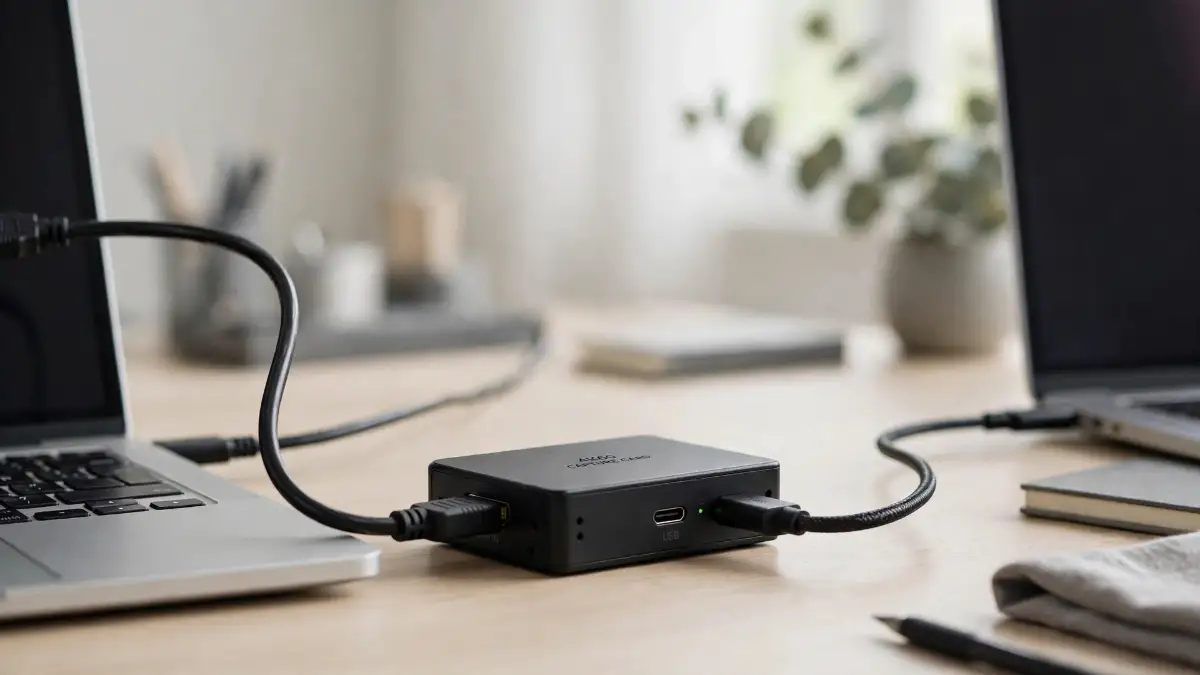 So who should buy one? If your main PC is a gaming console or a desktop, and you want to play or stream on your laptop screen, a capture card is the right tool. If you just want more space for documents and calls, skip it. The free wireless ways give you a real extended desktop, and they cost nothing.
Make the Two Screens Feel Like One
Getting a picture on the spare laptop is only half the job. The other half is making the two screens feel like one desk, and that takes two minutes in Display settings.
Right-click on your main desktop and open Display settings. You will see two numbered boxes, 1 and 2, standing for your two screens. Drag them left and right until they match how the laptops sit on your desk. If the spare laptop is on your left, drag its box to the left. If you skip this step, your mouse will jump to the wrong side, and it will drive you mad within an hour.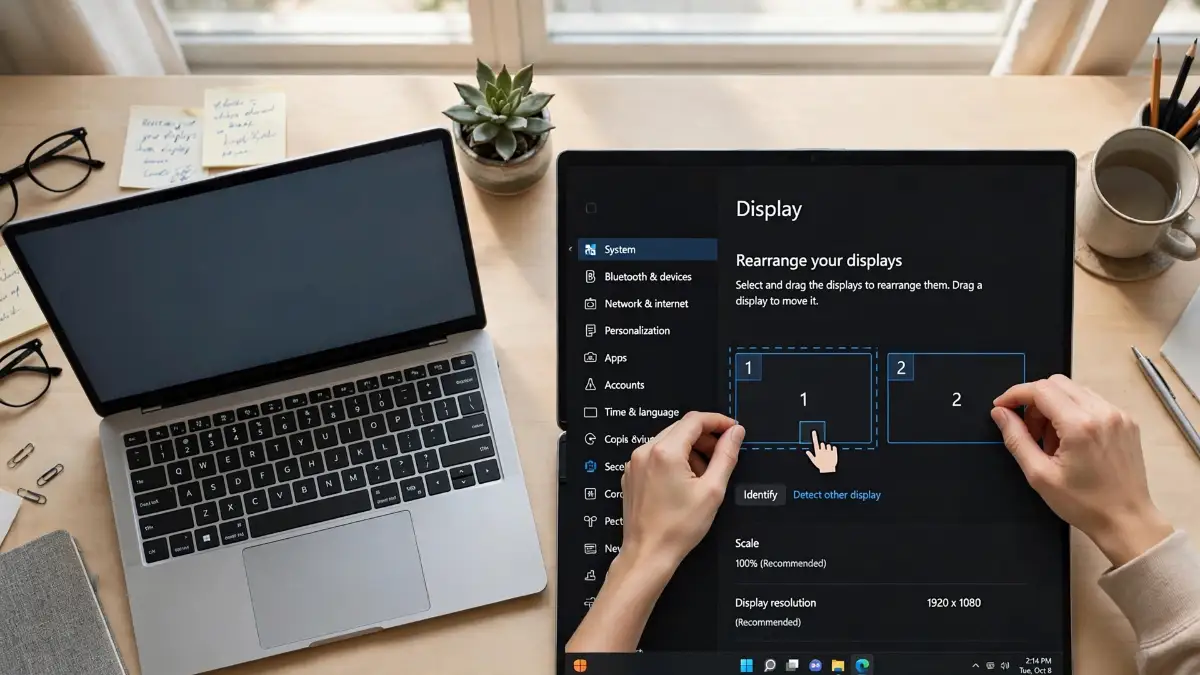 Click the box for the screen you want as your main display, then tick Make this my main display. Your taskbar and your open apps will live there. Then check the resolution on each screen. If the text on the spare laptop looks blurry or too big, the scaling is off, and my guide on how to fix dual monitor resolution and scaling issues easily shows the exact clicks to fix it.
Now the Pro Tip, and it comes from a mistake I made myself. The first week I used my spare laptop as a second screen, I left it running on battery. Halfway through a client call, it died, and my notes vanished from the screen in front of everyone. I had to pretend I was just thinking. So now I keep the spare laptop plugged in whenever it acts as a monitor, and I changed one more setting: in Power settings, I set closing the lid to Do nothing. That way I can close the lid halfway to save desk space without the screen going black. A second screen eats battery fast, and if you want to know why, my post on why your laptop battery drains so fast and how to slow it down explains the biggest drains in plain words.
Watch the whole setup in under eight minutes — this video walks through dual monitors on Windows and shows the laptop-as-second-screen part at the end, so you can copy each click as you watch.
What About a Mac?
If your main computer is a Mac, the steps are different but the idea is the same. A Mac can send its screen to another Mac with AirPlay, and it can use an iPad as a second screen with Sidecar. A Windows laptop cannot act as an AirPlay receiver on its own, so for a Mac and a Windows laptop together, you need a third-party app like Duet Display or SpaceDesk, and SpaceDesk has no Mac viewer, so Duet is the simple answer there.
The Inquirer guide to using a laptop as a second monitor covers both the Windows and the Mac steps side by side, and it is a good page to keep open while you set yours up. Whichever system you use, the rule stays the same: try the free built-in way first, and only spend money when you know exactly what the free way cannot do for you.
You have the picture on the second screen now, and the hard part is done. But a second screen that lags, dies halfway through a call, or keeps popping up notifications is worse than no second screen at all. So this part is about making the setup feel fast, quiet, and steady, day after day.
The Small Settings That Make a Second Screen Feel Fast
Give the Second Screen the Fastest Link You Have
A wireless second screen is only as good as the link between the two laptops. If your Wi-Fi is weak, the picture will lag, and no app can fix that. So start with the link, not the app.
If your router has a 5 GHz network, use it for both laptops. The 5 GHz band is faster and less crowded than 2.4 GHz, and the difference shows up right away on a second screen. On 5 GHz, the delay is small enough that you will forget the picture is travelling through the air. On 2.4 GHz, you will feel it every time you drag a window.
If you can, use a cable instead. An Ethernet cable between the two laptops, or from each laptop to your router, is the steadiest link you can get. There is no interference, no neighbour's network in the way, and the picture stays smooth even when someone else starts streaming a video. SpaceDesk works beautifully over Ethernet, and it is the setup I use when I have a long call and I cannot afford a freeze.
And one small habit helps a lot. Before a big call, pause any big downloads on both laptops. A download running in the background eats the same Wi-Fi your second screen needs, and that is often the real reason the picture stutters.
Put the Right Jobs on the Right Screen
Not every job belongs on the second screen. The spare laptop is great for things that barely move: your notes, your chat window, your email, your calendar, and your music. These windows sit still, so the small wireless delay never shows.
Keep the fast-moving stuff on your main screen. Video calls, games, video editing, and design work need instant response, and they look their best on the screen that is wired straight into your main PC. If you put a video call on the spare laptop, your own face will lag a beat behind your voice, and everyone on the call will notice.
Here is a trick that helps older spare laptops a lot. Lower the resolution on the spare screen by one step in Display settings. The picture gets a little softer, but the link has far less data to carry, and the screen feels twice as fast. For notes and chat, you will never miss the missing pixels.
Silence the Spare Laptop
Your spare laptop has a life of its own, and it will remind you of it at the worst moment. Its own notifications, its own update prompts, and its own chat apps will pop up right over the notes you are reading. So before you start work, silence it.
Close every app on the spare laptop that you do not need for the job at hand. Turn on Do Not Disturb or Focus mode. And turn off the notification sounds, because a spare laptop that dings every five minutes is not a second monitor, it is a distraction machine.
I also turn off the spare laptop's own Wi-Fi hungry apps, like cloud backup and automatic updates, while I work. They can run at night. During the day, the Wi-Fi belongs to my second screen.
Keep the Old Laptop Cool
An old laptop working as a second screen runs warm, because its screen, its Wi-Fi, and its processor are all busy at once. Heat makes it slow down, and a slow spare laptop makes a laggy second screen. So give it air.
Set the spare laptop on a hard, flat surface, never on a bed or a cushion. Keep its vents clear, and do not stack books against its sides. If the fan sounds like a small jet engine every time you connect, open it up and clean the dust out. My guide on extending laptop longevity by cleaning internal fans and heat sinks like a pro shows how to do it safely, and a clean fan can make an old laptop feel years younger.
And if the spare laptop is very old, prop up its back edge on a small book or a laptop stand. The extra airflow under it is free, and it drops the temperature more than you would think.
Add a Third Screen From a Tablet
Once you have two screens working, you may start looking at your tablet the same way I did. A tablet makes a fine third screen for one job: your chat window, your to-do list, or your music controls. It sits to the side, it sips battery, and it never gets in the way.
On an iPad, Sidecar turns it into a real second screen for a Mac, with no app to install. On Windows, Duet Display does the same job for a tablet and a laptop together. And if you ever want to turn that tablet into a small work machine of its own, my post on how to turn your iPad into a laptop for daily productivity shows the setup I use.
Three screens sounds like too much, and for most days it is. But on a busy day, when you have a call, a document, and a chat all open at once, that little third screen earns its place.
Speed Up the Old Laptop Before You Blame the Wi-Fi
Sometimes the second screen lags, and the Wi-Fi is innocent. The spare laptop itself is just slow. Old laptops collect startup apps, full drives, and background programs like dust, and all of them steal the power your second screen needs.
Before you blame the network, spend ten minutes on the spare laptop. Turn off the apps that start with Windows. Uninstall the programs you never open. And free up some drive space, because a nearly full drive makes everything slow. My guide on how to make your computer fast again without spending money walks through the exact steps, and they work just as well on an old laptop as on a new one.
A clean old laptop makes a far better second screen than a cluttered one. And once it is clean, it stays fast for months, because a second screen asks very little of it.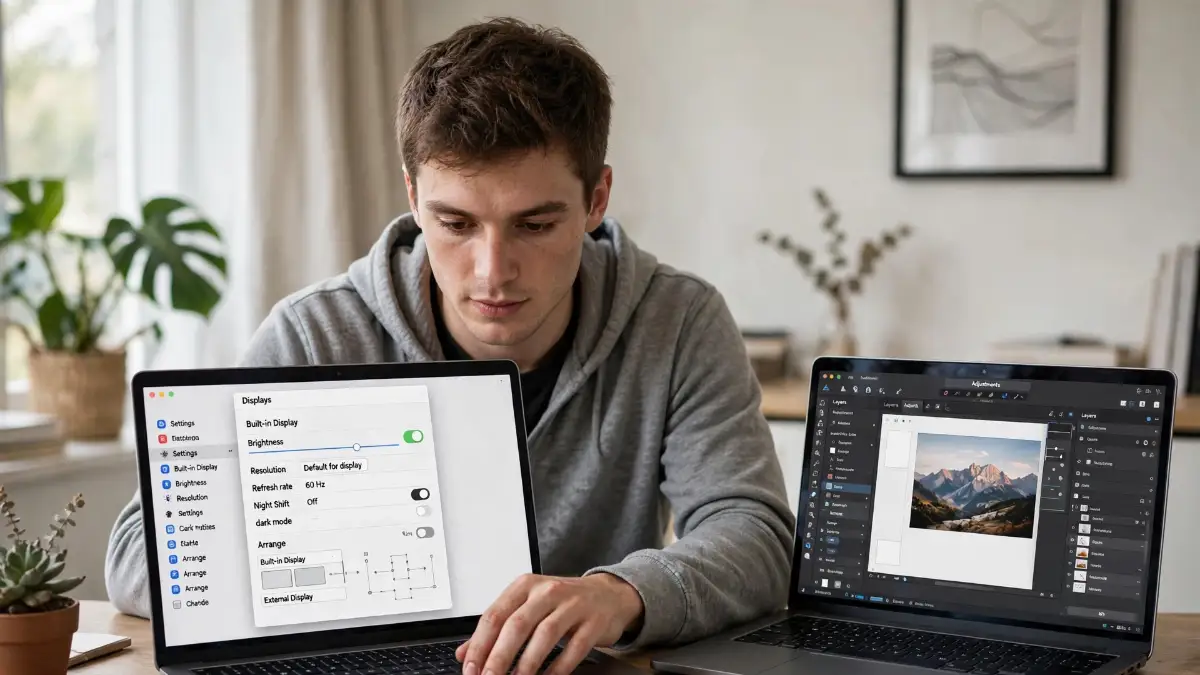
The Mistakes That Ruin a Good Second Screen
Buying the Cable First
Try the free wireless way first. It takes five minutes and costs nothing. If it works, you just saved the price of a cable and a capture card. Only spend money when you know exactly what the free way cannot do for you.
Trusting a Crowded 2.4 GHz Network
The second mistake is trusting the wrong Wi-Fi band. A 2.4 GHz network reaches further through walls, so your laptops will happily connect to it. But it is slow and crowded, and every neighbour's network, microwave, and baby monitor shares it.
If your second screen freezes every time someone microwaves lunch, switch both laptops to 5 GHz. And if your router sits two rooms away, move closer or use an Ethernet cable. A second screen on a weak link is a headache, not a helper.
Leaving the Spare Laptop on Battery
Keep it plugged in whenever it acts as a monitor. And set closing the lid to Do nothing in Power settings, so the screen stays alive even when you fold the lid halfway down. These two settings take thirty seconds, and they save you from the most embarrassing freeze of your week.
Picking Mirror Instead of Extend
The fourth mistake is a single wrong click. When Windows asks how to use the second screen, it offers Duplicate and Extend, and they sound similar. They are not.
Duplicate shows the same picture on both screens, which is what you want for a presentation. Extend gives you extra space, which is what you want for work. If your spare laptop just shows a copy of your main screen, press the Windows key + P again and pick Extend. That one click is the whole difference between a mirror and a real second monitor.
Downloading Random Monitor Apps From Shady Sites
The last mistake is the one that can hurt you most. When the free ways fail, people search for any app that promises a second screen, and they download the first result. Some of those apps are fine. Some are not.
Only download display apps from their official sites or from the Microsoft Store. SpaceDesk comes from spacedesk.net, Duet Display comes from duetdisplay.com, and anything else should make you stop and check. A free app from a strange site can carry junk you do not want, and a second screen is not worth a sick computer. If an app asks you to turn off your antivirus to install it, close the page and walk away.
Your Two-Screen Desk Starts Tonight
Here is your final checklist. Run through it tonight, and by tomorrow morning you will have a second screen that actually helps you work.
- Check the ports: your laptop HDMI port sends video out, it cannot take video in.
- Try the free way first: Wireless Display on, Windows key + K, pick Extend.
- Use the fast link: 5 GHz Wi-Fi or an Ethernet cable, never a crowded 2.4 GHz network.
- Keep it plugged in: the spare laptop stays on power, and closing the lid does nothing.
- Arrange the screens: drag the numbered boxes in Display settings to match your desk.
- Silence the spare laptop: close its extra apps and turn on Do Not Disturb.
I still remember the evening I finally got my two laptops working together. I put my notes on the old one, my work on the new one, and I finished a report in half the time it used to take me. My desk did not get bigger, but my work felt lighter. Your spare laptop is sitting there right now, waiting for the same job. Give it five minutes tonight, and tomorrow you will wonder how you ever worked with one screen.
Questions Everyone Asks About a Second Laptop Screen
Can I use a laptop as a second monitor with just an HDMI cable?
No, not with a plain cable. The HDMI port on nearly every laptop only sends video out, so two laptops connected by HDMI cannot see each other. You need a wireless method like Windows Wireless Display or SpaceDesk, or a capture card if you want a wired link.
Will the second screen lag?
A little, yes, and that is normal for a wireless screen. On a 5 GHz network or an Ethernet cable, the delay is so small you will not notice it while writing, browsing, or taking calls. It only becomes a problem for fast games or video editing, and those belong on your main screen.
Does this work with a Mac?
Yes, but the steps are different. A Mac can use another Mac as a second screen with AirPlay, and it can use an iPad with Sidecar. A Windows laptop cannot act as an AirPlay screen on its own, so for a Mac and a Windows laptop together, Duet Display is the simple answer.
Can I use a really old laptop as a second monitor?
Yes, and this is the best job for an old laptop. SpaceDesk has a viewer that runs on Windows 7 and 8, so even a ten-year-old laptop can act as a second screen. Just keep it plugged in, keep it cool, and use it for notes, chat, and email rather than video.
Will using my laptop as a second monitor hurt its battery or screen?
It will drain the battery fast, because the screen, the Wi-Fi, and the processor all work at once. That is why you should keep it plugged in while it acts as a monitor. As for the screen itself, showing a still desktop all day does not harm it, and you can lower the brightness a little to keep it cool.
Disclaimer: This guide shares general setup steps for using a laptop as a second monitor. Every laptop is different, so check your own model and your Windows or Mac version before you change settings or install any app. If a step does not match what you see on your screen, check the official support page for your device. This guide does not replace the manual that came with your laptop.