The Frustrating Reality of a Lagging Computer
"Nothing kills your focus faster than a laptop that decides to freeze right when you have a deadline. I've spent hours staring at that annoying spinning circle, wondering if I should just buy a new machine. But before you spend $1000 on a new PC, let me show you how I fixed mine using a few simple tweaks that actually work. You don't need to be a tech genius to get your speed back."
Suddenly, my mouse cursor turned into that tiny, spinning blue circle. I clicked once, then twice, but nothing happened.
My heart started racing because I knew what was coming next. The screen turned white, and the words "Not Responding" appeared at the top.
I felt so much anger and stress in that moment. I just wanted to throw the whole laptop out of the window.
It felt like my computer was working against me on purpose. This wasn't the first time it happened, and I knew it wouldn't be the last.
Most of us face this struggle every single day. We buy a new computer, and for the first few months, it runs like a dream.
It starts up in seconds, and apps open instantly. But after a year or so, things start to change for the worse.
You might notice that it takes longer to boot up in the morning. Or maybe your browser freezes when you have more than three tabs open.
This slow performance affects more than just your work. It ruins your mood and kills your creativity.
You start avoiding tasks because you know the computer will give you a hard time. You stop editing photos or playing games because the lag is too much to handle.
We wonder if we need to spend a lot of money on a brand-new device. But the truth is, you can often fix these problems yourself.
Understanding why your system is dragging is the first step toward freedom. You deserve a computer that keeps up with your bright ideas.
| Common Myth | The Real Fact |
| :--- | :--- |
| Deleting photos makes Windows faster. | False. Photos only take space; they don't slow down the CPU. |
| You need expensive "Cleaners." | False. Windows has built-in tools that do a better job for free. |
| Leaving your PC on 24/7 is fine. | False. A restart clears temporary memory (RAM) glitches. |
| More RAM always means more speed. | Partly true. It helps with multitasking, not necessarily raw speed. |

"### 🚀 The 5-Minute Speed Up Checklist
If you're in a hurry, do these four things right now to see an immediate boost:
- Kill the Startups: Open Task Manager (Ctrl+Shift+Esc) and disable apps you don't need at boot.
- Clear the Junk: Run 'Disk Cleanup' and delete 'System Files' like old Windows updates.
- Check Your Tabs: Close those 20+ browser tabs or use an extension to 'sleep' them.
- Change Power Mode: Set your Windows Power Plan to 'Best Performance' instead of 'Balanced'."
Why Your Computer Is Losing Its Speed
Your operating system is like a busy office. Over time, papers pile up, the trash can overflows, and people start getting in each other's way.
One of the biggest reasons for a slow PC is background processes. Many apps think they are the most important thing on your computer.
They set themselves to start automatically the moment you turn on your machine. You might not see them, but they are eating up your memory (RAM).
Think of RAM like your physical desk space. If your desk is covered in junk you aren't using, you have no room to work on your current project.
Another big issue is fragmented files and cluttered hard drives. As you save and delete files, your computer scatters pieces of data all over the drive.
When it needs to read a file, it has to look in ten different places to find all the parts. This hunt takes time and slows everything down.
Also, your system keeps "temporary" files that are never actually deleted. These files grow and grow until they take up gigabytes of space.
When your hard drive is almost full, the operating system has no "breathing room." It needs empty space to move files around while it works.
If that space is gone, your computer starts to crawl. It is like trying to organize a closet that is already packed to the ceiling.
Stopping Apps from Stealing Your Power
The first thing you should do is check your Startup Apps. This is a very easy fix that gives instant results.
On Windows, you can right-click your taskbar and open the Task Manager. Look for the "Startup" tab and see what is listed there.
You might see things like Spotify, Steam, or printer software. Do you really need these to start every time you turn on the PC?
Probably not. You can right-click them and choose "Disable."
Don't worry, this won't delete the app. It just means the app waits for you to open it manually.
Pro Tip: I used to think I needed every single helper app running just in case. One day, I disabled 15 startup items and my boot time dropped by 30 seconds! It made me realize how much "digital weight" I was carrying for no reason.
If you want to see exactly how this helps, watch this short guide below. It shows the process step-by-step so you don't get lost.
Watch this to see how to manage your startup apps like a pro!
Giving Your Hardware a Fresh Start
Sometimes the software is fine, but the hardware is struggling. Heat is a silent killer of computer speed.
Inside your computer, the CPU and GPU work very hard. This work creates a lot of heat.
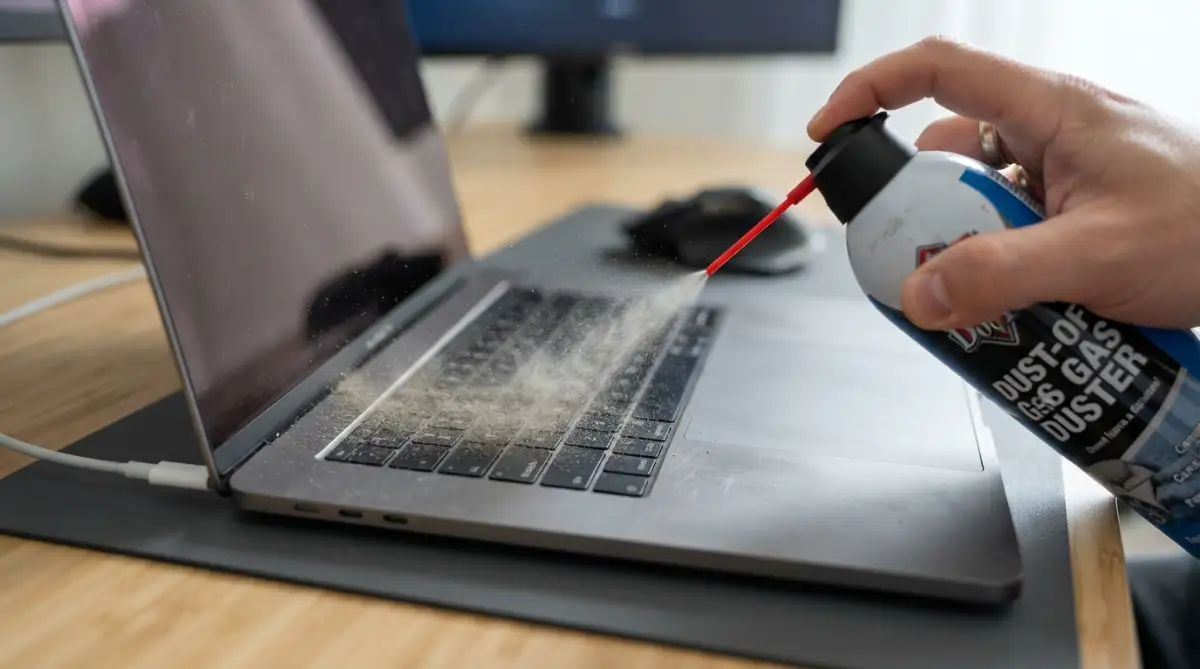
Your computer has fans to blow this heat away. But over time, dust builds up inside the vents.
If the heat cannot escape, the computer slows itself down to stay cool. This is called "thermal throttling."
It is like trying to run a race while wearing a heavy winter coat in the summer. You will naturally slow down so you don't overheat.
Take a can of compressed air and blow out the dust from your vents. You might be surprised at how much dirt comes out of there.
Another hardware fix is looking at your Storage Drive. If you are still using an old-fashioned Hard Disk Drive (HDD), you are missing out.
HDDs use spinning platters to read data, which is very slow. Upgrading to a Solid State Drive (SSD) is the best way to maximize computer speed.
An SSD has no moving parts and can read data almost instantly. It is the single best upgrade you can give an old machine.
"Quick Cost-Benefit Check:
If you are wondering whether to fix or buy, look at these numbers. A 500GB SSD costs about 40−
40−
60. Adding 8GB of RAM costs around $30. For less than $100, you can make a 5-year-old laptop feel like it just came out of the box. I always tell my friends: fix the hardware before you trash the whole system."
Cleaning Out the Digital Junk
Your operating system stores a lot of logs and cache files. These are meant to help things load faster, but sometimes they do the opposite.
When a cache gets too big or becomes corrupted, it confuses the system. You should use a tool like "Disk Cleanup" to wipe these away.
Just type "Disk Cleanup" into your search bar and run it. Make sure to click on "Clean up system files" to get the deep stuff.
This will remove old update files that are just taking up space. Sometimes these files can be 10GB or more!
Imagine getting 10GB of your hard drive back in just two minutes. It feels like your computer can finally breathe again.
You should also look at your Downloads folder. Most of us download files, use them once, and forget about them.
These files sit there and clog up your drive. Make it a habit to empty your downloads and your recycle bin once a week.
The Mystery of Browser Extensions
We spend most of our time in a web browser like Chrome or Edge. If your browser is slow, your whole computer feels slow.
Many people install dozens of browser extensions. Some are for coupons, some are for ad-blocking, and some are just for fun.
Every single extension uses a bit of your computer's memory. If you have twenty extensions, your browser becomes a memory hog.
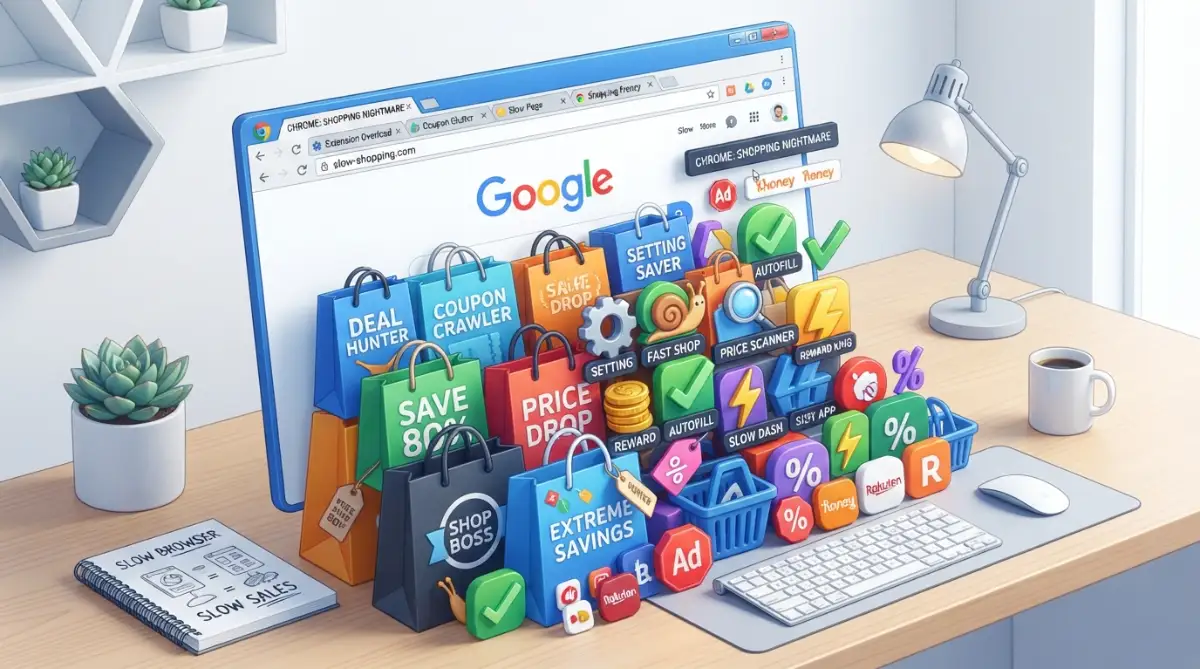
Go into your browser settings and look at your active extensions. Delete the ones you haven't used in the last month.
You will notice that websites load faster and your computer stays cooler. It is a small change that makes a big impact on your daily life.
Updating Your Drivers the Right Way
Drivers are the "translators" between your software and hardware. If a driver is old, the software doesn't know how to talk to the hardware efficiently.
Windows usually handles updates for you, but it doesn't always get it right. Specifically, check your Graphics Drivers.
If you play games or edit videos, a new graphics driver can boost performance. Go to the website of your hardware maker to get the latest version.
Avoid using those "Free Driver Updater" programs you see in ads. Most of them are junk and might even contain viruses.
Always get your updates directly from the source. It is safer and ensures your system stays stable.
Dealing with Visual Effects
Modern operating systems look beautiful with their shadows and animations. But these "eye candy" features require power to run.
If you have an older computer, these animations can cause lag. You can turn them off to gain a bit of extra speed.
In your settings, search for "Adjust the appearance and performance of Windows." You can select "Adjust for best performance."
This will make your windows look a bit more basic. But the trade-off is a much snappier feeling when you open folders or move windows.
It turns your computer from a slow, pretty machine into a fast, functional tool. For many people, this speed is worth losing a few shadows.
Why RAM Still Matters Today
Many people ask if they should buy more RAM. If your computer has 4GB of RAM, you are likely struggling.
Modern apps and websites use a lot of memory. Even opening a few tabs in Chrome can fill up 4GB.
When your RAM is full, the computer starts using your hard drive as "Virtual Memory." Since hard drives are slower than RAM, everything lags.
Upgrading to 8GB or 16GB of RAM is a very cheap way to fix this. It allows you to multitask without the "spinning circle of death."
If you can't upgrade your hardware, you must be careful with multitasking. Close apps as soon as you are done with them.
Don't leave a heavy app like Photoshop open if you are just browsing the web. Be mindful of your "desk space" and keep it clean.
The Role of Malware and Viruses
Sometimes, a slow computer is a sign of a deeper problem. Malware can run in the background without you ever knowing.
It might be using your computer to mine digital currency or send spam emails. This steals all your processing power for someone else's gain.
Use a trusted antivirus to run a full system scan. Even the built-in Windows Defender is very good these days.
Make sure it is updated and let it check every corner of your drive. If it finds something, let it clean it up immediately.
Keeping your system clean of "digital pests" is vital for long-term speed. It also keeps your personal data safe from hackers.
Checking for Windows Update Errors
Sometimes a Windows Update gets stuck in a loop. It tries to install, fails, and then tries again.
This process runs in the background and uses up your CPU. If your fans are spinning loudly for no reason, check your update settings.
If an update is stuck, you can use the "Update Troubleshooter." This tool finds the error and resets the update process for you.
Once the update finally finishes, your CPU usage will drop back to normal. It is a common bug that many people overlook.
Always keep your system updated, but make sure the updates actually finish. A half-installed update is a recipe for a slow computer.
Final Thoughts on Maintaining Speed
Maximizing computer speed isn't a one-time job. It is a habit you need to build over time.
Think of it like cleaning your house. If you do a little bit every week, it never gets messy.
But if you wait a year, you have a huge disaster on your hands. Spend five minutes a week cleaning your files and checking your startup apps.
This small effort will save you hours of frustration in the long run. You will feel more productive and much happier at your desk.
Your computer is a powerful tool. With these simple steps, you can make sure it stays that way.
Don't let a slow OS hold you back from your goals. Take control of your technology and get back to what you do best.
Secrets to Squeezing Out Every Drop of Speed
Now that you have cleaned up the basics, it is time to look at the hidden settings. These are the things that most regular users never touch.
One of the best things I ever did was change my Power Plan. Most computers are set to "Balanced" by default to save electricity.
While that is good for the environment, it limits how fast your processor can think. If you switch your settings to "High Performance," you will feel an immediate change.
It is like taking the speed limiter off a sports car. Your CPU will stay at a higher clock speed, making every click feel much snappier.
Just remember, if you are using a laptop, this will drain your battery faster. I usually keep it on High Performance only when I am plugged into the wall.
Another secret is managing your Virtual Memory. Think of this as a backup for your RAM.
When your real RAM fills up, the computer uses a part of your hard drive as temporary memory. If your hard drive is an SSD, this works very well.
You can manually set the size of this "Pagefile" in your advanced system settings. Setting it to a fixed size keeps the computer from resizing it constantly, which saves power.
You should also look into OS Debloating. Many operating systems come with apps you will never use, like pre-installed games or news tools.
These apps often have tiny processes that run in the background. Removing them or disabling them makes the whole system feel lighter.
I once found that a "Weather" app was using 5% of my CPU even when I wasn't looking at it. I deleted it immediately and my computer finally stopped lagging.
While you are fixing your computer speed, don't forget your health too. Long hours at the screen can cause eye strain from screens, so make sure your display settings are comfortable.
Keeping your system running fast is all about balance. You want the power when you need it, but you don't want to waste resources on junk.
If you want to keep your hardware running well for years, check out these battery health habits for your devices. Even though that guide is for phones, the logic of keeping electronics cool and happy applies to your laptop too.
Giving Your Hardware More Breathing Room
We talked about dust in the first part, but let's go deeper into cooling. If your computer stays hot for a long time, the internal parts can get damaged.
Most modern processors have a safety feature called why computers overheat. This slows down the chip so it doesn't melt.
If you hear your fans screaming like a jet engine, your computer is begging for help. Try using a laptop cooling pad if you work on a bed or a soft surface.
Soft surfaces block the air vents on the bottom. Always try to work on a hard, flat desk to let the air flow freely.
Also, consider the Storage Drive's health. If your drive is more than 90% full, the operating system can't move files around easily.
I always try to keep at least 20% of my drive empty. This gives the system enough "scratch space" to do its job without getting stuck.
If you are running out of space, you might want to look at cloud storage as a way to store your big files. Moving photos and videos to the cloud is a great way to keep your local drive fast.
Another trick is to disable "Search Indexing" for folders you don't use often. Windows is always scanning your files so it can find them quickly later.
This scanning uses a lot of disk power. If you know where your files are, you don't need the computer to scan them every five minutes.
Go to your "Indexing Options" and remove the folders that don't need constant watching. You will notice your hard drive activity light blinks much less often.
It is these small, advanced tweaks that separate a fast computer from a slow one. You don't need to be a genius to do them; you just need a little bit of patience.
The Trap of "Free" Optimization Software
I have seen many people make a big mistake. They get frustrated with a slow PC and search for "Free PC Speed Booster."
They download a program that promises to fix everything with one click. Most of these programs are actually worse than the problem itself.
They often come with "bloatware" or apps that track your browsing habits. Some of them even have risks of registry cleaners that can break your system.
Microsoft themselves have said they don't support these registry cleaning tools. The registry is a very sensitive database of settings.
If an automated tool deletes the wrong line, your computer might not even start the next day. I learned this the hard way years ago when I had to reinstall my whole OS because of a "speed up" tool.
Please, stay away from these "magic" fixes. The best way to speed up a computer is to use the tools already built into Windows.
Another common error is ignoring System Updates. I know they can be annoying and pop up at the worst times.
But updates often include performance patches. Developers find bugs that make the system slow and they send out a fix.
If you skip these updates for months, your computer stays stuck with those bugs. Just set your updates to run at night while you are sleeping.
That way, your computer stays fast and secure without bothering you during the day. Keeping your system updated is a big part of securing your home network from unwanted visitors too.
Don't Forget the Basics of Hardware Age
We often expect our old computers to run like new machines. But software gets heavier every single day.
A website you visit today uses more memory than the same website did five years ago. Sometimes, your hardware just can't keep up anymore.
If you have tried every software fix and it is still slow, look at your drive type. If you still see a "C:" drive that is a hard disk, you are in trouble.
I strongly suggest learning about the differences between SSD and HDD before you buy a new computer. Replacing an old HDD with a cheap SSD can make a 10-year-old laptop feel brand new.
Many people throw away perfectly good computers just because the hard drive is slow. Don't be one of them.
A small investment in a piece of hardware is much cheaper than buying a whole new laptop. It is also better for the planet to keep using your current device.
Lastly, avoid the mistake of keeping too many Chrome tabs open. We all do it, but every tab is like a small app running in your RAM.
If you have 50 tabs open, your computer is struggling to keep them all "alive" in the background. Use a "Tab Suspender" extension or just bookmark the pages you want to read later.
Keeping your workspace clean is just as important as keeping your software clean. A cluttered browser leads to a cluttered and slow system.
Your Action Plan for a Faster Computer
You have learned a lot today about how to maximize computer speed. The most important thing is to actually do these steps.
I know it can feel like a lot of work. But if you take just thirty minutes today, you can change your experience forever.
Start with the startup apps. Then move to the disk cleanup.
Check your power settings and make sure your computer isn't "sleeping" on the job. Blow the dust out of your vents and give your hardware some fresh air.
If you stay consistent, you will never have to deal with that annoying spinning circle again. You will be able to work, play, and create without any lag.
I used to spend my mornings waiting for my PC to start while I drank my coffee. Now, my computer is ready to go before I even take my first sip.
It feels amazing to have a tool that actually works with you. I want you to feel that same sense of relief and power.
You don't need a new computer to be productive. You just need to take care of the one you already have on your desk.
I really hope these tips help you get your speed back. I have seen these methods work for hundreds of people, and I know they will work for you too.
Go ahead and try one of these steps right now. Your faster computer is waiting for you!
Common Questions About Computer Speed
Does restarting my computer actually help?
Yes, it really does. When you restart, it flushes the RAM and stops all the tiny processes that might have gotten stuck. Think of it like a quick nap for your computer that helps it wake up fresh.
Why is my computer fast after a restart but slow an hour later?
This usually means you have an app with a "memory leak." This is when an app starts using RAM but forgets to give it back to the system. You can use the Task Manager to see which app is growing bigger and bigger over time.
Is it safe to delete temporary files?
It is 100% safe to delete temporary files using the "Disk Cleanup" tool. These files are only meant to be used for a short time. Your computer will recreate them if it ever needs them again, so you aren't losing anything important.
Will adding more RAM make my internet faster?
No, RAM helps your computer handle more apps at once. It won't change your internet speed. However, it can make your browser feel faster because it can load more website data into the memory without lagging.
Can a virus make my computer fans spin fast?
Yes, some viruses use your CPU to do heavy work in the background. This creates heat, which makes the fans spin. If your computer is loud even when you aren't doing anything, you should run a virus scan immediately.
Disclaimer: All information provided here is for educational purposes. Modifying system settings or hardware carries some risk. Always back up your important files before making major changes to your operating system or hardware components. SmartInfo36 is not responsible for any data loss or hardware damage.