Why Your Home Internet Might Be More At Risk Than You Think
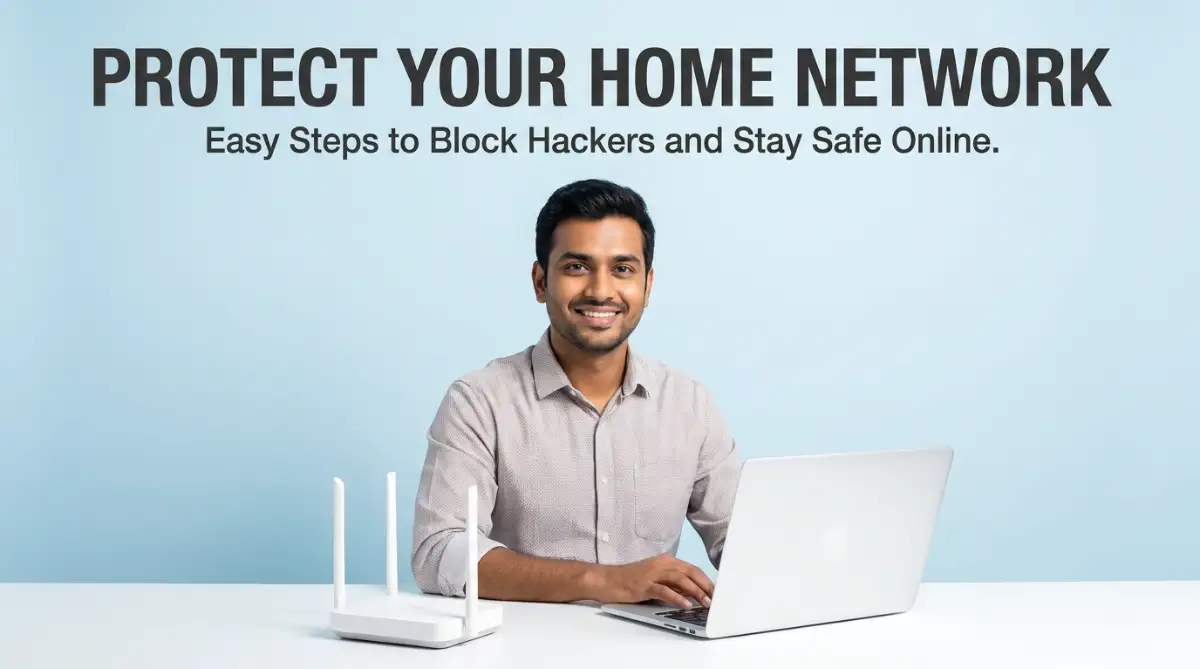
Your Wi-Fi is the front door to your digital life, but right now, that door might be wide open. I used to think a simple password was enough to keep hackers out until I saw five random devices sucking up my data. In this guide, I’ll show you the exact steps I took to lock down my network and why most people are doing it completely wrong. Let’s make sure your private photos and bank details stay yours.
I felt so frustrated that I decided to log into my router settings just to see what was going on. My heart dropped when I saw the list of "connected devices" on my screen.
There were five devices I didn’t recognize at all. Someone was sitting outside my house, or maybe it was a neighbor, using my data to download huge files.
Many of us set up our internet, plug in the router, and never think about it again. We assume that because we have a password, we are totally safe from the world.
The truth is, hackers and even tech-savvy neighbors are getting better at finding ways in. If they get into your Wi-Fi, they might see your bank details, your private photos, or your work emails.
This isn't just about slow internet speed anymore. It is about your personal safety and your family’s privacy in a world where everything is connected.
I spent the next few hours learning exactly how to lock my doors digitally. It wasn't as hard as I thought it would be, but it did require some specific steps that most people miss.
If you feel worried about your privacy or notice your speeds are dropping for no reason, you are not alone. Most people feel overwhelmed by tech settings and confusing menus.
I want to show you exactly how I fixed my network so you can sleep better knowing your data is locked away from prying eyes. Let's make sure your home stays your private sanctuary.
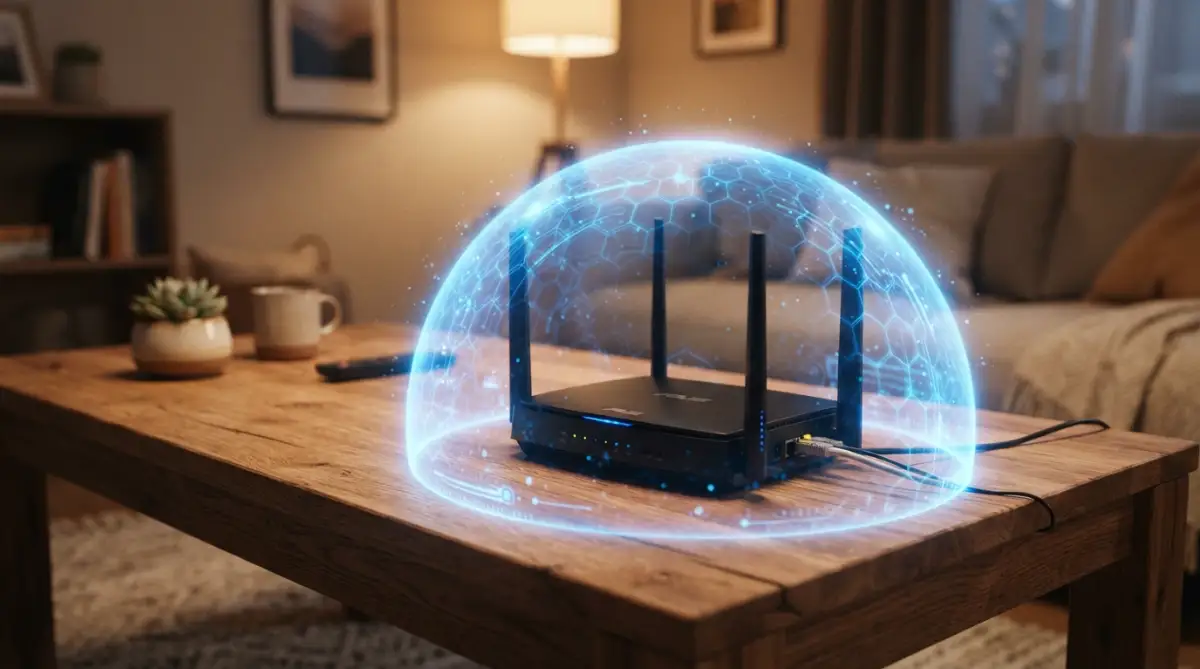
Quick Wins for a Faster & Safer Network
- Update Now: Change your router's default "admin" login—it's the first thing hackers try.
- The Guest Rule: Keep your smart bulbs and guests on a separate "Guest Network" to protect your main computer.
- WPA3 is King: Always choose WPA3 or WPA2 encryption in your settings for the best shield.
- Location Matters: Move your router to the middle of your home to stop your signal from leaking to the street.
Start by Changing Your Admin Login Details Right Away
The biggest mistake I made was leaving my router’s "admin" settings exactly how they came from the factory. Most routers use the word "admin" for both the username and the password.
If a hacker gets onto your network, the first thing they will try is that default login. If they get in, they own your entire internet connection.
You need to log into your router's web interface and change these credentials immediately. Pick a username that isn't your name or something obvious.
For the password, don't just use your birthday or "password123." Use a mix of letters, numbers, and symbols that only you would know.
I used to think this step was too much work, but it actually takes less than two minutes. It is the single most effective way to keep strangers out of your system.
Once you change this, even if someone figures out your Wi-Fi password, they won't be able to change your settings or lock you out.
Create a Strong and Unique Wi-Fi Password
We all love easy passwords because they are simple to remember. But if it’s easy for you, it’s probably easy for a computer program to guess in seconds.
Your Wi-Fi password should be long—at least 12 characters if possible. Think of a random sentence or a mix of words that don't normally go together.
Avoid using your street name, your pet’s name, or your phone number. These are the first things people try when they want to get free internet.
I personally use a password manager to keep track of mine so I don't have to memorize a bunch of random gibberish. This keeps my home much safer.
When you change your password, all your devices will disconnect. You will have to sign back in on your phones and TVs, but it’s worth the peace of mind.
If you want to see exactly how to find these settings on your specific router brand, this short video guide will walk you through the process step-by-step.
Turn on the Highest Level of Encryption Available
Encryption sounds like a big, scary word, but it just means "scrambling" your data so others can't read it. Most routers have a few options for this.
You should always look for WPA3 or WPA2 (AES). These are the most modern and secure ways to protect your wireless signals.
If your router is still using something called WEP, you need to change it right now. WEP is very old and can be cracked by a teenager with a smartphone in minutes.
Changing this setting is usually found under the "Wireless Security" tab in your router’s dashboard. It acts like a high-tech lock on your digital door.
I found that once I switched to WPA3, my connection actually felt a bit more stable. It’s a great way to ensure that only "invited" devices can talk to your router.
| Security Type | Safety Level | Should You Use It? |
| :--- | :--- | :--- |
| WEP | Very Low | No! A kid can hack this. |
| WPA2 (AES) | High | Yes, the standard for most homes. |
| WPA3 | Maximum | Best choice if your router supports it. |
Give Your Network a Name That Doesn't Give You Away
The name of your Wi-Fi is called the SSID. Most people leave it as "Linksys" or "Comcast_Guest," but this tells hackers exactly what kind of router you have.
If they know the brand and model, they know exactly which bugs or weaknesses to exploit. It’s like giving a thief the blueprint to your house.
Give your network a fun or random name that doesn't include your last name or house number. I named mine "Yellow_Banana" just to keep it totally random.
Some people think hiding the SSID (making it invisible) is a good idea. In my experience, this actually causes more connection problems than it solves.
It is better to have a visible network with a very strong lock than a hidden one that is easy to break into. A strong password is your best defense.
Keep Your Router Software Up to Date
Just like your phone or your computer, your router has an operating system called firmware. Manufacturers often find security holes and send out "patches" to fix them.
If you don't update your firmware, your router stays vulnerable to the latest hacks. Many people forget their router even exists once it's plugged in.
I make it a habit to check for updates once every few months. Some modern routers have an "Auto-Update" feature that you should definitely turn on.
Logging in and clicking "Check for Update" can save you from a lot of trouble down the road. It keeps your hardware running fast and secure.
Pro Tip: One thing I learned the hard way is to never share my main Wi-Fi password with guests or delivery people. I once gave my password to a visitor, and months later, I found their device was still auto-connecting from the driveway! Now, I always use a "Guest Network" which keeps my main files and devices completely separate and safe.
Set Up a Dedicated Guest Network
Speaking of guests, this is one of my favorite security tricks. Most modern routers allow you to create a second Wi-Fi name just for visitors.
This guest network allows people to get online, but it keeps them away from your printer, your smart home cameras, and your personal computers.
If a friend’s phone happens to have a virus or malware, it won't spread to your important devices because they are on a different "path."
I also like to set a different password for the guest network. It’s much easier to tell someone "The password is 'Guest123'" than to give away your super-secure private code.
You can even turn the guest network off when you don't have people over. This limits the "doors" that are open into your home.
Disable Remote Management Features
Many routers come with a feature that lets you change settings even when you aren't at home. This sounds cool, but it’s actually a huge security risk.
If you can access your router from the internet, so can a hacker from across the world. Unless you absolutely need this for work, turn it off.
Look for a setting called "Remote Management" or "Web Access from WAN" and make sure it is disabled. You should only be able to change settings when you are home.
I felt much safer after turning this off. Knowing that someone in another country can't even "see" my login screen is a big relief.
Most of us only need to change settings while we are sitting on our own couch anyway. Keeping things local is a smart move for privacy.
My Personal "3-Layer" Rule:
- I change my main admin password every 90 days.
- I never use my kids' names or birthdays as passwords.
- I check my "connected devices" list every Saturday morning while having coffee. If I don't recognize a device, I kick it off immediately.
Turn Off WPS for Better Protection
WPS (Wi-Fi Protected Setup) is that little button on the back of your router that lets you connect devices without typing a password. It seems helpful, right?
The problem is that the PIN system used by WPS is very easy for hackers to guess using automated tools. It’s like having a "hidden key" under your doormat.
I always recommend disabling the WPS feature in your router settings. It’s much safer to just type in your strong password manually.
It might take an extra ten seconds to connect a new device, but the added security is worth it. You don't want a "shortcut" to be the reason your data gets stolen.
I noticed that many older routers have this turned on by default. It's one of the first things I check when I help friends secure their homes.
Use a Firewall to Block Unwanted Traffic
Your router likely has a built-in firewall. Think of this as a security guard who stands at the entrance of your network and checks everyone's ID.
Make sure the "SPI Firewall" or "IPv4/IPv6 Firewall" settings are turned on. This helps block suspicious data before it even reaches your computer.
Sometimes, people turn these off because they think it slows down their gaming or streaming. In reality, modern firewalls are very fast and won't affect your speed.
I leave mine on all the time. It provides a basic layer of defense against common internet threats that are constantly scanning for open ports.
It’s an easy "set it and forget it" feature. Once it’s on, you don't have to worry about it anymore.
Control Which Devices Can Connect via MAC Filtering
Every device that connects to the internet has a unique "ID card" called a MAC address. Your router can be told to only allow specific addresses to connect.
This is called MAC Filtering. While it isn't a perfect solution, it adds another layer of work for anyone trying to break in.
I used to use this for all my devices, but it can be a bit of a hassle when you buy a new phone or have a guest over.
However, if you are very worried about security, it’s a great tool. You basically tell the router, "Only let these five specific devices talk to you."
If an unknown device tries to join, the router will kick it off immediately. It’s like having a VIP list for your Wi-Fi.
Place Your Router in a Safe Physical Location
Did you know that where you put your router in your house matters for security? If you put it right next to a window, your signal reaches far into the street.
I moved my router to the center of my home. This made my Wi-Fi signal stronger in my bedroom and weaker for people standing outside on the sidewalk.
You want your signal to stay inside your walls as much as possible. This makes it harder for strangers to even find your network in the first place.
Plus, keeping it in a central spot usually means you get better speeds for your TV and gaming consoles. It's a win-win for everyone in the house.
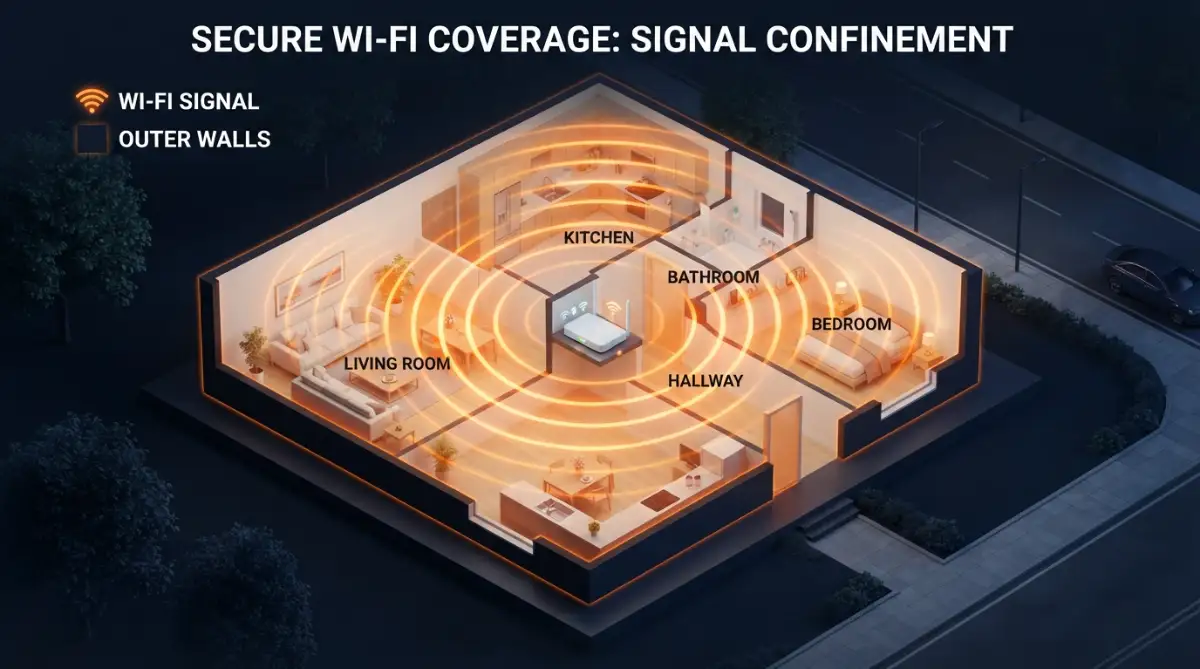
I also avoid putting it in the basement or high up on a metal shelf. Wood and drywall are fine, but metal can bounce the signal in weird ways.
Use a VPN for an Extra Layer of Privacy
While a VPN (Virtual Private Network) doesn't secure your router directly, it protects the data that travels through it. This is great for extra sensitive work.
If you are handling bank transfers or private company files, a VPN encrypts your data even further. It's like putting your letter in a locked box before mailing it.
Some high-end routers even let you install a VPN directly on the router itself. This protects every single device in your house at once.
I found this very helpful for my smart home devices that don't have their own security settings. It keeps everything under one big umbrella of safety.
Even if someone managed to "sniff" your Wi-Fi signal, they wouldn't be able to read anything because of the VPN encryption.
Periodically Review Your Connected Devices
I make it a habit to log into my router once a month just to see who is connected. It only takes a minute and gives me peace of mind.
If I see a device called "Unknown" or a brand I don't own, I immediately change my password. It’s a good way to catch problems early.
Most router apps now make this very easy. They even send a notification to your phone whenever a new device joins the network.
If your router has an app, I highly suggest downloading it. It’s much easier than using a computer to check your settings every time.
I love being able to "pause" the internet for specific devices if I think something looks suspicious. It puts the power back in my hands.
Turning Off Wi-Fi When You Are Away for a Long Time
If you are going on a long vacation, why leave your digital doors open? I started turning my router off when I leave for more than a few days.
A network that is turned off is a network that cannot be hacked. It also saves a little bit of electricity while you are gone.
When I come back home, I just plug it in, and everything works perfectly again. It’s the simplest security tip there is.
It’s also a good way to give your router a "fresh start" by clearing out its memory. Think of it like a quick nap for your tech.
This might not be practical if you have smart cameras, but if you don't, it’s a great habit to start.
Understanding the Risks of Public Wi-Fi vs. Home Wi-Fi
We often talk about how dangerous coffee shop Wi-Fi is, but your home network can be just as risky if you don't follow these steps.
The difference is that at home, you have total control. You are the boss of your own digital space.
I stopped taking my home security for granted after I realized how much of my life is online. From my bank to my memories, it’s all there.
By taking these steps, you are building a wall around your digital life. It’s about protecting your time, your money, and your family.
I hope these tips help you feel as secure as I do now. It takes a little bit of effort, but the feeling of safety is worth every second.
Taking Your Home Security to the Next Level with Expert Tricks
Once you have the basics like passwords and updates handled, it is time to look at the advanced stuff. Most people stop at the password, but hackers know how to look for other open doors.
One of the smartest things I ever did was change my DNS settings. By default, your router uses whatever your internet provider gives you.
These default settings can be slow and sometimes they don't block bad websites. I switched my router to use Google DNS or Cloudflare DNS, which are much faster and more secure.
It feels like putting a high-quality filter on your water line. It makes sure everything coming into your house is clean and safe to use.You can find these settings under the "LAN" or "Network" tab in your router dashboard. Look for the "DNS Server" section and enter the numbers 8.8.8.8 or 1.1.1.1.
Changing this can also help you avoid those annoying website downtime fixes that people often struggle with. It makes your whole browsing experience feel much smoother and more private.
Another expert secret is to use Static IP addresses for your main devices. Usually, your router gives out a random address to every phone and laptop that connects.
If you assign a specific address to your own devices, you can spot an intruder much faster. If an "unassigned" address shows up in your logs, you know someone is trying to sneak in.
I also suggest looking into something called IoT Isolation. Most of us have smart light bulbs, cameras, or even smart fridges these days.
These "smart" things are often very easy to hack because they don't have strong security software. If a hacker gets into your light bulb, they can jump to your laptop where your bank info is stored.
I set up my router to keep these smart gadgets on a totally separate sub-network. This way, they can talk to the internet, but they cannot talk to my personal computer.
It is like having a separate room for your guests where they can't see the rest of your house. It keeps your most important data in a safe, locked box.
You should also get into the habit of checking your Router Logs once a month. These logs show every single "handshake" your router makes with the outside world.
It might look like a bunch of boring text, but if you see repeated failed login attempts from an unknown source, it means someone is trying to guess your password.
Knowing this allows you to stay one step ahead. You can block those specific IP addresses and keep your network quiet and safe.
To keep your digital life truly organized, you might want to look into cloud storage security as well. Having a safe network is the first step to making sure your online files stay private.
Staying safe in the long run isn't about doing one big thing. It is about doing many small things consistently, like checking for updates and watching your logs.
I suggest setting a reminder on your phone for the first of every month. Spend just five minutes checking who is on your Wi-Fi and if any new software is available.
This simple habit has saved me from at least three different security scares over the last few years. It really pays to be a little bit proactive.
The Dangerous Mistakes That Leave Your Front Door Wide Open
I have seen so many people work hard to set up a password, only to make one tiny mistake that ruins everything. It breaks my heart to see someone lose their privacy because of a small slip-up.
One of the biggest blunders is trusting everyone with your password. We want to be nice to our neighbors, but giving them your Wi-Fi key is like giving them a key to your house.
You don't know who they are talking to or what kind of malware might be on their phones. Their "innocent" mistake can become your digital nightmare very quickly.
I remember a friend who shared his Wi-Fi with a neighbor to be helpful. A week later, his bank account was flagged for suspicious activity because that neighbor's phone had a tracking virus.
Another huge mistake is reusing your Wi-Fi password for other accounts. If a hacker gets your Wi-Fi password, the first thing they will do is try it on your email or your social media.
Always keep your network password unique. It should be a one-of-a-kind code that you don't use anywhere else in the world.
Many people also forget about physical security. They hide their digital password but leave their router sitting right next to an open window or a front door.
If someone can physically touch your router, they can press the "Reset" button. This wipes all your hard work and lets them log in with the default factory password.
Keep your router in a place that isn't easy for strangers to reach. It should be treated like a valuable safe, not just a plastic box on a shelf.
I also see people falling for private browsing myths quite often. They think that using a "private" window on their browser means their router is safe.
This is not true at all. Your router still sees every bit of data traveling through it, whether you are in "incognito" mode or not.
Security starts at the hardware level, not just the browser level. If your router is weak, it doesn't matter how many "private" tabs you have open.
Another mistake is ignoring the warning signs of a slow connection. If your internet is suddenly crawling, don't just blame your provider.
It could be a sign that someone is using your bandwidth to run a botnet or download illegal files. Being observant is your best defense against hackers.
I once ignored a slow connection for three days, thinking it was just a rainy day problem. It turns out a neighbor was using my Wi-Fi to run a massive server, which put my own data at risk.
Never assume that your network is too "boring" to be hacked. Hackers don't care who you are; they just want a connection they can use to hide their own tracks.
You are not just protecting your Netflix account. You are protecting your identity, your money, and your peace of mind.
According to the official CISA network security alerts, home routers are now a top target for international cyber-attacks. This isn't just a "tech person" problem anymore; it's a home safety problem.
If you feel overwhelmed, just take it one step at a time. Fixing even one of these mistakes today makes you much safer than you were yesterday.
Building Your Own Digital Fortress Starting Today
Securing your home network might feel like a big job, but it is really about taking control of your space. It is a wonderful feeling to know that your digital walls are strong.
We live so much of our lives online now. Our work, our family photos, and our conversations all flow through that little plastic box with the blinking lights.
Protecting it is one of the best things you can do for your family. It gives you the freedom to browse, shop, and talk without that nagging feeling of being watched.
By changing your admin password, updating your software, and watching out for common mistakes, you are already ahead of 90% of internet users.
I really hope you take these steps today. Don't wait for a slow connection or a strange login attempt to remind you that security is important.
I personally felt a huge weight lift off my shoulders once I locked down my own system. It gave me the confidence to enjoy technology without the constant fear of hackers.
You have the power to make your home a safe place for everyone who lives there. Take that first step right now and change that default password!
Clear Answers to Your Top Wi-Fi Security Questions
How often should I change my Wi-Fi password?
I usually suggest changing it every six months or whenever you feel like too many people have access to it. If you have a guest who stayed for a while and left, it is always a good idea to refresh your code.
Does hiding my Wi-Fi name (SSID) actually help?
Not really. While it makes your network invisible to average users, hackers have tools that can find hidden networks in seconds. It is much better to have a visible network with a very strong password and modern encryption.
Can someone hack my router if I don’t have a computer?
Yes, they can. Hackers can get into your network through your smartphone, your smart TV, or even your connected fridge. Every device that uses your Wi-Fi is a potential door that needs to be protected.
What should I do if I think someone is already on my Wi-Fi?
The first thing you should do is log into your router and look at the "Connected Devices" list. If you see something you don't know, change your Wi-Fi password and your admin password immediately. This will kick everyone off the network.
Is a router firewall enough to stay safe?
A firewall is a great first line of defense, but it shouldn't be your only one. You still need strong passwords and regular software updates to keep the "guards" at your digital door working correctly.
Will securing my router slow down my internet speed?
Actually, it usually makes it faster! By blocking unauthorized users, you are making sure that all the speed you pay for is used only by your own devices. Secure networks are often much more stable and reliable.
Disclaimer: This guide is for educational purposes only. While following these steps will greatly improve your security, no system is 100% unhackable. Always stay alert and monitor your accounts for any strange activity. We are not responsible for any technical issues that may arise from changing your router settings.
Personal Note: I truly believe that a safe home starts with a safe network. I spent years ignoring my router until I realized how much I was risking. Today, I am much happier knowing my family is protected, and I know you will feel that same peace of mind once you take action!