Key Takeaways: Fix Your Flickering Screen Tonight
- Turn off adaptive brightness and hold one steady level near half.
- Lock the refresh rate to 60Hz and test in Safe Mode to catch a bad app.
- Update your software, and back up your photos before any reset.
- If the flicker stays in Safe Mode, get the screen checked by an authorised repair shop.
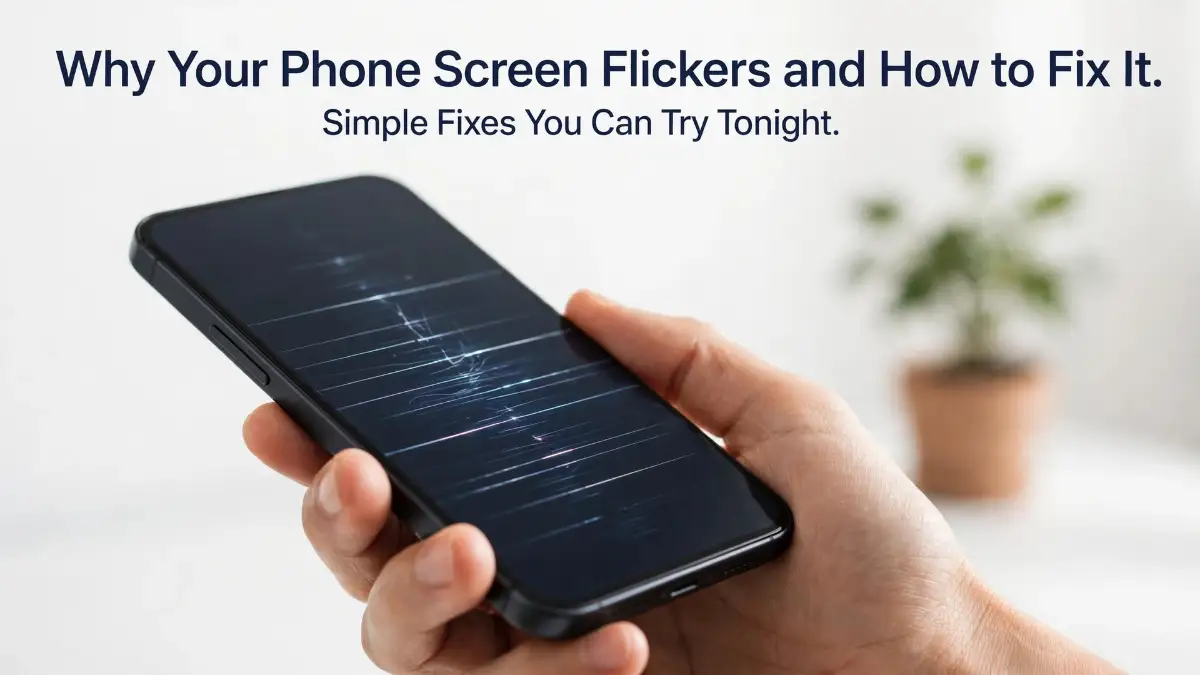
My Screen Started Blinking in the Middle of a Video Call
My phone blinked twice while I was trying to read a train time on a dark platform. I tapped the screen, and it blinked again, like it was winking at me. I did not drop it, I did not spill anything on it, and I had no idea why it had started. That night I went home and tested it the slow way, one setting at a time, until the blinking stopped.
Then it happened again, right in the middle of her sentence, and my stomach dropped. I had not dropped my phone that day, and I had not installed anything new that morning. My phone had been fine at breakfast, and now it felt like it had a mind of its own.
In a Hurry? Here Is What Actually Matters
- Turn off adaptive brightness first and set one steady level.
- Switch the refresh rate to 60Hz and restart your phone.
- Try Safe Mode — if the flicker stops there, an app is the cause.
- Update your software, and get the screen checked if it flickers in Safe Mode too.
Did I break it? That was my first thought, and it stayed with me all evening, even while I tried to act normal. Was my phone dying, and would I lose my photos, my chats, my notes, and the small work files I had never backed up?
I kept turning the screen on and off, hoping it would just stop on its own. Each blink made me more nervous, because I use my phone for almost everything in my day. I read on it, I talk to my family on it, I check my messages on it, and I pay my bills on it.
A flickering screen is not just a small glitch, and anyone who has lived with it knows that truth by heart. It hurts your eyes after a few minutes, and it breaks your focus every single time the light jumps. You start to avoid long calls and long reads, and your phone slowly turns from a helper into a source of daily stress.
The worst part is the not knowing, and that is what keeps you up at night. Is it the battery, the screen, or some app you trusted and installed long ago? You do not want to spend money on a repair, but you also do not want the screen to go black for good one morning.
How I Tracked Down the Flicker and Fixed It Step by Step
A phone screen does not flicker for one single reason, and that is why a quick guess rarely works. The cause can sit in a setting, an app, a cable, or the screen itself, and each one leaves a small clue. The trick is to test the easy things first, one by one, and to watch what changes after each test.
Give Your Phone a Fresh Start and a Close Look
Restart your phone first, and give it a full minute after it turns back on. A restart clears short glitches in the display system, and it costs you nothing at all. If the flicker is gone after the restart, it was likely a passing software hiccup, and you can carry on with your day.
While the phone restarts, look at the screen under a bright lamp. Check for thin cracks, a small dent on the edge, or a dark patch that was not there before. Even a tiny crack near the edge can break the bond under the glass and make the picture jump.
Take the case off, and peel the screen protector back for a quick test. A cheap protector can press on the glass in a strange way, and a thick case can push on the edges near the buttons. If the flicker stops with the case off, you have found your cause, and a new case or protector will cost far less than a repair.
Turn Off Adaptive Brightness and Hold One Steady Level
Adaptive brightness sounds smart, because it changes the light to match the room around you. In real life, it can fight with your screen and make the brightness jump up and down in small steps. That jumping looks a lot like flickering, and it gets worse in a dim room at night.
Go to Settings, then Display, and turn off Adaptive brightness or Auto-brightness. Set the brightness slider by hand to a middle level, near half, and leave it there for ten minutes. Watch a video or read a page, and see if the picture stays calm.
Most modern phones with OLED screens dim the light by flashing the panel on and off very fast, and this is called PWM dimming. You can read a plain guide to how PWM dimming works to see why low brightness makes the flash easier to notice. If your screen only flickers when the brightness is very low, this is likely the reason, and a slightly higher brightness often calms it right down.
Q: My screen only blinks at night. Is my phone dying? A: Not likely. Night is when your brightness drops to its lowest point, and that is when the screen flash shows up most. Lift the brightness one small step, and watch it for ten minutes before you worry.
On a Samsung Galaxy phone, the same check is listed first in Samsung's own flickering guide, right beside the advice to restart and test in Safe Mode. On an iPhone, you will find the same idea under Settings, then Display and Brightness, where Auto-Brightness lives. On a Google Pixel, look under Settings, then Display, and turn off Adaptive brightness there too.
Slow the Refresh Rate Down to 60Hz
Your phone screen redraws the picture many times each second, and that speed is called the refresh rate. Many new phones switch between 60Hz and 120Hz on their own, and each switch can change the brightness for a split second. That tiny change can look like a blink, and it shows up most when you scroll or open a new app.
Open Settings, then Display, and look for Motion smoothness on Samsung, or Smooth display on Pixel, or a Refresh rate option on OnePlus. Change it from Adaptive or High to Standard, which means a fixed 60Hz, and use the phone for a while. If the flicker fades, the adaptive switch was the troublemaker, and you can keep the steady rate until a software update fixes it.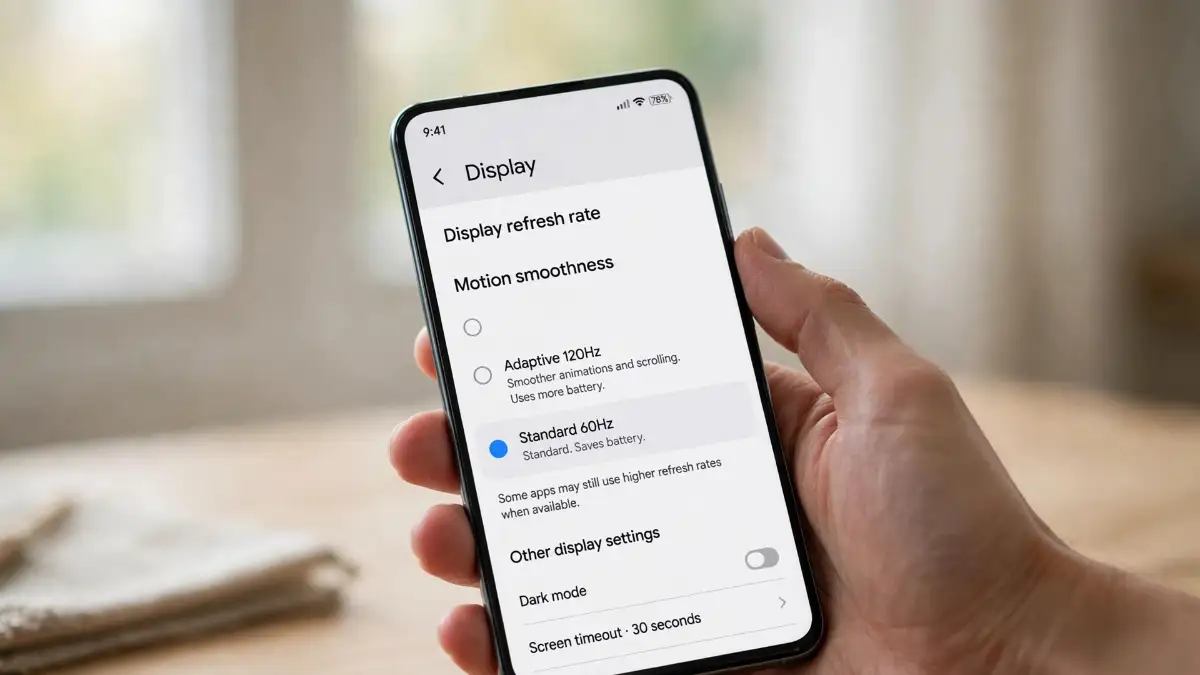 My own mistake was simple, and I still laugh at it now. I had turned my brightness to almost zero at night, and then I blamed the screen for blinking. My phone was only doing what its dimming system does at very low light, and a small lift in brightness made the flicker fade.
Update the Software and the Apps That Touch the Screen
Old software can hold a small bug in the display driver, and that bug can make the screen blink after an app opens. Phone makers fix these bugs in updates, and they often say so in the update notes in plain words. Check Settings, then Software update, and install any update that is waiting, while your phone is charged and on Wi-Fi.
Then open the Play Store or the App Store and update the apps you use most, above all the ones that change the screen. Screen filter apps, blue light apps, launcher apps, and battery saver apps can all fight with the display system. If the flicker started right after you installed or updated one app, that app goes to the top of your suspect list.
Give the phone one more restart after the updates, and watch the screen for a full hour of normal use. A fix that holds for an hour is a good sign, and a flicker that returns in ten minutes tells you to keep testing.
Put Your Phone in Safe Mode and Catch the Bad App
Safe Mode is the best test you have, and it is free and safe to try. It turns off all the apps you installed and runs only the apps that came with the phone. If the flicker stops in Safe Mode, one of your own apps is the cause, and that is good news.
My neighbour had the same blinking screen, and we found the cause in her last installed app, a free screen filter she had added the night before. She removed it, restarted once, and her screen has stayed calm since. One app can hide behind a whole week of worry.
On most Android phones, press and hold the Power button, then press and hold the Power off option on the screen until you see the Safe Mode prompt. Tap Safe Mode, and let the phone restart with a small Safe Mode mark at the bottom of the screen. Use the phone for fifteen minutes, open a few built-in apps, and watch the display.
On an iPhone, there is no Safe Mode in the same form, so you test by hand instead. Delete the most recent app you installed before the flicker started, and watch the screen for a day. Then check the next recent app, and keep going until the flicker stops for good.
If the flicker stops in Safe Mode, restart the phone to leave Safe Mode, and then remove your recent apps one by one. Start with screen dimmers, launchers, and apps that draw over other apps, and test the screen after each removal. The app that ends the flicker is the one to keep off your phone.
Free Space, Cool It Down, and Check the Charger
A phone that is almost full can act in strange ways, and the screen is often the first place you see it. When storage runs low, the system struggles to draw smooth frames, and the picture can stutter and blink. Free up some space by deleting old videos and unused apps, and keep at least a little room free for the system to breathe.
Heat can cause flicker too, and this links to the same heat problem that makes a phone overheating feel warm in your hand. If your phone feels hot, close heavy games and video apps, take the case off, and let it cool in the shade for fifteen minutes. A hot screen can dim itself to protect the panel, and that dimming can look like a flicker.
Check your charger and cable next, because a weak charger can feed uneven power while you use the phone. Try a different cable and a charger from the phone maker, and see if the flicker only shows while you charge. If your phone charging slowly at the same time, the charger is worth a closer look before you blame the screen.
If your phone also restarts on its own, read about why a phone keeps restarting, because a restart problem and a flicker problem can share the same cause. A bad app, a weak battery, or a failing board can show up as both, and fixing one often calms the other.
Watch the Screen Checks in Action
Watch the screen checks in action — this short video walks through the same brightness, refresh rate, and Safe Mode fixes, so you can follow along on your own phone.
Keep watching after the video, because the next part of this guide covers the deeper checks. The video shows the taps, and the words below explain why each tap works and when to stop.
Know When the Screen Needs a Repair Shop
Some flickers are hardware, and no setting will fix them, and it is better to learn that early. If the flicker stays in Safe Mode, on the lock screen, and right after a restart, the screen or its cable is the likely cause. If you see green or pink lines, a dark patch that grows, or a part of the screen that does not answer your touch, stop the home tests.
Do not press hard on the screen, and do not try to open the phone yourself. A phone screen is glued and wired in a tight space, and one wrong move can turn a small repair into a dead phone. Take it to a Samsung Service Centre, an Apple Store, or an Apple Authorised Service Provider, and tell them exactly when the flicker started and what you already tried.
Ask for a free check first, and ask what the repair would cost before they open the phone. A loose cable can be a cheap fix, while a full screen swap costs much more, and you deserve that number before you decide. If the phone is still under warranty, say so at once, and do not let anyone open it outside the authorised shop. You have found the cause and calmed the screen down, and now the real job starts. The next part is about keeping it calm, so the flicker does not creep back next week.
The Small Settings That Keep a Fixed Screen Fixed
A screen that stops flickering for one hour is not the same as a screen that stays calm for a month. The settings below are the habits that hold the fix in place, and they take only a few minutes to set once. Think of them as a routine for your display, the same way you charge the phone each night.
Keep Your Brightness Out of the Danger Zone
The lowest brightness levels are where most OLED flicker lives, and that is a fact worth building your habit around. When the brightness slider sits under a third, the panel flashes on and off for longer dark gaps, and your eyes catch the jump. Keep the slider near half during the day, and use a software dimmer at night instead of dropping the hardware light to zero.
On Samsung and Pixel phones, open Settings, then Accessibility, and turn on Extra Dim. Set the hardware brightness to near half, then let Extra Dim darken the picture in software for night reading. The panel stays in its calm zone, and your eyes still get a soft screen.
On an iPhone, open Settings, then Accessibility, then Display and Text Size, and turn on Reduce White Point. Slide it to a level that feels soft, and your phone will dim the white parts of the screen without pushing the panel into its flicker zone. This one change has helped many people who only saw flicker in bed at night.
Turn On the Anti-Flicker Mode Your Phone Already Has
Many Android phones now ship with a mode that fights flicker, and it hides under a few different names. On Xiaomi, OnePlus, Honor, and Realme phones, look in Settings, then Display, for Anti-Flicker Mode, DC Dimming, or High-Frequency PWM Dimming. Turn it on, and the phone will dim the screen with a steadier current instead of fast flashing.
On Pixel phones, open Settings, then Accessibility, and look for the option that adjusts brightness for sensitive eyes. It lifts the flash rate so the flicker is harder to see, and it costs you nothing to try. If your phone does not have any of these options, the Extra Dim trick above is your best friend.
Test the new mode for two days before you judge it. A screen can feel a little different at first, and your eyes need a day to settle into the new light. If the flicker is gone after two calm days, keep the mode on and stop changing settings.
Lock the Refresh Rate for a Week and Watch
An adaptive refresh rate is a nice idea, and it can still be the source of your flicker. Lock the rate to a fixed 60Hz for one full week, and keep a small note of when the screen blinks. If the week stays calm, you have your answer, and you can decide if the smooth 120Hz feel is worth the risk.
If the flicker returns even at a fixed 60Hz, the refresh rate was never the cause, and you can switch back to Adaptive. That test still helps you, because it rules out one suspect for good, and it points you toward apps or hardware instead.
Some phones also let you pick a fixed 90Hz or 120Hz rate, and that can help too. A fixed high rate is steadier than a rate that jumps up and down, so try it if 60Hz feels too slow for your eyes. The key word is fixed, and a fixed rate is calmer than a jumping one.
Tame the Overlays and Filters That Fight Your Screen
Apps that draw over other apps can confuse the display system, and the screen pays the price. Screen filters, chat heads, floating buttons, and battery widgets all sit on top of your picture, and each one asks the system for a little extra work. Open Settings, then Apps, then Special app access, and look at the apps allowed to draw over others.
Turn off that permission for any app you do not truly need on top of your screen. Keep it only for the one or two apps you trust and use each day, and test the screen after each change. A flicker that ends when one overlay goes off is a clear answer.
Night mode and blue light filters can also add to the problem on some phones. If your screen flickers only after sunset, turn the filter off for one night and see what happens. You can always turn it back on, and one test night will tell you more than a week of guessing.
Do This, Skip That — A Short List for Calm Screens
Do this:
- Keep brightness near half and use Extra Dim at night.
- Keep the refresh rate fixed for a week after a fix.
- Update your apps and software, then restart once.
- Back up your photos before any big reset.
Skip that:
- Do not stack three screen filter apps at once.
- Do not charge with a loose cable that sparks or heats up.
- Do not ignore a flicker that grows worse each day.
- Do not press on the glass to test if the flicker stops.
A two-minute check each Sunday can catch a new flicker before it grows. Open a bright page, scroll slowly, and watch the edges of the screen. If the picture stays calm, you are done for the week, and you can get on with your day.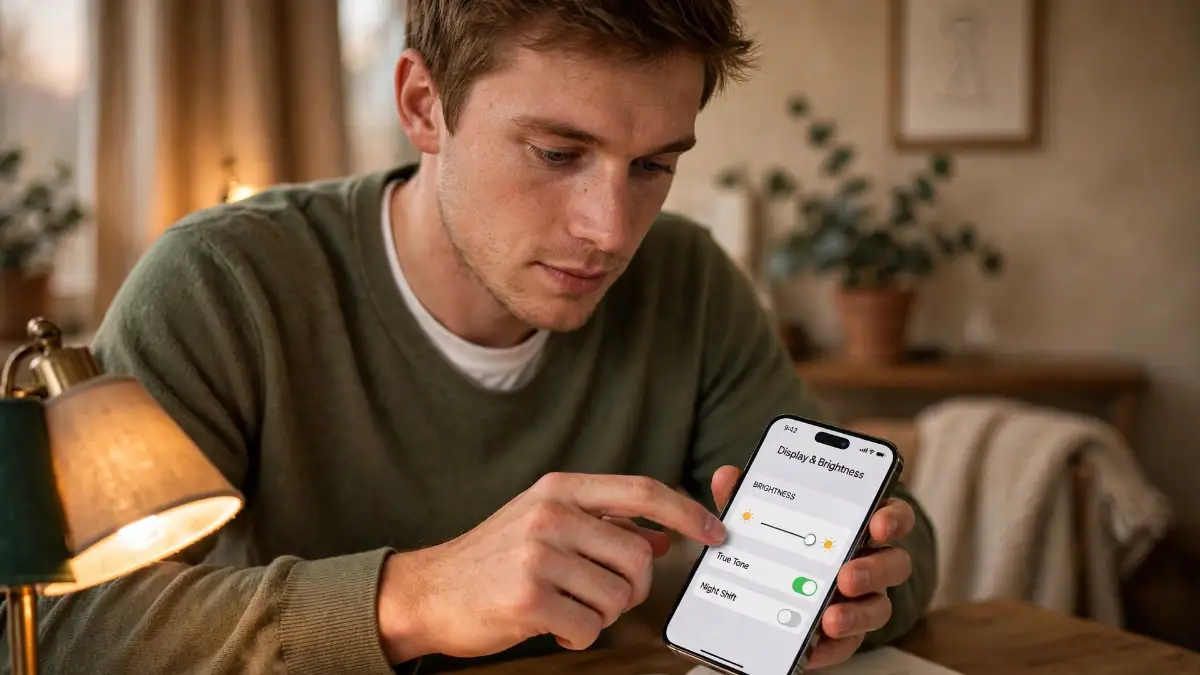
The Traps That Make a Flickering Screen Worse
Most flickering screens get worse because of a rushed fix, not because of the first fault. People panic, and they reach for the biggest hammer they can find, and the phone pays for it. The stories below are the ones repair shops hear most, and each one ends with a cost that could have been avoided.
A factory reset is the first trap, and it is also the most painful one. A reset wipes your photos, your chats, and your logins, and it takes hours to set the phone back up. If the cause was a single app or a single setting, the reset was never needed, and the flicker often returns the moment you restore the same app. Try Safe Mode, the brightness test, and the refresh rate test first, and keep a reset as the last step before a repair shop.
Pressing hard on the screen is the next trap, and it feels like it helps for a second. A firm press can push a loose cable back for a moment, and the picture steadies, and you think you fixed it. The press can also crack the glass from the inside, or break the thin lines that carry the picture, and the next flicker can bring dead lines with it. If a press changes the picture, that is a clue for a repair shop, not a fix to repeat.
A cheap charger is a quiet trap, and it hides in plain sight. A charger with no brand name can feed uneven power, and the screen is the first part to show it. The phone may also charge slowly, heat up, or restart while it charges. Use the charger that came in the box, or one from the phone maker, and retire any cable that feels loose or smells warm.
Water is a trap that people like to deny, and the phone keeps the secret for a while. A splash in the rain or a drop in the sink can leave a little damp inside the phone, and the screen can start to flicker days later. If your phone got wet before the flicker started, turn it off, dry the outside, and take it to a repair shop. Do not charge it to test it, and do not put it in rice and hope for the best.
Random fix apps are a trap dressed as help, and they fill the store with big promises. An app that claims to fix your screen with one tap cannot change a loose cable or a tired panel, and it can only add one more overlay to fight your display. Some of these apps also ask for strange permissions, and that is a good reason to keep them off your phone. If you want to learn how to spot a risky app, read about how to tell if your phone has been hacked, because the same warning signs apply to fake fix apps.
Opening the phone at home is the last trap, and it is the one that voids warranties. A phone screen is glued down, and the battery sits right under it, and one slip can puncture the battery or snap the cable. A repair shop has the tools and the spare parts, and a home repair has a hair dryer and hope. Pay for the check, and keep your warranty safe.
Your Phone, Steady Again: A Final Checklist for Tomorrow
You started with a screen that blinked in the middle of a call, and you now know how to test it like a pro. The cause is rarely a mystery once you test one change at a time, and the fix is often a setting you can reach in under a minute. That is the heart of this guide, and it is worth keeping close.
Your final checklist for tomorrow:
- Brightness is set by hand near half, and adaptive brightness is off.
- Refresh rate is fixed at 60Hz for the test week.
- Software and apps are updated, and the phone has restarted once.
- Safe Mode test is done, and any bad app is gone.
- Storage has room to breathe, and the charger is the real one.
- A backup is done, so a reset will never scare you again.
If the flicker is gone, enjoy the calm screen and keep the Sunday check. If it stays in Safe Mode, book a repair check and show the shop your list of tests. A shop that sees your notes will help you faster, and you will not pay for tests you already did at home.
I fixed my own screen with the same slow tests in this guide, and my calls are calm again. My phone feels like mine again, and I trust it to show my mother's smile without a blink. Try the first test tonight, and give your screen one calm week to prove it can stay steady.
Questions Everyone Asks About a Flickering Phone Screen
Why does my phone screen flicker at low brightness?
Most OLED screens dim the light by flashing on and off very fast, and the flash is easier to see when the brightness is low. Lift the brightness a little, and use Extra Dim or Reduce White Point for night use instead. If the flicker only shows at low light, this is likely the cause.
Can a software update fix screen flickering?
Yes, it can, when the cause is a bug in the display driver or a bad app update. Phone makers often fix display bugs in updates, so install the update and restart once. If the flicker started right after an update, a new patch often follows soon after.
Does screen flickering mean my phone is broken?
Not always, and most flickers come from settings or apps that you can fix at home. A broken screen is more likely when the flicker stays in Safe Mode, when you see coloured lines, or when the phone was dropped or got wet. A quick Safe Mode test tells you which side you are on.
Why does my screen flicker only in one app?
One app can fight with the display system, above all if it uses an overlay, a filter, or a custom video player. Update that app first, then clear its cache, and test it again. If the flicker stays only in that app, remove it and find a safer one that does the same job.
Should I replace the screen or buy a new phone?
Replace the screen when the phone is still fast, the battery is fine, and only the display is at fault. A new phone makes more sense when the battery is weak, the phone is slow, and the repair costs more than half the price of a new one. Get a written repair quote first, and then decide with real numbers in hand.
If your flicker started after a move to a new phone, your backup and transfer steps matter too, so keep your guide to move everything from your old phone to a new one without losing a thing close by. If your storage is nearly full, read how to free up storage on your phone without deleting your photos before you blame the screen. And if background apps keep waking your display, learn how to stop background apps from draining your mobile data fast, because the same apps can disturb the screen too. For the science behind the low-brightness flash, the guide to what reduces screen flicker explains the refresh rate and brightness link in plain words, and the iFixit repair answers on flickering lines show when a line on the screen means a cable or panel fault.
Disclaimer: This guide shares general troubleshooting steps for common software and settings causes of a flickering phone screen. It is not a repair manual, and it does not replace a trained repair check. If your screen is cracked, wet, or flickers after a drop, stop home tests and get it checked by an authorised repair centre. Back up your photos and files before any reset, and do not open the phone yourself.