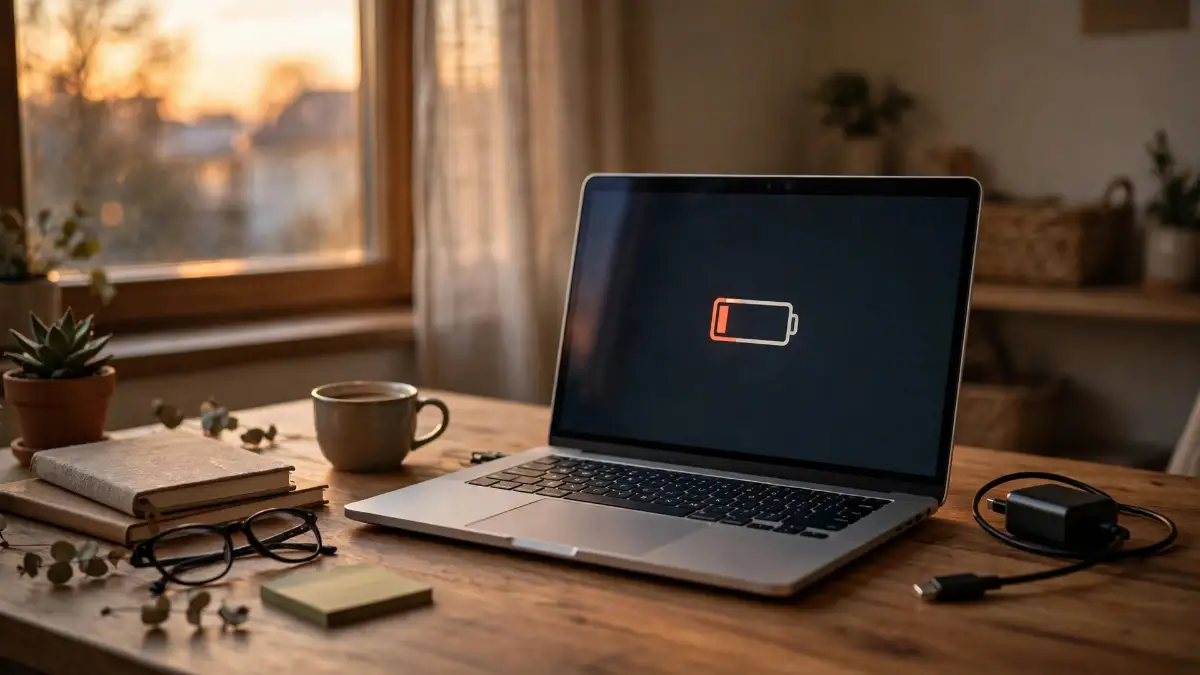
I was halfway through writing an email when my laptop gave up on me. One minute the battery showed 34 percent, the next minute it was begging for the charger, and my train of thought went with it.
I had not done anything wild. No games, no video editing, just a browser, a document, and a song playing in the background. And yet my laptop acted like I had asked it to run a marathon. Have you ever felt that same annoyance, watching the percentage drop while you are still in the middle of something?
That day changed how I treat my laptop. I stopped blaming the battery alone and started looking at what was actually eating the power. Most of the time, it was not one big thing. It was five or six small things, all running at once, all quietly hungry.
This guide follows the order I now use myself. First we find the drain, then we fix the quick wins, and then we build habits that keep the battery healthy for months. You do not need new parts, new software, or a repair shop visit to start.
In a Hurry? Here Is What Actually Matters
Your screen is usually the biggest drain, so lower the brightness first.
Background apps and open browser tabs eat power even when you ignore them.
Heat wears a battery out faster than almost anything else you do to it.
Charging between roughly 20 and 80 percent is kinder than always going 0 to 100.
One fix at a time beats changing ten settings you cannot track.
The Screen Is Eating More Than You Think
Your screen is bright because it looks good that way. But brightness is also the hungriest single setting on most laptops, and full brightness indoors is almost always more than you need.
Try this today. Drop the brightness to a level that still feels comfortable, not blinding, and notice how much longer the battery icon stays calm. I keep mine around half indoors, and the difference surprised me the first week I tried it.
A high refresh rate screen can add to the drain too. If your laptop runs at 120Hz or higher, and you mostly write, read, and browse, switching to 60Hz on battery is a fair trade. You may not even notice the change, but your battery will.
Dark mode helps most on OLED screens, where dark pixels truly use less power. On a normal LCD screen the saving is smaller, but dark mode still feels easier on the eyes at night. So use it if you like it, just do not expect a miracle from it alone.
The Apps You Forgot Are Still Running
Here is a quiet truth about laptops. Closing a window is not always the same as closing the app. Plenty of apps sit in the background, checking for messages, syncing files, and updating themselves while you do something else.
Open your battery usage screen and look at it honestly. On Windows, go to Settings, then System, then Power and battery, and check which apps used the most power in the last day. On a Mac, check the battery section in System Settings and look at the same list.
You will probably find one or two names you barely remember opening. I once found a chat app and a cloud sync tool eating more power than my browser, and I had not touched either one all morning. Closing them, or stopping them from starting with the computer, gave me back real time.
Startup apps deserve the same look. Every app that launches when you turn the laptop on starts spending power before you even begin working. Keep the ones you truly need at startup, and turn the rest off.
Your Browser Tabs Are a Second Computer
Be honest with me for a second. How many tabs do you have open right now? Ten? Thirty? I have been guilty of forty, and my laptop paid the price for my habit.
Every tab is a small job for your computer. Video tabs are the worst, because they keep playing, buffering, and decoding even when you are not watching them. Social feeds that auto-play videos are just as greedy.
The fix is boring, and that is why it works. Close the tabs you are not using, and pause or mute videos you are not watching. If you need the pages later, bookmark them or save them to a reading list instead of keeping them open like a safety net.
Browser extensions can drain power too. An ad blocker usually helps, because it stops heavy ads from loading, but a pile of extensions you never use just adds weight. Keep the ones that earn their place and remove the rest.
Heat Is the Slow Killer Nobody Notices
Batteries hate heat. A laptop that feels warm on your lap is not just uncomfortable, it is also aging its battery faster with every hot afternoon.
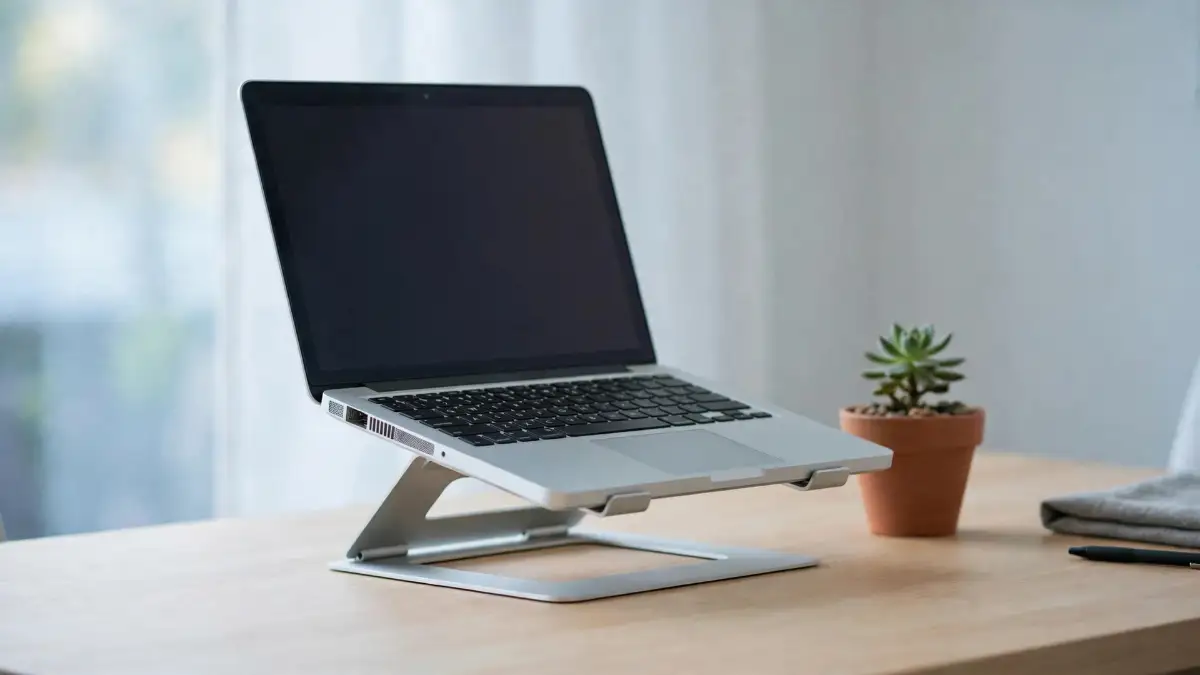
The most common cause is blocked air. A laptop on a bed, a blanket, or a soft sofa cover cannot breathe, so the fan works harder and the inside gets hotter. A hard, flat surface is a small change with a big effect, and a cheap laptop stand helps even more.
Dust is the second culprit. Over months, dust builds up near the vents and the fan, and the cooling slowly gets worse. You do not need to open the machine to help it. Keep the vents clear, and if the fan sounds loud all the time, that is your laptop asking for attention.
Heavy work makes heat too. Editing video, playing games, and running many programs at once will warm any laptop, and that is normal. The trick is to give it breaks, and to avoid doing the heaviest work on a hot surface in a hot room.

Performance Mode Is a Trade, Not a Gift
Most laptops offer a performance mode, a balanced mode, and a power saving mode. Performance mode feels great because everything is fast and smooth. But it also tells the processor to work at full speed even for small jobs, and that costs battery.
Balanced mode is the sweet spot for most days. It gives you speed when you need it and pulls back when you do not. I use balanced mode for writing and browsing, and I only switch to performance mode when I am editing something heavy while plugged in.
Battery saver mode is your friend when the percentage gets low. It dims the screen a little, slows background activity, and stretches what is left. Turning it on at 20 percent, instead of waiting for the warning at 10 percent, can buy you the extra half hour that finishes the job.
The Little Drains That Add Up
Wi-Fi and Bluetooth are small drains on their own, but they never switch off by themselves. If you are working offline, turning off Wi-Fi for an hour can help, and turning off Bluetooth when no device is connected is just common sense.
USB devices draw power too. An external hard drive, a mouse receiver, and a phone charging from your laptop all sip from the same battery. Unplug what you are not using, especially the hard drive, because spinning drives are hungrier than you would guess.
Keyboard backlight looks lovely in a dark room. It also uses power all evening if you leave it on full. Turning it down, or letting it turn off after a few seconds of no typing, is a tiny change that adds up across a week.
Sound matters as well, in a small way. Built-in speakers at full volume use more power than headphones, and a video call with the camera on uses more than a voice call. You do not need to give these up, just know they count.
Is Your Battery Simply Old?
Sometimes the honest answer is age. A laptop battery is a chemical part, and every charge cycle wears it a little. After two or three years of daily use, most batteries hold noticeably less than they did when new.
You can check this without any tools. On Windows, open a terminal and run a battery report, which shows the designed capacity and the current full charge capacity side by side. On a Mac, the battery health section in System Settings tells you the same story in plain words.
If your battery holds only half of what it was designed for, no setting will bring that back. That is not your fault, and it is not a failure of the laptop. It just means the battery has lived its life, and a replacement is the real fix.
But do not jump to that conclusion too fast. I have seen people ready to buy a new battery when the real problem was twenty tabs and a screen at full brightness. Check the easy drains first, then look at the health numbers, and then decide.

The Ten-Minute Check That Tells the Truth
Here is the check I do whenever a laptop starts dying early. It takes ten minutes, and it tells me more than a week of guessing.
First, I look at the battery usage list and write down the top three apps. Second, I count my open tabs and close the ones I do not need. Third, I drop the brightness and switch to balanced mode.
Then I use the laptop normally for an hour and watch the drop. If the battery now lasts much longer, the problem was settings and habits, not the battery itself. If it still falls fast with a clean setup, the battery health report is the next thing to read.
This little test also stops a common trap. It stops you from changing ten things at once and never knowing which one helped. One change, one hour, one honest look at the numbers. That is how you actually learn your own laptop.
And that brings us to the second half of this guide. Part 1 found the drains and fixed the quick wins. Part 2 is about the habits that protect the battery for the long run, the charging routine that works in real life, and the point where a replacement makes more sense than another tweak.
Part 1 showed you where the power goes. Part 2 is about the slower game, the habits that keep a good battery good for years instead of months.
I learned most of these habits the hard way. I used to charge my laptop to 100 percent every night, leave it plugged in on a blanket, and wonder why it felt tired after a year. None of those habits felt wrong at the time. They just added up.
The good news is that none of the fixes here are hard. They are small choices, repeated daily, and they cost nothing.
The Charging Routine That Actually Works in Real Life
You may have heard that you should never charge past 80 percent and never drop below 20 percent. That advice is true in theory, and it is also hard to live with every single day.
Here is a version that works for normal people. Most days, keep the battery roughly between 20 and 80 percent. Plug in when you get the low warning, and unplug when you are done working, even if it is not fully charged. You do not need to watch the number like a hawk.
On days when you need a full charge, take the full charge. A long travel day, a full day of classes, or a work trip is exactly when 100 percent earns its place. One full charge does not ruin a battery. It is the daily habit of sitting at 100 percent, hot, for weeks that does the damage.
Many laptops now have a charge limit setting built in. Brands call it battery conservation mode, battery health charging, or something similar, and it stops charging around 60 or 80 percent when you turn it on. If your laptop has it, and you mostly work near a plug, turning it on is the easiest win in this whole guide.
Should You Leave It Plugged In All Day?
This is the question I get asked most, and the honest answer is: it depends on heat and on the charge level. A modern laptop stops charging the battery once it is full and runs from the wall power instead. So leaving it plugged in does not keep stuffing power into a full battery.
But heat still matters. A laptop that sits plugged in, at 100 percent, on a warm desk, running heavy work, is living in the exact conditions batteries dislike. If you work plugged in all day, the charge limit setting above is your best friend, because it keeps the battery resting at a kinder level.
My own rule is simple. At my desk, I use the charge limit and stay plugged in. Away from my desk, I run on battery and plug in when I need to. That split has kept my current laptop feeling fresh far longer than my old one lasted.
Heat, Again, Because It Matters That Much
For more on the science of how batteries wear down, the guide on what lives inside your phone and controls battery life explains the same ideas in plain words, and most of it applies to laptops too.
I know I talked about heat in Part 1. I am talking about it again because it is the one factor that quietly decides how long your battery lives.
Think of it this way. A battery ages a little every day, like all of us. Heat makes it age faster, the way sun ages skin. You cannot stop aging, but you can stay out of the worst of it.
A laptop stand that lifts the back of the machine helps air move underneath. A desk in a cool room beats a lap on a summer afternoon. And a quick clean of the vents every few months beats a fan screaming all day.
Gaming laptops feel this most, because games push the processor and the graphics chip hard at the same time.
If your machine runs hot during games, the story of how one gaming laptop was saved from constant overheating is worth a read, and the cooling lessons there work for any hot laptop.
Phones suffer the same way, by the way. If your phone also gets warm, the signs and fixes in why your phone overheats and how to fix it will feel familiar, because the cause is usually the same: blocked air, heavy work, and a hot room.
The Battery Report: Your Laptop Telling the Truth
Guessing is stressful. A battery report ends the guessing, and it takes two minutes on Windows.
Open the terminal, type the battery report command, and open the file it creates. You will see the designed capacity, the full charge capacity today, and a short history of how the battery has behaved. If the full charge capacity is close to the designed one, your battery is fine and your habits are the problem. If it is far below, the battery is tired and no setting will fix it.
Mac users get a simpler version in System Settings, under Battery, where battery health is shown as a percentage with a plain description. The number is less detailed, but the message is the same.
Check the report once, write the numbers down, and check again in three months. That simple habit tells you whether your changes are working, and it stops you from worrying about a problem you may not even have.

A Travel Day Routine That Saves You
Travel days are when battery life matters most, and they are also when every bad habit shows up at once. Bright screens, weak Wi-Fi, video streaming, and no charger in sight. A little planning changes all of it.
The night before, charge to 100 percent, because this is the day full charge earns its keep. Download the documents, videos, and music you need instead of streaming them, because streaming over weak Wi-Fi is one of the hungriest things a laptop does.
On the road, drop the brightness, turn on battery saver, and close the apps you are not using. Turn off Bluetooth if nothing is connected, and use your phone as little as possible as a hotspot, because hotspots drain both devices.
And carry the charger, even when you think you will not need it. I have said that sentence to myself, skipped the charger, and regretted it in an airport with one plug for fifty people. The charger weighs little. The regret weighs more.
If you travel with a second screen or a big desk setup at home, the guide on fixing dual monitor resolution and scaling problems is handy too, because a second screen changes power use and display settings in ways people forget.
When a New Battery Makes More Sense Than a New Laptop
A battery replacement is often far cheaper than a new laptop, and for a machine that still runs well, it is usually the smarter buy. A laptop with a good screen, enough memory, and a processor that still feels fast deserves a second battery life.
Ask a repair shop for the price before you decide, and compare it with what a new machine would cost you. If the laptop is five years old, struggles with basic tasks, and the battery is only one of several problems, a replacement laptop may make more sense.
But if the only complaint is battery life, start with the battery. I have seen three-year-old laptops feel brand new after a fresh battery and a clean install, and the owner kept a machine they already liked.
Students on a tight budget face this choice a lot.
If you are shopping instead of repairing, the list of best lightweight laptops for college students under 500 is a good place to compare battery life against price, because the cheapest laptop is not always the cheapest to live with.
And if your daily work is mostly writing, reading, and browsing, an iPad with a keyboard can sometimes cover it. The guide on turning an iPad into a laptop for daily productivity shows what that setup can and cannot do, and a tablet sips power compared with a full laptop.
Myths That Waste Your Time
Let us clear out a few myths, because they steal attention from the fixes that work.
Myth one: you must drain the battery to zero before charging. That was true for very old battery types. Modern lithium batteries prefer the opposite, small top-ups and shallow cycles, so charging at 30 percent is perfectly fine.
Myth two: closing the lid always saves power. Sleep mode still uses a little power, and a laptop that wakes up in a bag can get hot. If you will not use it for a day, shutting down fully is the safer choice.
Myth three: a bigger charger charges faster and harms the battery. A charger made for your laptop, or one with the right power rating, is fine. A cheap, unknown charger with the wrong voltage is the real risk, so stick to trusted chargers.
Myth four: battery apps and boosters will fix everything. Most of them just do what your system settings already do, with extra ads. Save your money and use the built-in power settings instead.
A Simple Weekly Routine You Can Keep
Big plans fail. Small routines survive. Here is the one I actually keep, and it takes about five minutes a week.
Once a week, I look at the battery usage list and close or remove anything greedy. I check that the charge limit is still on when I work at my desk. I wipe the vents and make sure the laptop sits on a hard surface, not a blanket.
Once a month, I check the battery report and compare it with last month. If the numbers are steady, I relax. If they drop sharply, I look for a cause, like a new app or a hotter room, before I blame the battery.
That is the whole routine. No spreadsheets, no daily tracking, no stress. Just a weekly glance and a monthly check, and the battery takes care of itself most of the time.
Watch This Before You Change Settings
Watch this short video first — it walks through the exact Windows settings in this guide, so you can follow along on your own laptop.
The video covers power mode, energy saver, brightness and refresh rate, startup apps, battery usage, and the battery report. Watching it once makes the settings in this guide much easier to find, especially if menus look different on your machine.
What I Would Do If I Were Starting Today
If my laptop started dying early tomorrow, here is the exact order I would follow, and I suggest you copy it.
First, I would drop the brightness and turn on battery saver. Second, I would close the tabs and apps I do not need and check the battery usage list. Third, I would run the battery report and write down the health numbers.
If the report looked healthy, I would keep the new habits for a week and watch the change. If the report looked tired, I would price a replacement battery before shopping for a whole new laptop. Either way, I would stop guessing, because guessing is what kept me frustrated for months.
Your laptop is a tool, not a mystery. It tells you what it needs through the battery usage list, the fan, the heat, and the report. Listen to those signals, make the small changes, and give it a week. Most people are surprised by how much time they get back.
And if you try one fix from this guide today, make it the brightness. It takes three seconds, it costs nothing, and it is the single change most readers tell me helped them first. What about you? Which fix are you trying first?
Also read: Why Your TV Keeps Turning Off by Itself and How to Fix It
Disclaimer
This guide shares general tips for everyday laptop use. Battery life varies by model, age, and workload, and settings menus differ between brands and systems. If your battery swells, smells unusual, or gets very hot, stop using it and get it checked by a qualified repair service right away.