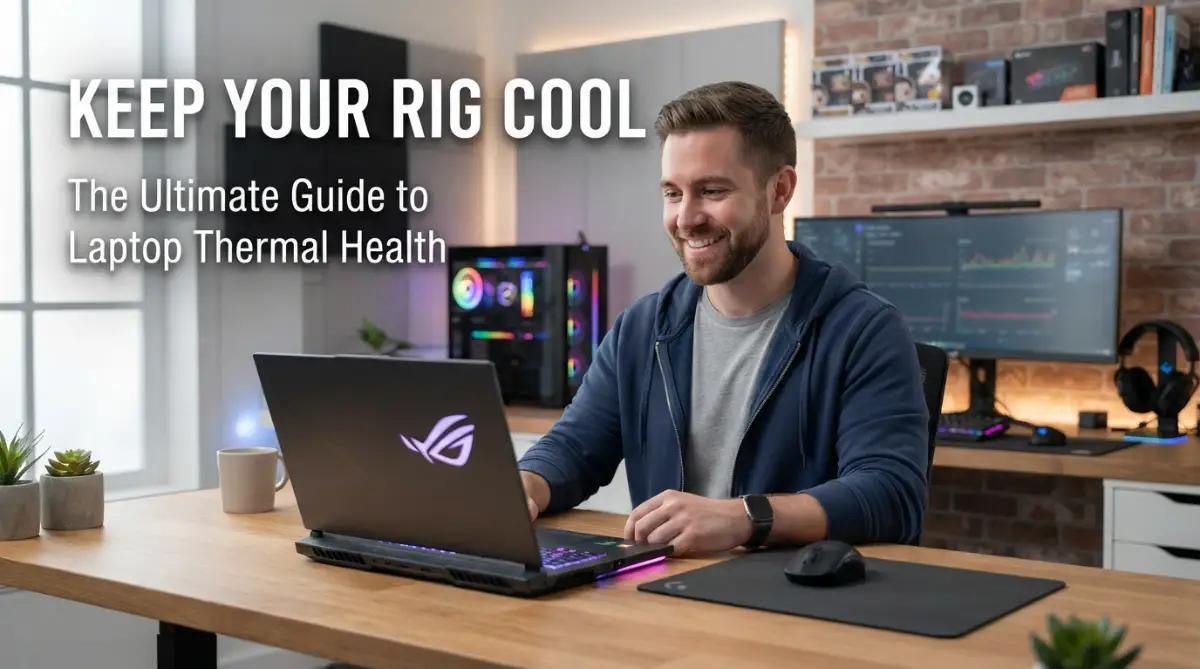
Why My Gaming Laptop Almost Died and How I Fixed It
My keyboard was literally burning my fingers, and my frame rate dropped from a smooth 120 straight down to 15. Then, right in the middle of an intense ranked match with my friends, the screen just died. I sat there in the dark staring at a black screen, feeling the heavy heat coming off the plastic, and honestly thought I just threw two thousand dollars down the drain. If you are here, you probably know that exact feeling of panic. Let me show you how I brought my gaming laptop back from the dead and how you can do the same.
I was in the middle of a huge online match with my friends. Suddenly, my keyboard felt like it was on fire. My frame rates drfopped from 120 down to 15. Then, without any warning, the whole screen went black.
My heart sank because I thought I had fried the hardware. I sat there in the dark, feeling the heat coming off the plastic shell of my expensive machine. It was a scary moment that I don't want anyone else to go through.
That experience taught me that owning a powerful laptop isn't just about playing games. It is also about taking care of the parts inside that do all the hard work. If you don't look after the heat, the heat will eventually kill your laptop.
Quick Fixes You Will Learn Today:
- Why a simple five-dollar can of air can save your entire gaming setup.
- The ugly truth about where you place your laptop (hint: your bed is a hardware killer).
- How tweaking one simple Windows power setting stops your system from slowing down.
- Why "undervolting" your processor is much safer and smarter than overclocking.
The Stress of a Stuttering Machine
It is truly frustrating when you can't enjoy your hobby because of technical issues. You sit down to relax after a long day, but your laptop has other plans. The loud fan noise sounds like a vacuum cleaner in your room.
Many people feel a sense of regret when their expensive gear starts underperforming. You might think you made a bad purchase. In reality, it is usually just a cry for help from your cooling system.
When a laptop gets too hot, it slows itself down to protect the chips. This is called thermal throttling. It makes your games lag and your computer feel old and slow.
Living with an overheating laptop is like driving a car that is always on the verge of breaking down. You are always on edge, waiting for the next crash. It takes away your peace of mind and ruins your focus.
The good news is that you don't have to live this way. Most heat problems can be fixed with a few simple habits. You just need to know what to look for and how to handle the hardware.
Dust: The Secret Enemy Hiding in Your Vents
The biggest reason laptops get hot is dust. It is everywhere in our homes, even if we clean every day. Your laptop fans act like little vacuum cleaners, sucking in air and dust.
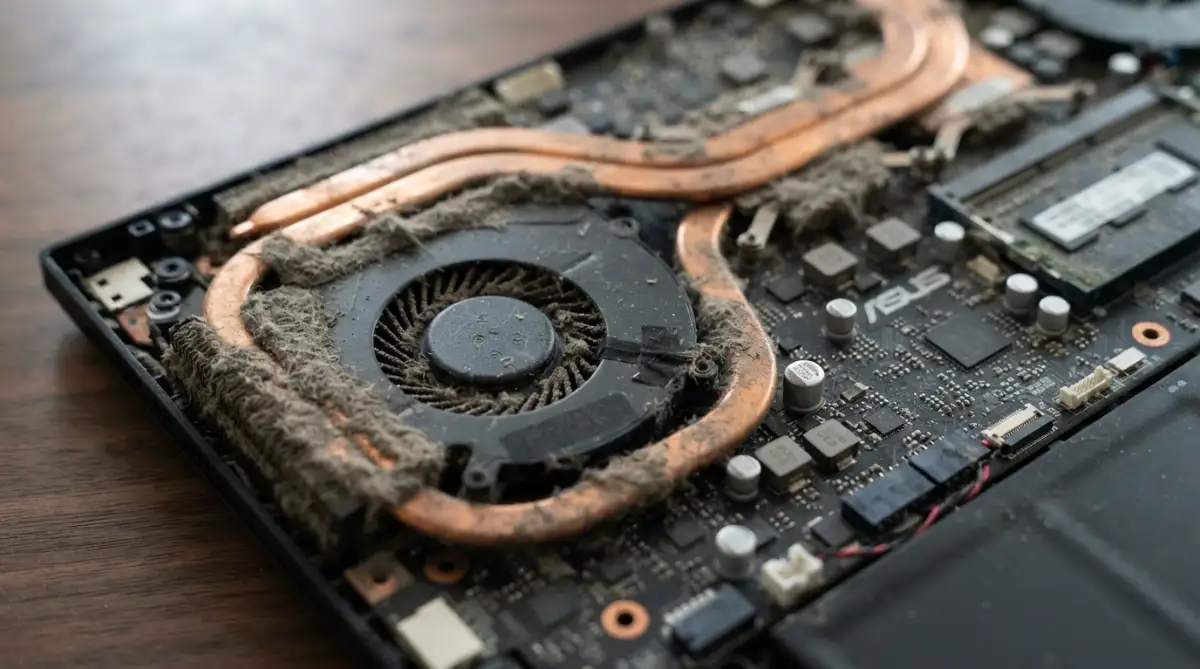
Over time, this dust builds up on the cooling fins. It creates a thick blanket that blocks the air from moving out. When the hot air can't leave, the temperature inside rises very quickly.
I used to ignore this because I couldn't see the dust from the outside. But when I finally opened my laptop, I was shocked. There was enough grey lint inside to make a small sweater!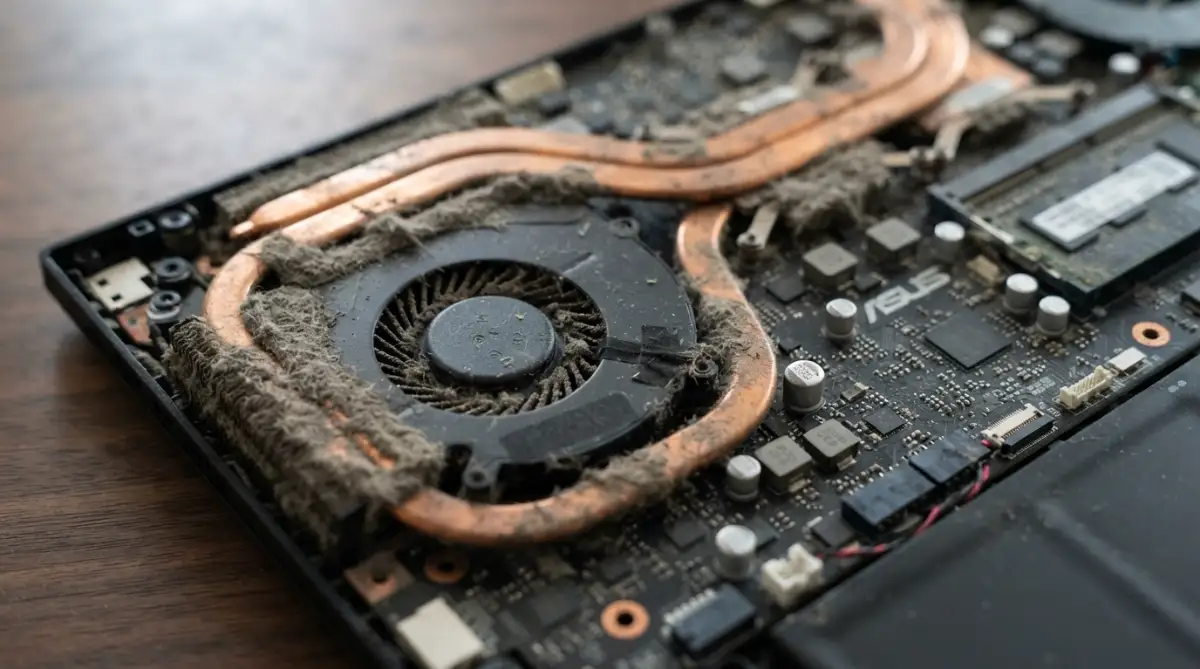
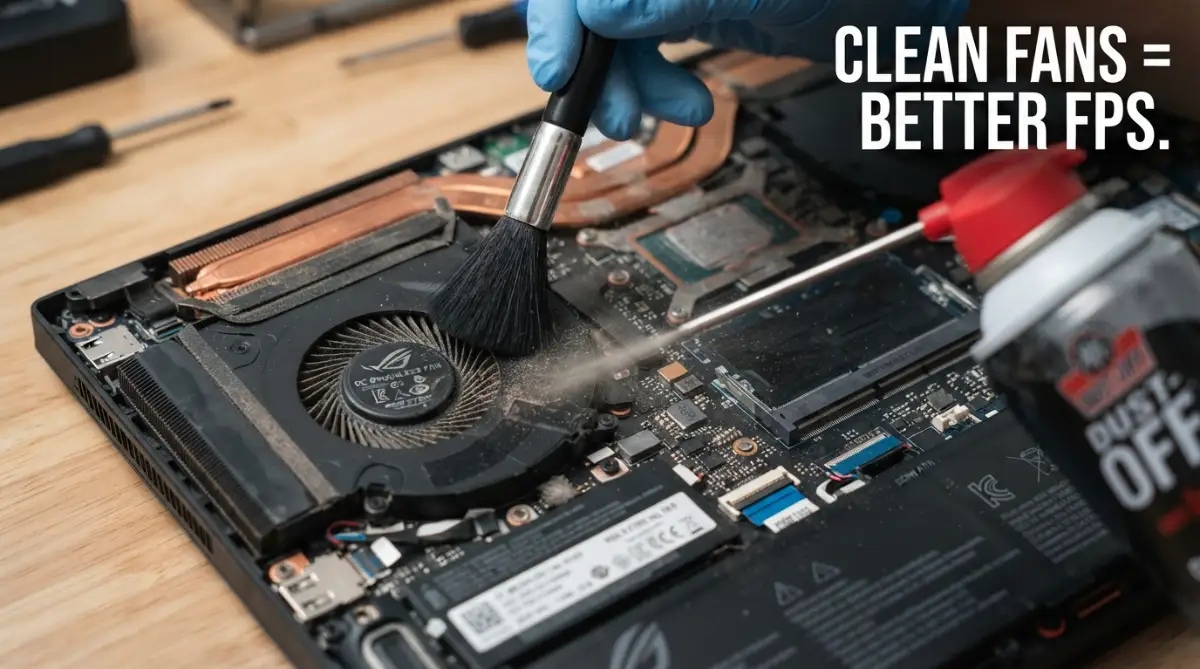
Pro Tip: I found that keeping my room a bit cleaner actually helped my laptop stay cool. I also stopped using my laptop on my bed or on carpets. Fabric surfaces block the air intake and pull in even more dust and hair.
You should try to use a compressed air can once a month. Just a few quick sprays into the vents can blow away the loose dust before it turns into a thick wall. It is a ten-second job that can add years to your laptop's life.
The Science of Where You Place Your Rig
Where you put your laptop matters more than you might think. These machines are designed to pull cool air from the bottom and push hot air out the sides or back. If the bottom is blocked, the system fails.
Many of us love playing while sitting on a couch or lying in bed. This is the worst thing you can do for a gaming laptop. The soft blankets wrap around the vents and trap the heat inside.
I noticed a huge difference just by using a hard, flat surface like a wooden desk. It allows the small rubber feet on the bottom to do their job. Those feet create a tiny gap for air to flow under the machine.
If you want to go a step further, a simple laptop stand can work wonders. By lifting the back of the laptop up, you give the fans much more room to breathe. You don't even need fans in the stand; just the extra space makes a big impact.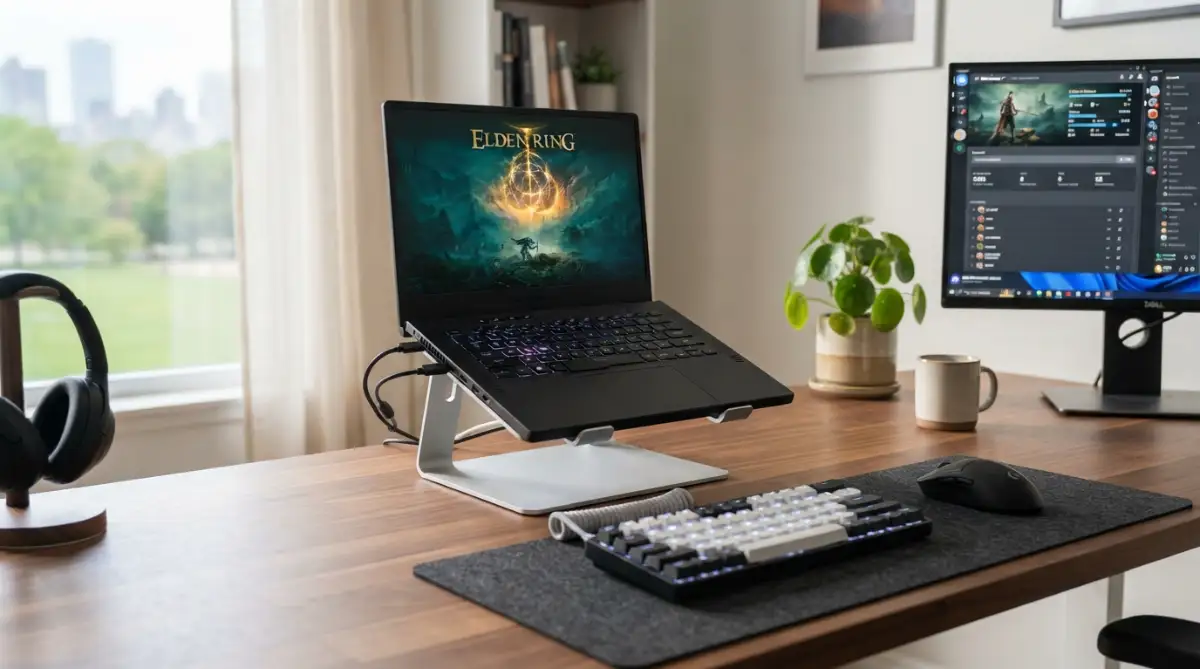
This video shows exactly how air moves through a modern gaming laptop and why placement is so important for keeping temperatures low.
Understanding Thermal Paste and Why It Fails
Inside your laptop, there is a special oily cream called thermal paste. It sits between your processor and the metal heat sink. Its job is to fill tiny gaps so heat can move away from the chips easily.
When your laptop is brand new, this paste is soft and works great. But gaming laptops get very hot and then cool down over and over again. This constant change in temperature eventually dries out the paste.
Once the paste becomes hard and crusty, it stops moving heat effectively. This is usually why a laptop that is two years old starts running much hotter than it used to. Even if the fans are clean, the heat just can't reach them.
I was terrified of the idea of "re-pasting" my laptop at first. It felt like open-heart surgery for a computer. But once I watched a few guides and tried it, I realized it wasn't that bad.
Changing the paste can drop your temperatures by 10 or 15 degrees Celsius. That is a massive change for your hardware. It can be the difference between a system that crashes and one that runs perfectly.
Myth vs. Fact: The Thermal Paste Edition
- The Myth: Squeezing a huge amount of thermal paste on your processor will make it super cold.
- The Fact: Too much paste actually traps the heat! You only need a tiny drop right in the middle of the chip. When you screw the metal cooler back down, the pressure spreads it out perfectly on its own.
Managing Power Settings for Cooler Gameplay
Sometimes, your laptop is running hot because it is trying too hard. Windows and many gaming apps are set to "High Performance" by default. This tells the CPU to run at max speed all the time, even when it doesn't need to.
I discovered that I could lower my heat just by changing a few software settings. You don't always need your processor running at 4.0GHz to play a simple indie game. By limiting the power slightly, you save a lot of energy and heat.
There is a setting in the Windows power plan called "Maximum processor state." If you change this from 100% to 99%, it often stops the laptop from boosting to its highest, hottest speeds. You might not even notice the speed difference, but your fans will stay much quieter.
Many laptop brands also have their own software like "Armoury Crate" or "Alienware Command Center." These tools let you choose different modes like "Silent," "Balanced," or "Turbo." Using "Balanced" instead of "Turbo" can keep things much cooler.
Why Background Apps Are Heating You Up
We often focus on the game we are playing, but other apps are running in the background too. Chrome tabs, Discord, and system updates all use a little bit of power. Together, they can add extra stress to your CPU.
I made it a habit to close everything I don't need before I start a gaming session. It is amazing how much heat is generated by random apps just sitting there. Your CPU has to work harder to manage all those tasks at once.
Check your "Task Manager" to see what is eating up your resources. If you see an app using 10% of your CPU while you aren't using it, shut it down. Every little bit of work the laptop doesn't have to do helps it stay cool.
Also, make sure your drivers are up to date. Sometimes, old software has bugs that make the hardware work harder than it should. New updates often include fixes that make the cooling system work more efficiently.
The Importance of High-Quality Cooling Pads
A lot of people ask if cooling pads actually work. The answer is yes, but they aren't magic. A cooling pad won't fix a laptop that is full of dust or has dried-up thermal paste.
However, a good cooling pad provides two main benefits. First, it acts as a solid base so you can play on your lap or bed safely. Second, it pushes fresh air directly toward the intake vents on the bottom of your laptop.
I found that using a cooling pad lowered my temps by about 3 to 5 degrees. That might not sound like a lot, but it helps keep the laptop away from the "danger zone." It also keeps the outer shell cooler, so my hands are more comfortable.
When choosing a pad, look for one where the fans line up with the vents on your specific laptop. If your laptop pulls air from the sides, a center fan on the pad won't help much. Match the airflow of the pad to the airflow of your machine.
My 3-Second Cooling Pad Buying Checklist
Before you spend your hard-earned money on a cooler, check these three things:
- Fan Alignment: Do the fans on the pad sit exactly under your laptop's bottom intake holes? If not, skip it.
- Speed Power: Look for fans that spin at 2000 RPM or higher. Slow, weak fans just move warm air around without actually pushing it inside.
- Elevation Level: Make sure the pad has sturdy legs. You need a good solid gap between your desk and the pad to let fresh air flow in.
Fan Curves and Custom Controls
Advanced users can take control of their fans using special software. By default, the laptop decides when to spin the fans faster. Sometimes, the laptop waits too long to turn them up, letting the heat build up first.
I started using custom fan curves to make my fans spin faster at lower temperatures. This means the fans start working before the laptop gets really hot. It is much easier to keep a cool laptop cool than to try and lower the heat once it is already boiling.
Be careful not to run your fans at 100% all the time, though. This can wear out the bearings in the fans faster. You want a balance where the fans are fast enough to handle the heat but not screaming constantly.
Finding that "sweet spot" takes a bit of testing. Play your favorite game for 20 minutes and check the temps. Adjust the fans and try again. It is a bit of work, but it makes your gaming experience much more stable.
How Room Temperature Affects Your FPS
It sounds simple, but the air around you is what the laptop uses to cool itself. If you are sitting in a room that is 30 degrees Celsius, your laptop will never be truly cool. It is sucking in warm air to try and cool down even hotter parts.
During the summer, I noticed my laptop struggled much more. I started playing in the coolest room of the house. Even using a regular desk fan to blow air toward my seating area helped keep the ambient temperature down.
If you have air conditioning, using it while gaming can make a huge difference. If not, try to avoid gaming during the hottest part of the day. Your hardware will thank you for the break.
Heat is the enemy of all electronics. By keeping your environment cool, you are giving your laptop a head start. It doesn't have to fight against the room temperature while it fights the game's heat.
Checking Your Health: Temperature Monitoring
You can't fix what you can't measure. I highly recommend installing a small app to keep an eye on your temperatures. Tools like HWMonitor or MSI Afterburner are great for this.
I always keep a small overlay in the corner of my screen while I play. It shows me exactly how hot my CPU and GPU are getting. If I see the numbers climbing toward 90 or 95 degrees, I know it is time to take a break or check my vents.
Knowing your "normal" temperatures is key. If you know your laptop usually runs at 75 degrees while playing Minecraft, and suddenly it hits 85, you know something is wrong. It is like a check-engine light for your computer.
Monitoring your temps also lets you see if your cleaning and maintenance are actually working. It gives you proof that your hard work is paying off. Seeing those numbers drop after a good cleaning is a very satisfying feeling.
Avoiding the "Overclocking" Trap
When you want more power, it is tempting to overclock your laptop. This means forcing the hardware to run faster than it was designed to go. While it can give you more FPS, it also creates a massive amount of extra heat.
In a desktop PC, you can add a bigger cooler to handle overclocking. In a laptop, you are stuck with the cooling system you have. Most laptop coolers are already working at their limit just to handle the stock speeds.
I tried overclocking once and gained about 5 frames per second. But my temperature jumped by 10 degrees. The trade-off just wasn't worth it. I was risking my expensive laptop for a tiny bit of extra speed.
For most gamers, "undervolting" is a much better choice. This is the opposite of overclocking. You give the CPU a little less voltage while keeping the same speed. It makes the chip run much cooler without losing any performance.
The Role of the Heat Sink
The heat sink is a group of copper pipes that carry heat away from the chips and toward the fans. These pipes contain a tiny bit of liquid that evaporates and condenses to move heat fast.
If these pipes get damaged or bent, they won't work anymore. I always tell people to be very careful when opening their laptops. Never force the cooling assembly off the board.
If you notice that one side of your laptop is ice cold while the other side is burning hot, your heat sink might be failing. It is rare, but it can happen. Replacing a heat sink is a bigger job, but it can save a laptop that is otherwise dying.
Keeping the fins at the end of the heat sink clean is the most important part of maintenance. Use a toothpick to gently remove any stuck hair or lint. Just be careful not to bend the thin metal fins.
Summary of Initial Maintenance Steps
Taking care of a gaming laptop doesn't have to be a full-time job. It is mostly about being aware and being consistent. Clean the dust, watch where you put it, and keep an eye on the software.
I wish I had known these things when I first started gaming. I would have saved myself a lot of stress and worry. My laptop runs better now than it did when it was new because I finally know how to manage the heat.
In the next part of this guide, we will look even deeper into advanced software tweaks. We will also talk about how to recognize the early signs of hardware damage from heat. Staying proactive is the best way to keep your gaming rig fast and healthy for years to come.
Master-Level Tricks to Keep Your Laptop Chilly
Once you have handled the basics like dust and surface placement, it is time to look at the hidden settings. Most people think their laptop is a "set it and forget it" device. In reality, a gaming rig needs constant attention to stay fast.
I found that undervolting is one of the most powerful secrets in the tech world. It sounds complicated, but it just means telling your CPU to use less electricity while doing the same work. Since electricity creates heat, using less of it makes your laptop much cooler without losing speed.
I remember the first time I tried this on my own machine. I was nervous about breaking something, but the results were amazing. My temperatures dropped by almost 12 degrees, and my games ran exactly the same as before. You can find many safe guides on how to undervolt modern processors to save your hardware from melting.
Managing Your Frame Rates for Thermal Health
Another trick I use is capping my frame rates. If your screen can only show 60 frames per second (FPS), there is no reason to let your laptop push for 140 FPS. Your hardware will work at 100% power to reach that high number, creating unnecessary heat.
By locking your FPS to your screen's refresh rate, you give your GPU a chance to breathe. This small change can keep your laptop from sounding like a jet engine during long sessions. It is similar to how we try to stop killing your smartphone by not letting the battery overwork itself.
I also suggest looking at your thermal pads. Inside your laptop, there are small squishy pads on the memory chips and power parts. These are just as important as thermal paste, but people often forget them. If they look oily or flattened out, replacing them can solve those weird random crashes you might be seeing.
The Secret of Ambient Environment Control
Your room is actually the first part of your cooling system. If you play in a small, stuffy room, the air around the laptop gets warmer every minute. I started using a small desk fan to push air away from my seating area, and it helped keep the intake air fresh.
You should also be aware of humidity and static electricity. If your room is too dry, dust sticks to everything like a magnet. If it is too damp, that dust turns into a sticky sludge inside your fans that is very hard to clean. Finding a middle ground helps keep the internals of your machine much cleaner for a longer time.
Keeping your software clean is just as helpful as keeping the fans clean. I make sure to remove any "bloatware" that the manufacturer installed. These apps often run in the background and use up power, which translates into extra heat for no reason. This is a big part of how to save your mental health from digital overload by keeping your digital space tidy.
Pro-Level Hardware Upgrades for Better Airflow
If you are feeling brave, you can look at the bottom panel of your laptop. Some people actually replace their solid plastic bottom covers with custom mesh ones. This allows a massive amount of air to reach the fans directly.
However, I only recommend this if you are comfortable with hardware mods. For most of us, simply adding taller rubber feet to the bottom of the laptop is enough. This creates a bigger gap between the desk and the intake vents. It is a cheap, five-second fix that actually works better than some expensive cooling pads.
I also suggest checking your BIOS settings once in a while. Manufacturers sometimes release updates that change how the fans behave. A simple update might give you a "Max Fan" mode that wasn't there when you first bought the laptop. This is a very helpful tool when you know you are about to play a very heavy game for hours.
Heartbreaking Mistakes That Could Ruin Your Rig
One of the biggest mistakes I see people make is using a vacuum cleaner to suck dust out of the vents. It seems like a good idea, but vacuum cleaners create a lot of static electricity. This static can jump from the nozzle to your motherboard and fry your expensive chips in a second.
I have heard so many sad stories of people trying to be helpful and ending up with a dead laptop. Always use compressed air or a soft brush designed for electronics. It is not worth risking a thousand-dollar machine just to save five dollars on a can of air.
Another common error is ignoring the first signs of noise. If your fan starts making a clicking or grinding sound, it means the bearing is failing. If that fan stops spinning while you are gaming, your laptop could reach dangerous temperatures in less than a minute.
The "Bed Gaming" Trap and Why It Sucks
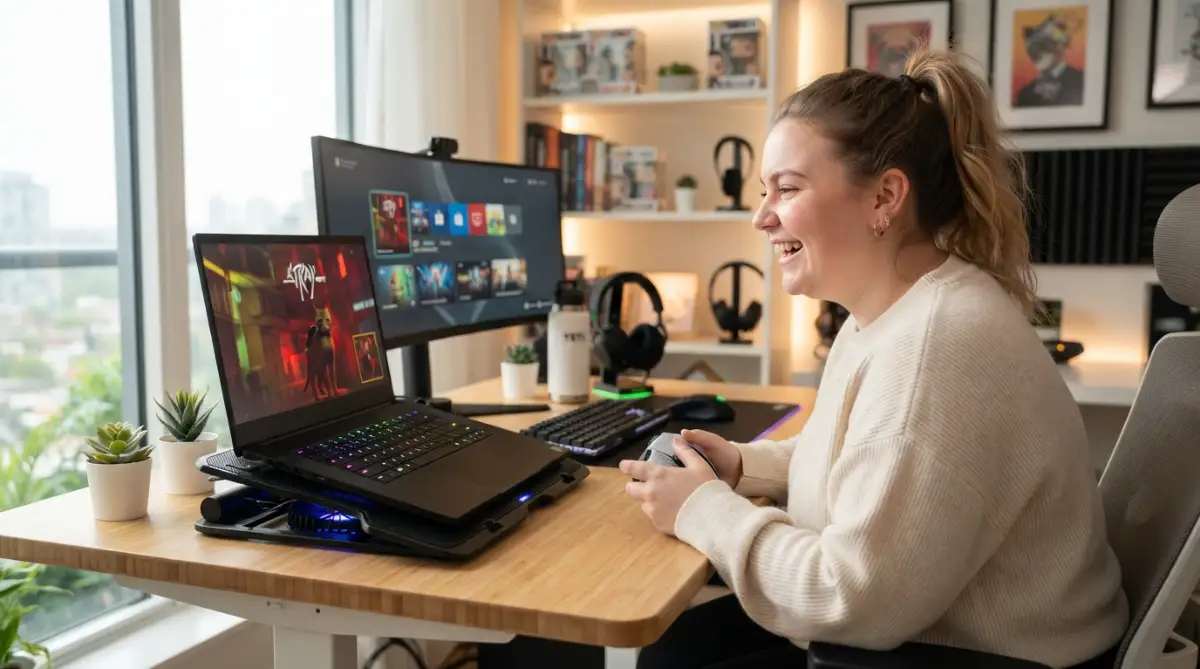
We all love the idea of gaming while lying in bed on a lazy Sunday. But your mattress and blankets are the perfect insulators for heat. They wrap around the laptop and stop every bit of air from escaping.
I once left my laptop on a soft couch while it was downloading a large game. When I came back, the bottom was so hot I couldn't touch it. Even if you aren't playing a game, the heat can build up if the vents are blocked by fabric.
This is a mistake that causes long-term damage to the battery. Batteries hate heat more than anything else in your computer. By keeping your laptop on soft surfaces, you are literally shortening its lifespan every single day. This is a similar lesson to why planning a solar upgrade requires careful attention to how heat and electricity interact.
Over-Cleaning and Using the Wrong Tools
Believe it or not, you can actually clean your laptop too much or the wrong way. Some people use wet wipes or household cleaners on their screens and vents. These liquids can seep into the keyboard or the ports and cause a short circuit.
I always tell my friends to never spray anything directly onto the laptop. Spray your cloth first, then wipe. Also, don't use high-pressure air compressors from a garage. The air is too strong and can actually snap the tiny plastic blades of your cooling fans.
Another mistake is leaving your laptop on 24/7. Even when you aren't gaming, the heat is still there. Giving your hardware a complete break allows the metal parts to contract and cool down fully. This helps prevent "thermal fatigue," which is when parts start to crack or fail because they are always under stress.
The Danger of Cheap Third-Party Chargers
I know original chargers are expensive, but cheap ones are a major heat risk. Low-quality power bricks often provide "dirty" power that fluctuates. This makes the internal power management chips work much harder and get much hotter.
I once used a cheap replacement charger and noticed my laptop felt much warmer than usual. The battery also started to swell up, which is a very scary fire hazard. If you want to understand more about how internal parts can be damaged, you should look into the hardware secrets of battery life.
It is always better to pay a bit more for an official charger or a very high-quality brand. Saving thirty dollars now isn't worth losing your entire laptop later. Your power system is the heart of your machine, and it needs clean, stable energy to stay cool.
Your Fresh Start to a Cooler Gaming Life
Taking care of your laptop might feel like a lot of work, but it really isn't. Once you get into a rhythm, it only takes a few minutes a month. The reward is a machine that stays fast, quiet, and reliable for many years.
Think of your laptop like a high-performance sports car. You wouldn't drive a Ferrari for years without changing the oil or checking the tires. Your gaming rig deserves that same level of respect and care.
When you treat your hardware well, it treats you well in return. You get better aim, smoother gameplay, and the peace of mind that your investment is safe. It is a great feeling to know your gear is running at its absolute best.
I truly believe that everyone can learn these simple maintenance habits. I was a total beginner once, but I took the time to learn, and it saved my gaming hobby. My current laptop is still running like a dream because I decided to stop ignoring the heat and start taking action.
I hope you take these tips and use them to protect your own gaming rig starting today. I want you to enjoy every frame of your favorite games without the fear of your hardware letting you down. My own experience has shown me that a little bit of care goes a long way, and I know it will work for you too!
Common Questions About Laptop Heat
Is it normal for a gaming laptop to reach 90 degrees?
While many gaming laptops are designed to handle high heat, reaching 90 degrees Celsius is the upper limit for comfort. If your laptop stays at this temperature for a long time, it will start to slow down to protect itself. You should try to keep your temperatures in the 70s or 80s for the best long-term health.
Do cooling pads really make a difference for gaming?
Yes, they help, but they aren't a total fix for a dirty laptop. A cooling pad usually lowers the temperature by about 3 to 5 degrees by providing better airflow to the intake vents. They are most helpful if you like to play on surfaces that aren't perfectly flat and hard.
How often should I replace the thermal paste in my laptop?
For most people, replacing the thermal paste every 12 to 24 months is a great habit. If you use your laptop for heavy gaming every single day, the paste might dry out faster. If you notice your temperatures rising suddenly even after cleaning the dust, it is likely time for new paste.
Can I use a hair dryer to blow dust out of my laptop?
I strongly recommend against using a hair dryer for this task. Hair dryers don't have enough pressure to move stuck dust, and the heat from the dryer can actually damage the plastic parts. It is much better and safer to use a dedicated can of compressed air or an electronic blower.
Disclaimer: This guide is for informational purposes only. Opening your laptop or changing internal settings like voltage may void your warranty. Always check with your manufacturer before performing hardware maintenance. I am sharing my personal experience, but you should always work carefully and at your own risk.