Why Carrying a Heavy Machine Everywhere Broke My Back (And My Routine)
My shoulder used to ache every single day from lugging around a massive laptop just to answer a few emails at a local cafe. If you are tired of carrying a heavy backpack that drains your energy before your workday even starts, you are in the right place. I ditched my bulky computer for a simple touchscreen setup, and it completely changed how I get things done. Let me show you exactly how to make this switch without losing your mind or missing your old desktop.
Every single night, I kept looking at my sleek, beautiful tablet sitting completely uselessly on my nightstand. I quickly realized I was only using it to watch videos in bed, which felt like a massive waste of its powerful internal processor. I constantly asked myself why I was letting this incredibly fast device gather dust while I suffered under the weight of my bulky computer.
However, once I finally figured out the right hardware accessories and software settings, everything completely changed for me. My daily backpack became incredibly light, and I found myself working comfortably from park benches, tiny cafe tables, and even tight airplane seats with zero stress.
If you are totally tired of carrying a heavy bag and want to simplify your digital life, you are absolutely in the right place. I am going to show you exactly how I made this amazing transformation happen for my own daily workflow.

Quick Summary: Your Blueprint for a Lighter Bag
-
Swap your heavy laptop for a tablet paired with a physical keyboard and a Bluetooth mouse.
-
Use a multi-port USB-C hub to connect portable external drives and monitors.
-
Master native multitasking features to keep your workspace clean and focused.
-
Rely on cloud storage and file manager apps to keep your work backed up and synced.
The Hardware Foundation: Choosing the Right Physical Accessories
You cannot simply stare at a glass screen and expect to get serious typing done. To make this transformation successful, you need to add physical inputs that trick your brain into feeling like it is using a traditional computer.
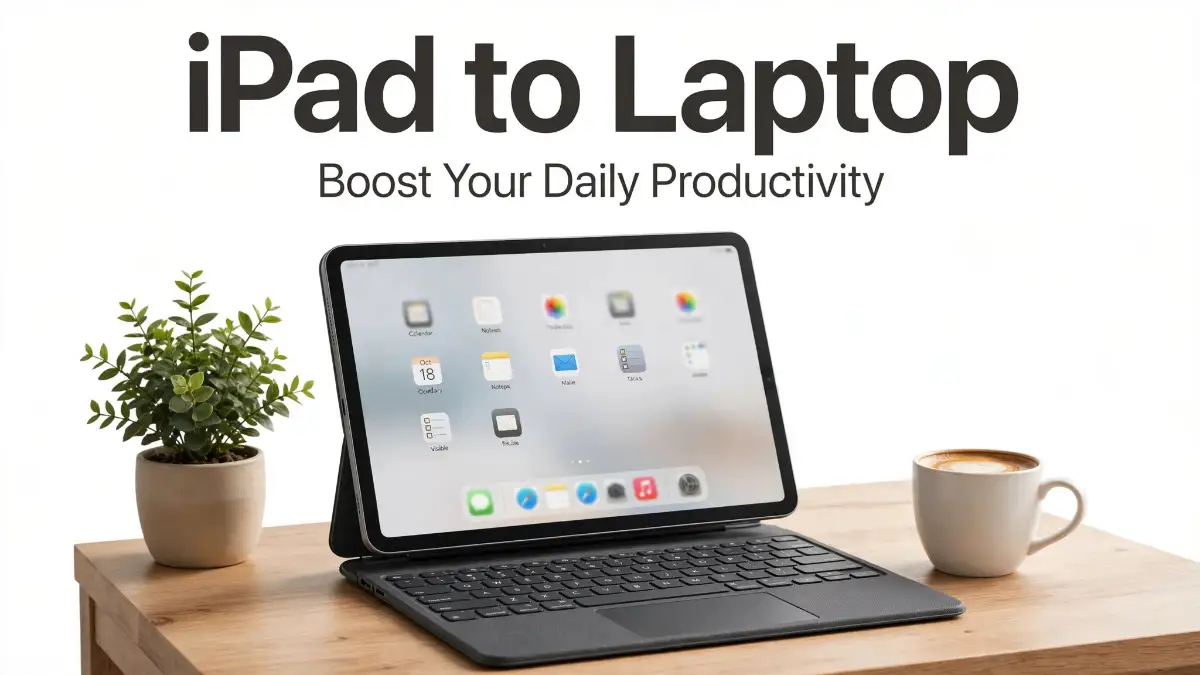
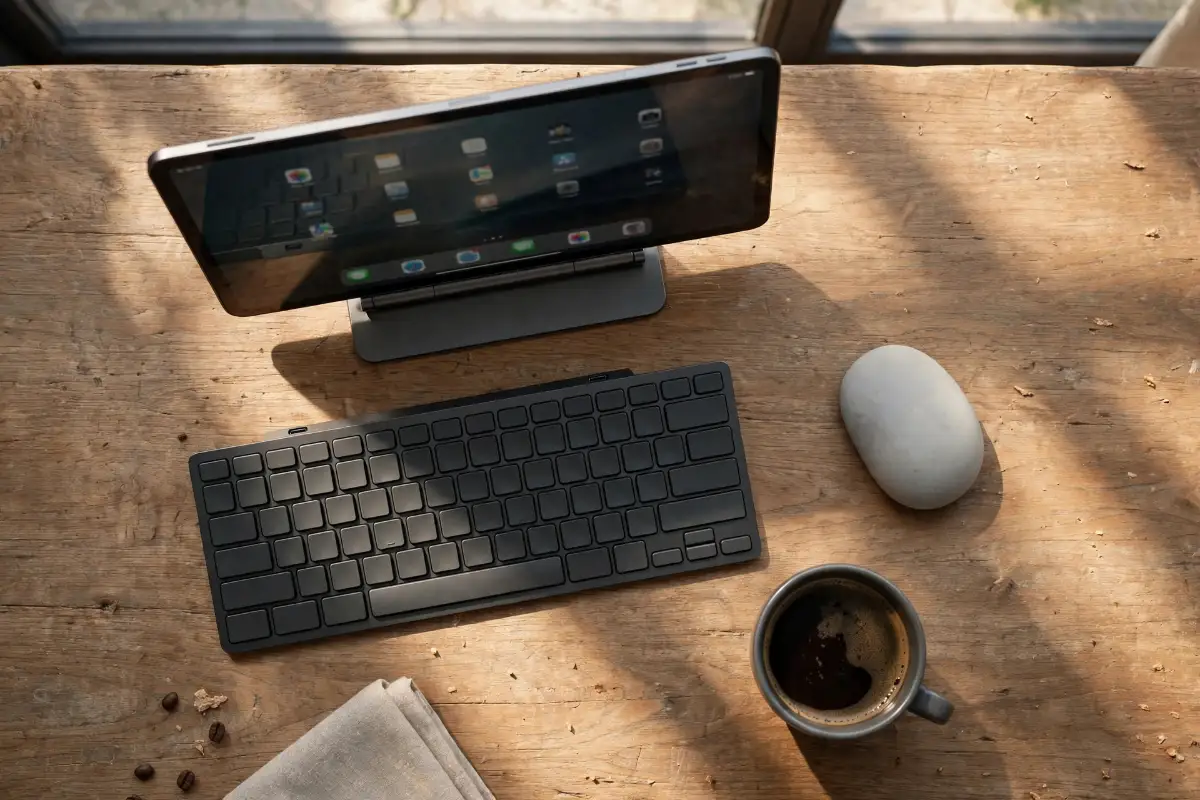 The very first thing you need to invest in is a high-quality physical keyboard. A good keyboard will instantly change how you view your touchscreen device. You have two main paths to choose from here: an all-in-one folio case or a standalone wireless setup.
If you prefer working on your lap while sitting on a couch, an all-in-one keyboard case is your best option. Products like the Apple Magic Keyboard or the Logitech Combo Touch are incredible for this specific purpose. You can easily find these original, trusted products at the official Apple Store, Best Buy, or trusted local authorized resellers like Gadget & Gear and Star Tech in Bangladesh.
On the other hand, if you mostly work at a fixed desk, a standalone wireless keyboard is a fantastic choice. You can buy a slim mechanical keyboard and pair it with a dedicated magnetic desktop stand. This simple desk setup keeps the screen at eye level and completely prevents neck pain during long working hours.
Adding a Mouse or Trackpad
Using your fingers to touch the screen constantly will quickly tire out your arms. You need a dedicated pointing device to make selecting text and managing spreadsheets effortless.
Apple has built incredible mouse support right into the operating system. You will immediately notice a small round cursor on your screen the second you connect a wireless mouse via Bluetooth. This cursor cleverly shape-shifts to match whatever button or text you are hovering over.
I highly recommend picking up a simple Bluetooth mouse like the Logitech Pebble if you are on a budget. It is super light, fits right into your pocket, and pairs instantly with your tablet. You can grab one easily from any major trusted tech store or order it directly from Amazon.
The Power of USB-C Hubs
One of the biggest complaints people have is the lack of physical ports on modern tablets. Most devices only come with a single charging port, which feels very limiting.
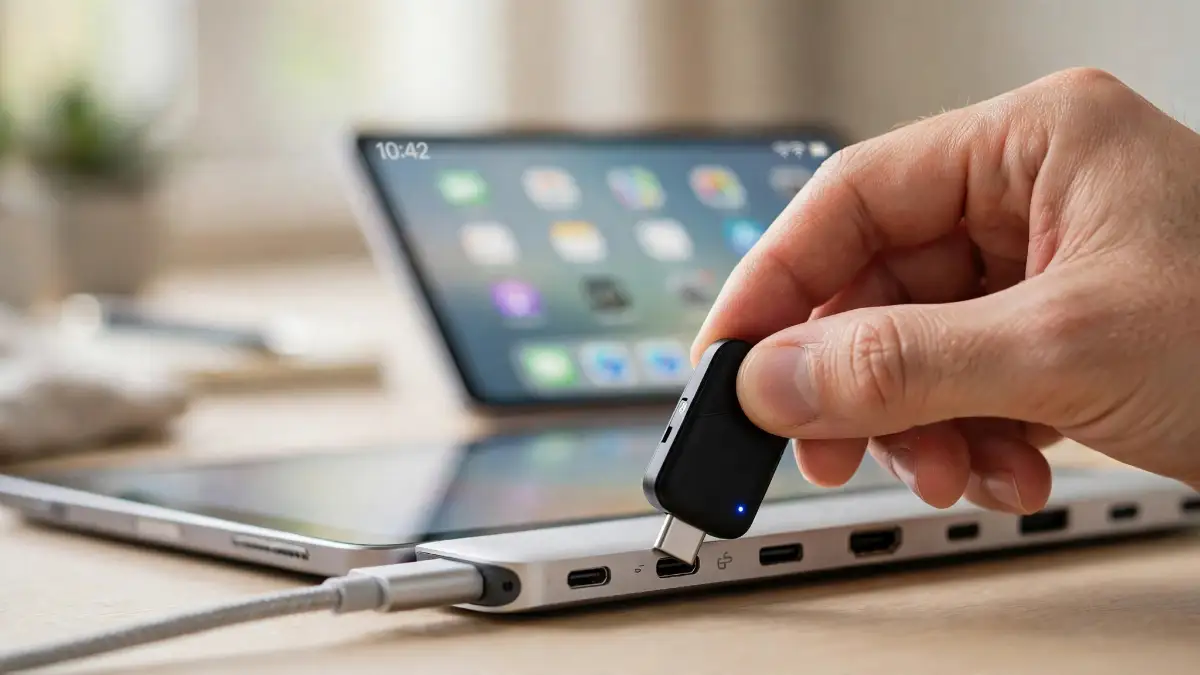
You can easily solve this annoying problem by purchasing a compact USB-C hub. These small dongles plug into your single port and suddenly give you access to standard USB drives, SD card readers, and even HDMI outputs.
Reliable brands like Anker and Ugreen make amazing hubs that do not overheat and fit perfectly in your side pocket. You can find these authentic hubs at any trusted computer market or certified online electronics retailer.
My Personal Hub Buying Checklist:
Before you buy a USB-C adapter, make sure it has these specific ports to avoid daily headaches:
-
Power Delivery (PD) Port: To charge your device while working.
-
At least two USB-A ports: For your older flash drives and wired mouse.
-
HDMI output: So you can connect to a big monitor at the office.
-
SD Card Slot: A lifesaver if you move photos from a real camera.
Software Setup: Mastering the Desktop Experience
Having the right physical tools is only half the battle. You also need to train your software to stop acting like an oversized smartphone.
The biggest secret to getting real work done is mastering the built-in multitasking features. If you are only looking at one app at a time, you are wasting a lot of screen space. You need to learn how to put two applications side by side.
Activating Split View and Slide Over
Most people do not realize that there are three tiny dots at the top center of almost every application. Tapping these dots opens a magical menu that lets you snap apps exactly where you want them.
You can put your web browser on the left side of the screen and your notes app on the right side. This makes copying information and doing research incredibly fast.
You can also use a feature called Slide Over to keep your messaging apps hidden off-screen. Whenever you get a text from a friend, you just swipe from the right edge, reply quickly, and swipe it away.
The Real Power of Stage Manager
If you have a newer, more powerful tablet model, you have access to a game-changing feature called Stage Manager. This feature completely redesigns how your open windows behave.
Instead of full-screen apps, Stage Manager lets you resize individual windows exactly like a traditional computer. You can overlap different windows, drag files between them, and group specific apps together for different projects.
This is an incredibly powerful tool for anyone doing heavy research or managing complex tasks. It takes a little bit of practice to get used to, but it will massively improve your daily speed.
Quick Question: Will Stage Manager work on my older device?
Not always. This specific window-resizing feature needs a lot of processing power. You generally need a newer device with an M1 chip (or equivalent) and at least 8GB of RAM. If you are buying a second-hand device just for this setup, double-check the chip model first!
My Personal Pro Tip:
I completely struggled with organizing my open windows during my first week of this new setup. I finally realized that grouping my apps by specific projects, like keeping my email and calendar in one single group, saved me so much time. Do not try to keep ten windows open at once; instead, stick to three essential apps per task to keep your mind completely focused.
Taking Your Web Browsing to the Next Level
A major reason people give up on tablet productivity is the frustrating mobile web experience. Sometimes, websites force you into a zoomed-in, hard-to-read mobile layout.
You can completely avoid this headache by changing one simple setting in your default web browser. You need to force your browser to permanently request the desktop version of every single website.
When you do this, websites like Google Docs, WordPress, and YouTube Creator Studio will think you are visiting from a traditional computer. The menus will look normal, and the buttons will be placed right where you expect them to be.
Creating Web Apps on Your Home Screen
Some popular websites still do not have great dedicated mobile applications. However, you can create your own custom apps directly from the browser.
Simply open a website you use every day, tap the share button, and select the option to add it to your home screen. This places an icon right next to your regular apps.
When you tap this new icon, the website will open cleanly without any annoying browser search bars or messy tabs. It feels exactly like a real, standalone application.
🎬 See the Transformation in Action
Sometimes, reading about window management and multitasking is not enough to truly grasp the concept. Watching a visual demonstration of someone actually using this setup can instantly clear up any lingering confusion you might have. Check out this incredible video below to see exactly how these physical accessories and software settings come together seamlessly on a real desk.
Managing Files Without Pulling Your Hair Out
One of the scariest parts of leaving your traditional computer behind is figuring out where your files actually live. The old days of saving things randomly to a crowded desktop screen are entirely over.
Your tablet actually has a very powerful, built-in application dedicated solely to file management. It looks like a little blue folder, and it is the absolute heart of your new daily workflow.
 This single application connects all your different storage locations into one clear window. You can view files stored on your physical device right next to files stored completely in the cloud.
Mastering Cloud Storage Connections
To make this system work perfectly, you need to rely heavily on cloud storage solutions. Services like Google Drive, Microsoft OneDrive, and Dropbox integrate seamlessly right into the native file manager.
Once you connect your accounts, you can easily drag and drop a picture from your downloads folder directly into your Google Drive. It happens instantly, and everything stays perfectly synced across all your devices.
If you are worried about internet connectivity, you can simply long-press any important cloud file and choose to download it locally. This keeps your essential documents available even when you are sitting on an airplane with no Wi-Fi.
Using Physical External Drives
Sometimes cloud storage simply is not fast enough, especially if you are working with large video files or thousands of high-resolution photos. This is where your new USB-C hub becomes incredibly important.
You can plug a portable solid-state drive, like a reliable Samsung T7 or a SanDisk Extreme, straight into your hub. These top-tier external drives are available at any major local electronics showroom or trusted computer hardware store.
The moment you plug the drive in, it instantly appears in your file manager app just like a normal thumb drive on a computer. You can copy, paste, and organize massive folders in just a few quick seconds without relying on slow internet speeds.
Myth vs Reality: Breaking Down Common Fears
Many people hold onto false beliefs about what touchscreen devices can actually do. Let us clear up some of the most common misunderstandings right now.
Myth 1: You cannot use Microsoft Office properly on a tablet.
Reality: This is completely false. Microsoft has built excellent, fully featured applications for Word, Excel, and PowerPoint. You can track changes, build complex formulas, and present slideshows just as easily as you can on a heavy machine.
Myth 2: You cannot connect to an external monitor.
Reality: New generation devices allow you to plug directly into massive desktop monitors. It does not just mirror your small screen; it actually extends your workspace. You can have a video playing on the big screen while you take detailed notes on the small screen.
Myth 3: You cannot do real video editing.
Reality: Professional creators edit full 4K videos on these devices every single day. Applications like LumaFusion and DaVinci Resolve offer powerful timeline editing, color grading, and audio mixing that rival high-end desktop software.
A Quick Comparison
If you are still on the fence about making this big change, it helps to look at the differences clearly side by side.
| Feature Category | Traditional Heavy Computer | Modern Touchscreen Setup |
| Daily Portability | Heavy and hurts your back | Incredibly light and easy |
| Battery Life | Usually dies in 3-4 hours | Easily lasts the whole day |
| Input Methods | Keyboard and trackpad only | Touch, pencil, and keyboard |
| App Speed | Can become slow over time | Instant wake and fast loading |
This simple breakdown clearly shows why so many remote workers and students are leaving their heavy bags at home. The freedom to pack light changes your entire mindset about getting work done.
Handling Professional Communication Like a Boss
Another big area of concern is managing endless emails and video calls. Your new setup actually offers some unique advantages in this specific category.
The front-facing cameras on modern tablets are often significantly better than the blurry webcams found on expensive laptops. Your video quality during important Zoom or Microsoft Teams calls will look incredibly sharp and highly professional.
Many of these devices also include smart camera tracking. If you move around your kitchen while making coffee during a call, the camera lens will physically follow your face and keep you perfectly centered in the frame.
Setting Up the Perfect Email Workflow
Typing out long emails on a flat glass screen is a terrible experience. However, with your new physical keyboard attached, clearing out your inbox becomes a breeze.
You can use the native Mail application, or download the official Gmail or Outlook apps for a more familiar experience. All of these applications fully support keyboard shortcuts.
You can simply press specific keys to quickly archive messages, start new replies, or search for old attachments. Once you memorize a few basic shortcuts, your hands never even have to touch the screen to manage your daily communications.
The Power of the Digital Pencil
We cannot talk about turning your touchscreen device into a serious work tool without mentioning the digital stylus. While traditional computers rely only on typing, a tablet gives you a completely different way to capture your thoughts.
Having an authentic smart pencil allows you to physically sign important PDF contracts in seconds. You no longer have to print out a document, sign it with a real pen, and scan it back into the system. You can easily purchase these original digital pencils from any trusted Apple Authorized Reseller in your local city or order them safely from reliable tech websites.
Visual Brainstorming and Note-Taking
Sometimes typing simply does not help you figure out a complex problem. You need to draw arrows, make messy charts, and connect different ideas visually.
Apps like GoodNotes and Notability allow you to organize hundreds of digital notebooks. You can highlight text, sketch out brilliant project outlines, and completely replace your messy physical paper notebooks.
Even better, these smart applications can actually read your messy handwriting. You can use the built-in search bar to find a specific handwritten word you wrote down three months ago. It feels like pure magic and massively boosts your daily organization.
Knowing When to Stick to the Desktop
As amazing as this lightweight setup is, I want to be completely honest with you. It is not the perfect solution for every single person on earth.
If you are a professional software developer who needs to compile complex code, this system will frustrate you. The same goes for hardcore 3D animators or people who manage massive, heavily scripted company databases.
These highly specialized tasks still require the open file systems and specialized software engines found on traditional heavy machines. It is totally okay to admit that some specific jobs simply need a different kind of tool.
However, for writers, marketers, students, small business owners, and everyday office workers, this modern setup is entirely capable of handling ninety-five percent of your daily requirements.
Building Your Own Daily Routine
The hardest part of this entire process is actually breaking your old habits. You are so used to reaching for a heavy screen that using a light one will feel strange at first.
Start by trying this new setup for just one single task a day. Maybe you only use it to clear your morning emails while drinking your coffee on the balcony.
Once you realize how nice it feels to work without a heavy machine heating up your lap, you will naturally start using it for more complex tasks. Slowly move your writing projects over, then try managing your daily calendar, and eventually start organizing your large files.
Before you know it, a full week will pass, and you will suddenly realize you have not even touched your old, heavy computer. You will finally experience the true freedom of working from anywhere without the physical pain of a heavy backpack holding you down.
Taking Your Mobile Workflow to the Next Level
Once you have your physical accessories and basic settings figured out, you are ready to explore the real magic of this lightweight setup. The average person only uses about ten percent of what their touch device can actually do. If you want to completely replace your heavy computer, you need to build some new daily habits.
The very first habit you need to build is mastering your physical keyboard shortcuts. Your brain is likely used to relying on a mouse for every little action, which honestly slows you down. You can move through your daily tasks twice as fast if you memorize just a few basic key combinations.
For example, holding down the 'Command' key and hitting the 'Tab' key allows you to instantly flip through all your open applications. You never even have to lift your fingers off the keys to switch from your email to your calendar. This tiny change builds incredible muscle memory and keeps your hands resting comfortably.
Another massive time-saver is the universal search feature built right into the operating system. If you press 'Command' and the 'Spacebar' together, a clean little search bar pops up right in the middle of your screen. You can use this bar to find specific files, open hidden apps, or even do quick math calculations without ever opening a calculator application.
Mastering the Art of Deep Focus
One huge advantage of traditional computers is that they feel like serious work environments. Touch devices, however, are usually filled with personal apps, games, and constant social media notifications. You have to actively separate your work life from your personal digital life.
You can easily do this by setting up customized Focus Modes. These modes allow you to completely hide distracting applications during your specific working hours. When you activate your 'Work Focus', your screen should only show productivity tools, and notifications from personal messaging apps should be completely silenced.
Every time you get distracted by a random notification, your brain loses its creative flow. According to research on multitasking from the American Psychological Association, constantly switching your attention between tasks heavily drains your mental energy. By hiding those shiny red notification badges, you turn your tablet into an incredibly powerful, distraction-free writing machine.
Building Smart Connectivity Habits
Working remotely from beautiful cafes or quiet park benches sounds amazing until you realize you cannot get a stable internet connection. Relying completely on public networks is a huge mistake for a modern professional. Public networks are often slow, crowded, and heavily restricted.
If you are struggling with poor cafe internet, you are not alone. You can easily learn about fixing slow Wi-Fi why your connection lags and take control of your own network speed. Always test the local network speed before you sit down and order your coffee.
Instead of hunting for open networks, you should set up an automatic personal hotspot connection with your smartphone. Your tablet can instantly borrow your phone's cellular data the moment it loses a Wi-Fi signal. Just be sure to monitor your usage, or you can quickly learn easy habits for a longer battery life so your phone does not die in the middle of a client project.
Voice Dictation for Faster Drafting
Typing on a slim keyboard is great, but sometimes talking is actually much faster. The built-in voice dictation engines on modern mobile devices are absolutely incredible. They can accurately understand complex sentences, natural pauses, and even specific industry terms.
Whenever I am hit with a sudden burst of inspiration, I simply open a blank document, tap the microphone button, and start talking. I can pace around my living room and draft a complete article outline in just five minutes. You can easily go back later with your keyboard to fix any minor spelling errors or formatting issues.
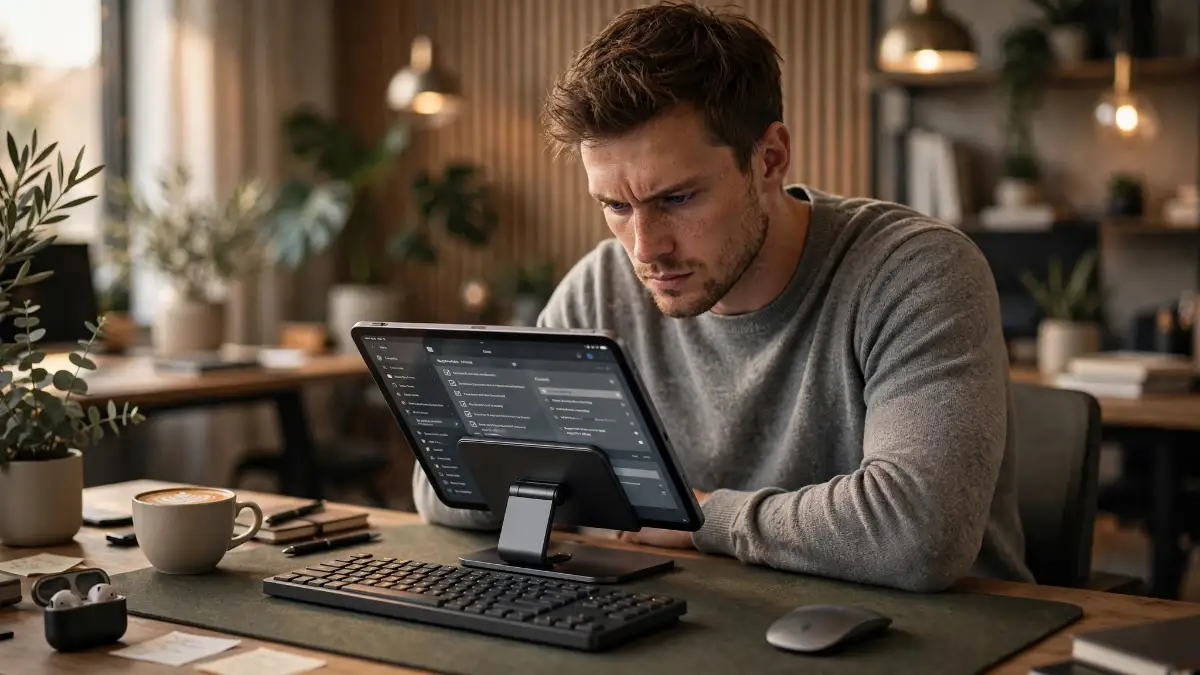
The Hidden Traps That Ruin the Tablet Experience
Transitioning to a new daily workflow is an exciting journey, but it is very easy to fall into some frustrating traps. Many people give up on this lightweight lifestyle within the first two weeks simply because they hit a minor roadblock and instantly panic. Let us look at the biggest mistakes people make so you can completely avoid them.
Trap 1: Developing "Gorilla Arm" Syndrome
When you finally attach a keyboard to your screen, your brain still wants to reach up and touch the glass for everything. Reaching across your desk to constantly tap the screen is terrible for your physical posture. Within an hour, your shoulder will start aching, and your arm will feel incredibly heavy.
This physical pain is entirely preventable if you force yourself to use a trackpad or an external mouse. Health guidelines from the Occupational Safety and Health Administration (OSHA) clearly state that your hands should rest comfortably near your waist level while working. Keep your hands down on the desk and let the digital cursor do all the heavy lifting for you.
Trap 2: Creating a Messy Digital Dumping Ground
Because mobile devices hide their file systems, many people just save everything into one massive "Downloads" folder. After a few months, finding an old invoice or a specific client photo becomes an absolute nightmare. This lack of organization will make you miss the simple desktop folders of your old computer.
You need to set up a proper folder structure on your very first day. If you are not sure how to manage your digital files properly, having cloud storage explained everything you need to know will give you a perfect starting point. Create clear, separate folders for your ongoing projects, personal documents, and financial records right inside your main cloud drive.
Trap 3: Ignoring Digital Eye Strain
People love the glossy, bright screens on modern tablets because movies look absolutely stunning on them. However, staring at maximum brightness while typing black text on a white background will quickly exhaust your eyes. You might start getting strange afternoon headaches without understanding why.
You have to manually adjust your screen settings for long reading sessions. Turn on the warm color filters in your display settings to block out harsh blue light during the afternoon. If you constantly struggle with visual fatigue, you should read about how your screen settings are quietly hurting you to make your daily reading experience much safer. Medical professionals from the American Academy of Ophthalmology strongly suggest following the 20-20-20 rule to give your eye muscles a necessary break.
Trap 4: Compromising Your Security on the Go
Working from a sunny outdoor patio is the dream, but it comes with hidden digital risks. When you connect your primary work device to an open coffee shop network, your client data becomes vulnerable. Many remote workers completely forget about basic digital hygiene just because they are using a tablet instead of a heavy computer.
Never do your personal banking or handle sensitive client passwords on an open, password-free public network. You should always route your traffic securely or wait until you are on a trusted connection. Protecting your remote data is just as important as knowing how to secure your home Wi-Fi router from hackers fast when you are working comfortably from your living room.
Trap 5: Buying Cheap Power Accessories
When you only have one single port on your device, you rely heavily on battery power. Many beginners try to save money by buying unbranded, cheap charging blocks from local gas stations. This is a terrible idea that can permanently damage your internal battery health over time.
These cheap chargers often lack basic thermal protection and push unstable voltage directly into your expensive device. Always spend a little extra money on certified, high-quality charging adapters from trusted brands like Anker, Belkin, or Ugreen. This tiny initial investment will keep your mobile workstation running safely for many years.
The Psychology of the Single-Screen Mindset
One of the most unexpected benefits of leaving your traditional computer behind is the mental clarity you gain. Traditional heavy machines encourage you to have fifty different browser tabs open alongside five different applications. This visual clutter constantly reminds you of all the work you have not finished yet, creating low-level daily anxiety.
A tablet naturally limits your view to just one or two applications at a single time. This physical limitation actually forces your brain to focus completely on the exact task right in front of you. You stop trying to do everything at once and finally start giving your full attention to your writing, your emails, or your creative projects.
You will likely notice that your actual work quality improves significantly after a few weeks. Without the constant temptation to check random desktop notifications, you enter a state of deep work much faster. You are no longer managing a complicated machine; you are simply getting your daily work done in peace.
Your Final Blueprint for a Lighter Work Life
You now have all the knowledge, tool recommendations, and software strategies you need to make this transition a complete success. The era of hurting your back while carrying a massive computer bag is completely over. You have the power to create a fast, organized, and highly portable workspace that perfectly fits your personal lifestyle.
Start your transition very slowly tomorrow morning. Just take your new lightweight setup to your favorite comfortable chair and try answering your morning emails. Notice how quiet the device is, how fast the apps open, and how incredibly light it feels on your lap.
I completely understand the initial fear of leaving your familiar, heavy laptop behind, but I promise the physical relief is entirely worth it. I finally look forward to packing my bag every single morning, and I truly believe you deserve to experience this exact same freedom in your daily routine.
Common Questions About the Lightweight Lifestyle
Can I easily print physical documents from this mobile setup?
Yes, you can print documents incredibly easily without any messy cables. As long as your modern printer connects to your local Wi-Fi network, you can send any document directly to the printer using the native share menu.
Will I lose all my ongoing work if my battery dies unexpectedly?
You almost never have to worry about losing your progress with modern cloud applications. Programs like Google Docs and Microsoft Word constantly auto-save your keystrokes to the cloud every few seconds, keeping your work entirely safe.
Is the screen size simply too small for a full day of office work?
The screen might feel slightly small at first, but adjusting the display scaling in your settings makes a massive difference. You can easily make the text and application icons much smaller, giving you completely comfortable extra workspace for long hours.
Can I use a traditional wired mouse if I hate Bluetooth devices?
You absolutely can use your favorite traditional wired mouse for daily work. You just need to plug the normal USB cable into your connected USB-C hub, and the digital cursor will instantly appear on your screen perfectly.
Do I need to buy the most expensive 'Pro' model to get real work done?
You absolutely do not need the most expensive model to experience a great daily workflow. The standard base models are incredibly fast and can easily handle heavy web browsing, document editing, and intense email management without any lag.
Disclaimer: The information provided in this article is for general educational and informational purposes only. Technology, software features, and hardware specifications frequently change over time. Always verify device compatibility and check official manufacturer documentation before purchasing new accessories or making major changes to your professional daily workflow.
If you still keep a traditional laptop for heavier work, battery life matters just as much there. See why your laptop battery drains so fast and how to slow it down to stretch its charge between charges.