Key Takeaways: Fix It Tonight, Keep It Fixed
- Power first: Push the plug in firmly and try a wall outlet before you touch any setting.
- Timer test: Turn the sleep timer and Eco Mode off for one night and see if the TV stays on.
- One device at a time: Unplug every HDMI device, then add one back per hour to catch the troublemaker.
- Heat and updates: Clean the vents, give the TV room to breathe, and check for a software update once a month.
My TV Went Black Right in the Middle of My Favourite Show
The film was ten minutes from its best scene when my screen went black. No sound, no warning, just a small red light blinking at me from the dark. I laughed it off the first time. By the third night, I was done laughing, and I started writing down everything I tried.
I pressed the power button. Nothing happened at first, and then the TV came back on its own, as if nothing had gone wrong. I sat back down, a little annoyed but ready to enjoy the rest of the film. Ten minutes later, it went black again, and this time I felt my patience run out.
I checked the remote, I checked the plug, and I even stood up and looked behind the TV like the answer was hiding back there. My TV is not old, and I take good care of it, so why was it acting like this? I asked myself that question more than once that night, and I know I am not the only one who has.
Have you ever had your TV turn off right when your team was about to score? Or right at the best part of a show, when everyone in the room groans at the same time? It feels small, but it can ruin a whole evening. And when it keeps happening, it starts to feel like your TV is working against you.
In a Hurry? Here Is What Actually Matters
Most of the time, it is the power, a timer, or a connected device.
Check the plug, the outlet, and the sleep timer first.
Unplug your HDMI devices one by one to find the troublemaker.
A hot TV with blocked vents will shut itself off to stay safe.
Try the simple fixes below before you call anyone for help.
When a Small Glitch Starts Stealing Your Evenings
A TV that turns off by itself does more than break your viewing. It breaks the flow of your evening, and that small break can feel much bigger than it sounds. You sit down after a long day, you want one quiet hour to yourself, and then the screen goes dark again. You lose the scene, you lose the mood, and sometimes you lose the whole evening to fiddling with cables and settings.
For families, it can be worse. Kids complain, parents get annoyed, and a simple movie night turns into a round of "who touched the remote?" Nobody touched anything, and yet the TV keeps switching off. That guessing game can wear people down, and it can make a normal home feel tense over something that should be simple fun.
I have seen people start to worry about money too. Is the TV dying? Will I need a new one? Will a repair cost more than the TV is worth? Those thoughts come fast, and they can turn a small problem into a big worry. Most of the time, the truth is much kinder than the worry, and the fix is much smaller than people expect.
So if your TV keeps turning off, please know this: you are not doing anything wrong, and you are not alone. Thousands of people face the same problem every week, and most of them fix it at home with a few calm checks. The rest of this guide walks you through those checks in plain words, one at a time, so you can find the cause and get your evenings back.
Start With the Power, Because That Is Where Most TV Problems Begin
Give the Plug and the Outlet a Proper Look
A loose plug is the most common cause I see, and it is also the easiest to miss. The plug can look fine from the front while sitting half out at the back, and every small shake of the floor or the TV stand can break the connection for a second. Push the plug in firmly until it sits flat, and check that the cable has no cuts, bends, or burn marks.
Next, look at the outlet itself. Try a different outlet, even if it means moving a power strip out of the way for a test. If your TV works fine on another outlet, the first outlet may be worn out or loose inside. A worn outlet cannot hold a plug tight, and that loose grip can make your TV lose power again and again.
A surge protector can help here, and it is a smart buy for any home with a good TV. Brands like Belkin and APC make surge protectors you can find at any large electronics shop or on your TV brand's official accessories page. A good surge protector keeps sudden power jumps away from your TV, and it gives you one more clue: if its light flickers or its switch trips, your home power may be the real problem.
Pro Tip: I once spent an hour in my TV settings before I found the real cause, and it was the power strip. My TV cable was plugged into an old strip with a loose switch, and every time someone walked past, the switch moved a tiny bit. I plugged the TV straight into the wall for one night, and it stayed on the whole evening. That one test saved me a repair call, and I still use it first whenever a screen acts up.
Check the Sleep Timer Before You Blame the TV
A sleep timer is a quiet troublemaker. You may have set it by accident, or a family member may have pressed the wrong button on the remote. The TV then turns off after 30, 60, or 90 minutes, and it looks like a fault when it is only a setting doing its job.
Open your TV settings and look for Sleep Timer, Auto Power Off, or Eco Mode. On Samsung TVs, you will find these under Settings, then General, then Power and Energy Saving. On LG TVs, look under Settings, then General, then Timers. On Sony TVs, check Settings, then Power, then Sleep Timer. Turn the timer off, and turn off any auto-off feature for one night to see if the problem stops.
Eco Mode can do the same thing in a quieter way. Some TVs dim the screen or switch off when they sense no movement in the room, and some turn off when they get no signal for a while. If you watch long films or listen to music with a still picture, the TV may think you have left the room. Turn Eco Mode off for a test, and see if your TV stays on through a full show.
| Quick check | Time it takes | What it tells you |
| Plug the TV straight into the wall | 2 minutes | If it stays on, your strip or outlet is the problem |
| Turn the sleep timer off for one night | 1 minute | If it stays on, a setting was shutting it down |
| Unplug all HDMI devices, then add one back | 1 evening | The device that brings the problem back is the troublemaker |
Let Each HDMI Device Speak for Itself
Your TV talks to your other devices through HDMI, and one bad device can tell the TV to switch off. This feature is called HDMI-CEC, and it lets your TV, soundbar, game console, and streaming stick control each other. It sounds helpful, but one device with a fault can send the wrong signal and shut the TV down.
Unplug every HDMI device from your TV, and watch one show with nothing else connected. If the TV stays on, plug the devices back in one at a time, and give each one an hour. When the TV turns off again, you have found your troublemaker. It could be an old streaming stick, a game console in rest mode, or a soundbar with a loose cable.
Check the HDMI cables too. A cheap or damaged cable can drop the signal, and some TVs switch off when they lose the signal for too long. Try a new certified high-speed HDMI cable, and make sure each cable clicks in firmly. You can find certified cables at any trusted electronics shop, or on your TV brand's official support page, where they list the cable type your model needs.
Watch this first if your TV only turns off when a console or streaming stick is connected — it shows the exact test in under two minutes, and it will save you from changing settings that are not broken.
Feel the Back of Your TV, Because Heat Is a Real Warning
A TV that gets too hot will protect itself by switching off, and that is a good thing, even if it feels annoying. The vents on the back and sides of your TV let hot air out, and when dust, a wall, or a closed cabinet blocks those vents, the heat has nowhere to go. The TV then gets hotter and hotter until it shuts down to avoid harm.
Put your hand near the back of the TV after it has been on for a while, and feel if the air is very warm. Look at the vents and see if dust has built up, or if a curtain, a book, or a wall is sitting too close. Give your TV at least a few inches of space on all sides, and clean the vents gently with a soft dry cloth or a can of compressed air.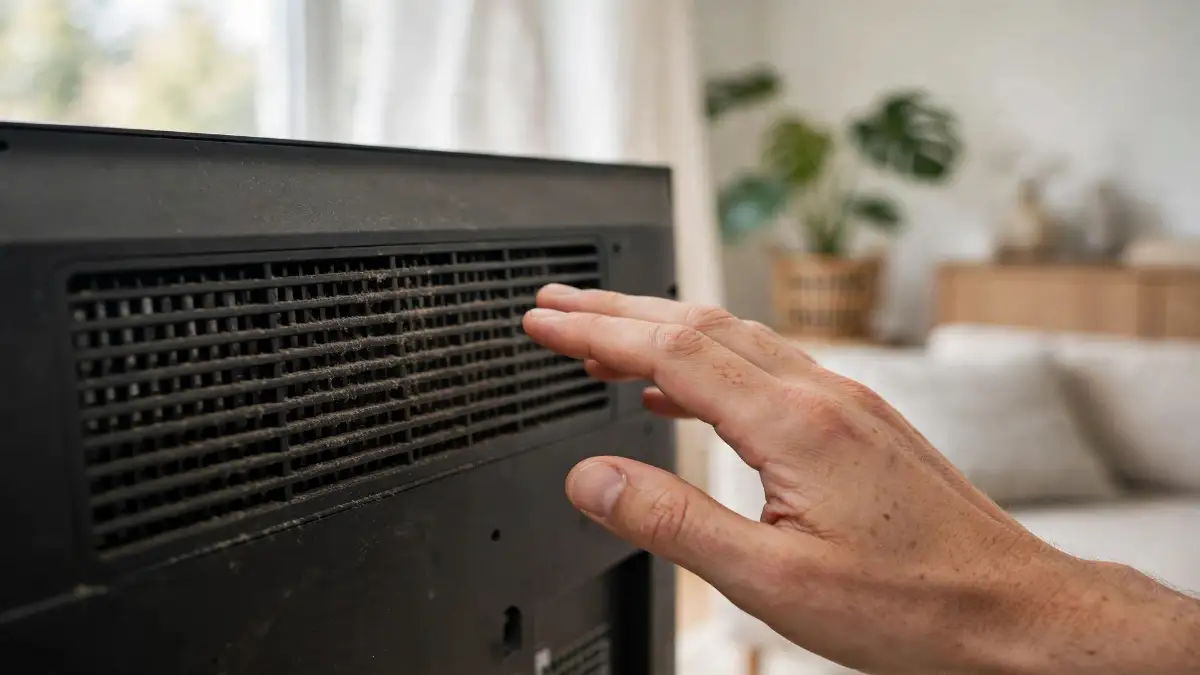 Do not put your TV inside a closed cabinet with no air flow, and do not stack books or boxes on top of it. A TV needs to breathe, just like any other machine in your home. If your TV sits above a heater or in direct sun for part of the day, move it or shade it, and see if the random shut-offs stop.
Update the Software and Give the TV a Fresh Start
Smart TVs run software, and old or broken software can cause strange problems, including random shut-offs. A software update can fix bugs that the TV maker has already found, and it only takes a few minutes. Go to Settings, then Support or About, then Software Update, and check for a new version. On Samsung, LG, Sony, and TCL TVs, the menu names are close to these, and your TV will tell you if an update is ready.
If your TV is already up to date, try a simple restart. Unplug the TV from the wall, wait for a full minute, and plug it back in. This clears the short-term memory of the TV, and it can stop small glitches that build up over weeks of use. I do this once a month now, and my TV has run much better since I started.
If the problem stays, a factory reset is the next step, but save it for last. A factory reset erases your apps, your Wi-Fi password, and your picture settings, so write those down first. You will find Factory Reset under Settings, then General, then Reset. After the reset, set the TV up again from the start, and test it for a night before you add all your apps back.
When the Remote or the Buttons Are the Real Problem
A stuck button can turn a TV off without you knowing it. If the power button on your remote is jammed, or if something is pressing on it inside a sofa cushion, the TV can get a shut-off signal again and again. Take the batteries out of the remote for one evening, and control the TV with the buttons on the TV itself. If the problem stops, your remote is the cause, and a new set of batteries or a new remote will fix it.
The buttons on the TV can stick too, especially if dust or a small spill has reached them. Press each button on the TV gently, and feel if any of them stays down or feels soft. Wipe the area with a dry cloth, and do not spray any liquid near the buttons. If a button stays stuck, that is a job for an authorised service centre, and you should not try to open the TV yourself.
You can also try a universal remote as a test, and you can find one at any electronics shop or through your TV brand's official accessories page. If a new remote works fine and the old one does not, you have your answer. Keep the receipt, and keep the old remote away from the sofa until you are sure.
The "My TV Is Broken" Worry, and What Is True Instead
Many people think a TV that turns off by itself must be broken inside, and that thought can push them to buy a new TV too soon. The truth is kinder: most random shut-offs come from power, settings, heat, or a connected device, and none of those mean the screen itself is dead. A TV can run for many years after a small fix, and a little patience can save you a lot of money.
Myth: A TV that turns off by itself is dying and needs to be replaced.
Fact: Most shut-offs come from power, a timer, heat, or one HDMI device. I have seen TVs run for years after a two-minute plug fix.
Myth: A factory reset fixes every TV problem.
Fact: A reset only helps when the software is the cause. It does nothing for a loose plug, a hot vent, or a faulty streaming stick, and it erases all your settings for nothing.
On the other hand, some signs do point to a deeper problem. If your TV turns off with a loud pop, if you smell burning, or if you see a burn mark near the plug, unplug the TV at once and do not use it again. Those signs need a trained technician, and they are not safe to fix at home. Your safety comes first, and a repair shop or the brand's authorised service centre is the right call in that case.
If your TV is still under warranty, check the warranty card or the brand's official support page before you pay for anything. Brands like Samsung, LG, Sony, and TCL offer warranty checks online, and an authorised centre can tell you if the repair is covered. Keep your purchase receipt safe, and write down when the problem started, because that note will help the technician a lot.
How to Keep Your TV On for Years, Not Just Tonight
Part 1 helped you find the cause. This part is about keeping the fix. A TV that stays on is not luck, it is a small set of habits, and once those habits are in place, you can stop thinking about the problem and just enjoy your shows.
Keep a Short Note of When It Happens
A TV rarely turns off for no reason, and a short note can show you a pattern you would miss otherwise. Write down the time, what you were watching, and which device was on. Did it happen during a game, after two hours, or only when the soundbar was on? That one line can save you hours of guessing.
I started doing this after my own TV acted up twice in one week. My notes showed the shut-offs only happened on hot afternoons, and that pointed me straight to the vents. Without the notes, I would have blamed the software and reset everything for nothing. A small notebook by the sofa, or a note on your phone, is enough.
Check your notes after a week. If the shut-offs follow one device, one time of day, or one room temperature, you have your answer. If they seem random, the pattern may be power, and that is still useful to know. A clear pattern is the fastest way to a calm fix.
Build a Simple Power Routine for Your TV
Power problems come back when cables get moved, and cables get moved more than we think. Cleaning, moving furniture, or letting kids play near the TV stand can loosen a plug a little at a time. Make it a habit to check the plug once a month, and push it in firmly while you are there.
A surge protector deserves a place in this routine too. Plug your TV and your soundbar into one good protector, and keep the protector where you can see its light. If the light goes out or the switch feels loose, replace the protector before it fails. A tired protector can cause the same random shut-offs as a bad outlet, and it will not warn you first.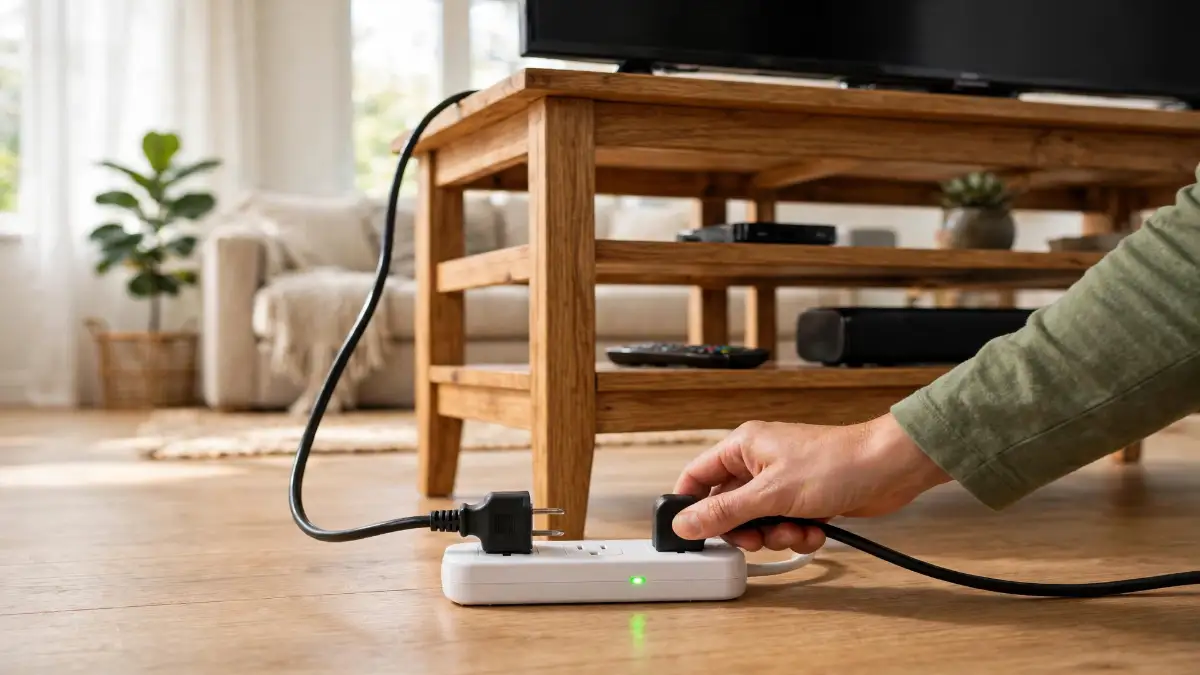 Pro-level habit: I check my TV power on the first Sunday of every month, and it takes me less than a minute. I push the plug in, I look at the surge protector light, and I feel the back of the TV for heat. That tiny habit has kept my TV steady for a long time, and it costs nothing. If you want one habit from this whole guide, make it this one.
Take Charge of HDMI-CEC Instead of Letting It Run Wild
HDMI-CEC is the feature that lets your devices switch each other on and off, and it can be a friend or a troublemaker. You do not need to turn it off for good, but you should know which device is in charge. On Samsung TVs, it is called Anynet+. On LG TVs, it is called Simplink. On Sony TVs, it is called Bravia Sync. Find it in your settings, and look at which devices are listed there.
Turn CEC off for one device at a time if the problem comes back, and watch what changes. A game console in rest mode is a common source of trouble, because it can wake up, send a signal, and put the TV to sleep by mistake. A streaming stick that updates itself at night can do the same thing. When you find the device that causes the trouble, you can turn CEC off for that device only and keep it on for the rest.
For help with the exact menu on your model, Samsung Support and LG Support both list the steps for their own TVs, and they are the safest place to check before you change a setting you are unsure about. Use the model number from the back of your TV, and you will get the right guide for your screen.
Give Your TV Room to Breathe, Every Day
Heat builds up slowly, and a TV that is fine in winter can start shutting off in summer. The vents on the back of your TV need open air, and they need it all the time, not just on hot days. Keep at least a few inches of space behind the TV, and do not push it flat against a wall.
Dust is the quiet partner of heat. A thin layer of dust on the vents can trap warm air, and over months it can make the TV run hotter than it should. Wipe the vents with a soft dry cloth once a month, and use a can of compressed air for the hard corners. Do it with the TV off and cool, and never spray liquid into the vents.
If your TV lives in a closed cabinet, leave the doors open while you watch, or cut a small gap for air at the back. A cabinet can look neat, but it can also turn into an oven for your TV. The same idea applies to a TV above a fireplace or a heater. Warm air rises straight into the vents, and the TV will shut itself off to stay safe.
Set a Soft Calendar for Updates and Restarts
Software updates fix bugs, but they only help if you let them run. Check for updates once a month, and let the TV install them when you are not watching. A TV that has not been updated for a long time can carry old bugs that the maker has already fixed, and those bugs can cause random shut-offs.
A monthly restart helps too. Unplug the TV, wait a full minute, and plug it back in. This clears the short-term memory and stops small glitches from building up. Think of it like a good night of sleep for your TV, and it takes less effort than making a cup of tea.
If you want a simple way to keep track, write the date of your last update on a small sticker at the back of the TV. When you see a month has passed, you will know it is time again. This small system works for other screens in your home too, and it can save you from a lot of strange problems later.
What Good Long-Term Care Looks Like in Real Life
Picture a home where the TV just works. The plug is firm, the vents are clean, the timer is off, and the devices all get along. Nobody thinks about the TV at all, and that is the point. A TV should be quiet in the background of your life, not a puzzle you solve every evening.
Good care is not about spending money. It is about small checks, done often, before a small problem grows. A clean vent today is a working TV next summer. A firm plug today is a movie night that does not end early. These small acts add up, and they protect a screen you use every day.
And when something does go wrong again, you will not panic. You will have your notes, your routine, and your calm checks, and you will know where to look first. That confidence is the real reward of the work you did in Part 1, and it stays with you long after the problem is gone.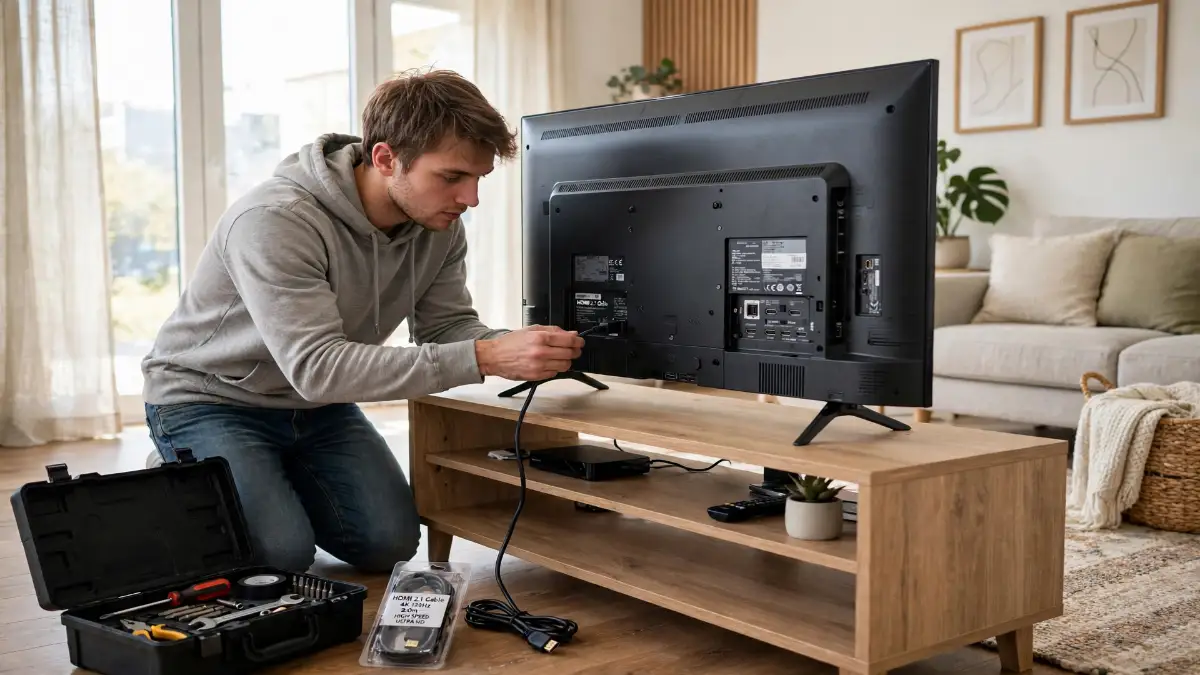
The Traps That Turn a Small TV Problem Into a Big Bill
The Mistake of Opening the TV Yourself
A TV looks simple from the outside, but the inside holds parts that can stay charged even when the TV is off. Opening the back cover can be unsafe, and it can also end your warranty in one move. I know the urge to peek inside and fix it yourself, and I have felt it too, but this is one job where patience beats courage.
If you have already tried the safe checks in Part 1 and the problem stays, call the brand's authorised service centre. Tell them what you tried, and when the problem happens. That note will help them a lot, and it will keep you safe. A trained technician can test the power board and the main board without risk, and they can tell you if a repair is worth it.
The Mistake of Buying the Cheapest Cable You Can Find
A cable is not just a cable, and a very cheap HDMI cable can cause more trouble than it saves. Poor shielding can drop the signal, and a loose connector can make the TV think the device has gone away. The TV may then switch off, and you may blame the TV for a fault that lives in a five-dollar cable.
Buy a certified high-speed HDMI cable from a trusted shop, and keep the receipt. A good cable clicks in firmly, and it stays put. If you are unsure which cable your TV needs, check the TV maker's support page, or ask at the shop and tell them your TV model. One good cable can end a problem that three cheap ones could not.
The Mistake of Resetting Everything First
A factory reset feels like a fresh start, and it can be tempting to reach for it first. But a reset erases your apps, your Wi-Fi password, your picture settings, and your login details, and it often does nothing for a power or heat problem. You end up with a clean TV and the same fault, plus an evening spent setting everything up again.
Save the reset for last, after the plug, the timer, the HDMI test, the heat check, and the update. If you do reset, write down your settings first, and test the TV for a night before you add your apps back. That way, you will know if the reset helped, or if the cause was somewhere else all along.
The Mistake of Ignoring the Warranty
Many people pay for a repair without checking the warranty, and that can cost real money. Your TV may still be covered, and the maker may fix it for free. Check your purchase date, your receipt, and the warranty terms on the brand's support page before you book a repair.
Do: keep your receipt, note the date the problem started, and take a short video of the shut-off if you can. Don't: open the TV, use a random repair shop that is not authorised, or throw the box and papers away in the first year. Those small acts can be the difference between a free repair and a big bill.
The Mistake of Living With the Problem
Some people live with a TV that turns off for months, and they just turn it back on each time. That habit feels harmless, but it hides the cause and lets it grow. A loose plug can wear out an outlet, a hot TV can age faster, and a faulty device can harm other devices too.
It also steals your rest. Every shut-off breaks your focus, and every restart reminds you that something is wrong. You deserve a TV that stays on, and the checks in this guide take less time than one evening of frustration. Fix it now, while it is small, and your future self will thank you.
A Quick Q&A From a Real Living Room
Q: My TV only turns off when I play games. Is my console broken?
A: Not always. A console in rest mode can send a shut-off signal through HDMI-CEC, and a hot console can warm the TV too. Try the CEC test from Part 1, and give the console its own space to breathe.
Q: I cleaned the vents, but the TV still turns off. What now?
A: Check the power side again, and try a different outlet for one night. If the problem follows the TV and not the outlet, try the software update and restart, and then talk to an authorised service centre.
Q: Can a soundbar really turn my TV off?
A: Yes, it can. A soundbar with HDMI-CEC on can send power signals to the TV, and a loose soundbar cable can drop the signal. Unplug the soundbar for a test night, and you will know for sure.
Your Evenings Are Yours Again — Here Is Your Simple Action Plan
You have done the hard part already. You found the cause, you tried the safe checks, and you learned how to keep the fix. Now it is time to turn all of that into a short plan you can follow without thinking about it again.
Your final checklist:
- Push the plug in firmly, and check the outlet once a month.
- Keep the sleep timer and Eco Mode off unless you truly need them.
- Test HDMI devices one at a time, and replace a bad cable with a certified one.
- Clean the vents monthly, and give the TV space to breathe.
- Check for software updates monthly, and restart the TV by unplugging it for a minute.
- Keep your receipt and warranty safe, and call an authorised centre if you smell burning or hear a pop.
If you want a second opinion on picture settings or TV reviews before you change anything else, RTINGS TV reviews is a trusted place to compare models and settings, and it can help you understand what your TV can do. For power habits that help other screens too, my guide on why your laptop battery drains so fast shows how the same kind of care keeps a laptop running longer. And if heat is your main worry, my post on why your phone overheats explains how heat affects small screens in the same way.
For the rest of your home setup, a few related guides can help. If your screen looks wrong after a fix, my guide on how to fix dual-monitor resolution and scaling issues can help with display settings. If your Wi-Fi drops while you stream, my guide on fixing slow Wi-Fi can help with the connection side. And if dust and heat worry you for other devices, my guide on cleaning laptop fans and heat sinks shows the same gentle cleaning habits. For software, my guide on the real importance of firmware updates explains why updates matter for every device you own.
I fixed my own TV with the same small steps you just read, and my evenings have felt calm since then. I hope yours feel the same from tonight, and I hope you get back to the shows you love without that black screen stealing the best part.
Questions People Ask About a TV That Turns Off
Why does my TV turn off by itself at night?
A sleep timer or Eco Mode is the most common cause at night, and a device updating itself can also send a shut-off signal. Turn the timer off for one night, and unplug your streaming stick to test it.
Can a bad HDMI cable turn my TV off?
Yes, it can. A damaged or very cheap cable can drop the signal, and some TVs switch off when they lose the signal for a while. Try a new certified cable, and make sure it clicks in firmly.
Is it safe to keep using a TV that turns off randomly?
It is usually safe if there is no smell, no pop, and no burn mark, but you should still find the cause soon. If you smell burning or hear a loud pop, unplug the TV at once and call an authorised service centre.
Why does my TV turn off only when it gets hot?
A TV protects itself from heat by switching off, and blocked vents or a closed cabinet can make it overheat. Clean the vents, give the TV space, and keep it away from heaters and direct sun.
Should I buy a new TV if mine keeps turning off?
Not yet. Most shut-offs come from power, settings, heat, or a connected device, and those can be fixed at home. Try the checks in this guide first, and only think about a new TV if an authorised technician says the repair is not worth it.
Disclaimer: This article is for general information only and is not a substitute for professional repair advice. Do not open your TV, and do not attempt any repair that involves the power supply or internal parts. If you notice a burning smell, smoke, sparks, or any sign of damage, unplug the TV at once and contact the manufacturer's authorised service centre. Always follow your TV maker's safety instructions and warranty terms.