Title: How to Tell If Your Phone Has Been Hacked: Warning Signs and What to Do Next
Your Phone Safety Cheat Sheet
• One strange sign is often harmless, but three or four signs in the same week is a real warning pattern.
• Check your battery screen, data use, and full app list first — most clues hide in those three places.
• Change key passwords from a clean device, starting with email, then banking, then social apps.
• Give your phone ten quiet minutes a week: updates, permissions, signed-in devices, and a backup check.
The Morning My Phone Started Acting Like It Belonged to Someone Else
Your phone lights up at 2 a.m. with a sign-in code you never asked for, and by breakfast your battery is half gone on a phone you barely touched. I have been in that exact spot, and I can tell you the fear is not really about the phone. It is about not knowing what a stranger can see, touch, or take from your life. So let us skip the panic and start with the truth: a phone in trouble almost always shows clear signs first, and you can check every one of them yourself, starting in the next two minutes.
I remember staring at the screen with cold hands, asking myself one scary question again and again. Was someone else inside my phone, reading my messages and watching my life through my own screen? In that moment, I did not feel angry first, I felt small, confused, and honestly a little ashamed that I had no idea what to check.
That morning changed the way I look at my phone forever. I learned, step by step and with a lot of worry in between, that a hacked phone almost always leaves small clues behind. You just need someone to show you where to look, in plain words, without scary talk.
Maybe your story starts in a smaller way, like a bill that looks too high or a friend asking why you sent them a strange link. You laugh it off at first, because nobody wants to believe their own phone has turned against them. Then the same odd thing happens again the next day, and the joke stops feeling funny.
Soon the worry follows you into normal daily life in ways nobody warns you about. You hesitate before opening your banking app at the shop, and you change your seat on the bus so nobody can see your screen. At night you lie awake and wonder who might be reading your family photos, your private chats, or the notes you saved for work.
That kind of stress quietly steals your peace of mind. Your phone holds your money, your memories, and your talks with the people you love most, so a doubt about its safety touches everything. Many readers tell me the worst part is not the strange pop-up itself, it is the helpless feeling of not knowing what to do next.
 a phone on a bedside table in the early morning, battery almost empty, an unknown app icon on the screen
Simple Checks That Help You Spot a Hacked Phone Early
The good news is that you do not need to be a tech expert to run the first checks. Most warning signs hide in plain sight, inside settings you already have on your phone. We will go through them one by one, in a calm order, so you can mark each one off as you go.
Think of this like a health check for your phone, not a test you can fail. One single sign on its own often has a simple and harmless reason, like an old battery or a buggy update. The real warning is a pattern, when three or four strange signs show up together in the same few days.
A Quick Way I Judge Any Strange Sign on My Phone
|
What You Notice |
Often a Harmless Reason |
When I Start to Worry |
|
Battery drains fast |
Old battery, a heavy game, a fresh update |
It drains fast while the phone sits unused, and the back feels warm |
|
Data use jumps up |
Video apps, cloud photo backup |
One quiet app uses heavy data at night while you sleep |
|
A new app appears |
A maker update added a system tool |
The app has a blank icon, no clear name, and asks for wide access |
|
Strange call sounds |
Weak signal, old network in your area |
Clicks and echoes show up on many calls, in many places |
My rule is simple: one row alone is usually fine, but two or three rows in the same week means I stop guessing and run the full checks in this guide.
Start With the Battery Screen, Not a Guess
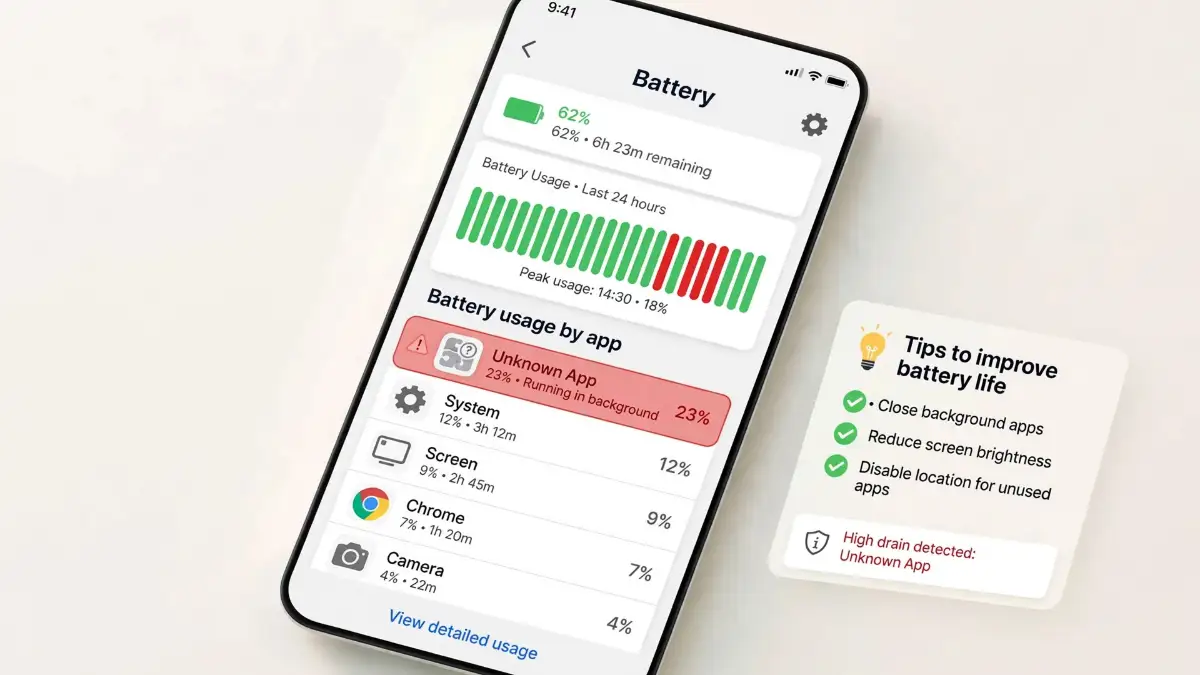
Open your battery settings and look at which apps used the most power in the last day or two. On most Android phones this sits under Battery in Settings, and on an iPhone it sits under Battery in Settings as well. You are looking for an app you barely use sitting near the top of the list.
A hidden harmful app often works quietly in the background, sending data or running tasks while you sleep. That steady work drains the battery and can make the back of the phone feel warm even when the screen is off. A phone that turns hot in your pocket, with no game or video running, deserves a closer look. Here is a simple way to test it before you panic. Charge the phone fully, note the time, and leave it alone for two hours with Wi-Fi on as normal. If the battery drops in a big and unusual way during that quiet time, write down the number and keep it for the checks below.
Look for Apps You Never Installed
Scroll slowly through your full app list, not just your home screen. On Android, open Settings and then Apps to see everything, including apps that hide from the home screen. On an iPhone, swipe to the App Library and also check the list under Settings and General and iPhone Storage.
Ask yourself one honest question for every name you do not know. Did I install this, or did it come with the phone from the maker? Tools with odd names, blank icons, or no clear purpose are worth a careful search on the official support pages of Apple Support or Google Support before you touch them.
Do not rush to delete a system app you are unsure about, because some plain looking names are part of the phone itself. A safer move is to note the app name, the date it seems to have appeared, and how much data and battery it uses. That small note becomes very helpful later if you ask your carrier store or a service center for help.
Watch Your Data Use Like a Hawk
Next, open the data use screen and compare this month with your normal habit. On Android it is usually under Network or Connections in Settings, and on an iPhone it is under Mobile Service or Cellular. Look for one app using a large amount of data while you were not using it.
Harmful software often sends copies of photos, contacts, or messages to a stranger, and that sending shows up as data use. It can also pull down more harmful tools in the background, which adds even more quiet traffic. A sudden data spike you cannot explain, on an app you hardly open, is one of the clearest early signs.
Picture a simple real life example so this feels less abstract. Your music app shows heavy data use at three in the morning for three nights in a row, yet you never listen to music at night. That mismatch between your real life and the numbers on the screen is exactly the kind of clue worth trusting.
Pay Attention to Pop-Ups, Sounds, and Odd Behavior
A clean phone behaves in a calm and boring way, and that is a good thing. A troubled phone often feels jumpy, with pop-ups that appear on the home screen or in apps where ads never showed before. Some readers also notice the screen waking on its own, or the camera or mic dot lighting up when nothing is open.
And if your phone also restarts by itself at odd times, do not assume the worst — that one usually has a simple fix. Here is my guide to the 9 reasons phones keep restarting and how to stop each one.
During calls, listen for strange clicks, echoes, or a faint voice that is not part of your talk. These sounds can have simple causes, like a weak signal, so treat them as one clue and not as proof on their own. When they sit beside battery drain and unknown apps, the picture becomes much clearer.
Here is where I share a mistake I made with my own phone, because I hope you skip it. I kept tapping Allow on a pop-up just to make it go away, and each tap gave a bad app more room to work. My rule now is plain and firm, if a pop-up scares me or rushes me, I close it, note the time, and check my settings instead of tapping any button inside it.
Before you move on, watch a short walkthrough from a trusted tech channel showing these same warning signs on a real phone, because seeing the battery and data screens once makes every check below feel ten times easier, and it will give you the confidence to finish this guide.
Watch the video here: How to Tell If Your Phone Is Hacked
Check Messages, Calls, and Accounts You Did Not Touch
Open your recent calls and your message threads and look for anything you do not remember. Strange code messages, sent links you never wrote, or calls to numbers you do not know all matter here. Ask close friends or family if they got an odd link or request from your number in the last few days.
Then check the accounts you use most, starting with email, banking, and social apps. Many services show a list of active sessions and signed-in devices under their security settings. Google Account, at myaccount.google.com, shows recent security activity for Google services, and your Apple ID page shows every device signed in with your account.
If you see a device name, city, or time that is not yours, treat it as a serious sign. Do not ignore it and hope it goes away, because strangers count on that delay. Write down what you saw, take a screenshot if you can do it safely, and keep moving through the checks in this guide.
See If Your Email or Number Has Been in a Data Leak
A phone problem sometimes begins with an old password leak from a website you joined long ago. A free and well-known check is Have I Been Pwned, a respected site that tells you if your email address appeared in known data leaks. Type your email on its home page and read the result in calm and simple terms.
If your email appears in a leak, do not panic, but do treat your passwords as tired and worn out. That one result tells you a stranger may already know an old password you still use in other places. We will talk about changing passwords the safe way in the steps just below.
You can also ask your mobile carrier for help with the line itself. Official carrier stores and their support lines can check for odd call forwarding settings or a new SIM request you never made. Bring your photo ID and your small notes from the earlier checks, and the staff can work much faster.
Run a Built-In Scan and Bring Your Phone Up to Date
Now give your phone a fair chance to defend itself with its built-in tools. On Android, open the Google Play Store, tap your profile picture, and open Play Protect to run a scan of your apps. On an iPhone, there is no separate scan button, so your main tools are updates, the device list check, and removing apps you do not trust.
Updates matter more than most people think, because they close holes that strangers use to get in. Go to your software update screen and install any waiting system update, then update all your apps from the official store. The United States Federal Trade Commission, at consumer.ftc.gov, also shares simple public guides on keeping phones safe, and your phone maker support pages give steps for your exact model.
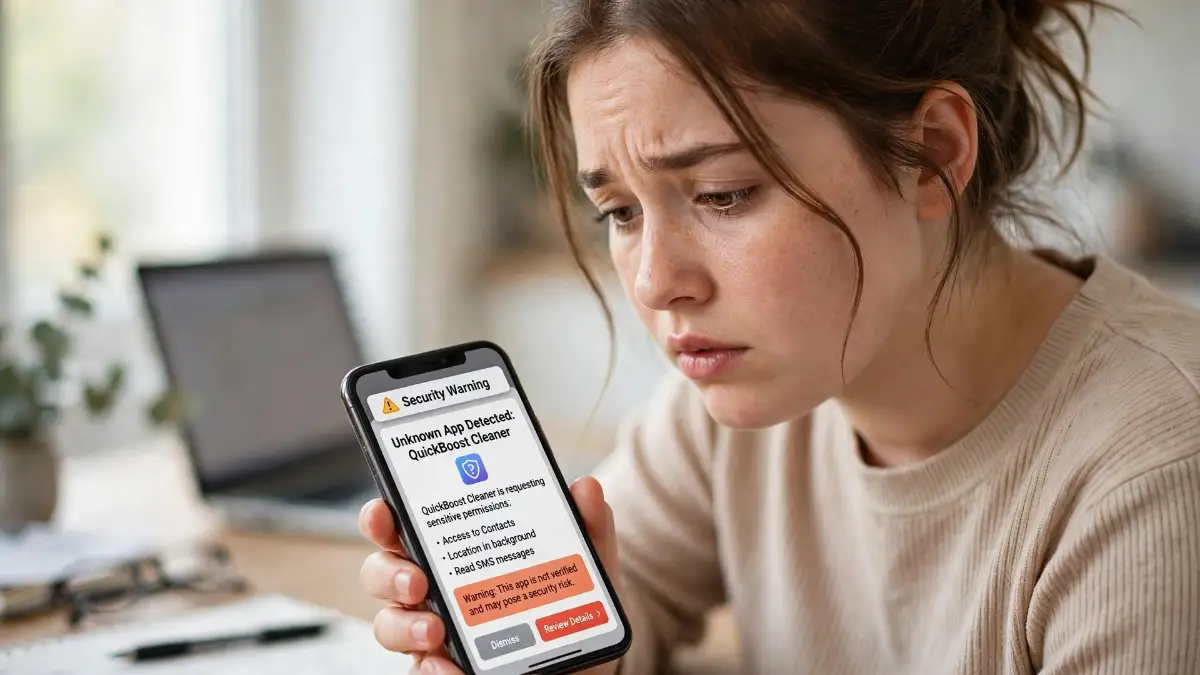
Avoid random cleaner apps or security tools from ads or pop-ups, even when they shout bold claims. Many of them only add more ads, ask for wide permissions, or charge money for work your phone already does for free. Stick to the official app store for your phone, and to names you can check on the maker website.
Change Your Most Important Passwords From a Clean Device
If several signs in this guide match your phone, change your key passwords, but do it in a smart order. Use a clean and trusted device where you can, like a family member phone or your home computer, for the first changes. Start with your main email, because email is the key that can reset almost every other account you own.
After email, move to banking and payment accounts, then social accounts you use to log in to other apps. Make each new password long, unique, and hard to guess, and turn on two-step sign-in wherever the service offers it. A password manager from the official app store can help you keep track without writing passwords on paper near your desk.
While you work, sign out of other sessions from inside each account security page. That single tap often kicks out a stranger who is still logged in with your old password. If money has moved, or a bank account behaves in a strange way, call the bank number printed on the back of your card and explain the facts in a calm and clear order.
Know When to Ask for Hands-On Help
If your phone keeps showing new apps, sends messages on its own, or locks you out of settings, stop and get hands-on help. Visit an official service center for your phone brand, or your carrier store, and show them your notes and screenshots. Trained staff deal with these cases every week, and a fresh and clean setup of the phone is sometimes the safest path they suggest.
Keep your notes, your screenshots, and your list of changed passwords together in one safe place as you work. That small habit makes every later step calmer, whether you talk to your bank, your carrier, or a service center. Let us build on these checks now with deeper habits that help your phone stay clean and calm for the long run.
 a person calmly checking phone settings at a table with a cup of tea nearby, relaxed morning light
Going One Level Deeper: Quiet Places Where Trouble Hides
You have already done the first checks, and that puts you ahead of most people. Now we slow down and look in the quiet corners that most owners never open. These are the places where a sneaky app loves to hide, because it knows almost nobody visits them.
None of this needs special tools or training. You only need your phone, a little patience, and one calm question at every screen. Does this setting match the way I really use my phone, or does it look like someone else set it up?
Read Every Permission Like a Small Contract
Open your app permissions screen and go group by group, starting with the camera, the microphone, and your location. On Android this sits under Privacy or Apps in Settings, and on an iPhone it sits under Privacy and Security. A simple map app may need your location, but a basic torch app or a photo filter has no honest reason to follow you all day.
Pay close attention to permissions that let an app read your messages or sit on top of other apps. Those two powers hand a stranger a front row seat to your codes, your chats, and even your banking screens. If you want a clearer picture of which switches deserve extra care, my guide to which app permissions are dangerous and how to stay safe online walks through them in plain words.
Here is a habit that helped me a lot with my own phone. Once a month, I remove any permission that I cannot explain out loud in one short sentence. If I cannot say why an app needs it, the permission goes off, and the app can always ask again later if it truly needs it.
Check Who Holds the Keys: Admin and Accessibility Access
Some harmful apps ask for device admin rights, a strong setting that lets an app control parts of your phone and even block you from removing it. Look for this list under Security settings on Android, often named Device Admin Apps. Your phone maker tools may sit there with a good reason, but a random game, cleaner, or wallpaper app has no business holding that kind of power.
Accessibility access needs the same careful eye, because it was built to help people who need support while using their phone. In the wrong hands, it can let an app read your screen and tap buttons for you. Turn it off for any app you do not fully trust, and check the plain Apple Support guidance for keeping your device and data safe or the matching Google help pages if a setting name looks different on your model.
Q: An app I use every day sits on the admin list. Should I remove it at once?
A: First, search the app name on your phone maker support page and see if it belongs there. If it is a maker tool, leave it alone, but if it is a game or a cleaner, remove its admin rights and then remove the app itself.
Ask Your Carrier to Check Your Line and Your SIM
Your phone is only half of the story, because your number itself can be moved or copied. Call your carrier, or visit their store, and ask them to check whether any call forwarding rule sits on your line that you did not set. Forwarding can quietly send your calls and sign-in codes to another number, and the setting can hide deep where most of us never look.
Here is a small check I run on my own phone before I even call my carrier, and you can do it in under a minute. Open your phone dialer, type star, then hash, then 21, then hash again, and press call. Your phone will show a short report about call forwarding for your number. If it says forwarding is off or not set, you can relax; if it shows a number you do not know, write it down and call your carrier right away. I once found an old forwarding rule on a family phone that nobody remembered setting, so this tiny check is now part of my normal routine.
Then ask one more question while you have them on the line. Ask if a new SIM was issued for your number at any point you do not remember. Warning signs of a SIM swap include a sudden and total loss of signal, texts that stop arriving, and account emails saying your number was changed.
If your carrier offers a SIM lock, a port-out PIN, or extra ID checks before SIM changes, turn that protection on. It takes a few minutes at the store, and it closes a door that password changes alone cannot close. The team at CISA shares simple steps for protecting your personal accounts and devices, and their calm guidance on guarding your number matches this same approach.
Sign Out of Stray Sessions and Fix Your Recovery Details
Go beyond the big accounts and sweep the smaller ones too, like shopping apps, chat apps, and old forums you joined once and forgot. Many of them keep a signed-in devices page, and you may find a phone or a browser from a place you have never visited. Sign out of anything you do not know, and change the password for that account if the service allows it.
While you are there, check the recovery email and recovery phone number saved on each key account. If a stranger changed those details, they can reset your password again later, even after you cleaned the phone. The Google Safety Center explains account protection in simple, friendly steps, and Apple shares the same kind of help for Apple ID accounts.
Turn on two-step sign-in for every account that offers it, and save your backup codes somewhere safe at home. A printed copy in a locked drawer beats a photo of the codes sitting inside the very phone you are trying to protect. Small detail, big peace of mind.
The Full Reset, Done Slowly and Safely
A simple backup you trust, with photos and contacts copied to cloud storage or a computer, can help you plan that step with a calm head.
A reset wipes apps and settings and removes most harmful software hiding on the phone. What it does not fix is a stolen password, a swapped SIM, or an account a stranger already controls. That is why account cleanup comes first, and why you should treat the reset as one step in the plan, not the whole plan.
After the reset, set the phone up as new instead of pulling back an old full backup in one tap. Change your key passwords once more from the clean phone, then reinstall apps one by one from the official store only. If an app is not one you use every week, leave it off, and enjoy how light the phone feels.
Safer Habits for Your Router and for Public Wi-Fi
Your phone trusts the networks it joins, so give it networks worth trusting. At home, change the default router password, turn on the strongest security mode your router offers, and keep its software up to date. I wrote a friendly walkthrough on how to secure your home Wi-Fi router from hackers fast if you want each small step in order.
Out in cafes and stations, treat free Wi-Fi like a public bench, fine for sitting, not made for secrets. Avoid banking and shopping on open networks, turn off auto-join for networks you do not know, and use your mobile data for anything private. When you get home, tell your phone to forget networks you will never use again.
A Small Weekly Routine That Guards You All Week
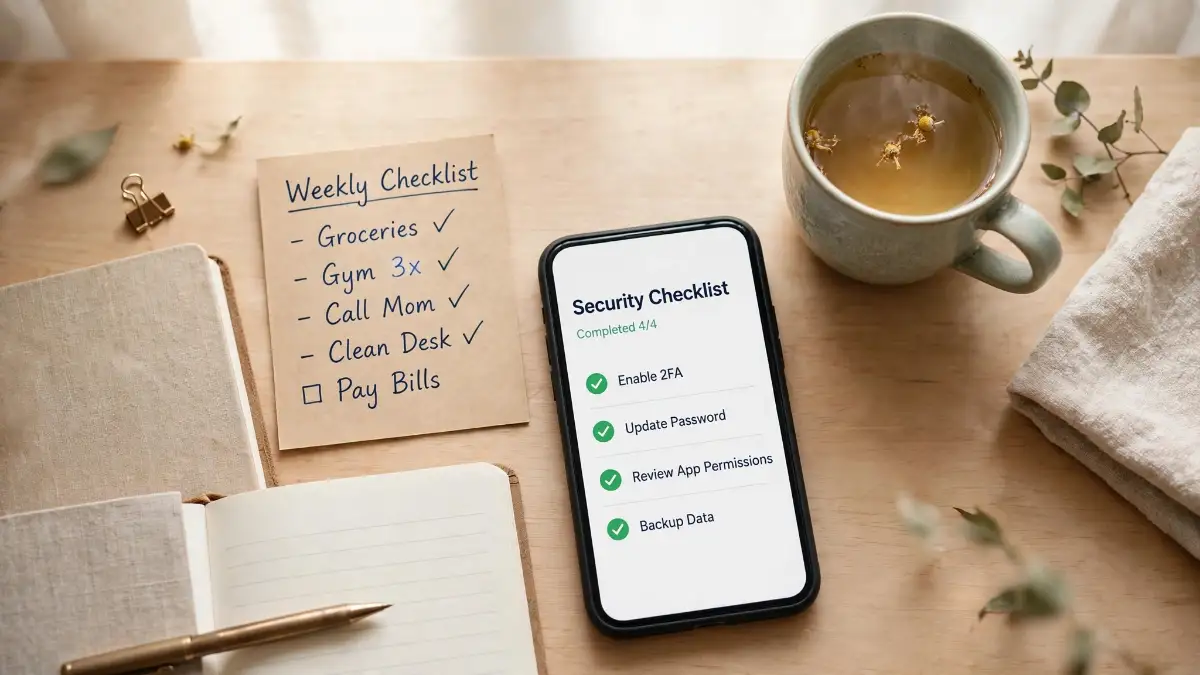 Long-term safety does not come from one big clean-up day. It comes from a tiny routine you repeat, the way you brush your teeth without thinking hard about it. Pick one calm moment each week, maybe with your morning tea, and give your phone ten honest minutes.
In those minutes, install waiting updates, glance at your permissions, check your signed-in devices, and confirm your backup ran. You can also review the tracking switches on your phone, and my notes on how to disable ad tracking identifiers and reclaim your browser privacy show where the common ones live. Ten minutes a week is a small price for a phone that stays calm and truly yours.
Traps I See Good People Fall Into After a Scare
Let me share a pattern I have seen more than once. A person spots the warning signs, feels the panic rise, and rushes to fix everything in one frantic evening. By the next morning, the phone looks clean, yet the real problem is still sitting inside their accounts, smiling quietly.
Fear makes smart people hurry, and hurry is where the expensive mistakes live. Read this part slowly, even if your heart is beating fast right now. The goal is not to move fast, it is to move in the right order.
Trusting the Loud Pop-Up or the Helpful Stranger on the Phone
The scariest pop-ups often wear a hero costume, claiming your phone is infected and offering a cleaner app to save you. Many of those cleaner apps only show more ads, ask for wide permissions, or quietly install the very trouble they promised to remove. A pop-up that claims it found the problem is almost never the place to find the cure.
The phone call version of this trap is just as slick. A calm voice claims to work for a big company, says your account is at risk, and asks for payment or remote access to your screen. Real support teams do not call you out of the blue and demand gift cards or bank transfers, and the Federal Trade Commission consumer advice on how tech support scams work explains the pattern in plain language.
If money left your account during one of these calls, tell your bank at once, even if you feel embarrassed. Banks deal with this every single week, and fast notice gives them a real chance to block or trace a payment. Silence helps only the scammer, never you.
Learning to spot the setup early saves you twice, once in money and once in stress. My simple breakdown of how to spot phishing emails and the warning signs you should know covers the pressure tricks these messages share, on screens big and small. The tricks feel urgent by design, because a rushed reader is a reader who stops asking questions.
Changing Every Password on the Sick Phone First
This mistake feels logical, and that is exactly why it hurts so many people. If harmful software is watching your screen or your taps, new passwords typed on that same phone can be read the moment you make them. You end the evening feeling safe, while a stranger quietly writes down every fresh key.
Use a clean device for the first password changes, like a trusted family phone or a home computer you believe is safe. Start with email, then banking, then the rest of your accounts. Once the phone itself is cleaned or reset, you can change them once more from the phone for extra comfort.
Wiping the Phone Before Saving the Memories
Panic also pushes people to hit factory reset within minutes of the first scare. The reset may remove the bad app, but it also removes the photos of birthdays, school days, and family trips that were never backed up. I have heard the crack in a person's voice when they tell me the baby photos are gone, and no clean phone screen makes up for that loss.
Slow down and back up first, even if the backup takes an hour on a slow connection. Check that the photos open safely inside the backup before you touch the reset button. A clean phone can be rebuilt in a day, but lost memories do not come back.
Before you wipe the phone, it also helps to free up space without risking the photos you want to keep, and see how to free up storage on your phone without deleting your photos.
Putting the Same Old World Back on a Clean Phone
A fresh reset feels like a new start, yet many people rebuild the exact same risk by dinner time. They restore every old app in one tap, including the one that likely caused the trouble in the first place. They also reuse the same passwords they had before, sometimes across every account at once.
Bring apps back slowly, one at a time, and only from the official store. Give each key account its own long password, and let a password manager remember them for you. A clean phone with old habits is like a brand-new lock on a door you keep leaving open.
Staying Quiet, Hoping, and Waiting Too Long
The quietest mistake is doing nothing, because the signs feel small or the whole story feels embarrassing. A tiny sign ignored for a few weeks can grow into empty accounts and locked profiles. Strangers count on our silence, because silence hands them free time to work.
Tell someone you trust what is happening, and tell your bank the moment money moves in a way you cannot explain. Asking for help early is not weakness, it is the move that saves the most people I know. Every honest expert would rather help you on the first day than rebuild your digital life weeks later.
A Pocket List to Tape Beside Your Charger
• Do back up your photos and contacts before any big fix.
• Do change key passwords from a clean device first.
• Do call your bank as soon as money moves in a strange way.
• Do not install cleaner or antivirus apps offered inside pop-ups.
• Do not pay anyone who calls or writes claiming your phone is infected.
• Do not reinstall every old app at once after a reset.
Your Phone Can Feel Like Yours Again
Take a slow breath and look at how far you have come in this guide. You learned how to spot the warning signs, how to check the quiet settings most people never open, and how to clean up in the right order. That is real skill, and it stays with you for every phone you own from here on.
Safety is not about living in fear of your own screen. It is about small, calm habits that stack up quietly, like checking permissions, keeping updates on, and backing up the moments you love. A careful owner with a simple phone is far safer than a careless owner with the most expensive one.
Your Calm Action Plan for Today
• Check your app permissions and switch off anything you cannot explain.
• Review admin and accessibility access, and remove apps that do not belong there.
• Call your carrier and ask about forwarding rules, SIM changes, and a SIM lock.
• Sign out of sessions you do not know, and fix your recovery email and number.
• Back up your photos and files, then decide if a clean reset is right for you.
• Tell your bank at once if any money moved in a way you cannot explain.
My own scare taught me that a phone problem feels huge at midnight and much smaller after a few calm, ordered steps in the morning light. I believe you can handle this, starting today, with the phone already in your hand and the steps already on this page. My only wish is that you take the first small step now, while this guide is open, and let your future self sleep a little easier tonight.
Why your phone overheats and the quick fixes that help. Heat can be another warning sign, so it is worth ruling out before you assume the worst.
Why your phone charges slowly and the simple fixes that help. A sudden slowdown at the charger can hint at battery or cable trouble worth checking.
Questions People Ask Me About a Hacked Phone
Can a phone be hacked just by opening a text message?
Most modern phones are hard to break with one simple text, but harmful links inside messages are a real risk. If a message pressures you to tap, install something, or sign in, treat it as a trap and delete it. When in doubt, open the official app or website yourself instead of using the link in the message.
Will a factory reset remove a hacker completely?
A reset removes most harmful apps and software hiding on the phone itself. It does not fix stolen passwords, a swapped SIM, or accounts a stranger already controls. That is why you should clean your accounts and talk to your carrier as part of the same plan.
How long does it take to secure a phone after a scare?
The first checks and password changes often fit inside one focused hour. A full reset with a careful backup can take a few hours, and most of that time is simply waiting on the backup itself. Spreading the work over one calm day is fine, as long as banking and email come first.
Should I stop using my banking app after warning signs appear?
Pause, and use your bank through a clean device or the official phone number on the back of your card until you finish your checks. If money moved in a way you cannot explain, call the bank right away and tell them the full story. Most banks can freeze things fast when you speak up early.
Can I tell who hacked my phone?
In most everyday cases, no, and chasing that answer can waste the time you need for cleanup. Focus on locking your accounts, cleaning the phone, and protecting your number first. If money was stolen, your bank and your local police are the right people to trace what happened.
Is my phone safe again if the strange signs stop?
Quiet signs are a good sign, but treat the first calm stretch as a watch period. Keep your weekly routine going, and keep two-step sign-in on for your key accounts. If the same signs return, get hands-on help from an official service center for your phone brand.
Disclaimer: This article is shared for general information and learning only, and it is not professional security or financial advice for your personal situation. Phone models, settings names, and carrier options can differ, so please check the official support pages of your phone maker, your carrier, and your bank before you act. If you believe a crime has taken place, contact your bank and your local authorities for help.
If battery drain is one of the warning signs you noticed, a one-minute battery health check helps separate a tired battery from a stranger problem — see How to Check Your Phone's Battery Health in Under a Minute.
Just switched to a new phone? Here is how to move everything from your old phone to a new one without losing a thing, photos, chats and all.