The Silent Thief in Your Pocket: How I Lost My Entire Monthly Data Plan in Three Days
Have you ever stared at a text from your phone company saying you used 100% of your data, even though your cycle just started? Yeah, me too. It happened to me last Tuesday while I was just trying to pull up directions on the bus. No downloading, no heavy streaming—just poof, gone. It left me totally disconnected and honestly a bit panicked. Instead of getting mad at your carrier, let me show you exactly what is secretly eating your data and how you can block it in about five minutes.
You suddenly have to worry about buying expensive top-up packages just to get through the week. The constant fear of opening an app and watching your megabytes disappear makes you afraid to even use the device you paid good money for. You find yourself turning off your cellular connection constantly, treating your internet access like a precious, limited resource.
It feels completely unfair. You pay for a service, but invisible forces inside your phone steal it away before you can actually enjoy it. The reality is that our smartphones are incredibly busy even when the screen is totally dark.
In a Rush? Here is Your 30-Second Summary:
- Check your phone's network settings to catch exactly which apps are running behind your back.
- Social media auto-play videos and automatic cloud backups are the biggest secret data thieves.
- Swiping up to "force close" apps does not save data; turning off background permissions actually does.
- Always set heavy tasks like system updates and photo syncing to "Wi-Fi Only".
Exposing the Invisible Drain: How Apps Consume Data Without Your Knowledge
The first step to stopping these invisible leaks is understanding exactly what is happening inside your device. Think of your cellular data plan like a large tank of water in your home. When you actively browse the web or watch a video, it is like turning on a faucet to fill a glass. You see the water flowing, and you know exactly where it is going.
But background data drain is entirely different. It acts exactly like a hidden leak in your plumbing system. You cannot see the water escaping, but at the end of the month, you are left holding a massive bill.
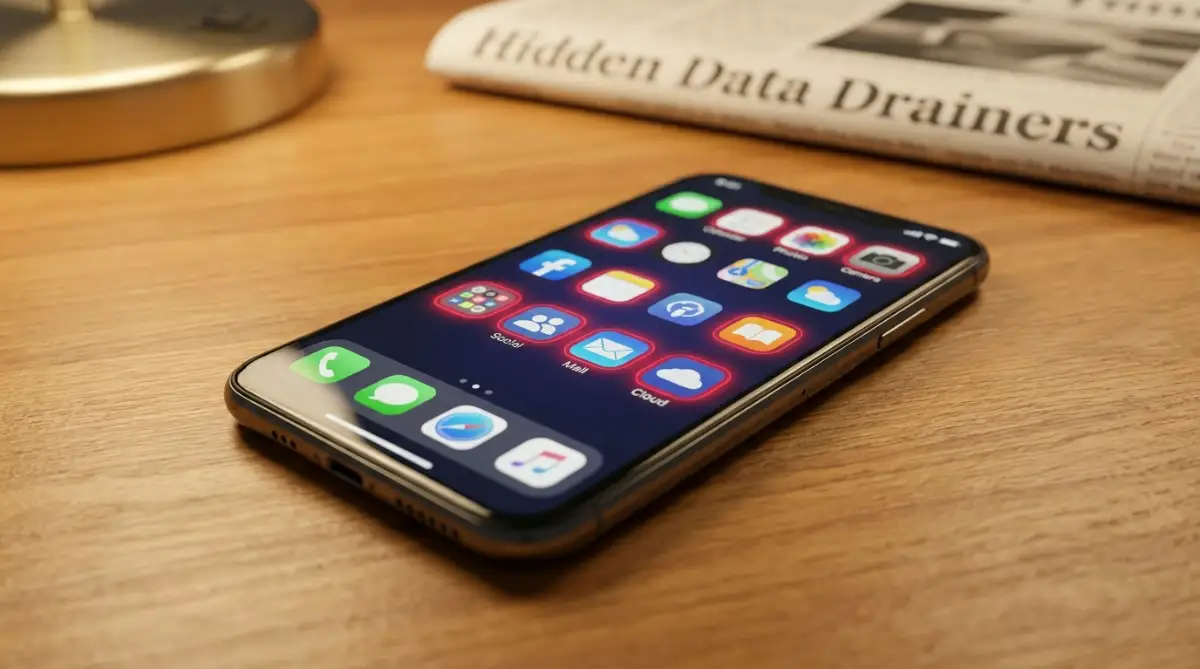
Smartphones are designed to be extremely helpful and proactive. They want to ensure that the moment you open a social media app, your feed is already filled with new pictures. To do this, these applications constantly talk to the internet while you are not looking.
This behavior is known as background app refresh or background data usage. Apps wake up, check for new messages, download emails, and send your location back to their servers. While this makes your phone feel incredibly fast, it comes at a massive cost to your cellular plan.
Quick Reality Check: How Fast Do Apps Drain Data?
- Scrolling TikTok or Reels: ~15 MB per minute
- Streaming Spotify (High Quality): ~2.5 MB per minute
- Using Google Maps: ~3 to 5 MB per hour
- Background Cloud Sync (like 4K Video): Up to 500 MB in just seconds
- Notice how fast those social media videos add up compared to a basic GPS map? That right there is your real enemy.
Finding the Worst Offenders on Your Device
You cannot fix a problem if you do not know exactly what is causing it. Thankfully, both Android and iPhone devices have built-in meters that track exactly where every single megabyte goes. Finding this information is surprisingly simple, yet most people never bother to look.
You need to open your phone settings and look for the network or cellular data usage menu. Once you find this screen, you will see a detailed list of every app installed on your phone. The apps at the very top of this list are the ones eating the largest chunk of your internet package.
Here is where it gets highly interesting. If you click on a specific app in that list, your phone will show you a breakdown of its usage. You will see a number for active usage and another number for background usage.
Active usage means the data consumed while you were actually staring at the screen. Background usage is the data that disappeared while your phone was asleep in your pocket. If the background number is unusually high, you have just found your prime suspect.
I learned this the hard way after spending weeks blaming my mobile carrier for stealing my internet package. I finally checked my deep network settings and realized a simple podcast app was quietly downloading hundreds of audio files over my cellular connection every single night. Changing just one toggle switch inside that app immediately stopped my data plan from bleeding dry, saving me a lot of money and stress.
The Social Media Trap: Why Your Feeds Are So Thirsty
When we talk about excessive background consumption, social media applications are usually the biggest criminals. Platforms like Facebook, Instagram, and TikTok are engineered to grab your attention instantly. They absolutely hate it when you have to wait for a video to load.
To prevent any waiting time, these platforms aggressively pre-load heavy content in the background. If you have a cellular connection active, they will pull down high-resolution images and videos before you even open the app. This means you are paying for data to load videos you might not ever actually scroll down to watch.
Auto-play videos are another massive drain. As you scroll, videos start playing automatically, instantly sucking down megabytes. Even if you quickly scroll past a video, the damage is already done. The app requested the data from the network, and your mobile carrier recorded the usage.
Stop Auto-Play Right Now
You need to dive into the specific settings menu of every social media app you use. Look for the media or data usage options. You will usually find a setting to turn off auto-playing videos completely.
Alternatively, you can set videos to only auto-play when you are securely connected to a home Wi-Fi network. This one simple change can instantly save you gigabytes of wasted cellular bandwidth every single month. It is incredibly satisfying to take back control from these hungry applications.
Cloud Syncing: The Silent Assassin of Data Plans
Having a backup of your photos and files is a wonderful thing. Cloud storage apps give us peace of mind knowing our memories are safe even if our phone gets lost or broken. However, these services can become absolute nightmares for your mobile data plan if they are not configured correctly.
Imagine taking a beautiful 4K video of your dog playing in the park. That video file could easily be hundreds of megabytes in size. If your cloud backup app is set to upload instantly over any available connection, it will start pushing that massive file to the internet the second you stop recording.

If you are not connected to Wi-Fi, it will happily chew through your cellular plan to get the job done. You might just slip the phone back into your pocket, completely unaware that a massive data transfer is happening in the background.
The "Wi-Fi Only" Rule You Need to Implement Right Now
Every cloud storage application, whether it is Google Photos, iCloud, or Dropbox, has a specific setting for backups. You must go into these apps and find the backup preferences. Look for a toggle switch that says something like "Back up over cellular data" and turn it completely off.
My Personal 10-Second Fix (Try this right now):
If you have an iPhone, just open your Settings, tap Cellular, scroll all the way down to iCloud Drive, and flip that green switch to off. On Android, go to Settings > Network & internet > Turn on Data Saver. I do this the exact second I buy a new phone, and it completely stops those nasty surprise bills.
By forcing your phone to wait for a Wi-Fi connection before uploading heavy files, you completely eliminate one of the biggest hidden leaks. Your photos will still be backed up safely, but they will simply wait until you get home to a stable, unlimited internet connection.
Watch This Expert Explanation
Understanding the visual difference between foreground and background data can completely change how you use your phone. The video below breaks down exactly how apps secretly communicate with cell towers when the screen is locked, giving you a clear picture of the invisible data drain.
Myth vs Reality: Closing Apps to Save Data
There is a lot of bad advice floating around the internet regarding how smartphones actually work. Let us clear up one of the most common misunderstandings right now.
The Myth: Swiping up to force-close all your recent apps will stop them from using your cellular data.
The Reality: Force-closing apps does almost nothing to prevent background data leaks. In fact, it often makes the problem much worse.
When you completely kill an app, your phone has to work twice as hard to open it the next time. Furthermore, modern operating systems are smart enough to bypass this. Even if you swipe an app away, its background services can still wake up and ping the internet if you have given it permission to do so.
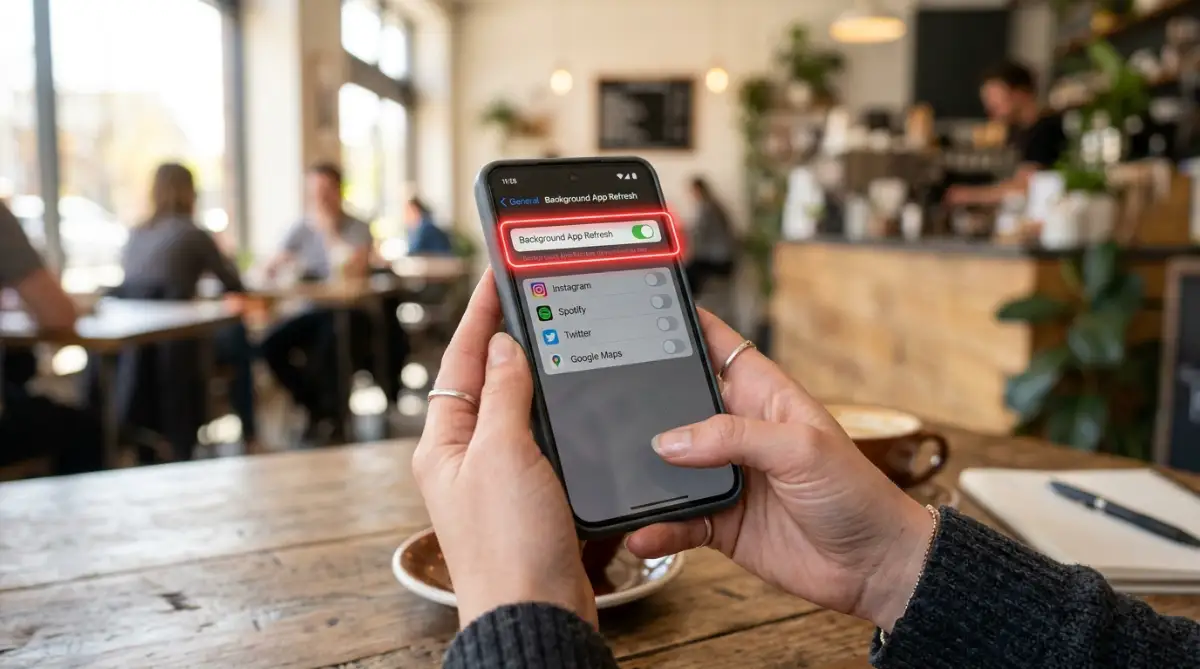
Instead of obsessively swiping away your apps, you need to use the actual system settings to restrict their permissions. Turning off Background App Refresh for specific apps is the only scientifically proven way to guarantee they stay asleep when you are not using them.
A Quick Comparison: Active vs Background Data
To make things perfectly clear, let us look at how different activities drain your connection. Understanding this difference helps you identify which apps are misbehaving.
As you can see from the table above, the background activities are often completely unnecessary for immediate use. You do not need your phone to download five songs in advance if you are just taking a short ten-minute drive.
Location Tracking: Why Navigation Apps Eat Your Megabytes
We all love using digital maps to find our way around town. But navigation apps are incredibly thirsty for both battery life and internet data. These apps need to know exactly where you are, how fast you are moving, and what the traffic looks like ahead of you.
When you use a map app, it constantly talks to GPS satellites and cellular towers. Even when you switch to another app to reply to a text message, the map keeps running in the background. It continues downloading new map images and traffic updates so it can tell you when to turn.
How Continuous Pinging Empties Your Digital Wallet
The problem occurs when you forget to properly end your navigation route. If you arrive at your destination and simply lock your screen, the map app might think you are still traveling. It will continue to ping the network, pulling down fresh data for a journey that is already over.
Some weather apps and local coupon apps also use your location continuously. They constantly check your GPS coordinates and send them to their servers to provide local updates. Every time they send your location, a tiny bit of your data plan goes with it.
To stop this, review the location permissions on your device. Change the setting for these apps from "Always Allow" to "Only While Using the App". This ensures they only get to use your internet connection and location services when you actively have them open on your screen.
Managing Automatic Software Updates
App developers are constantly releasing new versions of their software to fix bugs and add shiny new features. Depending on how many apps you have installed, you could be receiving several updates every single day. Some of these updates are small, but others, especially games, can be gigabytes in size.
If your phone is allowed to download these updates over your cellular connection, your monthly data allowance stands absolutely no chance. You could easily lose half of your monthly package in a single afternoon just updating a few heavy games.
You must visit your device's official app store settings immediately. Whether you use an Android or an iPhone, there is a dedicated option for automatic downloads. You need to ensure that app updates are strictly set to happen over Wi-Fi only.
By taking this simple step, you ensure your device stays updated and secure without sacrificing your precious mobile data. You can always choose to manually update a specific app over a cellular connection if you really need a new feature right away, giving you total control over the process.
The Peace of Mind in Setting Hard Limits
One of the most powerful tools your smartphone offers is the ability to set a hard stop on your internet usage. Instead of waiting for your mobile carrier to send you a terrifying warning text, you can tell your phone to monitor the situation directly.
You can configure your device to warn you when you hit a certain threshold. For example, if your monthly plan gives you ten gigabytes, you can set your phone to alert you the moment you reach seven gigabytes. This gives you plenty of time to adjust your habits before you run out completely.
Even better, Android devices allow you to set a hard data limit. Once you hit this limit, the phone will automatically sever the cellular connection entirely. This guarantees that you will never accidentally face overage charges on your phone bill.
Taking control of these settings transforms your relationship with your smartphone. You no longer have to live in fear of invisible data leaks. You can confidently use your favorite apps, knowing exactly where your internet package is going and how to stop it if things get out of hand. Mastering these simple configurations puts the power firmly back in your hands, ensuring your digital life remains stress-free and entirely under your own control.
Pro-Level Strategies for a Leak-Proof Connection
Once you understand the basic culprits behind your disappearing internet package, it is time to level up your approach. You do not have to micromanage your phone every single day if you set up the right automated defenses. Operating systems actually have powerful, hidden tools designed exactly for this purpose.
Think of your smartphone as a highly secure building. Right now, the doors are wide open, and any app can walk in and out to grab whatever information it wants. You need to hire a digital security guard to manage this traffic permanently.
One of the most effective tools you have is Low Data Mode on iPhones or Data Saver Mode on Android devices. Turning this feature on completely changes how your device behaves. It acts like a strict bouncer at a club, instantly stopping background app refresh for almost everything on your phone with a single tap.
When you activate this master switch, your phone stops downloading system updates automatically. It pauses your photo syncing, and it forces apps to stop pre-loading content while you are not looking. This is incredibly helpful when you are nearing the end of your billing cycle and need to stretch your remaining megabytes.
Taming Your Hungry Music and Video Apps
Streaming entertainment is a massive part of our daily commutes. However, listening to high-quality audio or watching crisp videos on a cellular connection will destroy your monthly allowance in a matter of hours. You need to tell these applications exactly how to behave when you leave your house.
Open your favorite music application, like Spotify or Apple Music, and look for the audio quality preferences. Most of these apps have a specific setting labeled "Data Saver" or an option to choose a lower audio quality for cellular streaming. A lower quality stream sounds perfectly fine through regular earbuds, but it uses a fraction of the bandwidth.
Even better, start building a habit of downloading your favorite playlists directly to your device. You can set these apps to only download new podcast episodes or songs when you are connected to a stable network. This way, you enjoy zero buffering during your commute, and your cellular usage drops to absolute zero.
The same rule applies to video platforms like YouTube and Netflix. Always dive into their specific account menus and set cellular streaming to standard definition. If you prefer high-definition movies, make sure you download them to your local storage while you are safe at home. If you want a comprehensive look at how digital file storage works behind the scenes, you might enjoy understanding modern cloud storage and how it handles offline syncing.
The Secret Link Between Connectivity and Power
Here is an interesting fact that most regular users never realize. If your phone is constantly leaking data in the background, it is also silently destroying your battery life. The antenna inside your device requires a massive amount of physical electricity to send and receive signals from cell towers.
When you stop unnecessary apps from constantly talking to the internet, you will notice your phone stays charged significantly longer. This dual benefit makes managing your settings completely worthwhile. If you are struggling with power issues, you can learn more about creating habits for a longer battery life to keep your device running smoothly all day.
Sometimes, applications abuse their background privileges just to serve you targeted advertisements based on your location. These apps do not need constant internet access to function, but they take it anyway. It is highly recommended that you spend five minutes reviewing your app permissions safely to block these nosy programs from accessing your connection.
Mastering Offline Navigation for Travel
Taking a road trip or traveling to a new city is exactly when you need your digital maps the most. Ironically, this is also when your mobile signal is usually the weakest. When your phone has a weak signal, it actually works harder and uses more power to download map tiles, draining both your battery and your data limit simultaneously.
The smartest thing you can do before any trip is to download your entire route for offline use. Both Google Maps and Apple Maps offer this brilliant feature entirely for free. You simply select the city or region you are visiting, and save the map to your phone while you are still on your home network.
Once downloaded, the map app uses your device's built-in GPS chip to track your location without needing a single drop of cellular internet. You get all the turn-by-turn directions you need without the anxiety of a massive roaming bill. The FCC provides a highly detailed guide on understanding wireless broadband data usage that further explains how roaming impacts your monthly statements.

The Hidden Traps: Why Your Bill is Still So High
Even when people try their best to manage their devices, they often fall into hidden traps engineered by device manufacturers. These mistakes are rarely the user's fault, but the financial consequences are very real.
One of the most expensive traps is a feature known as Wi-Fi Assist or Smart Network Switch. This feature is turned on by default on almost every modern smartphone. Its primary goal is to ensure you never experience a slow web page, even if your home router is struggling.
Here is the nightmare scenario. You are sitting in your living room, assuming you are safely connected to your home network. But your router suddenly drops its signal strength slightly. Without warning you, your phone quietly switches over to your cellular connection to keep your movie playing smoothly. You end up watching a two-hour high-definition movie on your mobile plan while sitting five feet away from your router.
You must go into your network settings and turn this "helpful" feature off immediately. It is much better to wait a few seconds for your home network to catch up than to receive a massive overage charge. If your home network is constantly dropping out, you might need to look into how to secure your home Wi-Fi router to ensure nobody else is stealing your bandwidth and slowing you down.
The Laptop Hotspot Disaster
Sharing your mobile internet with your laptop or tablet via a personal hotspot is incredibly convenient. But this convenience can turn into a disaster if you forget how desktop computers behave.
When you connect a laptop to your phone's hotspot, the laptop usually assumes it is on a regular, unlimited home network. It will instantly start downloading massive system updates, syncing entire cloud folders, and refreshing large software packages in the background.
I once connected my laptop to my phone just to send a single email from a coffee shop. In less than ten minutes, my computer downloaded a heavy system update, completely wiping out my entire monthly cellular allowance. I was furious, but the computer was just doing what it was programmed to do.
To prevent this, you must set your phone's hotspot connection as a "Metered Connection" in your laptop's Wi-Fi settings. This tells your computer to pause all background downloads and respect your limited mobile plan. Additionally, researchers observing mobile device adoption statistics note that as people rely more on smartphones for primary internet, hotspot overages are becoming a widespread financial burden.
Ignoring the Junk Apps
We all have those random games, shopping apps, or old utility tools that we downloaded once and never opened again. You might think they are harmless just sitting on your home screen. In reality, these neglected apps often run quietly in the background, checking for updates, pushing notifications, and slowly eating away at your internet package.
These forgotten programs are often poorly coded and lack proper data optimization. They continuously ping their home servers, causing constant micro-leaks that add up significantly over thirty days. Regularly optimizing background processes includes physically deleting the software you no longer use.
Make it a habit to audit your device once every few months. If you have not used an app in sixty days, hold down on the icon and delete it. You can always download it again if you truly need it. By learning to safely remove bloatware, you instantly plug dozens of tiny leaks that you never even knew existed.
Many people also make the mistake of trusting "unlimited" plans unconditionally. Mobile carriers often hide a fair usage policy deep in their contracts. Once you hit a certain invisible limit, they aggressively throttle your internet speed down to basic text levels. Taking proactive steps to manage your connection, as highlighted in independent practical consumer device testing reports, ensures your "unlimited" plan actually stays fast all month long.
Taking Back Control of Your Digital Life
Managing your cellular connection does not have to be a stressful, daily chore. By changing a few hidden settings and understanding how your favorite apps actually behave, you can completely eliminate the anxiety of a disappearing internet package.
You simply need to tell your device exactly who is in charge. Forcing heavy downloads onto your home network, turning off automatic background refreshing, and stopping autoplay videos will immediately plug the biggest leaks. Your phone will still feel just as fast and smart, but it will stop stealing your hard-earned money in the background.
Once you put these guardrails in place, you can finally enjoy your digital life without constantly checking your usage meters. You can travel, stream, and browse with complete confidence. Your smartphone is a powerful tool designed to serve you, and setting these boundaries ensures it stays that way.
I finally feel in control of my device again, and I no longer panic when I am away from my home network. My data plan comfortably lasts the entire month now, and I hope these exact same steps bring you that exact same peace of mind starting today.
Common Questions About Managing Cellular Usage
Does leaving Wi-Fi turned on consume my mobile data?
No, leaving your Wi-Fi antenna turned on does not use your cellular plan at all. In fact, keeping it on helps your phone quickly connect to known, free networks as you move around, which actively saves your mobile allowance. It only uses a tiny bit of battery power to search for nearby networks.
Do home screen widgets use background data?
Yes, interactive widgets like weather updates, stock tickers, and news feeds need the internet to display current information. They constantly refresh themselves in the background throughout the day. If you have too many of these active on your screen, they will definitely contribute to your invisible usage.
What is the mysterious "System Services" draining my plan?
System Services represent the core functions of your phone, like syncing your clock, managing push notifications, and updating your exact GPS location. While you cannot delete these services, turning off unneeded location tracking and disabling automated cloud backups will heavily reduce their background consumption.
Is it safe to restrict background data for messaging apps?
If you completely restrict background usage for apps like WhatsApp or Messenger, you will not receive notifications until you physically open the app. It is better to leave background access on for your most important communication tools, while strictly disabling it for heavy social media feeds and games.
Why is my data draining so fast at night while I sleep?
Your phone usually schedules heavy tasks like app updates, cloud backups, and photo syncing for the middle of the night when the phone is idle. If your home network drops or goes offline while you sleep, your device will seamlessly switch to your cellular connection to finish those heavy tasks, resulting in a morning surprise.
Disclaimer: The information provided in this article is for educational and informational purposes only. Device settings and mobile carrier policies may vary based on your location and specific hardware. Always check directly with your cellular provider for the most accurate details regarding your specific billing cycle and data usage limits.