The Frustrating Truth About Your Brand New Computer
"You just spent a small fortune on a brand-new computer, but it feels like it's already dying. Instead of that 'new car' speed, you’re stuck with random pop-ups and apps you never asked for. I’ve been through this frustration too—buying a machine and realizing it’s already cluttered with digital trash. Let’s stop complaining and actually fix it so you can get the speed you paid for."
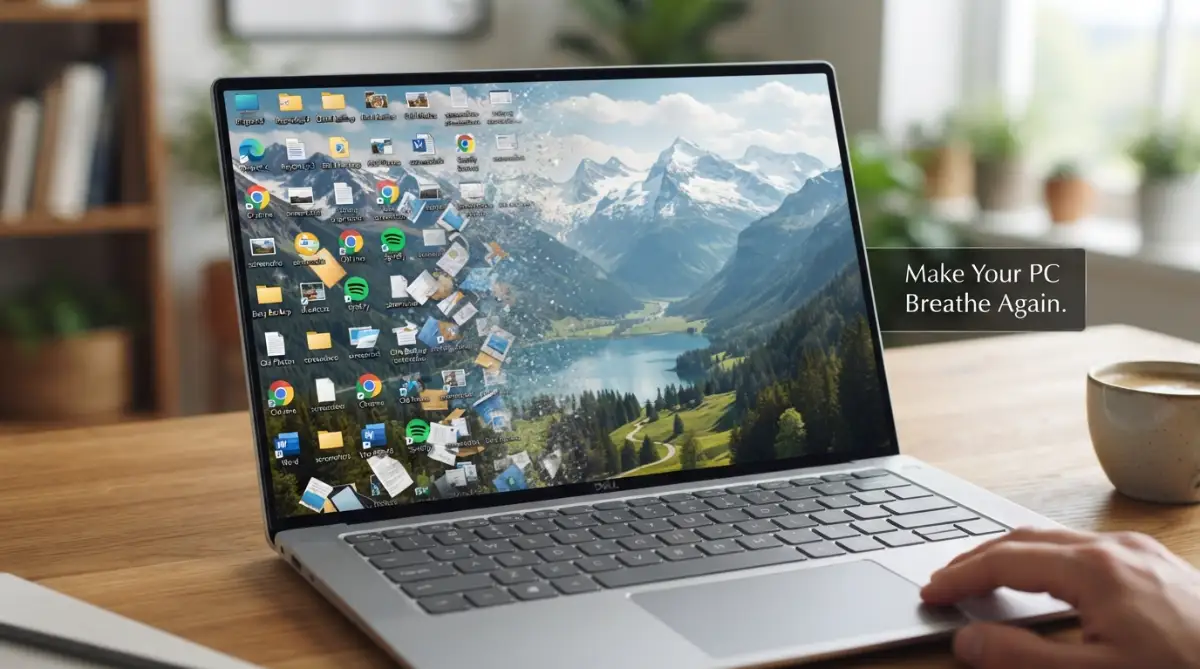
Instead of a clean, fast machine, I found a screen filled with random apps I never asked for. There were pop-ups for antivirus trials and games I would never play. My brand new "fast" laptop was already lagging before I even opened Chrome.
It felt like I had bought a new house, but the previous owners had left their trash in every single room. I felt stuck and honestly, a bit cheated by the manufacturer. Why was my machine so slow out of the box?
I tried to delete some of these apps, but I was terrified of breaking something. I didn't know which files were important and which ones were just junk. It was a stressful experience that turned my excitement into a massive headache.
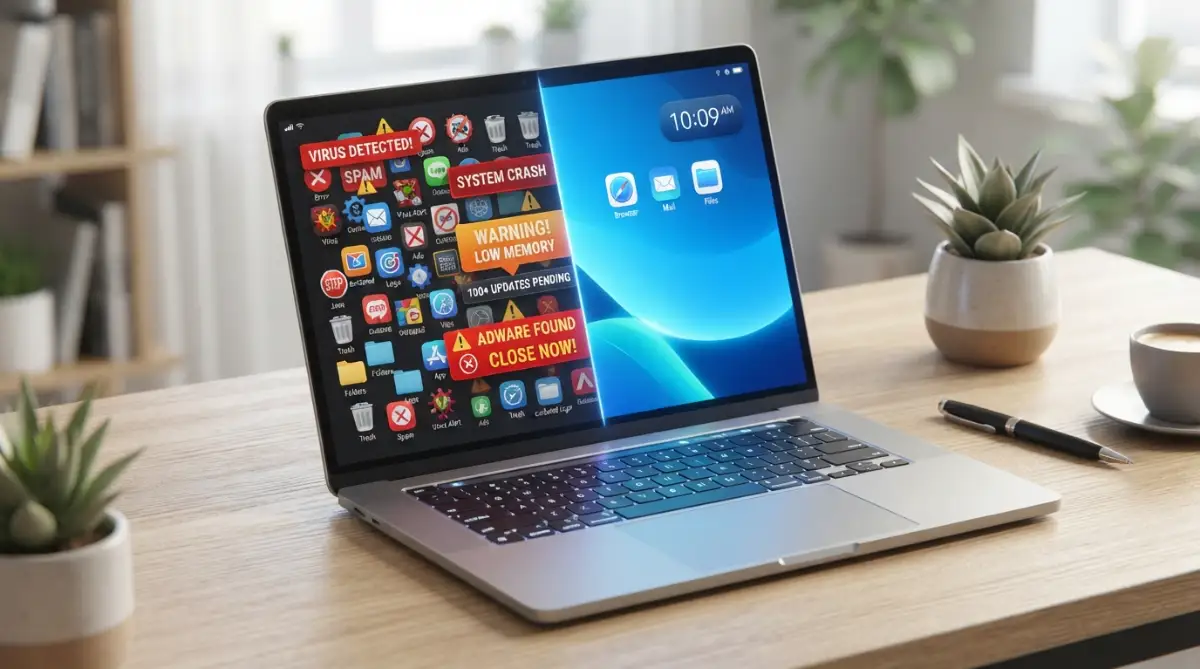
Maybe you are feeling this same way right now. You look at your computer or phone and see a mess of icons that you don't recognize. You want to clean it up, but you are scared you might delete a file that makes the whole system crash.
This digital mess does more than just slow down your hardware. It actually messes with your mind. Every time you see those useless icons, it creates a tiny bit of stress in your brain. You feel less organized and less in control of your own technology.
It is honestly sad that we have to deal with this. We spend hundreds or thousands of dollars, and we still have to fight our own devices to get them to work well. This struggle is real, and it affects millions of people every single day.
When your system is full of clutter, it takes longer to boot up. It uses more battery life for no reason. It even makes your fans spin louder because the processor is working on things you don't even need.
You deserve a device that works for you, not against you. You deserve a workspace that is clean, fast, and quiet. That is why I want to share how I finally took control of my system and got rid of that digital junk for good.
⚡ Fast Track: What You’ll Learn
- The "Why": Why big brands fill your expensive PC with cheap junk software.
- Safety First: How to create a "Safety Net" so you don't break your computer.
- The Cleanout: Step-by-step guide to removing apps that refuse to leave.
- Long-term Speed: Simple habits to keep your PC fast for years, not weeks.
Understanding the Enemy: What is Digital Bloatware?
Before we start cleaning, we need to know what we are fighting. Bloatware is just a fancy name for software that comes pre-installed on your device but offers little to no value. Companies put it there because they get paid to do so.
Think of it like junk mail that comes inside your physical mailbox. You didn't ask for it, but you still have to deal with it. On a computer, this junk takes up space on your hard drive and uses up your RAM.
Some bloatware is harmless but annoying. These are things like trial versions of photo editors or links to online stores. They just sit there taking up space and making your app list look messy.
Other types of bloatware are more aggressive. They start automatically when you turn on your computer. They run in the background, checking for updates or sending data back to the company. These are the ones that really slow you down.
I used to think that "more apps" meant "more value." I was wrong. In the world of technology, less is usually more. A clean system is a fast system, and a fast system makes you more productive and happy.
Cleaning out this junk isn't just about speed. It is about taking back ownership of your device. It is about making sure that every single megabyte of your RAM is being used for things that actually matter to you.
Why Manufacturers Fill Your PC with Junk
You might be wondering why famous brands would ruin their own products with slow software. The answer is simple: money. Hardware margins are very thin these days, so brands look for other ways to make a profit.
Software companies pay laptop makers to pre-install their apps. It is a form of advertising. They hope that you will forget the app is there or that you will eventually pay for a full subscription.
The good news is that you don't have to accept it. You have the right to remove anything you don't want. Your computer belongs to you, not the manufacturer. Once you understand this, the cleaning process becomes much easier.
I once spent an entire weekend researching why my PC was so slow. I found out that a "security" app I never used was taking up 20% of my CPU power. Once I removed it, it felt like I had a brand new machine.
How to Prepare Your System Before You Start Cleaning
Cleaning your system is like surgery. You don't just start cutting; you have to prepare. The most important thing you can do is back up your important files. This is your safety net.
I always tell my friends to move their photos and documents to an external drive or cloud storage first. Even though we are being safe, technology can sometimes be unpredictable. Having a backup gives you peace of mind.
Another great tip is to create a "System Restore Point." This is a feature in Windows that lets you "undo" changes if something goes wrong. It is like a time machine for your computer settings.
I used to skip this step because I was lazy. One time, I deleted a file that I thought was junk, but it was actually part of my sound driver. My speakers stopped working, and I spent hours fixing it. If I had a restore point, I could have fixed it in two minutes.
Make sure your device is plugged into power before you start. You don't want your battery to die in the middle of an uninstallation process. That could cause errors in your system files that are hard to repair.
Check your internet connection as well. Sometimes, when you remove one thing, your system might need to download a small update to keep everything running smoothly. Being prepared makes the whole process feel much less scary.
Identifying What Stays and What Goes
This is the part where most people get stuck. How do you know what is bloatware and what is a vital system file? It can be confusing because some junk apps have names that sound very official.
A good rule of thumb is to look at the "Publisher" of the software. If the publisher is Microsoft and the app is something like "Calculator," you should probably keep it. If the publisher is a random game company you’ve never heard of, it's likely junk.
Quick Cheat Sheet: Keep it or Kill it?
I like to use a simple "Do I Use It?" test. If I haven't opened an app in the last month and I don't plan to use it next week, it's a candidate for removal. You can always download most things again later if you truly need them.
Be careful with apps that have names like "Driver," "Controller," or "Wireless." These are usually the things that make your hardware work. If you delete your Wi-Fi driver, you won't be able to go online to fix it!
I once found an app called "System Optimizer" on my cousin's laptop. It looked like a helpful tool, but it was actually the thing slowing everything down. These "cleaner" apps are often the worst kind of bloatware.
If you are unsure about an app, do a quick search on your phone. Type the name of the app and add the words "safe to remove." You will find many forums where people have already asked the same question.
Using the Built-In Windows Tools for a Safe Cleanup
You don't need to download fancy software to start your cleanup. Windows has its own tools that are very safe and easy to use. The first place you should go is the "Apps & Features" section in your settings.
I find this to be the most honest list of what is on your computer. You can sort the list by size to see which apps are taking up the most space. It is often surprising to see how much room a random trial game can take.
When you find an app you don't want, just click "Uninstall." Windows will handle the rest. It might ask you a few questions, but just keep clicking through until it is gone. It feels very satisfying to see that list get shorter.
If you want to see exactly how these apps are affecting your speed, you should check your Task Manager while cleaning.
Watching your CPU usage drop as you remove junk is a great way to stay motivated during the process. It proves that what you are doing is actually working and making your life better.
I used to think that the Control Panel was the only way to do this. But the modern Settings menu in newer versions of Windows is much better for finding modern bloatware. It is cleaner and much harder to make a mistake.
Remember to restart your computer after you remove a few big apps. This helps the system clear out any leftover files from the RAM and gives you a fresh start for the next step of the process.
The Secret of the Startup Menu
Many people don't realize that an app can slow you down even if you never open it. This happens because many apps are set to start automatically when you turn on your computer. This is a huge waste of resources.
I once checked my startup list and found twelve different apps that were starting up for no reason. No wonder my boot time was so slow! I felt like I was trying to run a race while carrying a heavy backpack.
To fix this, go to your Task Manager and click on the "Startup" tab. Here, you will see a list of everything that runs at boot. You can see the "Startup Impact" for each one, which tells you how much it is slowing you down.
I recommend disabling almost everything that isn't essential. You don't need your printer software or your music player to start up every single time. You can still open them manually when you actually need to use them.
This was a huge "aha" moment for me. By disabling just five items, my computer started up fifteen seconds faster. It felt like I had upgraded my hardware for free just by clicking a few buttons.
My Personal "Rule of 3":
Before you delete anything, ask yourself:
- Do I recognize this name?
- Have I used it in the last 30 days?
- If I delete it, can I download it again for free?
- If the answer is No, No, and Yes—it's time for that app to go.
Pro Tip: My Biggest Lesson in Digital Cleaning
A few years ago, I got a bit too "happy" with deleting things. I thought I was a pro, so I started deleting everything I didn't recognize. I accidentally deleted a small file that controlled my screen brightness.
For three days, I couldn't dim my screen, and it was hurting my eyes at night. I felt so silly for not being more careful. My lesson was this: if you truly don't know what something is, leave it alone for a day and research it.
It is better to have one tiny piece of junk on your PC than to have a broken system. Nowadays, I use a "one-by-one" rule. I remove one app, wait a bit to see if everything is okay, and then move to the next. It takes longer, but it is 100% safe.
Dealing with Stubborn Apps That Won't Leave
Sometimes, you will find an app that doesn't have an "Uninstall" button. This is very common with apps that come directly from the manufacturer. It can be very frustrating to feel like you are not in control.
In these cases, don't panic. You can often "Disable" them instead of deleting them. This stops them from running and hides them from your view. It's not a perfect fix, but it solves the performance problem.
I found an app on my laptop that was just a link to a website I never visited. It wouldn't let me delete it normally. I had to go into the "Start Menu" folder and delete the shortcut manually. It felt like winning a small battle.
There are also advanced ways to remove these using the command line, but I don't recommend that for beginners. It is too easy to make a big mistake. For most people, disabling the app is more than enough to get the speed back.
If an app keeps coming back after you delete it, it might be part of an update. This happens sometimes with certain system apps. In that case, I usually just ignore it. One small app won't ruin your life, as long as it's not running in the background.
The Power of a Clean Browser
We spend most of our time in a web browser, so this is another place where digital clutter lives. Extra toolbars and extensions can slow down your internet speed and even track your data.
I used to have five different "coupon" extensions that I thought were saving me money. In reality, they were making every website load slowly and showing me annoying ads. I deleted all but one, and my browsing felt twice as fast.
Go through your extensions and remove anything you don't use every single day. Most people only need two or three good ones. Anything more is just bloatware that lives inside your browser instead of your OS.
Cleaning your browser cache is also a good idea. It's like sweeping the floor of your digital office. It clears out old temporary files that might be causing glitches on the websites you visit.
I felt so much more relaxed once my browser was clean. No more weird buttons near my search bar and no more random pop-ups. It made the internet feel like a much friendlier place to spend my time.
Why You Should Avoid "Automatic" Cleaning Software
You will see many ads for software that promises to "clean your PC in one click." I strongly suggest you stay away from these. Most of the time, these apps are bloatware themselves.
They often use scary messages to make you think your computer is in danger. They want you to pay for a "premium" version to fix problems that aren't even real. It is a very dishonest way to make money.
I have seen many computers get ruined because a "cleaning" app deleted a registry key it shouldn't have. It is much safer to do it manually using the steps we have discussed. You are the best person to decide what stays and what goes.
Trust yourself more than a random piece of software. You know your needs better than any algorithm does. Taking ten minutes to do it yourself is better than risking your whole system with a "one-click" fix.
Final Thoughts for This Stage
We have covered a lot of ground today. You now know what bloatware is, why it's there, and how to start removing it safely. You have the tools and the knowledge to take back control.
Remember, this is not a race. You don't have to clean everything in one hour. Take your time and enjoy the process of making your digital life simpler. Every app you remove is a little bit of freedom gained.
I hope you feel more confident now. Your computer is a tool that should help you, not a source of stress. In the next part of this guide, we will look at even more ways to keep your system fast for the long term.
Keep that "System Restore Point" ready, and don't be afraid to ask questions. You are doing a great job, and your faster, cleaner computer will thank you very much for the effort you are putting in today.
Moving Beyond the Basics: Advanced Cleaning Strategies
Now that you have removed the most obvious junk, it is time to look a bit deeper. Think of this like cleaning behind the fridge or under the bed. You don't see the dust every day, but it still makes your house feel less than perfect.
I used to think that just hitting "Uninstall" was enough to keep my PC fast. But I realized that even after an app is gone, it often leaves behind "ghost files." These are tiny pieces of data that sit in your system folders and wait for nothing.
One of the best ways to handle this is by using the Storage Sense feature built into Windows. This tool acts like a digital maid that works while you are sleeping. It automatically deletes temporary files and empties your recycle bin when you are low on space.
You can find this by searching for "Storage settings" in your start menu. I highly recommend turning it on and setting it to run every month. It is a great way to how to make your computer fast again without spending money because it handles the boring stuff for you.
Cleaning the Hidden "App Data" Folders
Every app you install creates a folder in a hidden place called "AppData." Even after you delete the app, these folders often stay there forever. Over a few years, these can take up gigabytes of space on your drive.
I once checked my own AppData folder and found files for a game I hadn't played in three years. I felt so annoyed that my hard drive was being wasted like that. To find it, you can type %appdata% into your file explorer search bar.
Be very careful here. Only delete folders that belong to apps you are 100% sure you have already uninstalled. If you see a folder for "Microsoft" or "Windows," leave it alone. We want a fast system, not a broken one.
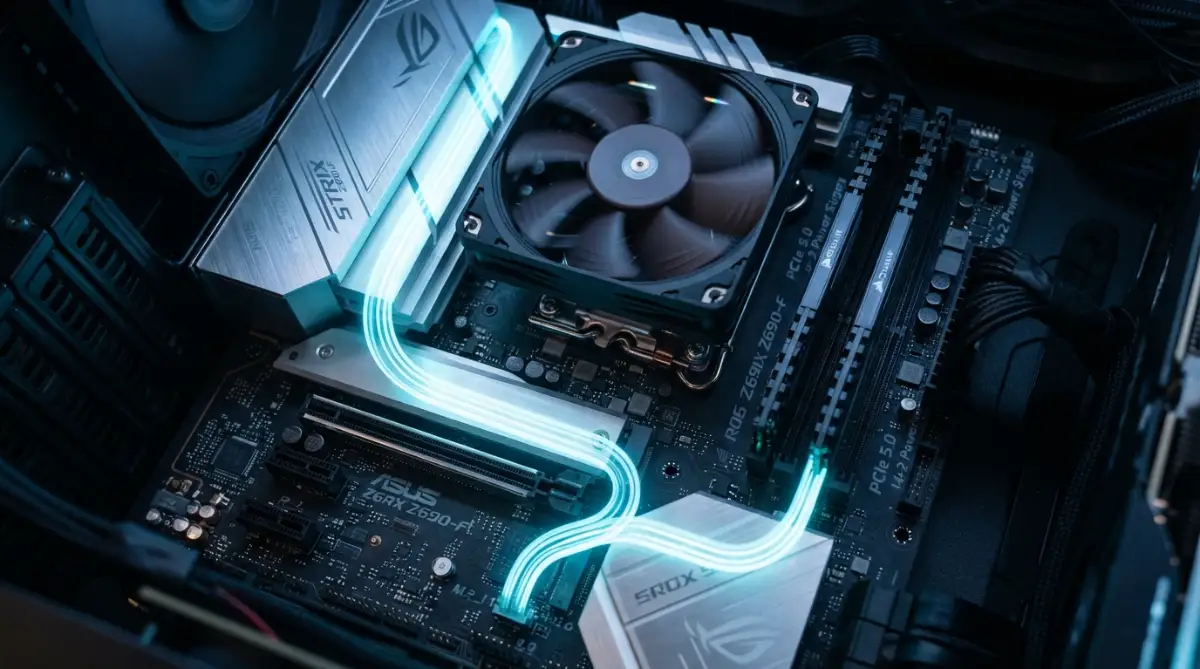
If you are worried about your hardware getting too hot while doing these heavy tasks, you should learn why thermal paste is the secret to a cool and fast cpu. Sometimes software isn't the only thing slowing you down; heat can be a major factor too.
The Power of "Fresh Start" for Extreme Cases
If your computer is so full of junk that you don't even know where to start, there is a "nuclear option." Windows has a feature called "Reset this PC." It lets you reinstall the entire operating system while keeping your personal files.
I only suggest this if your system feels truly broken or incredibly slow. It is like moving into a brand new house without having to buy new furniture. It wipes away every piece of bloatware in one go.
Before you do this, make sure all your photos and work are backed up to the cloud. You can learn more about how this works through Cloud storage explained everything you need to know today. It is much safer to have your files in two places before a big reset.
Expert Secrets for Long-Term System Health
Keeping a computer clean is a habit, not a one-time event. If you clean it today but keep downloading random apps tomorrow, you will be back in the same mess next month. I had to learn this the hard way by repeating the cleanup every few weeks.
One secret I use is to avoid "Bundleware." This happens when you download a free app, and it tries to sneak in another app during the installation. Always choose the "Custom Installation" option so you can uncheck those extra boxes.
Another great tip is to keep your desktop as empty as possible. Did you know that every icon on your desktop uses a tiny bit of your RAM? If you have 100 icons, your computer has to work harder just to show you your home screen.
I like to use folders to group my icons. It makes my screen look professional and keeps my system snappy. For more help with your internet performance, you might want to check fixing slow wi-fi why your connection lags and how to make it fast. A fast PC is great, but a fast connection makes it even better.
Understanding Your Drive Health
If you are using an older computer, the type of hard drive you have matters a lot. If you have a traditional HDD, it gets "fragmented" over time. This means files are scattered all over the spinning disk, making it slow to read them.
Modern computers use SSDs, which don't have this problem. If you want to know which one you have, read about ssd vs hdd why modern computers can't live without solid state drives. Upgrading to an SSD is the single best way to make a slow computer feel like a rocket.
I always tell people that software cleaning can only do so much. If your hardware is twenty years old, it will still feel slow. But on a modern SSD, a clean system will feel incredibly smooth and responsive.

Dangerous Mistakes to Watch Out For
I have seen many people get so excited about cleaning their PC that they end up causing real damage. It is an easy trap to fall into. You feel like you are on a roll, and then you click one button you shouldn't have.
One of the biggest mistakes is using "Registry Cleaners." There are many apps online that claim they can fix your registry to make your PC 500% faster. I am telling you right now: stay away from them.
The Windows Registry is very sensitive. If a piece of software deletes the wrong "key," your computer might not even turn on the next day. Microsoft themselves do not recommend using these tools. I once used one and had to spend my whole Sunday reinstalling Windows from scratch.
Another common error is deleting "System32" files. This has become a bit of a joke online, but some people actually do it. These are the files that literally run your computer. If you see a file you don't recognize in the Windows folder, don't touch it.
Giving Away Too Much Control
When you are cleaning out apps, you might see "Permissions" settings. Some people think that turning off every permission will make the PC faster. While it might help a little with privacy, it can also break your apps.
For example, if you turn off the "Location" permission for your weather app, it won't work anymore. You should definitely be careful with your data, so read about which app permissions are dangerous stay safe online. But don't turn things off blindly just to save a tiny bit of speed.
I also see people disabling their antivirus to save "resources." This is a huge mistake. Bloatware is annoying, but a virus is a disaster. It is better to have a slightly slower computer that is safe than a fast one that is being hacked.
The Trap of "Fake" Optimization Sites
Be very careful where you get your advice. Some websites tell you to download "special scripts" to speed up your PC. These scripts can sometimes contain malware or change settings that are hard to undo.
Always look for official documentation. For example, Microsoft’s official support pages are a much safer place to get technical help. They won't try to sell you a fake cleaner or trick you into downloading a virus.
I once followed a random guide on a forum, and it changed my screen settings so much I couldn't see my mouse. I felt so panicked in that moment. Always trust sources that have a good reputation in the tech community.
Common Questions About Speeding Up Your PC
Is it safe to delete apps that come from the computer maker?
Yes, most of the time it is perfectly safe. Apps like "Dell Support Assistant" or "HP JumpStart" are not needed for your computer to run. They are mostly there for marketing or simple help tasks you can do yourself.
Does removing bloatware void my warranty?
No, deleting software will not void your hardware warranty. You own the software on your machine, and you have every right to change it. If you ever need to send it back for repair, they might just reinstall the original software anyway.
Will deleting apps delete my photos too?
Normally, no. Uninstalling a program only removes the program itself and its settings. However, it is always a smart idea to keep your files in a separate folder or on a backup drive just to be 100% safe.
How often should I do a digital cleanup?
I suggest doing a quick check every three months. Just look through your app list and startup items. If you do it regularly, it only takes five minutes and keeps your system running like new all the time.
A Fresh Start for Your Digital Life
Taking the time to clean your system is an act of self-care for your digital self. When your computer runs smoothly, your day goes smoothly. You no longer have to wait for apps to open or deal with annoying pop-ups.
I want you to feel proud of the work you have done today. It takes courage to dive into the settings of your computer and make changes. Most people just live with the lag, but you chose to fix it.
Remember that a clean computer is just a tool. The real goal is to give you more time and less stress so you can focus on what you love. Whether that is gaming, writing, or connecting with family, a fast PC makes it all better.
I truly believe that anyone can have a fast computer without spending a lot of money. It just takes a little bit of patience and the right knowledge. You now have both of those things in your pocket.
Go ahead and restart your computer one last time. Feel that speed and enjoy the clean screen. You have earned it. I am so happy I could help you on this journey to a better, faster, and cleaner digital world.
Disclaimer: This guide is for educational purposes only. While the steps mentioned are generally safe, every computer is different. Always back up your data before making changes to your system settings. I am not responsible for any data loss or system errors that may occur during your cleanup process.