Why My Old Laptop Almost Made Me Quit My Job
"Staring at a spinning loading circle is the fastest way to ruin a productive morning. We’ve all been there—clicking an icon, waiting, and wondering if our computer finally gave up on us. You don't need a thousand-dollar replacement to fix a lagging PC; you usually just need to swap one specific part. Let’s talk about why your old hard drive is lying to you and how a simple switch to an SSD can make your laptop feel brand new again."
My heart was racing as I watched that little spinning circle on the screen. It felt like hours, but it was probably only five minutes. By the time my files finally opened, the meeting had already started without my slides.
I felt so embarrassed and frustrated with my slow technology. I thought I needed to buy a whole new computer, which I couldn't afford. That was the moment I realized my hard drive was holding me back.
"### Before We Start: The Fast Facts
If you’re in a hurry, here is the 'too long; didn't read' version of why you need an SSD:
- Instant Gratification: You get boot times under 15 seconds and apps that open instantly.
- Reliability: No moving parts means your data is safe even if you bump or drop your laptop.
- Battery Life: You get 30-60 minutes of extra battery life because SSDs don't need motors to spin.
- Silent Performance: Say goodbye to the annoying grinding and buzzing noises of your old PC."
The Daily Struggle of a Slow Computer
A slow computer isn't just a tech problem; it's a mental health problem. It ruins your focus and makes simple tasks feel like a heavy chore. We live in a world where we expect things to happen fast.
When your computer takes forever to boot up, it steals your time. Those small moments of waiting add up to hours of lost productivity every month. It makes you feel outdated and stuck in the past.
Many people think their processor is the problem when their PC lags. They assume the "brain" of the computer is tired or old. But most of the time, the real bottleneck is the storage device.
Imagine trying to run a race while wearing heavy lead boots. No matter how fast your heart pumps, your boots keep you slow. That is exactly what a traditional hard drive does to a modern computer.
We use our computers for everything now, from banking to connecting with family. A lagging system makes these important tasks feel risky and annoying. You deserve a machine that keeps up with your thoughts and your needs.
How Moving Parts Slow Down Your Entire Life
To understand why your computer feels slow, we need to look at the old technology. Traditional hard drives, or HDDs, have been around for many decades. They work a lot like an old record player.
Inside a hard drive, there are spinning magnetic platters. A tiny arm moves back and forth to read the data from these spinning disks. This mechanical process is exactly why they are so slow.
Think about a library where the books are constantly moving on a carousel. To find a specific book, the librarian has to wait for the right shelf to spin around. Then they have to reach out and grab it.
This takes time, especially if the data is scattered in different places. This "waiting time" is called latency. It is the reason you hear your computer clicking or whirring when it’s working hard.
Every time you open a photo or start a game, the arm inside the HDD has to move. If you drop your laptop, that moving arm can crash into the spinning disk. This often leads to total data loss and a broken heart.
Modern computing needs something that doesn't rely on physical movement. We need something that works at the speed of electricity, not the speed of a motor. This is where the magic of the SSD comes into the picture.
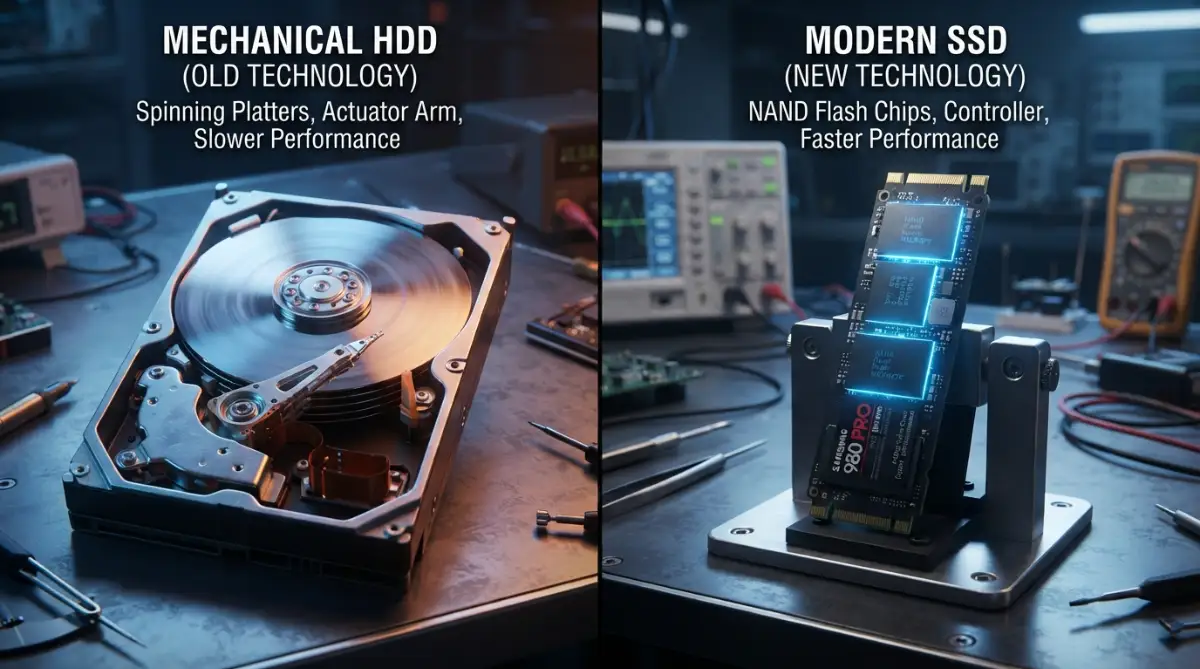
"To help you see the gap clearly, here is a quick breakdown of how these two technologies actually stack up in the real world:
The Magic of Silent and Instant Storage
A Solid State Drive, or SSD, has absolutely no moving parts inside. It uses something called NAND flash memory, which is similar to what you find in a USB thumb drive. But it is much, much faster and more reliable.
Because there are no spinning disks, there is no waiting for a "librarian" to find your data. The data is stored in tiny electrical cells. Accessing it is almost instant, which changes the whole feeling of using a PC.
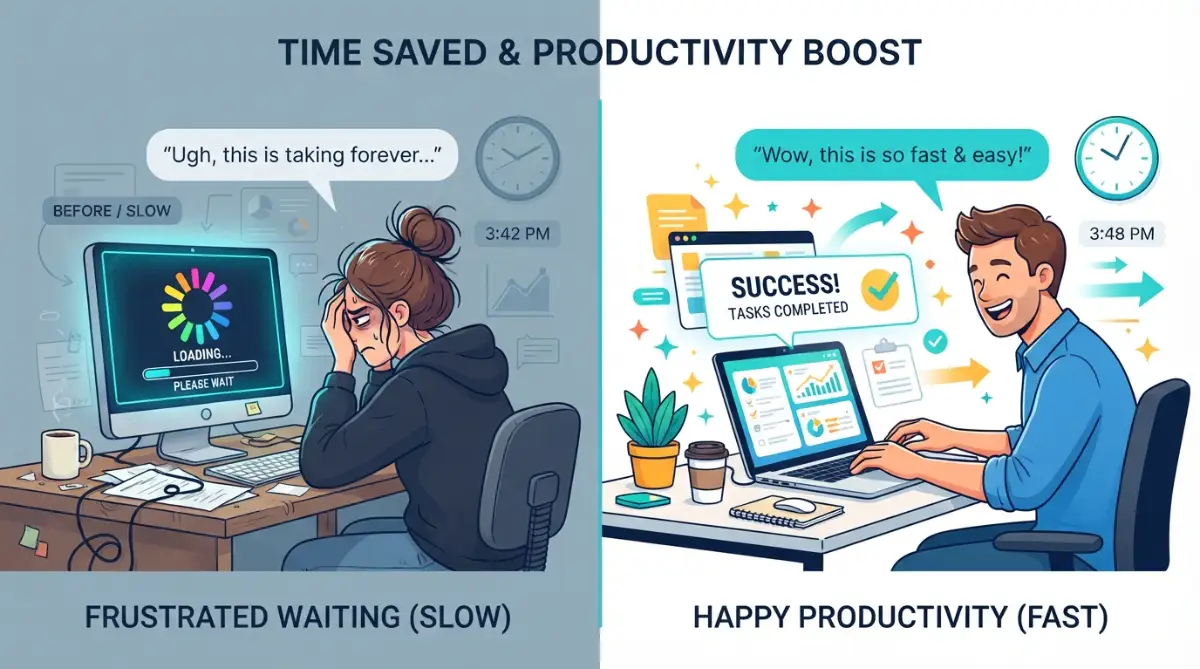
When I first switched to an SSD, I thought I had a brand-new computer. My laptop went from a two-minute boot time to less than fifteen seconds. I didn't even have time to go get a cup of water before it was ready.
This speed affects every single thing you do on your screen. Apps open the moment you click them. Large files save in the blink of an eye. Even browsing the web feels smoother because the cache files load faster.
The lack of moving parts also means SSDs are completely silent. You won't hear that annoying grinding or buzzing sound anymore. It makes for a much more peaceful working environment at home or in the office.
Plus, SSDs are much tougher than old hard drives. Since nothing is moving, they can handle bumps and drops much better. This is a huge win for anyone who travels with a laptop or works in a busy house.
Why Speed is Just the Beginning of the Story
Most people focus only on speed when talking about SSDs. While speed is great, there are other reasons why they are better for your daily life. One of the biggest benefits is how they save your battery.
Traditional hard drives need a lot of power to keep those heavy platters spinning. This drains your laptop battery much faster than you might think. An SSD uses very little power because it doesn't have to move anything.
This means you can work longer at a coffee shop without hunting for an outlet. It makes your laptop truly portable again. You get more work done or watch more movies on a single charge.
Another big advantage is heat. Because HDDs have friction from spinning, they get very warm. This heat can wear down other parts of your computer over time. SSDs stay much cooler, which helps your whole system last longer.
I realized that by saving on heat and power, I was actually protecting my investment. A cooler computer is a healthier computer. It's a small change that has a massive impact on the life of your hardware.
Watch this short comparison to see the incredible speed difference in real-time!
Breaking Down the Science of NAND Flash
To really see why solid state drives outperform traditional hard drives in modern computing, we need to look at the science. Don't worry, I will keep it very simple. It’s all about how electrons move.
In an HDD, data is stored magnetically on a surface. To read it, the magnetic field must be sensed by the reading head. This is a physical process that is limited by the laws of motion.
In an SSD, data is stored by trapping electrons in a "floating gate." Imagine a huge grid of tiny light switches. Each switch can be either "on" or "off," representing the bits of your data.
When your computer wants to read a file, it just checks the state of these electrical switches. This happens at nearly the speed of light. There is no physical arm that needs to move to a specific spot.
This is why SSDs are so good at "random access." Random access is when your computer needs to grab small bits of data from many different places. This happens all the time when your operating system is running.
An HDD is okay at reading one giant file, like a movie, because it can stay in one spot. But it's terrible at reading thousands of tiny files. The SSD doesn't care if the data is in one spot or a thousand; it finds it all instantly.
Why Modern Software Demands an SSD
If you look at the apps we use today, they are much heavier than they used to be. Windows and Mac operating systems are constantly doing things in the background. They are always reading and writing small logs and temporary files.
A traditional hard drive simply cannot keep up with these modern demands. This is why a brand-new "budget" laptop with an HDD often feels slower than an old laptop with an SSD. The software is waiting on the hardware.
Modern games are another great example. Games today have massive worlds with high-resolution textures. An HDD takes forever to load these textures, leading to "pop-in" or long loading screens.
With an SSD, the game can pull that data into the memory almost instantly. This makes the gaming experience much more immersive and fun. You spend more time playing and less time looking at a progress bar.
Professional work like video editing or photo editing is also much easier. High-definition video files are huge. Moving those files around on an HDD is a nightmare that wastes your precious time.
When you use an SSD for editing, the timeline feels "snappy." You can scrub through a video without it lagging or freezing. It allows you to stay in your creative flow instead of getting angry at your machine.
Comparing the Physical Build and Durability
Let's talk about the physical side of things for a moment. An HDD is a heavy, delicate piece of machinery. It has glass or ceramic plates and a high-speed motor. It’s a miracle they work as well as they do.
But if you drop an HDD while it is spinning, it is almost certainly going to die. The head can "crash" onto the platter and scratch the magnetic coating. Once that happens, your data is usually gone forever.
An SSD is basically just a circuit board with some chips on it. It’s very light and has no fragile moving parts. You could drop an SSD on the floor, and it would likely keep working perfectly.
This durability is why SSDs are the standard for tablets and smartphones. Could you imagine if your phone had a spinning disk inside? It would break the first time you put it down on a table too hard!
For laptop users, this is the ultimate peace of mind. You can use your laptop on a bus, a train, or a plane without worrying about vibrations. The SSD doesn't care about movement or gravity.
I've seen so many people lose their college papers or family photos because of a dropped hard drive. It’s a tragedy that is easily avoided. Switching to solid-state storage is like buying an insurance policy for your data.
Understanding Different Types of SSDs
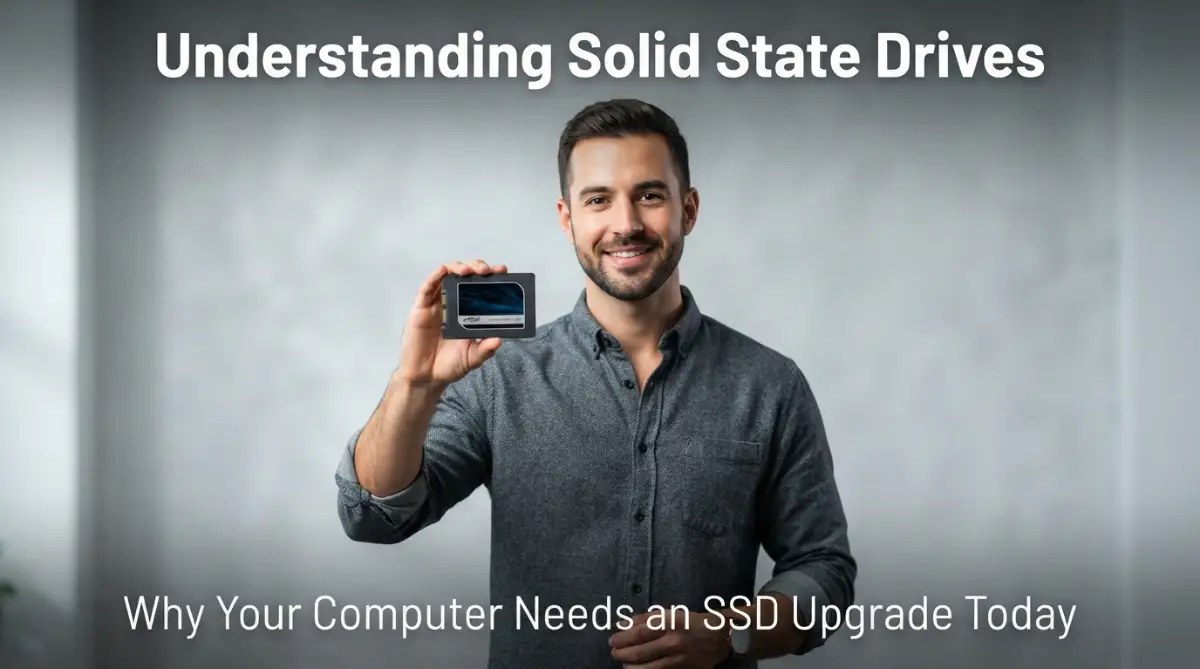
Not all SSDs are created equal, and it's good to know the differences. The most common type for older laptops is the 2.5-inch SATA SSD. It looks like a small, slim version of a traditional hard drive.
These are great for upgrading old computers. They use the same plug as your old hard drive, making the switch very easy. Even these "slower" SSDs are about five times faster than an HDD.
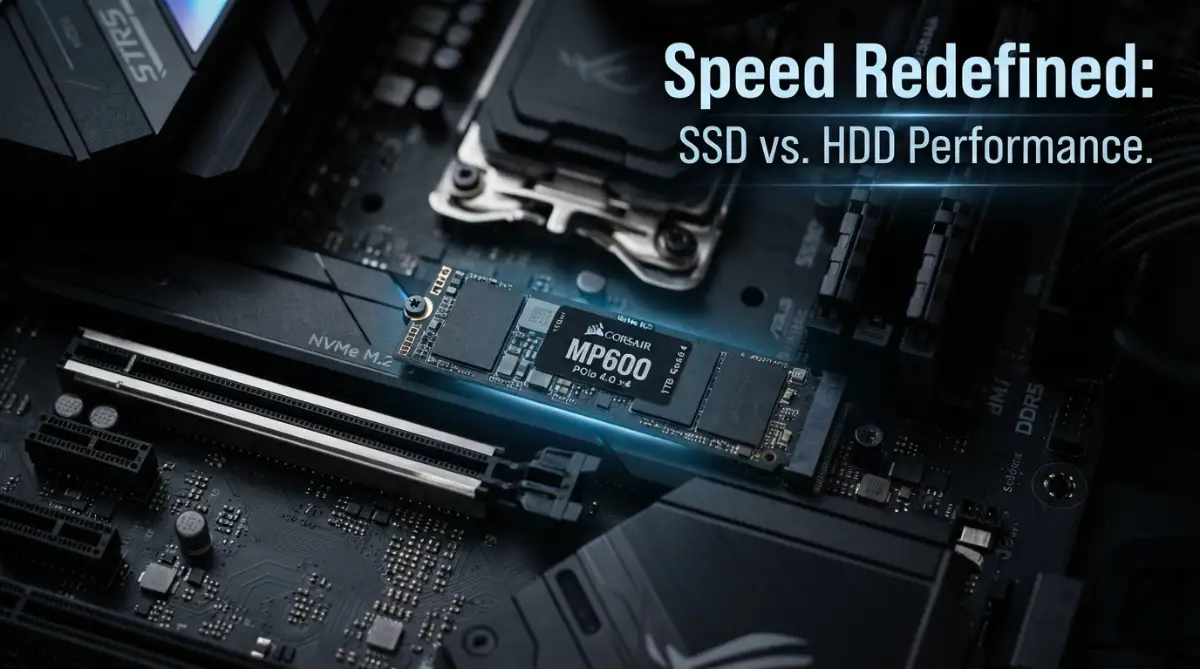
Then we have the newer M.2 SSDs. These look like a small stick of gum. They plug directly into the motherboard and take up almost no space. This allows laptops to be thinner and lighter than ever before.
The fastest version of the M.2 is the NVMe SSD. These use a special language to talk to your computer that is designed specifically for speed. They are significantly faster than SATA SSDs.
While a SATA SSD might read data at 500 MB per second, a high-end NVMe can go over 7,000 MB per second. That is a speed difference you can actually feel when you are working on big projects.
However, for most people, any SSD is a massive upgrade. You don't always need the absolute fastest one to enjoy a snappy computer. The jump from an HDD to any SSD is the biggest change you will ever experience.
The Myth of SSD Lifespan
Some people worry that SSDs "wear out" because they have a limited number of write cycles. While it is true that every cell has a limit, this is mostly a myth for normal users.
Modern SSDs are designed to last for a very long time. You would have to write hundreds of gigabytes of data every single day for years to wear one out. Most people will buy a new computer long before the SSD dies.
In fact, because they have no moving parts, SSDs often outlast HDDs in the real world. HDDs fail because of mechanical wear, motor failure, or physical damage. These are much more common problems.
I have an SSD in a desktop that I've used for over seven years. It still works as fast as the day I bought it. I don't even think about the "wear" anymore because the technology has improved so much.
If you are a normal home or office user, you should not worry about the lifespan of an SSD. It is a reliable and sturdy piece of technology. Just make sure to buy from a reputable brand to get the best quality chips.
Always remember to keep a backup of your important files, no matter what drive you use. Even though SSDs are reliable, hardware can always have unexpected issues. Being safe is always better than being sorry.
Why SSDs are Better for the Environment
You might not think about your hard drive affecting the planet, but it does. Because SSDs are more efficient, they help reduce the carbon footprint of your technology. This happens in a few different ways.
First, as we mentioned, they use much less electricity. If millions of people switch to SSDs, that adds up to a lot of saved energy. It’s a small way to make your home more "green."
Second, because they stay cooler, your computer's fans don't have to work as hard. Fans also use electricity and create noise pollution. A quieter, cooler PC is better for everyone.
Third, SSDs are smaller and lighter. This means they take less fuel to ship around the world. It also means they use fewer raw materials in their construction compared to heavy metal HDDs.
By choosing an SSD, you are choosing a more modern and efficient way to use technology. It's a win for your speed, a win for your battery, and a small win for the earth. It feels good to use tech that isn't wasteful.
Most modern electronics are moving toward being more efficient. The transition from HDDs to SSDs is a big part of that movement. It's about doing more with less energy and less space.
Making the Choice: Is It Worth the Cost?
In the past, SSDs were very expensive. You would pay a lot of money for a very small amount of storage. Many people kept their HDDs because they needed the space for movies and photos.
But today, the prices have dropped significantly. While HDDs are still cheaper for huge amounts of space (like 8TB or 10TB), SSDs are very affordable for normal sizes. A 500GB or 1TB SSD is now within reach for almost everyone.
When you think about the cost, don't just look at the price tag. Think about the value of your time. If an SSD saves you 10 minutes of waiting every day, that's over 60 hours a year!
What is 60 hours of your time worth? For most of us, it is worth a lot more than the price of an SSD. It’s an investment in your productivity and your happiness.
If you have a limited budget, you can even use both! Many people put their operating system on a small SSD for speed. Then they keep a large HDD for storing big files that they don't use every day.
This "hybrid" setup gives you the best of both worlds. You get the instant boot times and snappy apps, but you still have room for all your old videos and backups. It’s a very smart way to manage your storage.
How to Start Your SSD Journey
If you are tired of your slow computer, the first step is to check what you have. You can look in your system settings to see if your drive is an HDD or an SSD. If it says "Hard Disk Drive," you know what to do.
Upgrading to an SSD is often the most cost-effective way to make an old PC feel new. You don't need to be a computer genius to do it. There are many simple guides and tools available to help you move your data.
Many SSDs even come with free software that clones your old drive. This means it copies everything—your files, your wallpaper, your apps—onto the new SSD. When you plug it in, everything is exactly where you left it, just faster.
If you are buying a new laptop, make sure it has an SSD. Don't be tempted by a "cheap" laptop that still uses an HDD. You will regret it within a week when the system starts to crawl.
Look for words like "NVMe" or "Solid State" in the description. Even a smaller SSD is better than a larger HDD for most people. You can always use external storage or cloud storage if you run out of space.
Take the leap and experience the difference for yourself. Once you go solid state, you will never want to go back to a spinning disk again. It’s one of those rare tech upgrades that actually lives up to the hype.
Getting the Most Out of Your New Speed Demon
Once you make the switch to a solid state drive, you will never want to go back. But just having the drive is only the first part of the journey. I want to share some secrets I learned the hard way to keep your drive running like new.
One of the most important things you can do is enable the TRIM command on your computer. Think of TRIM like a smart janitor who cleans up your office while you are sleeping. In old hard drives, deleting a file didn't actually remove the data immediately.
With an SSD, the drive needs to know exactly which blocks of memory are empty and ready to use. If TRIM is turned on, your operating system tells the drive which data is no longer needed. This prevents the drive from slowing down over time. Most modern systems do this automatically, but it is always good to check.
Another expert secret is to never fill your SSD to the very top. I used to think that if I bought 500GB of space, I should be able to use all 500GB. I was wrong, and my computer started lagging again.
SSDs need some "breathing room" to move data around behind the scenes. This is often called over-provisioning. I usually try to keep at least 15% to 20% of my drive empty. It’s like having an empty hallway in a big warehouse so the forklifts can move quickly.
If you are a power user, you might want to how to make your computer fast again without spending money by optimizing your startup apps. Even with a fast drive, too many apps trying to open at once can cause a tiny delay. I always keep my startup list very clean.
"My 3-Step 'Speed Health' Checklist:
- The 20% Rule: I always leave at least 20% of my SSD empty. If you fill it to the brim, the drive struggles to 'breathe' and slows down.
- Check TRIM Status: Open your command prompt and ensure TRIM is active. It’s like an automatic cleanup crew for your data cells.
- Avoid the 'Heat Trap': Even though SSDs stay cooler, don't block your laptop vents. High heat triggers 'thermal throttling,' which cuts your speed in half to protect the hardware."
You should also keep an eye on firmware updates from the manufacturer. Just like your phone gets updates to fix bugs, your SSD has its own little brain that needs updates. These updates can improve speed and even fix tiny errors that might cause crashes.
I remember a friend who had a drive that kept disconnecting for no reason. We checked the manufacturer's website and found a small update that fixed the exact issue. It took two minutes to install and saved him from buying a new drive.
Finally, think about how you organize your files. Even though SSDs are fast, putting everything on your desktop can still slow down your operating system. I use a simple folder system to keep things tidy. If you have a lot of old photos, you might want to check out cloud storage explained everything you need to know today to save some local space.
According to technical research from experts at Backblaze, SSDs show very low failure rates when they are kept cool and not overfilled. This data proves that your habits directly affect how long your hardware will live.
Deadly Habits That Can Ruin Your Drive
We all want our technology to last forever, but some old habits can actually hurt your SSD. The biggest mistake people make is defragmenting their solid state drive. This was a great thing to do for old hard drives, but it is a nightmare for SSDs.
Old drives needed to put pieces of a file next to each other on a spinning disk. SSDs don't care where the pieces are because they can find them instantly. Defragmenting just adds extra "wear and tear" by moving data around for no reason.
I have seen people run defrag tools every week because they thought they were helping. In reality, they were just shortening the life of their expensive drive. Modern versions of Windows actually change the "Defrag" tool to "Optimize" when they see an SSD, which is much safer.
Another huge error is ignoring the heat inside your laptop or desktop. While SSDs stay cooler than old drives, they can still get very hot during big file transfers. If a drive gets too hot, it will slow itself down to protect the chips.
This is called thermal throttling, and it can make your fast drive feel like a turtle. Make sure your computer has good airflow and isn't covered in dust. I make it a habit to blow out the dust from my laptop vents every few months.
Speaking of things that can hurt your hardware, you should be careful with your power settings. If your computer shuts down unexpectedly all the time, it can corrupt the data on your drive. I always recommend using a small battery backup for desktops.
Many people also make the mistake of buying the cheapest "no-name" drive they find online. I know it is tempting to save a few dollars, but these drives often use low-quality memory chips. They might be fast for a week and then fail completely, taking all your files with them.
I always tell my friends that your data is worth more than the $10 you save on a cheap drive. Stick with brands that have a good reputation and offer a long warranty. It gives you a safety net if something goes wrong.
Lastly, don't forget that your drive is still part of a larger system. If you want to keep your whole setup healthy, you should also stop killing your smartphone easy habits for a longer battery life because many of those power habits apply to laptops too.
Taking care of your tech is about more than just speed. It is about respect for the tools that help you work and connect with the world. A little bit of knowledge goes a long way in preventing a digital disaster.
Setting Up Your Environment for Success
When you first install your drive, the way you set up your software matters a lot. I always recommend a "clean install" of your operating system if you have the time. This means starting with a fresh version of Windows or macOS instead of just copying your old, messy files.
A fresh start clears out all the old junk and "digital dust" that builds up over the years. It makes the speed of the SSD feel even more impressive. It’s like moving into a brand-new, clean house instead of moving your old trash into a new building.
If you must copy your old drive, use a high-quality "cloning" tool. Some cheap tools can cause alignment issues, which makes your SSD work harder than it needs to. Most big brands like Samsung or Western Digital provide their own free tools for this.
You should also check your BIOS settings to make sure "AHCI" mode is turned on. This is a technical setting that helps your computer talk to the SSD more efficiently. If your computer is set to the old "IDE" mode, you are leaving speed on the table.
I remember helping my neighbor with his PC because he said his new SSD didn't feel very fast. We went into his settings and found it was running in the wrong mode. Once we switched it, his eyes lit up at how much faster it became.
For those of you who work with sensitive data, remember that SSDs handle "deleting" differently. If you just hit delete, a smart person might still be able to find that data. If you are selling your old drive, use a "secure erase" tool provided by the manufacturer.
This tool tells the drive to clear all the electrical cells completely. It is much safer than just formatting the drive. Protecting your privacy is just as important as protecting your hardware.
If you ever run into a situation where you lose files by mistake, don't panic. You can often how to recover deleted photos from sd cards a complete guide and many of those tips work for other types of flash storage too. But having a backup is always the best path.
According to a study on data integrity from Kingston Technology, using the correct interface settings can improve drive life by up to 20%. These small details might seem boring, but they make a huge difference over a few years.
The Real Value of Your Time and Energy
At the end of the day, we don't buy SSDs just because they are cool pieces of plastic and silicon. We buy them because they give us back our most valuable resource: time. Think about all the minutes you spend waiting for your screen to load.
If you wait two minutes for your PC to start every day, that is over twelve hours a year. That is half a day spent staring at a blank screen! Switching to a solid state drive gives that time back to you.
I used to feel so stressed when my computer would lag during a project. That stress is gone now, and I feel much more creative. I can jump from one idea to the next without the technology slowing me down.
It also changes how you feel about your old computer. Instead of feeling like you need to throw it away, an SSD upgrade makes it feel modern again. It is a much more sustainable way to live in our digital world.
I have upgraded laptops that were five years old, and they performed better than brand-new budget machines. It’s a great feeling to save money and get a better result at the same time. You don't always need the latest gadget to have a great experience.
Focus on the parts that matter the most. The storage is the "hands and feet" of your computer. When the hands and feet are fast, the whole body feels lighter and more capable.
I want you to feel that same excitement I felt when I first saw my laptop boot up in seconds. It really is a life-changing upgrade for anyone who uses a computer every day.
Answers to Your Common SSD Questions
How long will my SSD actually last compared to a hard drive?
For most people, an SSD will last between seven to ten years with normal use. Since there are no moving parts to break, they are often more reliable than old hard drives. You are much more likely to replace your computer before the drive wears out.
Can I put an SSD in a very old computer?
Yes, as long as your computer has a SATA connection, you can usually install an SSD. It is often the single best upgrade you can make for an old machine. It can make a ten-year-old computer feel surprisingly fast for browsing and office work.
Do I need to do any special maintenance for an SSD?
No, you actually have to do less maintenance! You should never defragment it, and you don't need to run special cleaning software. Just keep about 20% of the space empty and let your operating system handle the rest.
Is it worth getting an NVMe SSD over a regular SATA one?
If your computer supports NVMe, then yes, it is worth it because they are much faster. However, if you are just doing basic tasks like web browsing or writing, you might not notice a huge difference. Both are much faster than a traditional hard drive.
Your Path to a Smoother Digital Life
Upgrading your storage is one of the smartest moves you can make for your digital life. It removes the friction from your daily tasks and lets you focus on what really matters. You deserve a computer that works as fast as you do.
I truly believe that no one should have to suffer through the frustration of a slow, clicking hard drive. The technology is affordable now, and the benefits are too big to ignore. It is a gift you give to your future self.
I honestly wish I had made the switch years earlier than I did. It would have saved me so much stress and so many hours of lost work. Don't wait until your old drive crashes to make the move—start enjoying the speed today!
Disclaimer: This article is for informational purposes only. While I am a technology enthusiast, always back up your important data before making any hardware changes. I am not responsible for any data loss or hardware damage that may occur during your upgrade process. Always consult with a professional if you are unsure about working inside your computer.