The Day My Computer Almost Melted and What I Learned
"If your computer sounds like a jet engine taking off, you’re probably dealing with a hidden killer: heat. I almost fried my first custom build because I forgot one tiny thing—a $5 tube of thermal paste. You don't need to be a tech genius to fix this, but you do need to understand how this grey goop keeps your processor from melting. Let's look at how to save your PC and your money."
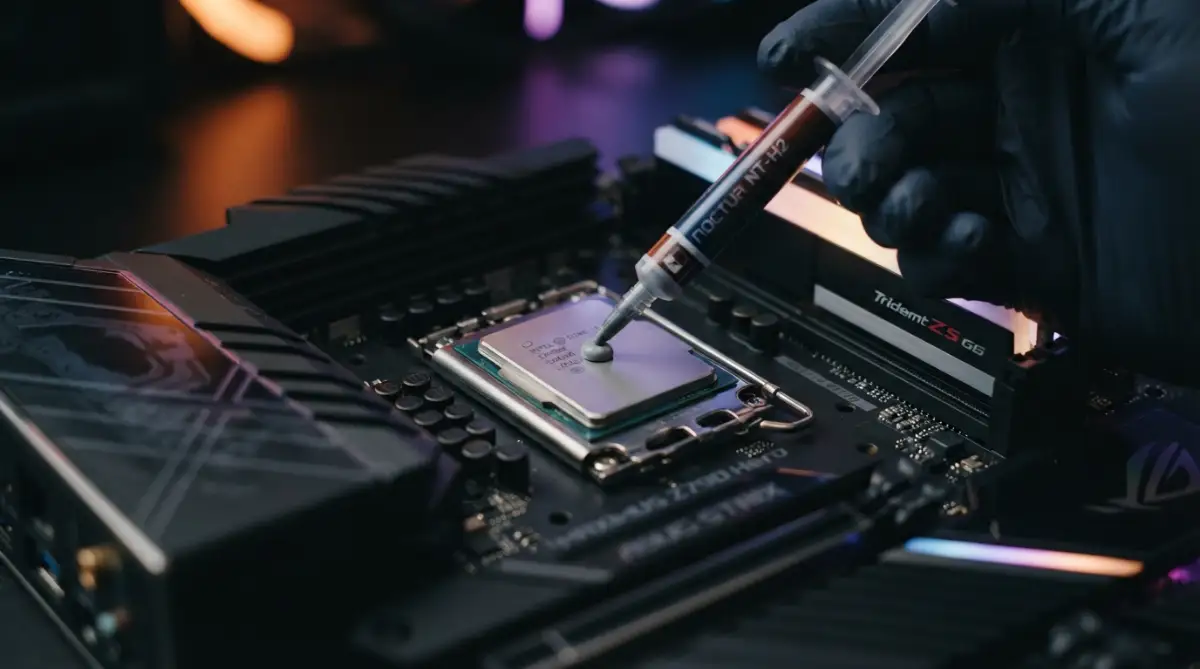
The fans started spinning so loud they sounded like a jet engine taking off. Then, without warning, the screen went black. I smelled something slightly metallic and warm. My heart dropped into my stomach because I thought I had fried my expensive processor. I realized I had skipped a tiny, five-dollar tube of grey cream.
That cream was the thermal paste. I didn't think such a small thing would matter so much. I was wrong, and that mistake almost cost me hundreds of dollars. It was a scary lesson that taught me why we can't ignore the hidden parts of our tech.
⚡ Quick Fix Guide: What You Need to Know
- The Goal: Fill microscopic air gaps between your CPU and cooler.
- The Method: A small pea-sized drop in the center is the safest for everyone.
- Cleaning: Use 90%+ Isopropyl alcohol and a coffee filter for a perfect finish.
- Timing: Replace your paste every 2-3 years to avoid performance drops.
- Red Flag: If your CPU hits 90°C+, check your paste immediately.
Why High Temperatures are Ruining Your Digital Life
Have you ever noticed your laptop getting so hot it burns your legs? Or maybe your desktop starts stuttering right when you are about to win a game. This isn't just a small annoyance. It is a sign that your hardware is struggling to breathe.
When a CPU gets too hot, it slows itself down to stay alive. This is called thermal throttling. It makes your fast computer feel like it is ten years old. You feel frustrated, your work slows down, and you start wondering if you need to buy a new machine.
The Invisible Battle Between Metal Surfaces
If you look at the top of a CPU and the bottom of a cooler, they look perfectly flat. But if you had a microscope, you would see a different story. The metal surfaces are actually full of tiny mountains and valleys. They are rough and uneven on a tiny level.
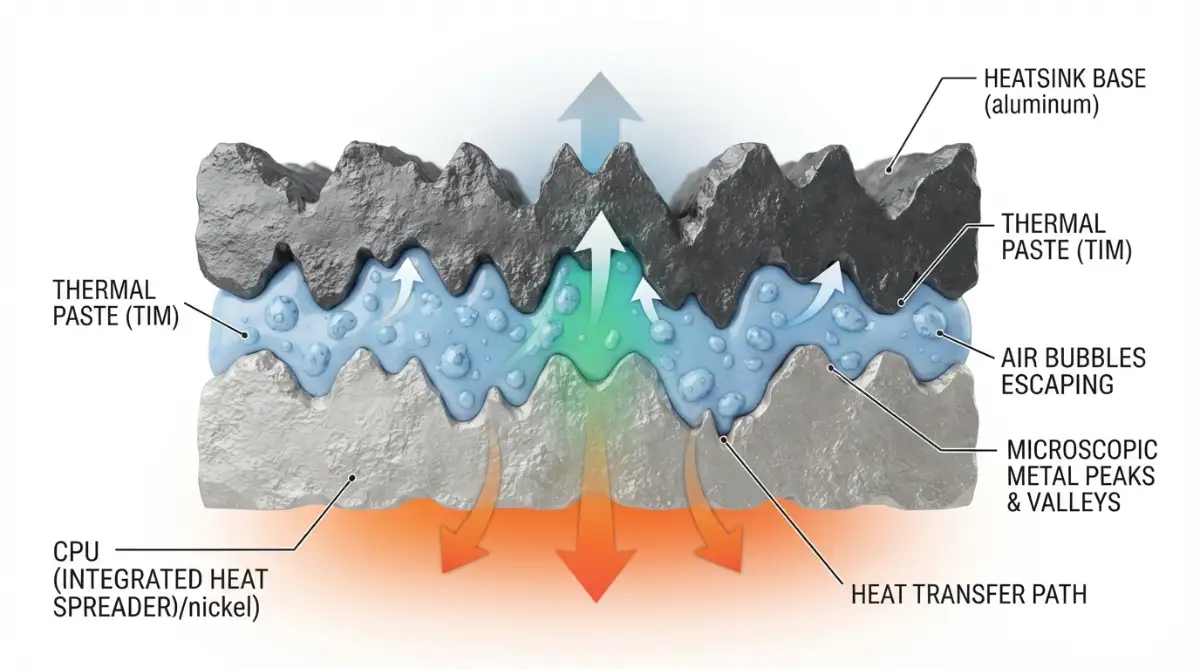
When you put the cooler on the CPU, these tiny gaps trap air. Air is a terrible conductor of heat. In fact, air acts like an insulator, keeping the heat trapped inside the processor. This is where the magic of thermal paste comes in.
The paste fills those microscopic holes. It pushes the air out and creates a solid bridge for heat to travel across. Without this bridge, the heat has nowhere to go. It just builds up until the system reaches a breaking point.
The Secret Science of Heat Transfer in Your PC
To understand why this paste is a big deal, we have to look at how heat moves. Heat always wants to go from a hot place to a cold place. Your CPU creates a lot of energy, which turns into heat. Your big metal heatsink is there to soak up that heat and blow it away with a fan.
However, the connection between the CPU and the heatsink is the weakest link. Thermal paste is designed to be highly conductive. It isn't just "goop." It is a specially engineered material made of zinc oxide, silicone, or even silver particles.
When you apply it correctly, it turns two separate pieces of metal into one cooling unit. This allows the heat to flow smoothly. It keeps the temperature stable even when you are doing heavy tasks like editing video or playing high-end games.
Different Types of Paste and Which One You Need
Not all thermal pastes are the same. You might see some for three dollars and some for thirty. It can be confusing when you are looking at the options. Most beginners should stick to ceramic or carbon-based pastes. They are easy to use and don't conduct electricity.
Then there is liquid metal. This is for the pros and the hardcore enthusiasts. It works amazingly well, but it can be dangerous. If you spill a tiny drop on your motherboard, it can cause a short circuit and kill your computer instantly.
For 99% of us, a standard high-quality thermal compound is plenty. It lasts for years and provides great cooling. My personal favorite is the carbon-based type because it spreads easily and I don't have to worry about it leaking into places it shouldn't go.
| Paste Type | Best For | Risk Level | Average Price |
| :--- | :--- | :--- | :--- |
| Ceramic | Beginners / Budget Builds | Very Low (Safe) | $5 - $8 |
| Carbon/Silicon | Gaming / Daily Use | Low (Safe) | $8 - $15 |
| Liquid Metal | Overclocking Experts | High (Dangerous) | $15 - $25 |
How to Prepare Your CPU for a Fresh Start
Before you put on new paste, you have to get rid of the old stuff. You can't just layer new paste over the old, dried-up gunk. That would be like putting fresh paint over a peeling wall. It won't stick well and it won't look good.
You need two things: high-percentage isopropyl alcohol and a lint-free cloth. I usually use a coffee filter because it doesn't leave tiny hairs behind. You want the metal surfaces to be so clean they shine like a mirror.
Gently wipe away the old paste until the surface is spotless. If the old paste is very hard, don't use a screwdriver to scrape it off! You will scratch the metal and make the cooling worse. Just use a little more alcohol and be patient. It will eventually dissolve.
The Pro Tip: I used to think that using more alcohol was better, but I once spilled some into the CPU socket. Now, I always put the alcohol on the cloth first, never directly on the chip. It is a small change that saves a lot of stress.
The Art of Applying the Perfect Amount
There is a huge debate online about the best way to apply thermal paste. Some people swear by the "X" shape. Others like to spread it out with a small spatula. Then there are the people who use the "pea-sized drop" method.
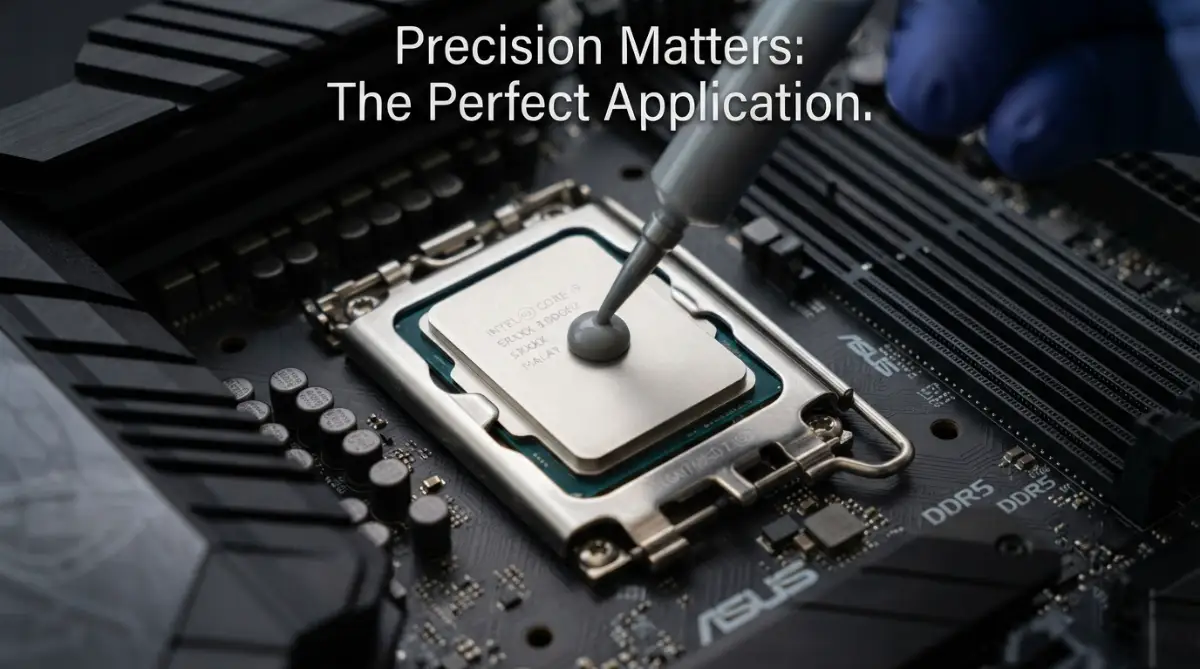
In my experience, the pea-sized drop in the center is the safest and most effective for most people. When you press the cooler down, the pressure spreads the paste out perfectly. It covers the middle of the chip, which is where the most heat is generated.
If you use too much, it can squeeze out the sides and make a mess. If you use too little, you will have dry spots that get too hot. Think of it like adding salt to food; a little bit is perfect, but too much ruins everything.
Check out this helpful visual guide to see exactly how much paste you should be using for your specific processor type.
Putting It All Back Together Carefully
Once the paste is on, it is time to mount the cooler. This is the part where people often get nervous. You have to lower the cooler straight down onto the CPU. If you slide it around too much, you might create air bubbles in the paste.
Tighten the screws in a "criss-cross" pattern. Don't tighten one screw all the way and then move to the next. Do a few turns on the top-left, then a few on the bottom-right. This ensures that the pressure is even across the whole chip.
Even pressure is just as important as the paste itself. If one side is tighter than the other, the paste won't spread correctly. You might end up with one corner of your CPU running ten degrees hotter than the rest. Take your time and go slow.
How to Tell if Your New Paste is Working
After you put everything back together, you need to check your work. You can use free software to look at your CPU temperatures. If everything went well, you should see much lower numbers than before.
Your computer should also be quieter. Since the heat is moving away from the chip faster, the fans don't have to spin as hard. It feels like your computer is finally relaxed and happy. You can get back to your work or gaming without that nagging fear of a crash.
If the temperatures are still high, don't panic. Sometimes the cooler isn't sitting quite right. You might need to take it off, clean it again, and try one more time. It is a learning process, and getting it right feels very rewarding.
Why You Should Check Your Paste Every Couple of Years
Thermal paste doesn't stay wet forever. Over time, the heat causes it to dry out and become brittle. When it turns into a dry crust, it stops being a good heat bridge. This usually happens every two to five years depending on how much you use your PC.
If you notice your fans getting louder over the months, it might be time for a change. It is a cheap and easy way to give your computer a "tune-up." It is much better to spend ten minutes repasting than to spend five hundred dollars on a new processor.
Regular maintenance is the key to a long-lasting machine. We change the oil in our cars and the filters in our AC units. Our computers deserve that same level of care. A little bit of paste goes a long way in keeping your digital life running smoothly.
Common Mistakes That New Builders Make
One of the biggest mistakes I see is people forgetting to take off the plastic sticker on the bottom of the cooler. It sounds funny, but it happens to the best of us! That plastic will melt and create a huge mess, and it blocks all the heat.
Another mistake is using "too much" paste because they think it will cool better. More paste does not mean more cooling. In fact, a thick layer of paste can actually act like a blanket and trap heat. You want the thinnest layer possible that still covers the whole surface.
Finally, don't use non-computer products as thermal paste. I have seen people try to use toothpaste or grease from the kitchen. These might work for five minutes, but they will dry out or even catch fire. Always use the real stuff made for electronics.
The Connection Between Paste and Your Electricity Bill
Myth vs. Reality: The Thermal Paste Truth
- Myth: Putting more paste means better cooling.
- Reality: Too much paste actually traps heat. Think of it like a thin bridge, not a thick wall.
- Myth: You can use toothpaste in an emergency.
- Reality: Never do this. Toothpaste has water and sugar; it will dry out in minutes and could cause a fire.
- Myth: High price always means better temps.
- Reality: For 95% of users, a mid-range $8 tube performs exactly like a $30 one.
You might not think about it, but a hot CPU uses more power. When a processor is hot, the fans have to work harder, which uses more energy. Also, silicon chips are less efficient when they are running at high temperatures.
By keeping your CPU cool with proper thermal paste, you are actually saving a little bit of money on your power bill. It might not be a lot, but over a year, it adds up. Plus, your room won't feel like a sauna every time you turn on your computer.
Final Thoughts on Taking Care of Your CPU
Taking care of your computer doesn't have to be hard. Understanding the role of thermal paste is one of the best things you can do for your tech. It is the simple link that prevents CPU overheating and keeps your system fast.
I am glad I learned my lesson early on. Now, I make sure to check my temperatures every few months. It gives me peace of mind knowing that my expensive parts are safe. If I can do it, you can definitely do it too.
Don't wait for your computer to start crashing. Take a look at your temperatures today. If things are looking a bit hot, grab a tube of paste and give your CPU the gift of a cool breeze. Your hardware will thank you for years to come.
Mastering the Heat: Professional Tricks for a Cooler Computer
Once you have the basics down, you might think you are a pro. But there is a deeper level to keeping your computer cool that most people never talk about. If you want your PC to stay fast for years, you need to think about the environment it lives in.
I have found that the temperature of your room changes how your thermal paste behaves. If you live in a very humid or dusty area, your paste might dry out faster than average. This means you should keep an eye on your temperatures more often.
It is also smart to think about the mounting pressure of your cooler. Most beginners just screw it in until it stops moving. But pros know that the way the cooler sits on the chip is what really makes the paste work. If the pressure is uneven, the paste will not fill the gaps correctly.
Why the "Burn-in" Period Matters for Your PC
Some high-end thermal pastes need time to reach their best performance. This is often called the "curing time" or "burn-in" period. When you first apply the paste, it might not show the lowest temperatures right away.
I usually tell people to give it about 20 to 50 hours of use. During this time, the heat from the CPU helps the paste settle into all the tiny cracks. You might see your temperatures drop by another 2 or 3 degrees after a week of gaming.
If you are curious about other ways to speed up your machine, you should look into how to make your computer fast again without spending money. Sometimes, a simple software cleanup works wonders alongside a fresh layer of paste. It is all about creating a balanced system where both hardware and software are happy.
Choosing the Right Paste for Your Specific Needs
You might see "silver-based" or "diamond-based" pastes in the store. These sound fancy, but do they really work? The truth is that for a standard home PC, any high-quality brand will do a great job.
However, if you are doing heavy video editing, you might want something with higher thermal conductivity. This is a number that tells you how fast heat can move through the paste. You can find technical details on these ratings in the Official Intel Thermal Management Guide.
I personally prefer non-conductive pastes because I am a bit clumsy. I once dropped a tiny bit of silver paste on a motherboard, and it was a nightmare to clean. Stick to the safe stuff unless you have a very steady hand and a lot of experience.
Ensuring Your Cooling Success Lasts for Years
If you want to keep your PC running like new, you have to be consistent. Don't just apply the paste and forget about it for a decade. I recommend setting a reminder on your phone to check your CPU heat every six months.
Dust is the biggest enemy of a cool computer. Even the best thermal paste cannot save a CPU if the fans are choked with cat hair or dust bunnies. Use a can of compressed air to blow out your heatsink regularly.
When your fans don't have to fight through dust, they don't spin as fast. This keeps your room quieter and saves energy. It also helps the thermal paste stay at a stable temperature, which keeps it from drying out too quickly.
Understanding the Heat Cycle of a Processor
Your CPU goes through something called a "heat cycle." This means it gets very hot when you are playing a game and then cools down when you are just browsing the web. This constant change in temperature can actually cause the paste to shift slightly over time.
This is why I suggest repasting every two years even if things seem okay. Fresh paste is more flexible and can handle these temperature swings much better than old, dry paste. It is a small price to pay for a computer that never lags.
If you find that your computer is still acting slow after a repaste, you might want to check your storage. Sometimes the issue isn't heat, but an old hard drive. You can learn about the benefits of upgrading in this guide on SSD vs HDD and why modern computers need speed.

The Scary Mistakes That Can Kill Your Hardware
I have seen many people get overconfident and end up making big mistakes. One of the worst things you can do is use too much paste. I know I mentioned this before, but it bears repeating because it is so common.
When you put a huge glob of paste on the CPU, it acts like a thick wall. Heat has a hard time getting through thick layers. You want the paste to be as thin as possible while still filling all the gaps.
Another mistake is forgetting to tighten the screws of the cooler properly. If the cooler is loose, there is no pressure to spread the paste. I once saw a friend wonder why his PC was shutting down, only to find his cooler was literally hanging by one screw.
Why You Should Never Reuse Old Paste
Some people try to take a cooler off one PC and put it on another without cleaning it. This is a recipe for disaster. Once you break the seal between the cooler and the CPU, air gets in.
That air creates bubbles in the old, dry paste. Those bubbles become "hot spots" that can damage your processor in seconds. Always, always clean both surfaces and apply fresh paste every single time you move the cooler.
It is also a bad idea to use your fingers to spread the paste. Your skin has natural oils that can mess with the chemical balance of the paste. These oils can reduce how well the paste conducts heat. Use a clean plastic tool or just let the pressure of the cooler do the work for you.
The Danger of Ignoring Strange Noises
If your fans suddenly start making a grinding or clicking noise, don't ignore it. This often means the fan is failing, which will lead to overheating. Even the best thermal paste in the world won't save a CPU if the fan stops spinning.
I have seen people try to "fix" a noisy fan by hitting the computer case. Please don't do that. It can damage your hard drive or even crack the motherboard. Just replace the fan; they are usually very cheap and easy to install.
While you are fixing your computer hardware, don't forget about your phone. Many people kill their smartphones by letting them get too hot in the sun. You can find some great tips on how to stop killing your smartphone battery to keep all your tech healthy.
Taking Control of Your PC Performance Today
You don't need to be a scientist to have a fast computer. You just need to pay attention to the small details. Thermal paste is a tiny part of the machine, but it has one of the biggest jobs.
By taking the time to learn about it, you have already done more than most computer owners. You are now equipped to protect your investment and save money on repairs. It feels good to know that you are in charge of your own technology.
I want you to feel confident the next time you open your computer case. It is not a scary box of mystery; it is a machine that needs a little bit of care. With fresh paste and a clean cooler, your PC will feel like it just came out of the box.
A Quick Checklist for Your Next Maintenance Session
Before you start, make sure you have everything ready. You need your paste, your alcohol, and your cleaning cloths. Working in a well-lit area is also a huge help so you can see those tiny screws.
Check your cables while you are in there too. Make sure nothing is blocking the airflow near the CPU cooler. Sometimes a stray wire can get caught in a fan and stop it from spinning.
- Turn off the power and unplug the PC.
- Carefully remove the cooler.
- Clean everything until it shines.
- Apply a small amount of high-quality paste.
- Secure the cooler with even pressure.
- Plug everything back in and check your temps.
If you follow these steps, you will be ahead of the game. You are doing the work that keeps your digital life running smoothly. For more tips on keeping your digital world organized, check out this explanation of how cloud storage works and why you need it today.
Your Path to a Long-Lasting and Fast PC
Keeping your computer cool is one of the most rewarding things you can do as a tech owner. It is about more than just numbers on a screen. It is about making sure your computer is ready when you need to finish a project or relax with a game.
I hope this guide has helped you understand why that little tube of paste is so important. It is the bridge between your expensive processor and a cool, quiet system. By following these tips, you are preventing crashes and extending the life of your hardware.
My journey with computers started with a big mistake, but it led me to become an expert. I don't want you to have to learn the hard way like I did. Take action today, check your temperatures, and don't be afraid to give your CPU the care it deserves. I know you can handle it, and you will be so happy with the results!
Common Questions About CPU Heat and Paste
How often should I really change my thermal paste?
For most home users, every two to three years is the sweet spot. If you use your computer for heavy gaming or professional work every day, you might want to do it once a year. If you notice your fans getting louder, that is your signal to check it.
Can too much thermal paste cause a short circuit?
If you use a standard ceramic or carbon-based paste, it will not cause a short circuit because it doesn't conduct electricity. However, it can still make a huge mess that is hard to clean. If you use "liquid metal" or silver-based paste, then yes, a spill can definitely kill your motherboard.
Do I need to buy the most expensive brand?
No, you don't. While some premium brands offer better cooling by a few degrees, most mid-range pastes from trusted names work perfectly. The way you apply the paste and the quality of your cooler matter much more than the brand of the paste itself.
Can I use the thermal paste that came with my cooler?
Yes! Most coolers come with a pre-applied layer of paste or a small tube in the box. This paste is usually high quality and is more than enough for most people. Just make sure it hasn't been sitting in a box for five years, as it can dry out even in the tube.
What should my CPU temperature be?
When you are just browsing the web, your CPU should be between 30°C and 50°C. When you are gaming or doing heavy work, it is normal for it to go up to 70°C or even 80°C. If you see it hitting 90°C or 100°C, you have a problem that needs to be fixed immediately.
Disclaimer: The information provided in this blog post is for educational purposes only. Working with computer hardware can be risky if not done carefully. Always unplug your device before performing maintenance. We are not responsible for any damage to your hardware that may occur while following these tips. If you are not comfortable doing this yourself, please visit a certified repair professional.
A Final Word from My Workbench
After fixing hundreds of computers over the years, I’ve seen people lose entire systems just to save ten minutes of work. Don't be that person. If you're nervous about opening your PC, just remember that every expert started exactly where you are right now—holding a screwdriver and feeling a bit worried. Take it slow, follow the steps, and you’ll do just fine. If you found this helpful, feel free to share it with a friend who has a noisy computer!