The Frustration of a Disconnecting World
Stop Yelling at Your Router: A No-Nonsense Guide to Stable Wi-Fi
Nothing ruins a workday or a gaming session faster than a spinning loading circle. You pay for high-speed internet, so you should actually get to use it. Most people think they need a new router, but I’ve found that the fix is usually much simpler (and cheaper). I’ve spent years testing these setups, and today I’m going to show you exactly how to stop those annoying drops for good.
I felt so annoyed because this was the third time it happened that morning. I tried moving my laptop, turning the router off and on, and even shaking my phone. Nothing seemed to work. It felt like I was fighting a losing battle against invisible waves.
My coffee went cold while I waited for the bars to come back. I realized then how much our lives depend on a tiny little box in the corner of the room. When the internet fails, it feels like the whole world stops moving.
The Hidden Stress of Constant Internet Lags
Have you ever been in a high-stakes gaming match and suddenly your character stops moving? Or maybe you were watching a movie, and it got stuck on that spinning circle right at the climax? It’s not just a technical problem; it’s a real source of stress.
This constant worry can actually ruin your day. It makes you feel disconnected from your friends, your work, and your entertainment. Most people think they just need a new router, but the problem is often much deeper than that.
It’s exhausting to keep restarting your devices. You feel like you are wasting your time and your money. You pay for a service, and you expect it to work every single time you need it.
When it doesn't, you feel let down. You feel like the technology that was supposed to make life easier is actually making it harder. I know that feeling all too well, and I want to help you fix it.
🚀 Quick Fix Checklist: Don't Have Time to Read?
- The 5-Foot Rule: Put your router at least 5 feet high and in an open area.
- Kill the 2.4GHz: Switch your phone and laptop to the 5GHz band for instant speed.
- Dump the Extenders: If your house is big, buy a Mesh system instead of cheap plug-in extenders.
- Check the Cables: Make sure you are using at least a Cat6 Ethernet cable for your main devices.
- Update the Brain: Log into your router settings once a month to check for software updates.
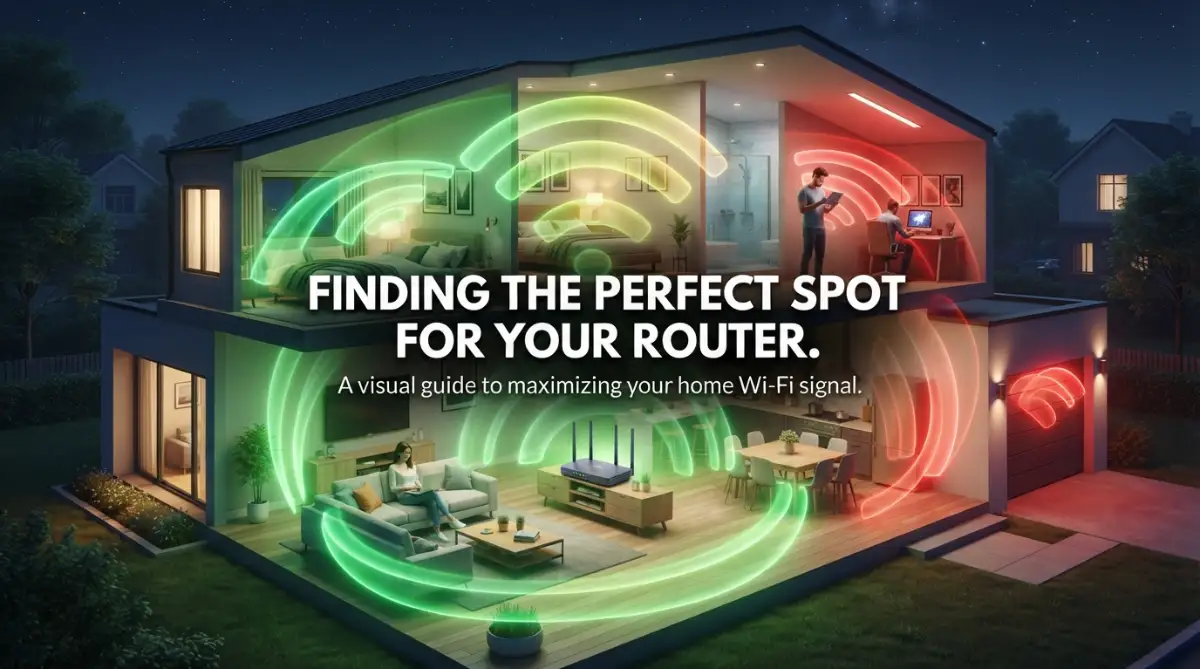
Why Your Router Location is Killing Your Connection
One of the biggest reasons for an unstable connection is where you put your router. I used to keep mine hidden in a wooden cabinet because it looked ugly with all the wires. That was a big mistake I made for a long time.
Wi-Fi signals are like sound waves. They can't easily pass through thick walls, metal, or water. If your router is on the floor or behind a TV, the signal has to fight to reach you.
Think of your router as a light bulb. If you put a light bulb inside a cupboard, the room won't be very bright. You want your router to be in a central, open area.
Pro Tip: I once found out that my large fish tank was blocking the signal to my kitchen. Water is very good at absorbing Wi-Fi waves. If you have a lot of plants or a fish tank, keep your router far away from them!
I suggest placing the router at least five feet off the ground. Putting it on a high shelf helps the signal travel downward and across the room much better. This small change can often stop half of your Wi-Fi drops immediately.

The Invisible War of Radio Waves
Your home is likely filled with invisible signals that are fighting each other. Most older routers use a frequency called 2.4GHz. The problem is that your microwave, baby monitor, and even your neighbor's router use that same "road."
Imagine a highway where everyone is trying to drive in the same lane. That is what happens to your Wi-Fi signal. When too many devices use the same frequency, they crash into each other, causing lag.
Newer routers have a 5GHz or even a 6GHz option. These are like having extra lanes on the highway. They are much faster and have less traffic.
If you live in an apartment building, this interference is even worse. Your devices are trying to pick up your signal while being hit by twenty other signals from people around you. Changing your router's "channel" can help you find a quiet path for your data.
| Feature | 2.4 GHz Band | 5 GHz Band |
| :--- | :--- | :--- |
| Speed | Slower (Good for browsing) | Super Fast (Gaming/4K Video) |
| Range | Long (Goes through walls) | Short (Needs to be close) |
| Interference | High (Microwaves/Babies monitors) | Low (Cleaner signal) |
| Best For | Smart bulbs, old laptops | PS5, Smart TVs, Work Laptops |
Want to see these steps in action? Watch this simple video to visualize exactly how to place your router for the best signal.
Is Your Hardware Getting Too Old?
Sometimes, the problem isn't the signal; it's the box itself. Technology moves very fast. If your router is more than three or four years old, it might be struggling to keep up.
Modern websites and streaming apps use a lot of data. Old routers are like old engines; they can only go so fast before they start to overheat and shut down. If you have ten devices connected to an old router, it will likely crash.
I noticed that my old router would get very hot to the touch. That heat was a sign that it was working too hard. When a router gets too hot, it drops the connection to protect itself.
You might not need the most expensive model on the market. However, having a router that supports modern standards like Wi-Fi 6 can make a huge difference. It handles multiple devices much better than the tech from five years ago.
The Silent Role of Your ISP and Cables
We often blame the Wi-Fi, but sometimes the problem comes from the street. Your Internet Service Provider (ISP) might have an issue with the line coming into your house. Or, the cable connecting your router to the wall might be damaged.
I once spent two days trying to fix my settings, only to find out a mouse had chewed a tiny bit of my cable. It was barely visible, but it was enough to make my internet cut out every ten minutes.
Check your Ethernet cables. If they look bent, frayed, or old, replace them. Use Cat6 or Cat7 cables for the best results. They are cheap but very important for a stable flow of data.
Also, call your provider if the drops happen at the same time every day. Sometimes, they do "maintenance" or their local hub gets overloaded. Knowing it’s their fault can save you a lot of time trying to fix things on your end.
How DNS Settings Can Speed Things Up
When you type a website name, your computer uses something called a DNS to find it. Most people use the default DNS provided by their internet company. Often, these are slow and can cause "address not found" errors.
Switching to a public DNS like Google (8.8.8.8) or Cloudflare (1.1.1.1) can make your connection feel much snappier. It won't increase your download speed, but it will make websites load faster when you click on them.
I changed my DNS settings last year, and I noticed that my Wi-Fi stopped "hanging" before loading a page. It’s a simple software fix that doesn't cost a penny. You can change this in your router settings or directly on your laptop.
Managing the Number of Connected Devices
We often forget how many things are actually using our internet. Your phone, your TV, your smart light bulbs, and even your fridge might be connected. Every single device takes a little piece of the pie.
If your "pie" is small, there won't be enough left for your important work. I started turning off the Wi-Fi on my tablet and gaming console when I wasn't using them.
You can also use a feature called Quality of Service (QoS). This tells your router to give priority to your laptop or TV over other devices. This way, if someone starts downloading a big file in the other room, your video call won't drop.
The Importance of Firmware Updates
Your router is basically a small computer. Just like your phone, it needs software updates to fix bugs and stay secure. Many people never log into their router settings after the first day they get it.
Manufacturers often release updates that fix the very Wi-Fi drops you are experiencing. I make it a habit to check for updates once every few months. It only takes two minutes but can prevent a lot of headaches.
If your router doesn't update itself, you have to do it manually. Go to the manufacturer's website, find your model, and download the latest file. It sounds technical, but it’s usually just clicking a button that says "Update."
Why You Should Avoid Wi-Fi Extenders
Many people buy cheap Wi-Fi extenders to fix dead zones. In my experience, these often make the connection more unstable. They create a second network that fights with your first one.
Your devices get confused about which signal to connect to. This causes a "handover" lag where the internet drops for a few seconds as you move from one room to another.
Instead of an extender, look into a Mesh Wi-Fi system. These are designed to work together as one big network. They are much better at solving unstable internet connections because they talk to each other to give you the best path.
Physical Obstacles and Hidden Enemies
I once had a client who couldn't get Wi-Fi in her office. We realized her office was right behind a large mirror. Mirrors have a thin layer of metal on the back, which acts like a shield against Wi-Fi.
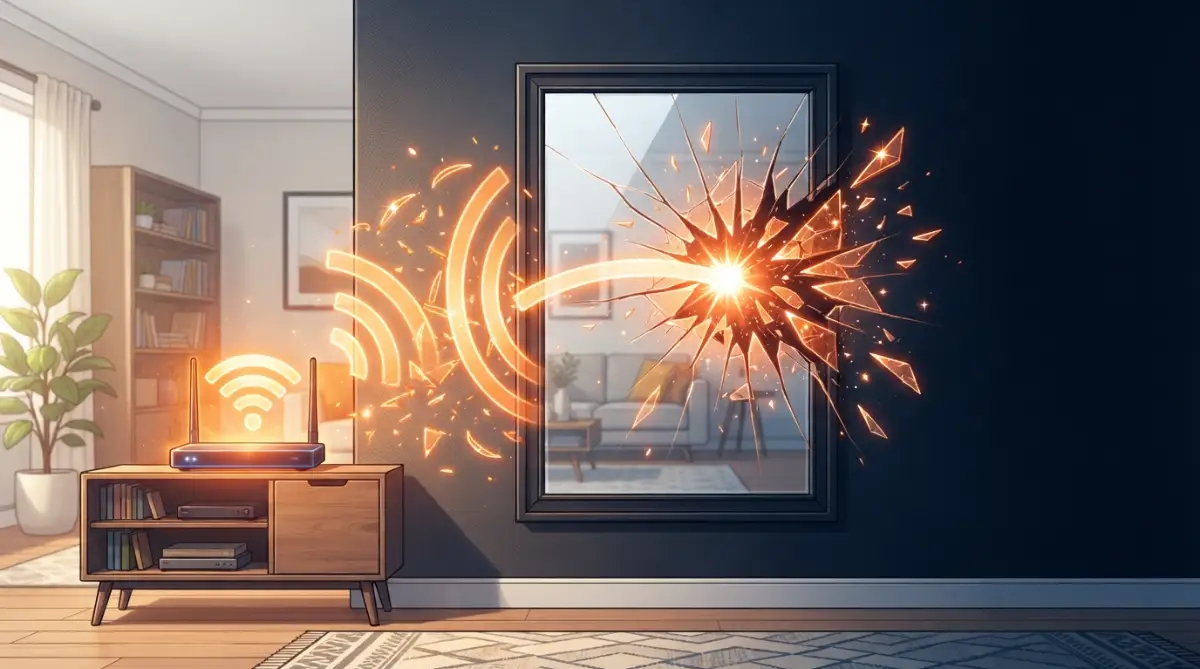
Metal doors, brick walls, and even heavy furniture can kill your signal. If you can't move the walls, you might need to move your workspace. Sometimes, just moving your desk three feet to the left can increase your signal strength by 20%.
I always tell people to draw a straight line from their device to the router. If that line goes through a fridge, a bathroom, or a chimney, you are going to have problems. Try to keep the path as clear as possible.
My 2-Minute "Clear Path" Test:
I always tell my friends to try this: stand where you usually use your laptop. Look towards your router. If you can't "see" the router because a fridge, a massive mirror, or a brick wall is in the way, your signal is likely dropping by 50% before it even reaches you. Try moving just three feet to the side—you’ll be surprised at the difference.
Using 2.4GHz for Distance and 5GHz for Speed
Most routers show two different Wi-Fi names. One says 2.4G and the other says 5G. Many people don't know which one to pick.
The 2.4GHz signal is like a slow, strong truck. it can go through walls and travel far, but it isn't very fast. The 5GHz signal is like a fast sports car. It is super quick, but it crashes the moment it hits a wall.
If you are in the same room as the router, always use 5GHz. If you are two rooms away, 2.4GHz will actually be more stable. Understanding this simple rule helped me stop my phone from disconnecting every time I went to the kitchen.
Restarting the Right Way
We all know the "turn it off and on again" trick. But there is a right way to do it. Don't just flick the switch. Unplug the power cable and wait for at least 30 seconds.
This allows all the electricity to drain from the capacitors. It clears the router's temporary memory completely. It’s like giving the router a fresh nap.
I do this once a week even if my internet is working fine. It helps prevent bugs from building up over time. It’s a simple bit of maintenance that keeps everything running smoothly.
Dealing with Static IP Conflicts
Sometimes, two devices in your house try to use the same "ID" or IP address. This causes the router to get confused and kick one of them off. It’s like two people having the same phone number.
This often happens with smart home gadgets. You can fix this by setting a "Static IP" for your most important devices, like your work computer. This ensures your computer always has its own reserved spot on the network.
I found that doing this for my main PC stopped those random "no internet" errors that used to happen once a day. It’s a bit like having a reserved parking spot in a crowded lot.
The Impact of Background Apps
Finally, check what your computer is doing in the background. Sometimes, Windows or Mac will start a huge update without telling you. This eats up all your bandwidth and makes it look like the Wi-Fi is dropping.
I once thought my router was broken, but it was just my cloud storage syncing 5,000 photos in the background. Always check your "Task Manager" or "Activity Monitor" to see if something is stealing your speed.
By following these steps, I managed to turn my frustrating, laggy home into a high-speed workspace. It didn't happen overnight, but each small change made a big difference. You don't need to be a tech genius to have great internet; you just need to understand how the invisible waves work.
Getting Under the Hood: Pro Secrets for a Rock-Solid Connection
Now that we have covered the basic setup, it is time to talk about the settings that most people never touch. I remember the first time I logged into my router’s "Advanced" menu. It looked like a spaceship control panel, and I was honestly scared to click anything.
But once I understood how it worked, everything changed for me. One of the most powerful things you can do is adjust your wireless channel width. By default, routers usually try to pick this for you, but they often make poor choices in crowded areas.
If you are using the 2.4GHz band, you should almost always keep it at 20MHz. Most people think "bigger is better" and choose 40MHz, but this actually causes more interference with your neighbors. Keeping it narrow makes the signal much more stable and less likely to drop when your neighbor turns on their microwave.
For the 5GHz band, you can go wider, like 80MHz or 160MHz, if you want incredible speed. However, I found that when I lived in a busy apartment, my connection was much more stable at 40MHz. It is all about finding the right balance between raw speed and consistent uptime.
You should also look into your MTU (Maximum Transmission Unit) settings. This determines the size of the data packets your router sends. If these packets are too big, they get "fragmented" or broken into pieces, which causes terrible lag. I usually recommend checking with your ISP to see what their preferred MTU size is, but 1492 or 1500 is very common.
Another expert secret is managing the physical heat of your hardware. I once had a router that would drop the signal every afternoon at 3 PM. I finally realized the sun was hitting it through a window, causing it to overheat.
Routers are like small computers; they have processors that slow down when they get too hot. If your router feels like a warm plate of food, it is probably struggling. Keeping it in a cool, ventilated spot will make it last years longer and stop those random mid-day reboots.
To keep your system running well for the long term, I suggest creating a "Network Health Day." Once a month, I spend five minutes checking for updates and restarting my devices. This prevents small errors from growing into big problems that eventually crash your whole home office.
You can also learn how to make your computer fast again by clearing out background tasks that might be hogging your newly stabilized Wi-Fi. This simple routine has saved me from so many stressful work days where I used to think my internet was the enemy.
For those who want the absolute best performance, consider setting up a Guest Network. I put all my smart home bulbs, plugs, and cameras on a separate guest network. This keeps my main "highway" clear for my laptop and gaming console, ensuring that a cheap smart bulb doesn't slow down my important video calls.
The Traps We Fall Into: Common Mistakes That Kill Your Speed
We often think that spending more money is the only way to fix technology. I have seen so many people upgrade to a $200-a-month internet plan, but they still have Wi-Fi drops. Why? Because they are trying to pour a gallon of water through a tiny straw.
The biggest mistake is trusting the "Free" router given to you by your internet provider. These boxes are usually built as cheaply as possible. They are fine for a small house with one person, but they fail when you add three phones, two TVs, and a laptop.
If you find yourself constantly resetting your ISP's router, it is time to buy your own high-quality unit. You can still use the provider's box as a "modem," but let a better piece of hardware handle the Wi-Fi. I made this switch a few years ago, and my connection became ten times more reliable overnight.
Another huge mistake is using outdated security settings. Many people still use WEP or WPA security because they have an old printer that needs it. These old security standards are not just easy to hack; they actually limit your Wi-Fi speed to 54Mbps!
Even if you pay for 1,000Mbps, your router will slow down to match that old security setting. Always use WPA2-AES or WPA3 if your devices support it. You can find more details on how to secure your home Wi-Fi router from hackers to keep both your data and your speed safe.
I also see people making the mistake of hiding their router in a "Tech Closet." I understand that you don't want to see ugly blinking lights in your living room. However, placing a router inside a small closet or a metal box is like trying to yell through a thick pillow.
The signals bounce around inside the closet and never reach your bedroom. If you must hide it, use a decorative basket made of wicker or thin plastic. Avoid metal, glass, or heavy wood at all costs.
Many people also forget to manage their background sync apps. I once spent an hour troubleshooting my lag, only to find out my phone was backing up thousands of photos to the cloud. This uses up all your "upload" speed, which makes your "download" speed feel incredibly slow.
If you find your phone is always struggling, check out these easy habits for a longer battery life as it also covers managing background data. This is a common pitfall because we don't see the data moving, but it is taking up space on your invisible Wi-Fi road.
Lastly, never ignore your Ethernet cables. People often use a cable they found in a box from ten years ago. That old cable might be limited to 100Mbps. If you have a 500Mbps plan, that old cable is literally choking your connection before it even gets to the Wi-Fi antennas.
Why Buying "More Speed" Isn't Always the Answer
I have seen it a thousand times: a frustrated user calls their ISP and says, "My internet is slow!" The salesperson says, "You need our Gold Plan with 1 Gigabit speed!" They pay more, yet the Wi-Fi still lags in the bedroom.
The problem is usually signal coverage, not signal speed. Think of it like a radio station. If you are too far away from the station, it doesn't matter how loud they play the music; you will still hear static.
Instead of paying more every month, a one-time investment in a mesh system or a better router is almost always the better choice. According to the Federal Communications Commission (FCC), most households only need about 100-200 Mbps for smooth 4K streaming and gaming.
If you are paying for more than that and still seeing lag, the issue is your hardware, not your plan. I stopped overpaying for internet once I realized my router was the bottleneck. It felt so good to save that money and finally have a connection that actually worked.
Mastering Your Environment for Peak Performance
I learned a very strange lesson last year: the weather and your walls change everything. During a very humid week, I noticed my signal wasn't traveling as far. Water molecules in the air can actually absorb a tiny bit of your 5GHz signal.
While you can't control the weather, you can control your furniture. If you have a large metal filing cabinet or a mirror between you and the router, your connection will suffer. I moved a heavy metal bookshelf from my hallway to the corner of the room, and my Wi-Fi signal in the office jumped by two bars.
You should also be aware of Bluetooth interference. Both Bluetooth and 2.4GHz Wi-Fi live on the same frequency. If you are using a Bluetooth mouse, keyboard, and headphones all at once, they can cause small "micro-lags" in your internet.
When I’m doing a very important task, I try to use wired headphones or switch my Wi-Fi to the 5GHz band. This simple trick removes the "noise" around my computer and lets me focus without the cursor jumping or the audio cutting out.
If you are still struggling with dead zones, stop looking at "extenders." Research from the IEEE Communications Society suggests that standard extenders can cut your bandwidth in half. Instead, look into Powerline Adapters.
These devices send your internet signal through the copper electrical wiring in your walls. I used this in an old house with thick brick walls, and it worked like magic. It’s like having a hidden Ethernet cable in every room without having to drill any holes.
If you deal with a lot of media files, you should also understand how cloud storage works so you can schedule your uploads for late at night. This ensures your Wi-Fi is free for your use during the day.
Reclaiming Your Digital Peace of Mind
At the end of the day, solving unstable internet connections is about taking control of your space. It is easy to feel like technology is just "magic" that works or doesn't work. But it is actually very logical.
When you stop treating your router like a piece of furniture and start treating it like a precision tool, your life gets much easier. No more frozen faces during calls. No more losing progress in your favorite game. No more yelling at the wall because your video won't load.
I remember the feeling of finally fixing my home network. It was like a weight had been lifted off my shoulders. I could sit anywhere in my house and know that my connection was solid.
You deserve that same peace of mind. You pay for your internet, and you should be able to use every bit of it. By following the steps we talked about, you are not just fixing a router; you are making your home a better place to live and work.
Don't wait for the next time your screen freezes to take action. Start today by moving your router just a few feet or checking your settings. These small wins build up, and before you know it, you will have the fastest, most stable house on the block.
I have spent years testing these methods, and I can tell you that they really do work. It took me a lot of trial and error to figure this out, but I am so happy I can share it with you. Take that first step now, and you will be amazed at how much better your digital life can be!
Common Questions About Wi-Fi Drops
Why does my Wi-Fi work on my phone but not my laptop?
Laptops often have different antenna types and power-saving settings. Your laptop might be trying to save battery by reducing the power to its Wi-Fi card, which causes it to lose the connection more easily than your phone.
Can my neighbor's Wi-Fi really slow mine down?
Yes, absolutely. If you both use the same "channel," your routers have to take turns sending data. It’s like two people trying to talk at the same time in a small room; eventually, someone has to stop and wait for the other to finish.
Does the number of walls between me and the router matter?
Every wall reduces the signal strength. A standard drywall might only take away 10%, but a brick or concrete wall can block up to 50% or more of the signal. The more "stuff" between you and the source, the worse your connection will be.
Should I turn my router off at night?
It isn't necessary, but a quick restart once a week is a great idea. Turning it off every night doesn't save much electricity and can sometimes cause your devices to struggle to reconnect in the morning.
Disclaimer: The information provided in this article is for educational purposes only. While we strive to provide accurate technical advice, network configurations can vary greatly. Always follow the manufacturer's safety guidelines when handling electronic devices or modifying software settings. We are not responsible for any data loss or hardware issues that may occur during your troubleshooting process.