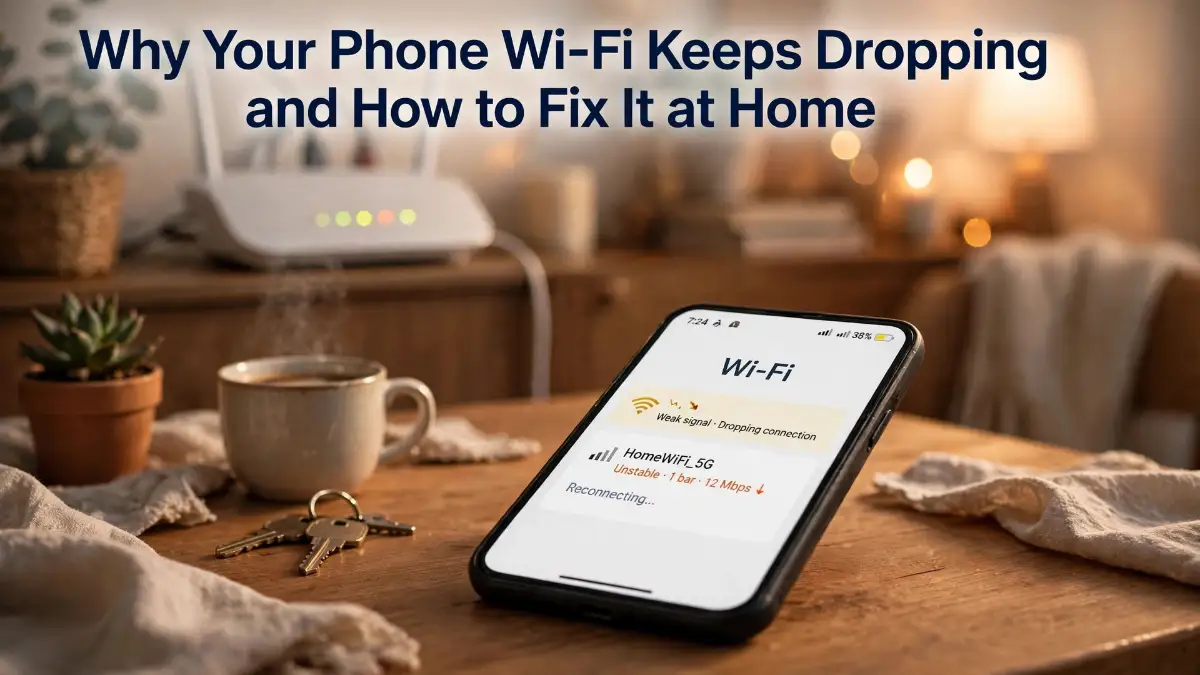
Start With Your Phone: The Quick, Free Fixes First
My sister's face froze mid-sentence, then the call just died, and my phone acted like nothing had happened. I was standing in my own kitchen, not some far-off place, and still I had no signal. If your calls die in one room too, you are not alone. That was the day I stopped blaming my phone and started hunting for the real cause, one small test at a time.
Key Takeaways: Fix Your Wi-Fi Drops in Order
- Test other devices first, so you know whether your phone or your router is at fault.
- Forget the network and reconnect fresh before you touch any deeper setting.
- Move your router into the open, away from cabinets, walls, and metal objects.
- Change one thing at a time, and give each change a day to prove itself.
In a Hurry? Here Is What Actually Matters
Test other devices first. If they drop too, the router is the suspect, not your phone.
Forget the network and reconnect. A fresh connection fixes a surprising number of drops.
Move closer to the router for a day. If the drops stop, distance or walls are the problem.
Turn off battery-saving limits on Wi-Fi. Your phone may be cutting Wi-Fi to save power.
Change one thing at a time. That is how you learn what actually fixed it.
That call with my sister was the moment I stopped just restarting my phone and hoping. Restarting helped for an hour, then the drops came back, usually when I walked into the kitchen or when the evening got busy at home. I started to keep a small note of when it happened, and a pattern showed up fast. The drops were worst far from the router, worst in the evening, and worst when my phone had been sitting idle for a while. Those three clues pointed at three different causes, and each one had its own fix.

First, Find Out If It Is Your Phone or Your Whole House
This one test saves you from fixing the wrong thing. When your phone drops Wi-Fi, look around and ask one simple question. Are other devices dropping too, or is it only your phone?
If your laptop, tablet, or TV also drops at the same time, your home network is the problem. Your phone is just the device that told you about it first, because you carry it everywhere and you notice it most. In that case, skip ahead to the router sections in Part 2, because no phone setting will fix a router that keeps falling over.
Myth: If your phone shows full Wi-Fi bars, your connection must be fine.
Fact: I have seen full bars with nothing loading at all. Bars show signal strength, not a working connection, so always test with a real call or video before you trust them.
If only your phone drops while other devices stay connected, the problem lives on your phone. That is actually good news, because phone fixes are fast, free, and easy to undo. A setting, a saved network that went stale, or a power-saving rule is the most likely cause, and we will walk through each one below.
There is a second test that helps just as much. Stand next to your router for an hour of normal use, and see if the drops stop. If they do, distance and walls are doing most of the damage. Wi-Fi is a radio signal, and it gets weaker as it passes through walls, floors, and big metal objects. Your phone may hold on near the router and give up two rooms away, and that pattern tells you exactly where to focus.
Also notice when the drops happen. Do they happen at the same time each evening, when everyone is home and streaming? That points to a crowded network or a router that struggles under load. Do they happen only when your phone has been idle, like after you wake it from sleep? That points to a power or sleep setting. Do they happen in one room only? That points to distance or interference in that room. Write down what you see for a day, even in a short note. That note turns a vague annoyance into a clear clue.
My own note surprised me. My drops were worst in the kitchen, which is the farthest room from my router, and worst after my phone had sat untouched for a while. So I had two problems, not one: a weak signal in one room, and a phone that was too eager to drop Wi-Fi when idle. Fixing only one of them would have left the other behind, and I would have kept thinking nothing worked.
The 10-Minute Phone Fix That Solves Most Drops
Start with the easy steps, in this order, and test for a few hours after each one. Changing one thing at a time matters, because if you change five things at once and the drops stop, you will never know which one helped. And if they come back, you will not know where to look.
First, restart your phone. I know it sounds too simple, and I used to roll my eyes at it too. But a restart clears a stuck Wi-Fi session and gives your phone a clean start with the router. It takes two minutes, and it rules out a whole class of temporary glitches. If the drops come back within hours, move on, because a restart alone was not the answer.
Next, toggle Wi-Fi off and back on, and while you are there, toggle airplane mode on for ten seconds and then off again. Airplane mode forces your phone to drop every wireless connection and start fresh, which can clear a confused connection state. I do this when my phone shows full Wi-Fi bars but nothing loads, and it often brings the connection back without a full restart.
Then, forget the network and reconnect from scratch. On your phone, open Wi-Fi settings, tap your home network, and choose Forget. Then tap the network name again and type the password in fresh. Saved networks can go stale after a router update or a password change, and your phone may keep trying an old setup that no longer matches. A fresh connection rebuilds that setup cleanly, and this single step fixes more drops than most people expect. Just make sure you know your Wi-Fi password before you tap Forget, because you will need it right away.
After that, check Auto-Join, which is called Auto-Join on iPhone and Connect automatically on many Android phones. If it is off, your phone will not reconnect on its own after a drop, and you will have to do it by hand every time. Turn it on for your home network. Also check that your phone is not set to switch to mobile data too eagerly. On iPhone, that setting is called Wi-Fi Assist, and on many Android phones it is called Smart Network Switch or Switch to mobile data. Turning it off for a test day can tell you whether your phone was abandoning Wi-Fi at the first sign of weakness instead of holding on.
Now check one setting that catches a lot of people out. Many phones use a private or random address for each Wi-Fi network, which is good for privacy. But some older routers get confused by it and drop the connection again and again. If your drops started after a phone update, try turning the private address off for your home network only, just as a test. On iPhone, tap the small information icon next to your network and look for Private Wi-Fi Address. On Android, look for Randomized MAC or Privacy settings under your network details. If the drops stop, you have found your cause, and you can leave that setting off at home while keeping it on for public networks.
Watch the Phone Side of the Fix on Screen
Watch this short guide before you reset anything, because seeing the steps on a real phone makes them much easier to follow.
Watch this video: "How To Fix WiFi On iPhone (If It Keeps Disconnecting)" by Trevor Nace.
In the video, Trevor walks through the iPhone steps for a connection that will not stay up, including forgetting the network and resetting network settings. Even if you use an Android phone, the order of ideas is the same: refresh the connection, reconnect from scratch, and only then reset. Watch it once, then try the steps on your own phone while they are still fresh in your mind.
If you use Android, the menu names are a little different, but the path is the same. Open Settings, then Network and Internet, then Wi-Fi, then tap your network. You will find Forget, Auto-connect, and privacy settings there. Do not let different labels stop you. The fix is the same even when the buttons have different names.
When Your Phone Drops Wi-Fi to Save Battery
Here is a cause that hides in plain sight. Your phone is built to save battery, and one way it does that is by turning Wi-Fi down or off when it thinks you are not using it. That is helpful when you are out all day, and it is infuriating when you are at home and your calls keep dropping.
On Android, open Settings, then Battery, and look for battery optimization or adaptive battery rules for your Wi-Fi and for the apps that drop. Some phones also have a Wi-Fi power saving mode buried in Wi-Fi settings or developer options. If Wi-Fi is set to turn off during sleep, your phone may disconnect every time the screen goes dark, and then reconnect when you wake it. That feels like random drops, but it is really a sleep rule doing its job too well.
On iPhone, Low Power Mode can also change how your phone handles background connections, and Wi-Fi Assist can push you to mobile data when Wi-Fi looks weak. Try a test day with Low Power Mode off and Wi-Fi Assist off, and see if the drops ease. If they do, you can turn the features back on one at a time and learn which one was the troublemaker.
Apps can play a part here too. A VPN app, a battery saver app, or a security app that manages connections can interfere with Wi-Fi in ways that look like router problems. If your drops started right after you installed a new app, try turning that app off for a day. I once blamed my router for a week before I realized a new VPN app was switching my connection on and off in the background. Turning it off ended the drops in an hour, and I felt both relieved and a little silly.
Also check for a software update. Phone makers fix Wi-Fi bugs in updates all the time, and a bug that causes drops on one version may be gone in the next. Open Settings, check for a system update, and install it when you have Wi-Fi and a charger nearby. If the drops started right after an update, that update may be part of the story too, and a restart plus a fresh network connection often settles it. If your phone also restarts on its own, or acts strangely in other ways, read my guide on why your phone keeps restarting and the proven fixes, because those signs together can point to a deeper problem than Wi-Fi alone.
And do not forget the simplest physical check of all. Take your phone out of a very thick case for a test day, especially a metal case or a case with a metal plate for a car mount. A thick case can weaken the signal just enough to tip a borderline connection over the edge. I did not believe this until I tried it, and my kitchen drops got noticeably better with the case off. If that helps, you have a cheap answer: a different case, not a new phone.
A Quick Story About My Kitchen Problem
My kitchen was the room where my calls always died. I could stand in the living room, next to the router, and everything worked. I walked to the kitchen to make a drink, and the call froze. For weeks I thought my phone was failing, because the problem followed me, not the router.
Then I did the stand-next-to-the-router test, and the drops stopped. I did the other-devices test, and my laptop held its connection in the kitchen while my phone did not. So my phone was weaker in that room, and the router was too far away. That told me the fix was not a new phone. It was a better signal in that one room, which is a router problem, and that is where Part 2 begins.
If your tests point the same way, do not skip Part 2. The phone fixes in Part 1 are quick and worth doing first, but they cannot make a weak signal strong. Part 2 is where we fix the signal itself, and that is what finally ended my kitchen drops for good.
Now Fix the Wi-Fi at Home: Help Your Router Do Its Job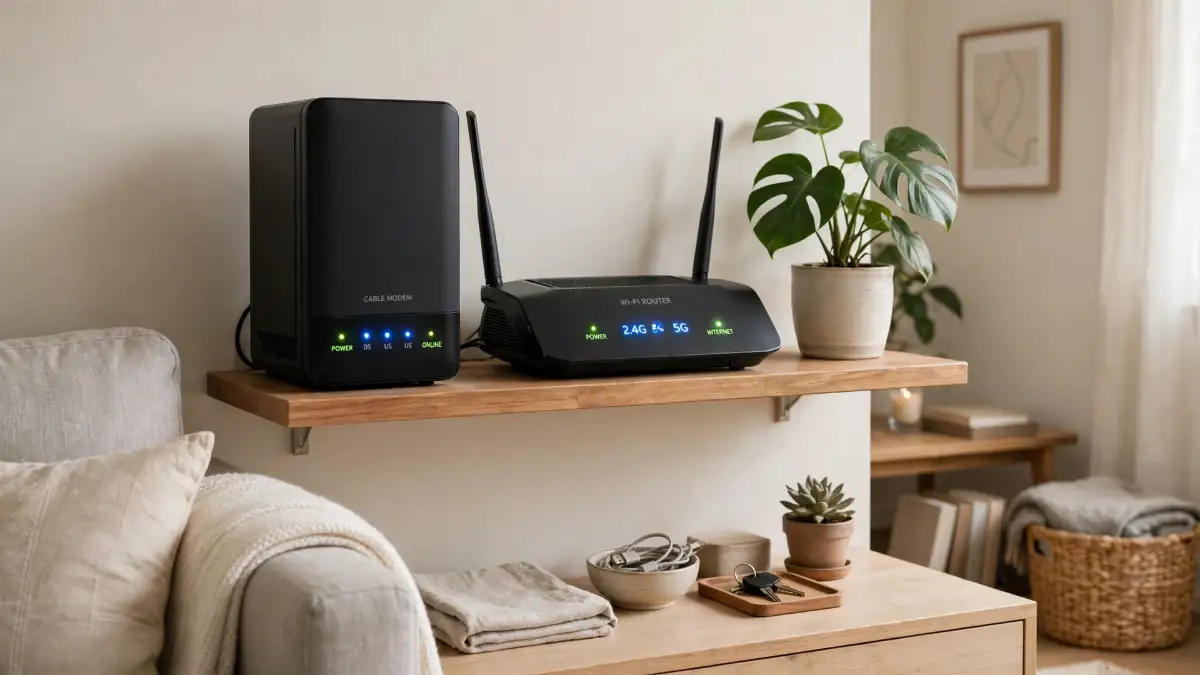
Your Router Is Probably in the Wrong Place
Most routers live where they are easiest to plug in, not where they work best. Mine sat in a corner, behind the television, inside a wooden cabinet with the door closed. It looked tidy, and it was terrible for Wi-Fi. The signal had to fight through wood, a television, and a wall before it even reached the hallway.
 Wi-Fi travels best in the open, from a spot that is high up and near the middle of your home. If you can, put your router on an open shelf, about chest height or higher, with nothing metal right next to it. Keep it away from thick walls, fish tanks, and big metal appliances like fridges. A microwave oven is a famous troublemaker too, because it uses a similar frequency band, so do not put your router right next to one.
I moved my router out of the cabinet and onto an open shelf in the hallway, and the change was immediate. My kitchen went from one weak bar to a steady connection, and my calls stopped freezing when I walked in to make a drink. I had spent weeks blaming my phone, and the fix was moving a small box by about three metres. If your router is hidden away, try this one move before you buy anything.
Myth: A new router will fix every Wi-Fi drop in your home.
Fact: My own fix cost nothing at all. I moved my old router out of a closed cabinet and onto an open shelf, and my kitchen calls stopped freezing that same day.
Also look at the router itself. Is it very hot to the touch, or does it sit in direct sun? A hot router can slow down and drop connections, just like a hot phone can. Give it air, keep it out of sun, and do not stack books or clothes on top of it. If it restarts on its own, or if its lights blink in a strange pattern, that can be a sign it is struggling, and a restart may help for a day. But if it keeps restarting, that is a router problem to take up with your provider, not a phone setting to keep tweaking.
Bands, Channels, and the Crowded Airwaves
Your home Wi-Fi probably uses two bands, called 2.4 GHz and 5 GHz, and they behave very differently. Think of 2.4 GHz as a long, slow road that reaches far but gets crowded, and 5 GHz as a short, fast road that is quicker but does not reach as far. Your phone picks between them, and sometimes it picks badly.
If your phone keeps hopping between bands, it can drop each time it switches. Many routers hide this behind a single network name, a feature often called Smart Connect or band steering. That feature helps some homes and hurts others. As a test, try giving the two bands different names in your router settings, for example Home-2G and Home-5G, and connect your phone to just one of them for a day. If the drops stop, band hopping was your problem, and you can leave the bands separate.
For the 2.4 GHz band, channels matter a lot, especially in flats and apartment buildings where many neighbours have routers too. Channels 1, 6, and 11 are the ones that do not overlap each other, so they are the safest picks to try. You can change the channel in your router settings, usually under Wireless or Wi-Fi settings. Try one channel for a day, then another, and keep the one that holds steady. On 5 GHz, leaving the channel on Auto is usually fine, because there is more room there and less crowding.
Interference does not only come from neighbours. Baby monitors, cordless phones, and Bluetooth devices can all crowd the same airwaves. If your drops get worse when a certain device is on, try moving that device or your router a little farther apart. You do not need a meter or a special app to start. Moving things a metre or two and testing for a day will tell you more than guessing ever will.
If you want a deeper look at how a slow connection differs from a dropping one, read my guide on fixing slow Wi-Fi and why your connection lags. Slow Wi-Fi and dropping Wi-Fi feel similar, but they often have different causes, and that guide will help you tell them apart.
When Too Many Devices Fight for One Router
Evenings are the hardest time for a home network. Everyone is home, phones and tablets are streaming, a television is playing, and maybe a game console is updating in the background. An older router can struggle under that load, and the weakest connection, often your phone two rooms away, is the first to drop.
Start by counting what is actually connected. Open your router app or settings page and look at the device list. You may be surprised. Old phones, tablets nobody uses, smart plugs, cameras, and a television you forgot about can all sit on the network and chatter away in the background. Disconnect the ones you no longer use, and see if evenings get steadier.
Next, move the heavy, still devices off Wi-Fi and onto a cable if you can. A television, a game console, or a desktop computer that never moves will run better on a cable, and every device you move off Wi-Fi leaves more room for your phone. I wired my television in, and my phone drops in the evening dropped sharply, because the router had one less hungry device to feed.
If one room is still weak after all this, an extender or a mesh system can help, but they are not magic. An extender placed too far from the router will just repeat a weak signal, and your phone may cling to the weak original instead of switching to the extender. A mesh system usually handles that switch better, because its units talk to each other and guide your phone to the strongest one. If you buy one, put the extra unit halfway between your router and the weak room, not inside the weak room itself. That halfway spot is where it can still hear the router clearly and pass the signal on.
Also check your router's age. A router that is five or more years old may not keep up with a modern home, especially if your internet plan is much faster than it was when you bought it. You do not need the most expensive model. A solid, current router from your provider, or a well-reviewed mid-range one, is often enough. But try the free fixes first, because a new router will not fix a phone setting or a router hidden inside a cabinet.
The Deeper Phone Settings Worth Checking Once
If the simple phone fixes and the router fixes have not ended the drops, it is time for the deeper settings, done once and carefully. These steps are safe if you follow them in order, and you should know what each one will erase before you tap it.
First, check your DNS settings. DNS is the system that turns website names into addresses your phone can use, and a slow or flaky DNS server can make Wi-Fi feel like it keeps dropping, even when the signal is fine. You can try a well-known public DNS on your home network as a test, and if it helps, you can keep it. If it does not help, change it back. Do not change DNS on networks you do not own, like a work or school network, without asking first.
Next, turn off your VPN for a test day. A VPN routes all your traffic through another server, and if that server is slow or unstable, your connection will look like it keeps dropping. I have seen this confuse people for weeks, because the Wi-Fi icon stays full while nothing loads. Turning the VPN off for a day tells you quickly whether it was the cause. If it was, try a different VPN server, or use the VPN only when you truly need it.
Then check your date and time settings. This sounds odd, but a phone with the wrong date or time can fail security checks when it connects, and that can cause repeated drops. Make sure Set Automatically is on, for both date and time and time zone. It takes ten seconds, and it rules out a strange but real cause.
After that, check for a router firmware update. Router makers release updates that fix drops and security holes, just like phone makers do. Open your router app or settings page and look for a firmware or software update option. Install it when nobody is in the middle of an important call, because the router will restart during the update. Write down your Wi-Fi name and password before you start, just in case the update resets anything.
The Last Resort That Actually Works: Reset Network Settings
If nothing else has worked, resetting your phone's network settings is the last resort that is still safe to do at home. This step erases all saved Wi-Fi networks and passwords, along with Bluetooth pairings and VPN settings, and gives your phone a completely fresh network setup. It does not delete your photos, messages, or apps, but you will need to reconnect to your home Wi-Fi and type the password in again.
On iPhone, go to Settings, then General, then Transfer or Reset iPhone, then Reset, then Reset Network Settings. On Android, go to Settings, then System, then Reset options, then Reset Wi-Fi, mobile and Bluetooth. The exact menu names vary a little by phone, but the idea is the same. After the reset, restart your phone, reconnect to your home network, and test for a day before you change anything else.
Only consider a factory reset of your phone if the drops happen on every Wi-Fi network, not just at home, and after you have tried everything else. A factory reset erases everything, so back up first, and only do it if you are comfortable setting your phone up again from scratch. For most people, the network reset plus the router fixes in this guide are enough, and a factory reset is not needed.
If the drops happen on every network, including a friend's house and a cafe, your phone itself may have a hardware problem, like a failing Wi-Fi antenna. In that case, stop tweaking settings and get the phone checked by a trusted repair shop or the phone maker. A hardware fault will not be fixed by any setting, and knowing that saves you from weeks of fruitless testing.
Mistakes That Make Wi-Fi Drops Worse
The first mistake is buying a new router before testing anything. A new router is the most expensive guess, and it will not fix a phone setting, a sleep rule, or a VPN app. Test the phone fixes and the free router moves first, and only spend money when you know what you are fixing.
The second mistake is hiding the router to make a room look tidy. A router inside a cabinet, behind a television, or under a pile of books will always struggle. Wi-Fi needs open air around it, and a tidy-looking spot can be the worst spot in the house for a signal.
The third mistake is adding extenders everywhere without a plan. More Wi-Fi boxes do not always mean better Wi-Fi. Each extender needs a strong signal from the router to repeat, and a badly placed extender can create a second weak network that your phone clings to. Place one extender well, halfway to the weak room, and test it before you add another.
The fourth mistake is ignoring the time pattern. If drops happen only in the evening, that is a load or interference clue. If they happen only when your phone sleeps, that is a power clue. If they happen only in one room, that is a distance clue. Ignoring the pattern means guessing, and guessing means fixing the wrong thing.
The fifth mistake is changing five settings at once. I made this one myself, and I paid for it with a second round of testing. Change one thing, test for a few hours, and write down what happened. That slow method is the fastest way to a fix that actually lasts.
Helpful Reads on This Site and Beyond
If your phone is also running hot while it struggles to hold Wi-Fi, read about why your phone overheats and how to fix it, because heat and connection problems often travel together. If your phone charges slowly while it is busy reconnecting, the guide on why your phone charges so slowly explains what is normal and what is not. A phone that is full of storage can also act strangely, so it is worth reading how to free up storage without deleting your photos before you assume the Wi-Fi hardware is at fault.
A weak battery can make a long day of reconnecting feel even worse, so check how to check your phone battery health in under a minute as well. And if your phone keeps restarting during all this testing, read why your phone keeps restarting and the proven fixes first, so you are not chasing two problems at once.
For outside reading, these guides explain the same fixes from other angles: How-To Geek on fixing constant Wi-Fi drops; CellularNews on fixing iPhone Wi-Fi that disconnects when locked or asleep; and TechnoAdvantage on do-it-yourself tips when the internet drops again.
Answers I Wish Someone Had Given Me Before I Started
Why does my phone drop Wi-Fi but my laptop stays connected?
Your phone moves around the house, sleeps to save battery, and switches networks more eagerly than a laptop does. A laptop usually sits still, stays awake, and holds on to a weak signal longer. That difference is why a phone can drop in a room where a laptop holds on, and it does not mean your phone is broken.
Is it my phone or my router?
Test it the quick way. If other devices drop at the same time, it is your router or your internet connection. If only your phone drops, it is a phone setting, a sleep rule, or a weak spot in that one room. That one test tells you where to spend your time.
Should I split my 2.4 GHz and 5 GHz networks?
It is worth trying for a day if your phone keeps hopping between bands and dropping each time. Give them different names, connect to one band only, and see if the drops stop. If they do, leave the bands separate. If nothing changes, you can put them back together.
Will a new router fix my drops?
Only if the router is the problem. A new router will not fix a phone sleep setting, a VPN app, or a stale saved network. Try the free phone fixes and the free router moves first. Buy a new router when you have proof the old one is struggling, not as a first guess.
How often should I restart my router?
A restart once in a while is healthy, especially if your router has been running for weeks without a break. You do not need to restart it every day. If you find yourself restarting it daily just to stay connected, that is a sign the router, its placement, or its firmware needs attention.
Does a thick phone case really weaken Wi-Fi?
It can, a little, especially a metal case or a case with a metal plate. That small weakening is enough to tip a borderline signal over the edge in a far room. Try a day without the case, and if the drops ease, you have found a cheap and easy answer.
A Steadier Connection Starts With One Small Change
My kitchen calls do not freeze any more. Not because I bought a new phone, and not because I became a network expert overnight. I moved my router out of a cabinet, I turned off a sleep rule that was dropping Wi-Fi, and I reconnected my network from scratch. Three small changes, tested one at a time, and the problem that had annoyed me for weeks quietly went away.
Your fix may be different from mine. It may be a forgotten network, a crowded channel, or a router that just needs some air. The steps in this guide will help you find yours, as long as you test one change at a time and trust what your own tests tell you. Start with the quick phone fixes today, move your router into the open tomorrow, and give each change a day to prove itself.
And if you try everything here and your phone still drops on every network you join, do not keep guessing. Get the phone checked, because a hardware fault deserves a repair, not another round of settings. Most drops, though, are not hardware at all. They are a small setting, a hidden router, or a crowded evening, and all three can be fixed at home.
Disclaimer
This guide is for general information only, and it is not professional repair advice. Do not open your phone or router hardware yourself, and do not change settings on a network you do not own without permission. If your phone or router is damaged, very hot, smells burnt, or shows signs of swelling, stop using it and get qualified help right away. Always back up your important data before resetting network settings or updating firmware.