The Frustrating Reality of a Frozen Screen
You sit down, grab your coffee, and get ready to finally knock out some work. Then, your mouse freezes. The screen locks up completely. We have all stared blindly at that spinning wheel of doom, sweating and wondering if a restart will wipe out our unsaved files. Instead of hitting your keyboard in panic, let's take a look under the hood. I am going to show you exactly what is choking your computer's memory right now and how you can fix it in about five minutes.
It did not recover, and I ended up losing an entire hour of unsaved work. That embarrassing moment forced me to look under the hood of my computer to figure out what exactly went wrong. I realized that hidden background applications were quietly eating up every single megabyte of my system memory.
We have all been there, staring blankly at a spinning wheel of death on our monitors. You sit down to do some simple work, maybe open a few web browser tabs or a basic text document. Suddenly, everything slows down to an absolute crawl.
This constant lag destroys your focus and ruins your mental peace entirely. When your device crashes in the middle of a creative thought, getting back into that zone is nearly impossible. You start avoiding certain programs just out of fear that they will freeze your system again.
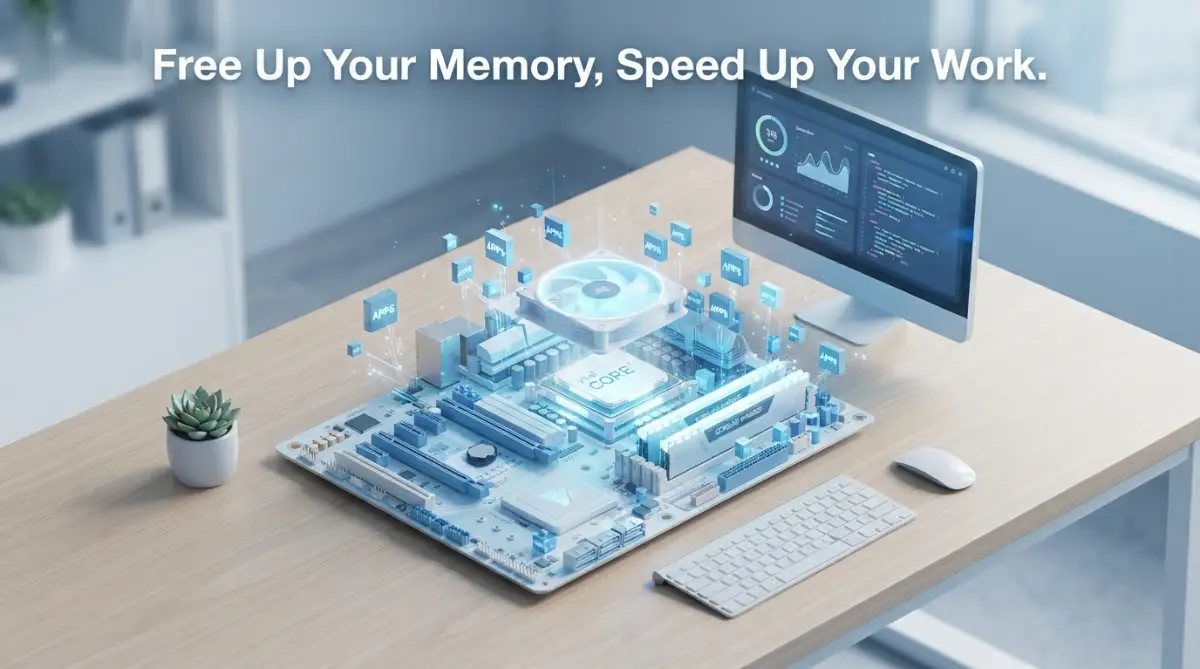
Quick Fixes for a Freezing Screen:
- Find the Culprits: Open your system task monitor and sort the list by "Memory" to spot hidden heavy apps.
- Tame Your Browser: Turn on "Memory Saver" or "Sleeping Tabs" to stop inactive tabs from eating your RAM.
- Stop Morning Traffic: Disable programs you do not immediately need from your startup menu.
- Restart Properly: Stop using sleep mode every day; fully shut down your computer at least twice a week to clear out memory leaks.
Understanding Your Digital Desk Space
Before we fix the issue, we need to understand exactly why these crashes happen in the simplest way possible. Think of your computer memory as a physical desk where you do all your daily work.
When you open a program, you are essentially pulling a file out of a drawer and placing it on top of your desk. The bigger the program, the more physical space it takes up on your work surface. If you have too many things on your desk, you cannot easily find what you need.
Hidden background programs are like invisible stacks of paper covering your desk without your permission. You might only be working on one document, but those invisible stacks leave you with zero room to move your arms.
When your desk is completely full, your computer panics and simply stops responding to your clicks. This is the exact moment your software freezes, forcing you to forcefully restart the machine. The secret to a fast computer is keeping that digital desk as clean and empty as possible.
Ever wonder exactly how much space those programs actually take up on your "digital desk"? Here is a quick look at what I usually see on my own computer when it starts acting up:
Spotting the Silent Memory Thieves Hiding in Plain Sight
You cannot fight an enemy that you cannot see. Most of the applications draining your resources are running silently behind the scenes. They do not have active windows open, but they are constantly sending data and checking for updates.
To find these hidden culprits, we need to use the built-in monitoring tools provided by your operating system. For most users, this means opening up the standard task monitoring window to see exactly what is happening.
When you open this monitoring tool, you will see a massive list of numbers changing rapidly. Do not let all the technical numbers intimidate you. You only need to focus on the column that specifically says "Memory" or "RAM".
Click directly on that memory column header to sort the list from highest to lowest. This simple click will instantly reveal the exact programs that are eating the largest chunks of your system space. You will likely be shocked to see apps you have not used in weeks running at the very top of that list
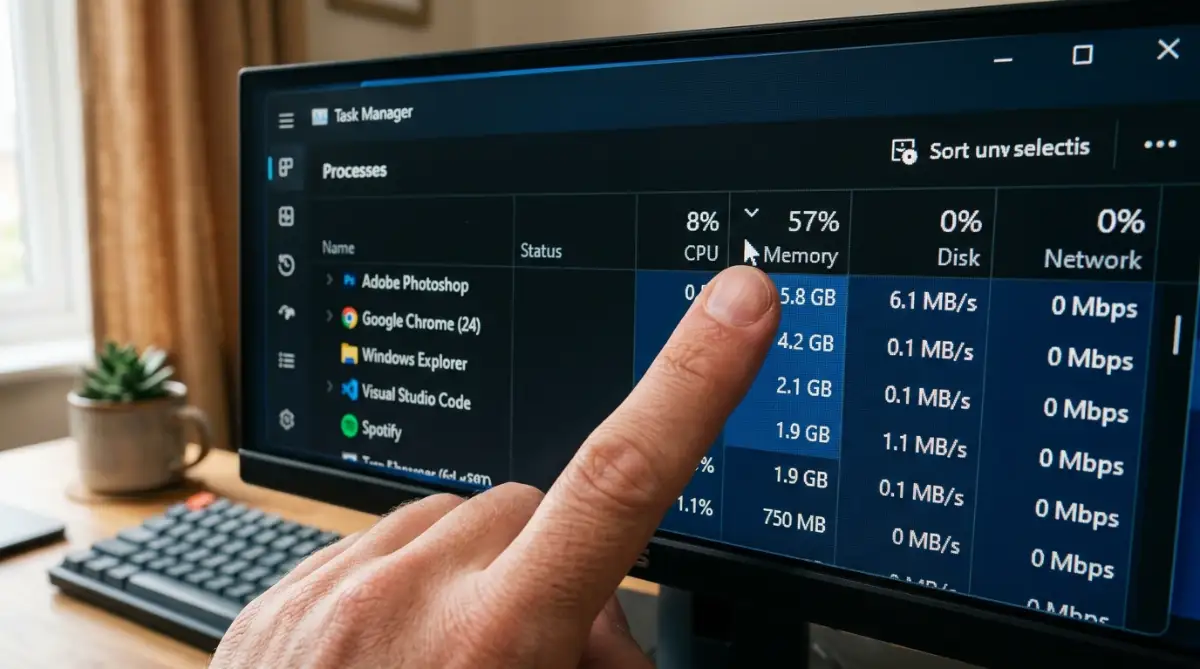
Are you more of a visual learner? Watch this quick video to see exactly how to spot and close hidden apps that are slowing down your machine.
The Danger of Having Too Many Helper Apps
Many software companies design their products to run continuously in the background just in case you need them. A cloud storage app will run constantly to sync files, while a gaming client will run just to download updates.
While these features sound helpful, having ten different helper apps running together creates a massive traffic jam. Each one takes a small piece of your memory, leaving very little for the main tasks you actually want to do.
My biggest mistake was thinking I needed every single helper app running all the time for convenience. I finally realized that manually closing tools like video chat apps and game launchers gave me back nearly a gigabyte of memory instantly. You do not need to let these apps steal your resources before you even decide to use them.
You have the power to manually end these tasks right from your system monitor. Simply right-click on the heavy application you do not currently need and select the option to end the task. You will notice an immediate improvement in how fast your mouse moves and how quickly folders open.
Myth vs Reality: Do You Need Software to Clean Your PC?
There is a massive misconception that you need to download third-party cleaning tools to fix these lag issues. Many websites will try to convince you that downloading a memory booster is the only way out.
Myth: Third-party memory cleaners are essential for keeping your computer fast and preventing crashes.
Reality: These cleaning tools often run continuously in the background themselves, actually using up more memory than they save.
Your operating system is already incredibly smart at managing its own resources if you just give it enough breathing room. Adding another heavy application just to monitor your other applications is completely counterproductive.
Instead of downloading random booster tools, you should rely on manually managing your running processes. This hands-on approach keeps your system lightweight and free from unnecessary third-party tracking. It also protects your device from accidental malware that often hides inside free cleaning tools.
Stopping Unwanted Guests at the Front Door
One of the biggest reasons computers freeze shortly after turning them on is an overloaded startup sequence. When you press the power button, your computer has to load its core operating system first.
However, many applications secretly add themselves to this morning routine without asking for your clear permission. As a result, your computer tries to open a music player, a chat app, and an antivirus scan all at the exact same time.
This massive sudden demand for memory is usually what causes that dreaded morning freeze. You can easily fix this by exploring the startup section of your system settings or task monitor.
Here, you will find a list of every single program that automatically launches when you turn on your device. Look closely at the "Startup Impact" status next to each name on the list.
Change the status from Enabled to Disabled for anything that you do not need the very second your computer turns on. Disabling an app here does not delete it; it simply means the app will only open when you manually click its icon.
Managing the Ultimate Resource Drain: Your Web Browser
We cannot talk about memory exhaustion without mentioning modern internet browsers. Web browsers are easily the most resource-heavy applications the average person uses on a daily basis.
Every single tab you keep open is essentially running as an entirely separate program in the background. If you are someone who keeps thirty tabs open for weeks, you are actively suffocating your own machine.
Many people keep tabs open as a way to remember to read an article or finish a task later. However, each active tab continues to load advertisements, play hidden videos, and track data while you are not looking.
To fix this, start using bookmark folders instead of keeping tabs open infinitely. Modern browsers also have built-in features that automatically put inactive tabs to sleep if you have not clicked them in a while.
Go into your browser settings and turn on the "Memory Saver" or "Sleeping Tabs" feature right now. This one simple adjustment can literally cut your browser's memory usage in half, preventing random browser crashes when watching high-quality videos.

A Simple Look at Good vs Bad Processes
When you are clearing out background clutter, you might worry about accidentally turning off something important. It is completely normal to feel nervous about clicking "End Task" on a file name you do not recognize.
As a general rule, anything with your operating system's name on it should probably be left alone. These are the core building blocks that keep your screen displaying correctly and your internet connected.
If you ever accidentally close a system process, do not panic. The worst thing that usually happens is your screen might flash black for a second, and a simple restart will fix it completely. Over time, you will learn exactly which heavy programs are safe to shut down on your specific machine.
Adjusting Built-In Visual Effects
Sometimes, the way your operating system looks is directly contributing to how poorly it performs. Modern computers use fancy animations when opening folders, minimizing windows, and casting shadows under your mouse cursor.
While these smooth visual effects look very pretty, they require a constant stream of memory to function properly. If your machine is older or already struggling, these small visual details are just unnecessary extra weight.
You can easily adjust these settings by searching for "Performance Options" in your main system search bar. A simple menu will pop up giving you the choice to let the computer choose the best settings or adjust them yourself.
Select the option that specifically says "Adjust for best performance" and apply the changes. You might notice that your fonts look slightly different or windows snap open faster without a sliding animation. This tiny sacrifice in visual beauty will give you an incredibly massive boost in actual daily speed.
The Danger of Pre-Installed Junk Software
When you buy a brand new computer from a store, it rarely comes completely clean. Manufacturers get paid to pre-install dozens of trial programs, games, and security scanners onto the hard drive.
This hidden bloatware is designed to run quietly in the background from the very first day you turn the device on. You might not even realize that a random photo editing tool is taking up memory because you never personally installed it.
Take thirty minutes this weekend to look through the entire list of installed programs in your settings menu. If you see a game you have never played or a trial antivirus that expired months ago, completely uninstall it.
Removing this junk completely deletes their hidden background processes forever. A clean machine is a happy machine, and you will be amazed at how fast a computer can run when it is finally free of manufacturer bloatware.
Building Better Daily Digital Habits
If you want a crash-free experience, you need to start practicing better daily digital habits. First, stop leaving your computer in sleep mode for weeks at a time without doing a proper restart.
A full restart clears the physical memory entirely, giving your operating system a completely fresh, empty desk to work with. Make it a strict habit to fully shut down your computer at least once every three days.
Myth vs. Reality: The "Sleep Mode" Trap
- The Myth: Putting your laptop to sleep is exactly the same as turning it off, but it wakes up faster.
- The Reality: Sleep mode just pauses your digital desk exactly as you left it. All those memory leaks, background updates, and heavy browser tabs are still draining your system's temporary memory. If you want a fast PC, you need to actually click "Shut Down" and let the system clear its head.
Secondly, get into the habit of closing programs properly instead of just minimizing them to your taskbar. Minimizing an app just hides it from your view; it is still actively eating up your available resources.
By taking just a few seconds to fully exit applications when you are done with them, you save yourself hours of frustration later. Optimizing background processes is a continuous journey, but taking these simple steps today will ensure your software never randomly freezes on you again.
Going Beyond the Basics: Pro-Level Memory Management
Now that you know how to close hidden applications, it is time to take your system control to the next level. Sometimes, just clicking the exit button on a few heavy programs is not enough to permanently stop the freezing. You need to adjust how your operating system handles heavy workloads automatically behind the scenes.
One of my favorite secret adjustments involves a built-in feature called Hardware Acceleration. Many popular applications like Spotify, Discord, and Google Chrome use this feature to make their animations look incredibly smooth. However, this feature quietly forces your main memory to work overtime just to keep those tiny visual details looking nice.
You can manually turn this feature off inside the settings menu of almost every major application you use. By simply toggling a switch labeled "Hardware Acceleration" to the off position, you instantly relieve a massive amount of stress from your system. Your daily applications will still look perfectly fine, but they will use significantly fewer resources to stay open.
Setting Up a Digital Backup Desk
What happens when your physical computer memory gets completely full despite your best efforts to keep it clean? Your operating system is actually smart enough to use your main storage drive as a temporary emergency desk. This clever trick is technically known as a paging file, and it can save you from a total system crash.
When your main memory is overflowing, the computer moves older, inactive files into this invisible storage area. If you want to dive deeper into how this specific process works, you can read Microsoft's documentation on system page files. This temporary backup space prevents your active programs from freezing up completely when things get too crowded.
Most computers manage this backup space automatically, but sometimes the default settings are simply too small for modern software. You can easily adjust this by searching for "Virtual Memory" in your main system settings panel. Increasing this backup limit gives your computer a larger safety net when you accidentally open too many heavy applications at once.
If you are dealing with an older machine, expanding this emergency space is a completely free way to improve stability. In fact, many people focus on making your aging computer fast again by simply tweaking these hidden built-in storage options. It feels incredibly rewarding to fix a lagging machine without having to spend money on expensive new parts.
Taming Your Scheduled Background Tasks
There is another invisible enemy that causes massive random lag spikes while you are trying to work. Your operating system has a built-in calendar that tells certain programs exactly when to run their routine maintenance. This is why your computer might suddenly sound like a vacuum cleaner right in the middle of a relaxed Friday afternoon.
Software companies often schedule automatic updates, virus scans, and file backups to run dynamically during your normal working hours. When three heavy maintenance tasks decide to run at the exact same moment, your screen will inevitably freeze. The good news is that you have complete control over this hidden maintenance calendar.
Search for the "Task Scheduler" tool in your system menu to see exactly what is planned for the day. You can manually change the time of these heavy scans to happen late at night when you are asleep. Moving these intensive tasks to your off-hours ensures your memory is entirely dedicated to your actual work during the day.
The Hidden Cost of Constant Cloud Syncing
We all love the convenience of cloud storage automatically backing up our family photos and important work documents. However, these helpful syncing apps are notorious for aggressively scanning your hard drive every single second. They constantly check for new files to upload, which secretly drains a massive amount of your active processing power.
If you have two or three different cloud storage tools running together, they are constantly fighting for system dominance. This non-stop background activity is a major reason why high-end computers suddenly act like outdated machines. You do not actually need these cloud services actively scanning your entire system every single minute of the day.
Instead, go into your cloud app settings and change the sync schedule to a manual mode or an hourly limit. You can also tell the software to only scan specific folders rather than searching your entire computer. Taking control of these aggressive background processes will instantly bring back the snappy, responsive feeling your device originally had.
Dangerous Habits That Quietly Destroy Your System Speed
Even if you follow every single optimization trick perfectly, your daily habits can still ruin your computer's performance over time. I used to make some terrible mistakes simply because I did not understand how software actually interacted with my hardware. We often treat our devices like invincible machines, expecting them to handle endless abuse without ever complaining.
The Never-Ending Sleep Mode Trap
One of the most common and damaging habits is completely refusing to shut down your computer at night. Many people simply close their laptop lids on Friday and expect the machine to wake up perfectly on Monday morning. They leave twenty browser tabs and three heavy software programs running suspended in the background for weeks at a time.
When you do this, your computer never gets the chance to properly empty out its temporary data bins. Over time, applications begin to suffer from something called a memory leak, where they refuse to give back the space they borrowed. If you want to understand the technical side of this danger, you can review hardware and software memory leak definitions from MITRE.
These invisible leaks slowly eat away at your available resources until your mouse cursor starts jumping across the screen. The only way to truly fix a deep memory leak is to completely power down your system and start fresh. Make it a strict personal rule to fully shut down your machine at least twice a week to keep things running smoothly.
The Double-Antivirus Disaster
Security is incredibly important, but many people make the major mistake of installing multiple antivirus programs at once. They assume that having three different security scanners running constantly will make their personal data three times safer. In reality, doing this creates an absolute nightmare for your operating system's internal management.
These heavy security programs are designed to deeply scan every single file you open or click on. When two antivirus programs try to scan the exact same file simultaneously, they often block each other from finishing the job. This intense digital wrestling match causes your disk usage to hit one hundred percent, freezing your entire screen instantly.
Modern operating systems already have excellent built-in security features that run quietly without destroying your system performance. If you feel you need extra protection, pick exactly one trusted security tool and uninstall everything else immediately. Taking the time to properly focus on removing heavy bloatware safely is the best favor you can do for your computer.
Ignoring the Warning Signs of Full Storage
Many people completely ignore the bright red warnings telling them that their main storage drive is almost totally full. They assume that as long as they have a tiny bit of space left for a single photo, the computer is fine. This is a massive mistake because your operating system actually needs empty storage space just to breathe properly.
As we discussed earlier, your computer uses your storage drive as a temporary backup desk when things get crowded. If your storage drive is completely packed with old videos and games, that emergency backup system entirely fails. Your computer literally hits a brick wall, leading to immediate application crashes and terrifying blue screens of death.
You should always aim to keep at least fifteen to twenty percent of your main storage drive completely empty at all times. This empty space gives your system the flexibility it needs to move files around securely behind the scenes. Upgrading your storage hardware is also incredibly helpful, especially if you take time into understanding modern solid state drives and how they process background data so much faster.
The Fear of System Updates
There is a growing trend where people actively avoid installing system updates because they are afraid of the changes. They repeatedly hit the "remind me tomorrow" button for months, leaving their operating system stuck in the past. This habit directly leads to software freezing because older system versions struggle to run newly released modern applications.
Software updates are not just about changing how your desktop looks; they contain specific patches designed to fix known memory issues. By skipping these important downloads, you are intentionally leaving recognized performance bugs broken on your machine. You can read professional guidance on software patching from CISA to see exactly why these downloads protect your daily productivity.
Instead of fighting the update reminders, schedule them to happen automatically while you are sleeping. Waking up to a freshly patched, fully optimized computer is much better than dealing with unexpected crashes during a morning meeting. Embracing these routine improvements is a simple way to keep your heavy applications running flawlessly.
Your Daily Blueprint for a Crash-Free Experience
Taking control of your digital workspace does not require a degree in computer engineering. It simply takes a little bit of patience and a willingness to peek behind the curtain of your daily operating system. We have covered a lot of ground today, moving from closing simple hidden applications to managing deep system settings.
The main thing to remember is that your computer only has a limited amount of physical space to do its job. Every single program, visual effect, and background helper you allow to run is actively taking a piece of that valuable space. By becoming mindful of what you actually need, you can permanently eliminate the frustration of a frozen screen.
Start small tomorrow morning by simply reviewing your startup applications and disabling the ones you do not recognize. Later this week, take ten minutes to clean out your old browser tabs and clear up some room on your main storage drive. These tiny, consistent adjustments will completely transform how your machine handles heavy workloads under pressure.
I used to honestly believe that I had to buy a brand new computer every time my old one started to slow down. My biggest realization was that proper maintenance and a few smart setting tweaks could keep a machine running perfectly for years. I truly hope these practical strategies help you find the same smooth, stress-free digital experience that I finally achieved.
Answers to Your Most Burning Memory Questions
Does adding more RAM automatically stop software from freezing?
Adding more physical memory certainly helps give your computer a much bigger digital desk to work with. However, if you have poorly coded software with severe memory leaks, those bad programs will eventually fill up your new space too. You still need to practice good background optimization habits even after buying expensive hardware upgrades.
Is it completely safe to end tasks I do not recognize in the system monitor?
It is generally safe to close third-party applications, cloud sync tools, and game launchers if you are not actively using them. However, you should avoid forcing system-level processes to close if they have your operating system's exact name attached to them. If you accidentally close something important, a simple computer restart will usually fix the issue completely.
Why does my web browser use so much memory even with only one tab open?
Modern browsers run multiple invisible processes in the background just to keep a single webpage secure and stable. They load high-quality images, track ad scripts, and run complex extensions all at the exact same time. Turning on the built-in memory saver feature inside your browser settings will quickly solve this heavy usage problem.
Can a hidden computer virus cause my memory usage to spike randomly?
Yes, malicious software often runs silently in the background while stealing your resources to mine cryptocurrency or steal data. If your system monitor shows one hundred percent usage while you are doing absolutely nothing, a hidden infection is highly likely. Running a thorough scan with your trusted security software is the best way to catch these invisible resource thieves.
Will clearing my temporary cache files permanently improve my overall system speed?
Clearing your temporary files is excellent for freeing up storage space, but it does not directly add more active memory. It simply gives your operating system more room to use its emergency paging file effectively when things get crowded. You should make clearing your cache a regular monthly habit to keep your whole system healthy.
Disclaimer: The information provided in this article is for educational and informational purposes only. It does not constitute professional IT advice or technical support. Always ensure your important personal files are safely backed up before making significant changes to your operating system settings or hardware. We are not responsible for any data loss or system issues resulting from the application of these troubleshooting steps.