The Hidden Cost of My 10-Hour Screen Habit
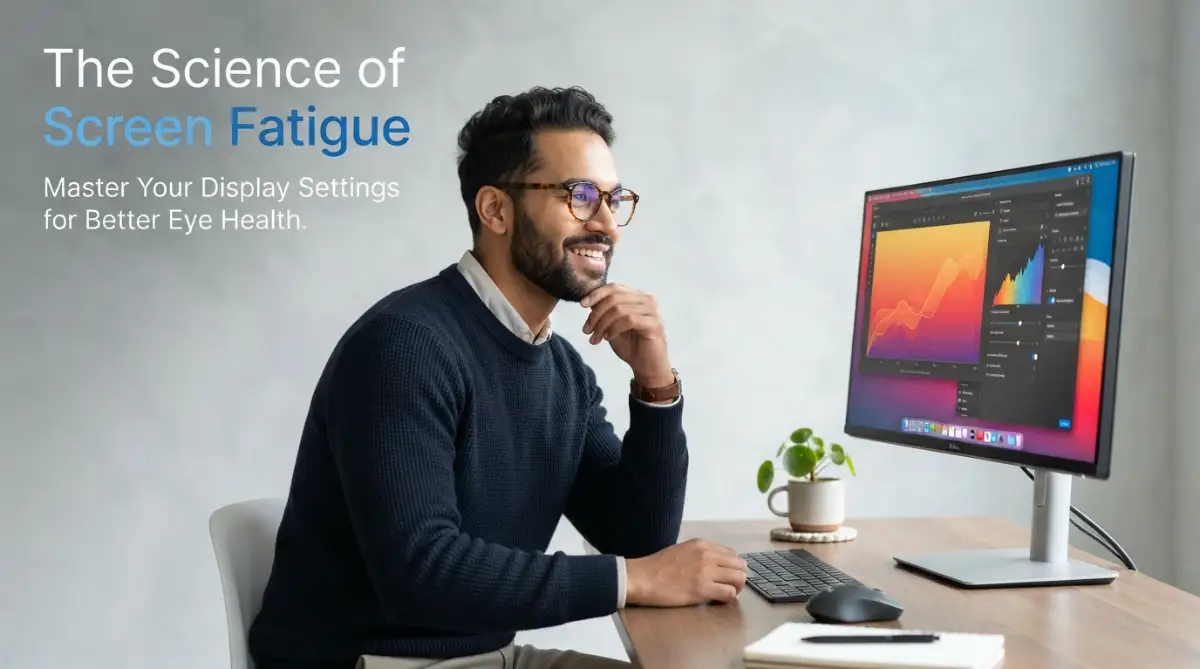
Let’s be honest: your eyes probably hurt right now. I spent years ignoring that dry, gritty feeling in my eyes, thinking it was just 'part of the job.' But after staring at a screen for 10 hours a day and waking up with blurry vision, I realized I was breaking my most important tool. You don't need a fancy doctor to tell you something is wrong—you just need to fix your setup before your productivity hits zero.
When your eyes are tired, your whole body feels it. You might feel grumpy or lose your focus more easily than usual. I noticed that I was getting annoyed at small things because my head hurt so much from the screen glare. It makes it hard to enjoy life when your primary tool for work is causing you physical pain. Many people just ignore it and think it is a normal part of office life.
I spent weeks researching why this happens and how I could fix it without giving up my career. I found out that the way our screens are set up out of the box is often the worst for our eyes. Most monitors are way too bright and the colors are too "cool" or blue. This setup is great for selling TVs in a bright store, but it is terrible for your eyes in a quiet room.
The mental drain is real too. When your brain has to work extra hard to process blurry text or flickering lights, you get tired faster. I used to think I was just lazy in the afternoon. Now I know that my eyes were simply exhausted from fighting the screen. It is a invisible struggle that millions of us go through every single day without knowing there is a better way.
Understanding Why Your Eyes Feel Like They Are Burning
"### ⚡ Fast Fixes for Your Tired Eyes
If you're in a rush, here are the top 4 things I did to stop the burning feeling:
- The Paper Test: Match your screen brightness to a physical piece of paper on your desk.
- Warm it Up: Turn on 'Night Light' or 'Night Shift' even during the day to kill the harsh blue glare.
- Scale the Text: Don't squint. Set your text scaling to 125% so your eyes can relax.
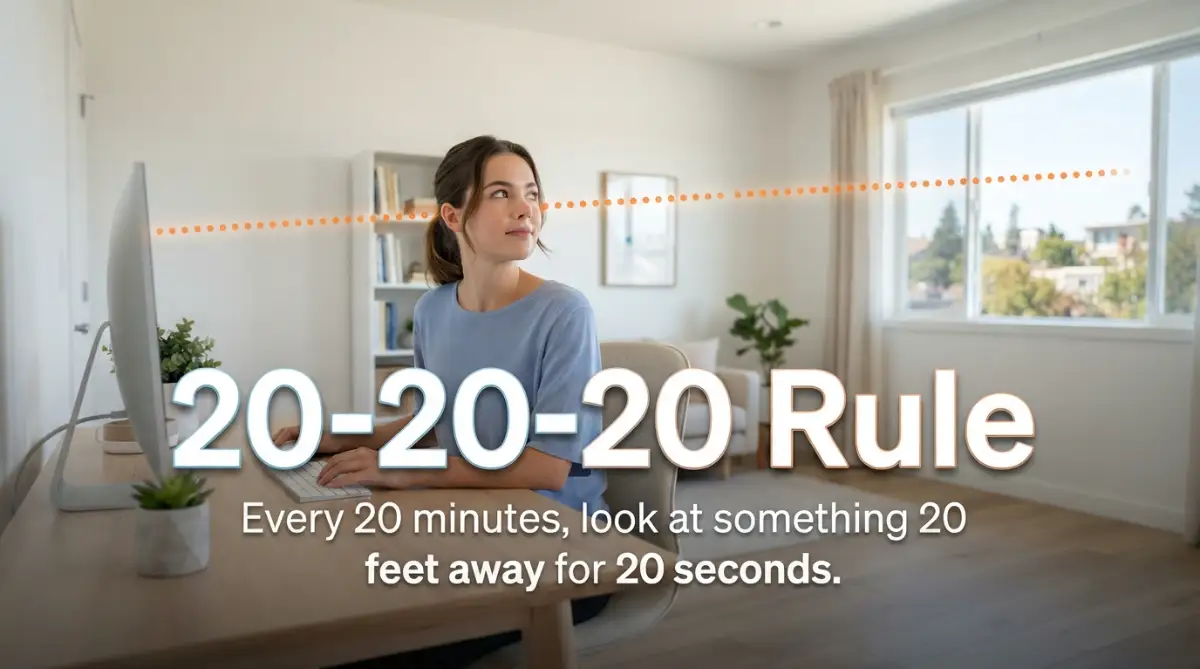
- The 20-Foot Glance: Every 20 minutes, look at something far away for 20 seconds. It resets your eye muscles instantly."
The scientific term for what I felt is Computer Vision Syndrome. It sounds like a big, scary name, but it basically means your eyes are stressed out. When we look at a screen, we blink about 66% less than we do during a normal conversation. This dries out the surface of the eye, leading to that "sandy" feeling I mentioned earlier.
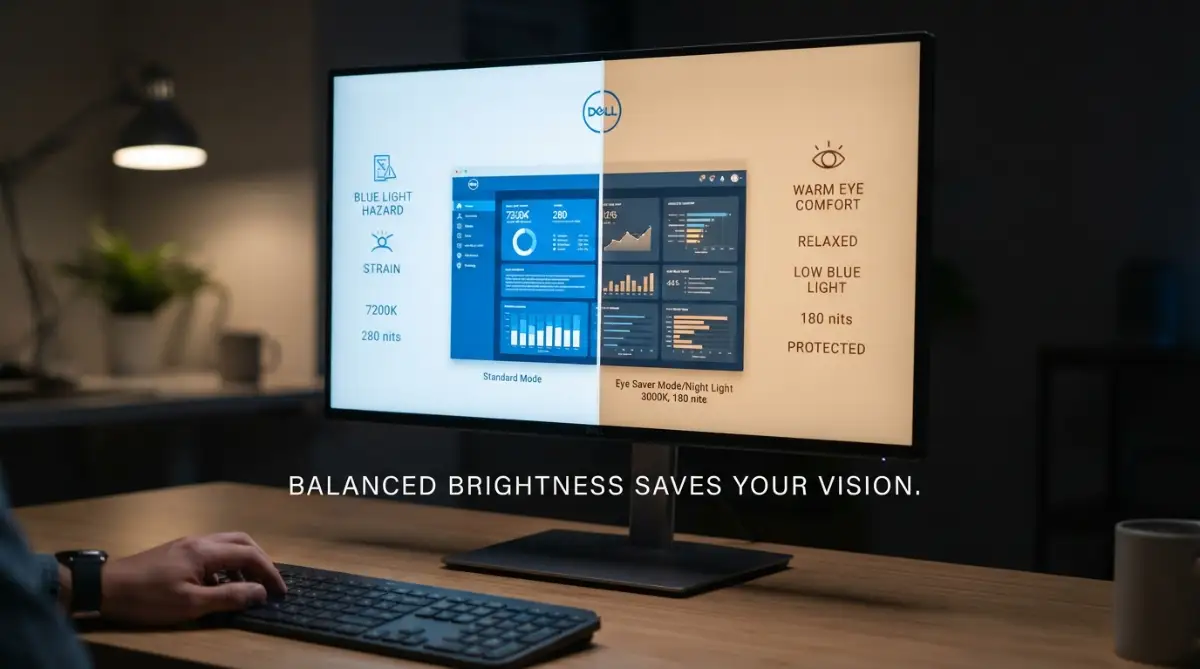
The light coming from your screen is also a big part of the problem. Most screens use LED backlights that have a high amount of blue light. Blue light has a short wavelength, which means it scatters more easily. This scattering creates a sort of "visual noise" that reduces contrast. Your eyes then have to strain much harder to see clearly.
I once made the mistake of keeping my screen brightness at 100% while working in a dark room late at night. I thought I was seeing better, but I ended up with a migraine that lasted for two days. Now I always match my screen brightness to the light in my room, and it has changed everything for me.
Matching Your Monitor Brightness to Your Environment
One of the easiest things you can do right now is check your brightness level. Your screen should not be a light source; it should be a window. If your screen is the brightest thing in the room, your eyes will hurt. If the room is brighter than the screen, you will struggle to see the text.
To find the perfect balance, try the "paper test." Hold a white piece of paper next to your monitor. If the monitor looks like it is glowing compared to the paper, it is too bright. If the monitor looks grey or dark compared to the paper, it is too dim. You want the white of the screen to look just like the white of the paper.
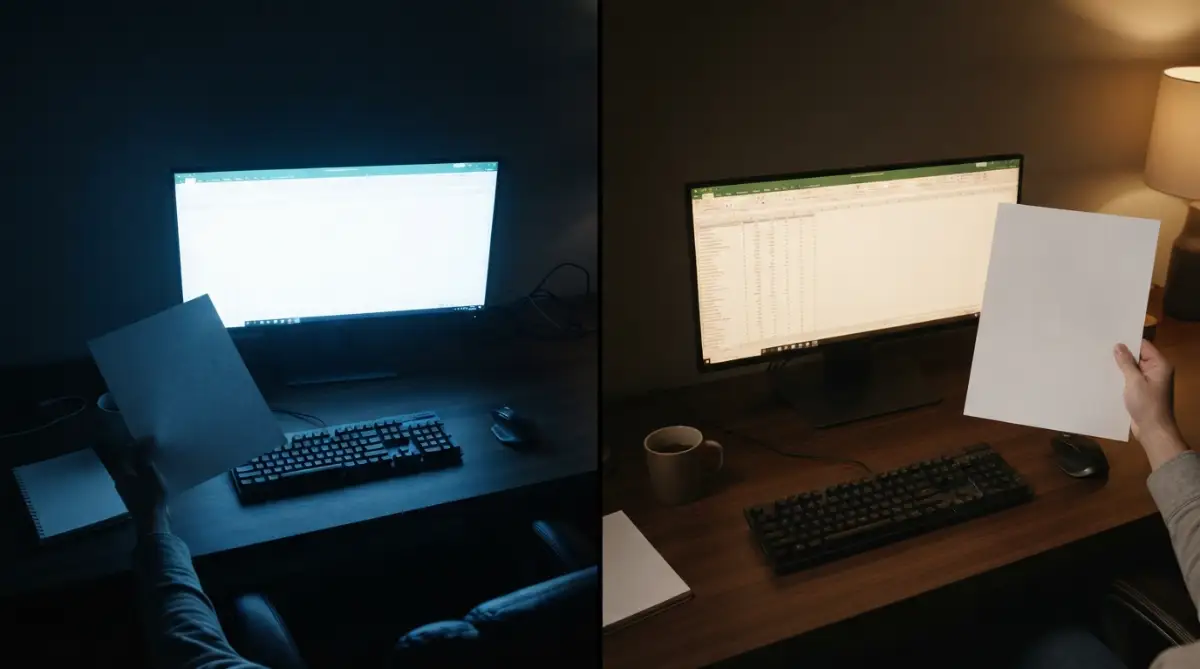
"I made a quick cheat sheet for you to check your brightness levels throughout the day. It’s a game-changer:
Most modern computers have a "brightness" slider. I suggest turning off "Auto-Brightness" because it often gets it wrong. Manually set it to a level that feels soft on your eyes. You will notice an almost instant relief in the pressure behind your eyes.
The Power of Color Temperature and Night Filters
We need to talk about that blue light again. During the day, blue light is actually good because it keeps us awake. But as the sun goes down, our bodies need warmer colors like oranges and reds. This tells our brain it is time to slow down and prepare for rest.
You should use settings like "Night Shift" on Mac or "Night Light" on Windows. These settings shift the color of your screen toward the warmer end of the spectrum. It might look a little yellow at first, but your eyes will thank you within minutes. This simple change helps your body produce melatonin, which is the hormone that helps you sleep.
If you don't want to use the built-in settings, there are great apps like f.lux that do this automatically. I have my settings set so that the screen slowly gets warmer as the sun sets. I don't even notice the change anymore, but I definitely notice that I fall asleep much faster than I used to.
Adjusting Your Refresh Rate for Smoother Motion
This is a bit more technical, but it is very important. Every screen refreshes its image many times per second. This is measured in Hertz (Hz). Most standard office monitors are set to 60Hz. If the refresh rate is low, you might see a tiny bit of "flicker," even if you don't realize it.
This flicker is a major cause of headaches. If you have a monitor that supports 120Hz or 144Hz, make sure you actually have it turned on in your settings. Higher refresh rates make movement look much smoother. When the motion is smooth, your eyes don't have to work as hard to track things on the screen.
Even if you only have a 60Hz monitor, making sure the drivers are updated can help. Sometimes a bad driver can cause the screen to have a micro-flicker that kills your productivity. I always check my display settings after a big computer update to make sure nothing has changed.
This video shows exactly how flickering and blue light impact your brain and what you can do to stop it immediately.
Text Size and the Magic of 125% Scaling
Many of us try to fit as much as possible on our screens. We keep the text small so we can see more of our emails or spreadsheets. This is a huge mistake. Small text forces you to lean forward, which ruins your posture and puts more strain on your eyes.
Go into your display settings and look for the "Scale and Layout" section. If you are on a high-resolution screen, try bumping the scaling up to 125% or even 150%. Yes, you will see less on the screen, but the text will be much larger and sharper.
When text is easy to read, your eyes can stay relaxed. You won't find yourself squinting at the screen at 3 PM. I found that by increasing my text size, I stopped leaning into my monitor. My neck pain actually went away at the same time as my eye strain. It’s all connected.
Using Dark Mode: When It Helps and When It Hurts
Dark mode is very popular right now, but it isn't a magic fix for everyone. For some people, white text on a black background causes "haloing." This is when the white letters seem to bleed into the black, making them look blurry. This is common if you have astigmatism, which many people do.
I find that dark mode is great when I am in a dim room. It reduces the total amount of light hitting my eyes. However, if I am in a very bright office with lots of windows, light mode is actually better. Light mode provides more contrast, which makes the text easier to read when there is a lot of glare.
"Quick Myth Buster: Does Dark Mode Save Your Eyes?
I used to think Dark Mode was the ultimate cure. But here is the truth: if you are in a bright room, Dark Mode actually makes your eyes strain harder to see the white text. I only use Dark Mode after 8 PM. During the day, I stick to Light Mode with a high-quality warm color filter. It keeps my focus sharp without the 'ghosting' effect."
Positioning Your Screen the Right Way
It isn't just about the settings inside the monitor; it is about where the monitor sits on your desk. Your eyes should be level with the top of the screen. This means you should be looking slightly downward at your work. If the screen is too high, you have to open your eyes wider, which makes them dry out faster.
Looking down slightly allows your eyelids to cover more of your eye, keeping them moist. I used to have my monitor on a tall stand, thinking it was better for my neck. But I realized it was making my dry eyes much worse. Lowering it by just two inches made a massive difference in my comfort.
Also, keep the screen about an arm's length away. If you can reach out and touch the screen easily, it is probably too close. Being too close forces the muscles in your eyes to stay "tight" to keep the focus. Giving them that extra bit of distance allows the muscles to relax.
The Role of Contrast and Sharpness
Contrast is the difference between the darkest blacks and the brightest whites on your screen. If the contrast is too low, everything looks washed out and grey. This makes your brain work harder to tell the difference between letters and the background.
Most monitors have a physical "Contrast" button or a menu setting. You want a high enough contrast so that the text is crisp, but not so high that the white backgrounds look like they are glowing. I usually keep my contrast around 50% to 70% depending on the brand of the monitor.
Sharpness is another setting to watch. If you turn sharpness up too high, you get weird outlines around your letters. This "digital noise" is very distracting for the eyes. It is usually best to keep sharpness at a neutral or "standard" setting. The goal is to make the screen look as natural as possible, like a printed book.
Managing Reflections and Glare
Glare is the enemy of comfortable vision. If you can see a reflection of a window or a lamp in your screen, your eyes are constantly trying to focus on two things at once. They focus on the text, then they accidentally focus on the reflection. This constant switching is exhausting.
Try to position your desk so that windows are to your side, not in front of or behind you. If you can't move your desk, consider a matte screen protector. These "anti-glare" films break up reflections and make the light much softer.
I once worked in an office with a massive window right behind my chair. The reflection on my screen was so bad I had to squint all day. I bought a simple desk lamp and turned off the overhead lights, and my eye strain disappeared almost instantly. Controlling the light around your screen is just as important as the screen itself.
The Biology of the 20-20-20 Rule
I want to explain why the 20-20-20 rule actually works from a scientific point of view. Inside your eye, there is a tiny muscle called the ciliary muscle. When you look at something close, like a phone or a laptop, this muscle has to contract. It is like holding a heavy dumbbell in your hand.
If you hold that dumbbell for eight hours, your arm will shake and hurt. That is exactly what is happening to your eye muscle. By looking at something 20 feet away for 20 seconds every 20 minutes, you are "dropping the weight." You are letting that muscle relax and stretch out.
I set a timer on my phone to remind me to do this. At first, it felt annoying to stop my work. But then I realized that those 20 seconds actually made me more productive. I could work longer without getting a headache. It is the most powerful "setting" you have, and it doesn't even require a computer menu.
Taking Your Screen Comfort to the Next Level
I used to think that just turning down the brightness was enough to save my eyes. I was wrong. After weeks of testing different setups, I found that there are much deeper tricks to making a screen feel natural. One of the best things I ever did was install something called bias lighting.
Bias lighting is just a fancy way of saying "put a light behind your monitor." I bought a cheap LED strip and stuck it to the back of my screen so it glows against the wall. This reduces the harsh contrast between the bright screen and the dark space behind it. It felt like my eyes instantly relaxed because they didn't have to fight the "halo" effect of the monitor anymore.
Another secret I found is using software-level color calibration. Most people use the default settings that come with their computer. I started using built-in calibration tools to make sure my whites looked like actual white and not a weird blue tint. If your colors are off, your brain spends extra energy trying to "correct" what you see. You can find these tools in your display settings by searching for "calibrate display color."
I also started looking into my ambient lighting. I noticed that my eyes hurt more when the sun was hitting my desk directly. I bought some thin curtains that let light in but stop the direct glare. Just like you might need to secure your home Wi-Fi router from hackers fast to protect your data, you must secure your physical space to protect your health.
If you do a lot of reading, try changing your browser settings to "Reader Mode." This removes all the ads and sidebars that distract your eyes. It leaves you with just the text and the images. I found that I could read for twice as long without feeling that familiar burning sensation.
I also recommend checking your ClearType text settings if you use Windows. This is a small adjustment that makes the edges of letters look smoother. When letters are jagged, your eyes work harder to piece them together. I spent ten minutes running the ClearType tuner, and the text on my screen started looking like a high-quality magazine.
One advanced tip I swear by is using high-contrast themes only when necessary. Sometimes, if I am working late and my eyes are already tired, I switch to a very high-contrast setting. This makes everything big and bold. It isn't pretty, but it keeps me from straining when I am finishing a long project.
Just as you should learn how to recover deleted photos from SD cards before you lose your memories, you should learn these settings before you damage your sight. Being proactive with your tech settings is the only way to survive a world full of screens. I have made these changes my new standard, and I haven't had a "sandy eye" morning in months.
The Traps We Fall Into When Managing Screen Time
I see so many people buying expensive "gaming glasses" and thinking their problems are solved. This is one of the biggest mistakes I see online. While those glasses can help a little, they won't fix a monitor that is set up poorly. Relying on a single tool to save your eyes is like trying to fix a broken car with just a new coat of paint.
Another mistake is working in a completely dark room. I used to love the "gamer" aesthetic of a dark room with a glowing keyboard. But I soon realized this was destroying my ability to focus. The huge jump in brightness between the screen and the room causes massive eye fatigue. Your pupils are constantly growing and shrinking because they don't know which light level to focus on.
People also forget to clean their screens. This sounds so simple, but it is a huge issue. Dust and fingerprints create tiny blurs on the glass. Your eyes try to focus on the dust instead of the text behind it. I now keep a micro-fiber cloth at my desk and wipe my screen every morning before I start work.
I also see people using too much zoom or not enough. Some people keep their screen so far away that they have to lean their heads forward like a turtle. This "tech neck" causes the muscles in your neck to tighten, which limits blood flow to your head. This leads to tension headaches that many people mistake for simple eye strain.
Don't ignore the warning signs of your body. If your eyes start to twitch or your vision gets blurry, that is a physical alarm bell. I used to push through the pain to finish one more email. Now I know that if I don't stop then, I will pay for it with a headache the next day.
Losing your focus and health is a high price to pay for a few extra minutes of work. Just like you need to stop killing your smartphone by charging it the wrong way, you need to stop killing your eyes with bad habits. If you keep ignoring these mistakes, the damage can become much harder to fix later on.
A Better Way to Live with Your Devices
Taking care of your eyes has changed how I feel about my work. I no longer dread sitting down at my desk because I know my eyes won't hurt by lunchtime. It is about taking control of the technology instead of letting the technology control you. You don't have to be a scientist to make these changes; you just have to care enough to try.
Start with one small change today. Maybe you can adjust your brightness or move your lamp. Tomorrow, you can look into color settings or text scaling. These small wins add up to a much happier and healthier life. I feel more energetic and my mind is clearer because I am not constantly fighting physical discomfort.
I want you to feel that same relief that I felt when I finally fixed my setup. Your vision is one of the most precious things you have, and it deserves a few minutes of your time. I promise that if you follow these steps, your "screen life" will feel completely different. My goal was to make my digital world feel as natural as the real world, and I am finally there.
Common Questions About Screen Eye Strain
Can computer use cause permanent eye damage?
Most experts at places like the American Academy of Ophthalmology say that screen use doesn't cause permanent physical damage. However, it can cause severe discomfort and make existing vision problems feel much worse. If you don't take breaks, you might find that you need glasses sooner because your muscles are always tired.
Does "Dark Mode" really save my eyes?
Dark mode is helpful in low-light settings because it reduces the total amount of light hitting your retina. But for some people, especially those with astigmatism, white text on a black screen can look blurry. It is best to use dark mode at night and light mode during a bright day.
How do I know if my monitor brightness is correct?
You can use the "paper test" I mentioned earlier. Hold a white piece of paper next to your screen while it shows a white background. If the screen looks like a lightbulb compared to the paper, it is too bright. If it looks dull or grey, you should turn the brightness up a little.
What is the best distance for my monitor?
You should keep your monitor about 20 to 30 inches away from your face. A good rule of thumb is that it should be about an arm's length away. If you find yourself leaning in to read, you should increase the text size in your settings rather than moving closer.
Do I really need to use a blue light filter during the day?
It is usually not necessary during the day unless you are very sensitive to light. Blue light from the sun is natural and helps keep us alert. You should start using the warm color filters about two to three hours before you plan to go to sleep.
Can I use my smartphone settings to help too?
Yes, most of the rules for monitors apply to phones as well. You can find "Eye Comfort Shield" or "Night Shift" in your phone settings. Just like you might need to understand cloud storage explained to manage your digital files, you should learn your phone's display settings to manage your health.
Disclaimer: The information in this article is for educational purposes only and is not a substitute for professional medical advice. Always consult with an eye doctor if you experience persistent pain, vision changes, or severe headaches.