The Moment Your Heart Drops: When Precious Memories Disappear
Tapping "Empty Trash" by mistake hurts, but hitting delete does not instantly wipe your photos off your device. Most phones and hard drives just hide the file while waiting for new data to overwrite that space. If you act fast and avoid a few common traps, you have a realistic chance to get your images back. Here is exactly how storage memory works and the steps you need to take right now to save your files.
Losing meaningful pictures is never just about losing electronic files. Each image represents a captured piece of your personal history, from a baby's first toothless smile to the last photograph taken with an aging grandparent. When those pictures vanish into thin air, it feels like a physical theft of your most treasured milestones.
The internet usually makes this emotional pain worse by offering conflicting, sketchy advice. Some forums claim that once you tap delete, your pictures turn to digital dust forever. Other websites try to push shady software downloads that promise instant miracles but deliver nothing.
Understanding what actually happens behind your glass screen changes everything. The truth about digital memory is surprising, and it is far more hopeful than most people assume. Before you give up entirely, you need to know how hardware actually treats your information.

Quick Action Summary: Stop Data Loss Right Now
- Freeze your device right away: Taking new pictures or opening apps creates fresh files that overwrite your deleted photos.
- Switch on Airplane Mode: Disconnecting from Wi-Fi and cell data stops silent background downloads and automatic cache clearing.
- Look for secondary copies first: Always check your Google Photos Trash, iCloud Recently Deleted folder, and chat app media backups.
- Avoid installing tools directly: Never install a recovery app onto the same phone or drive where your lost images were stored. Run scans externally.
The Secret Life of Digital Storage: What Really Happens When You Press Delete
When you tap the delete button on your phone or computer, your device plays a clever trick on you. The system does not immediately wipe the magnetic or flash surface clean of your image data. Instead, it merely removes the digital pointer that tells the operating system where that specific photo begins and ends.
Think of your device storage like a massive non-fiction reference book. When you delete a photo, the operating system simply erases that entry from the table of contents. The actual chapter, containing all your image pixels and colors, remains written on the physical page inside the memory chip.
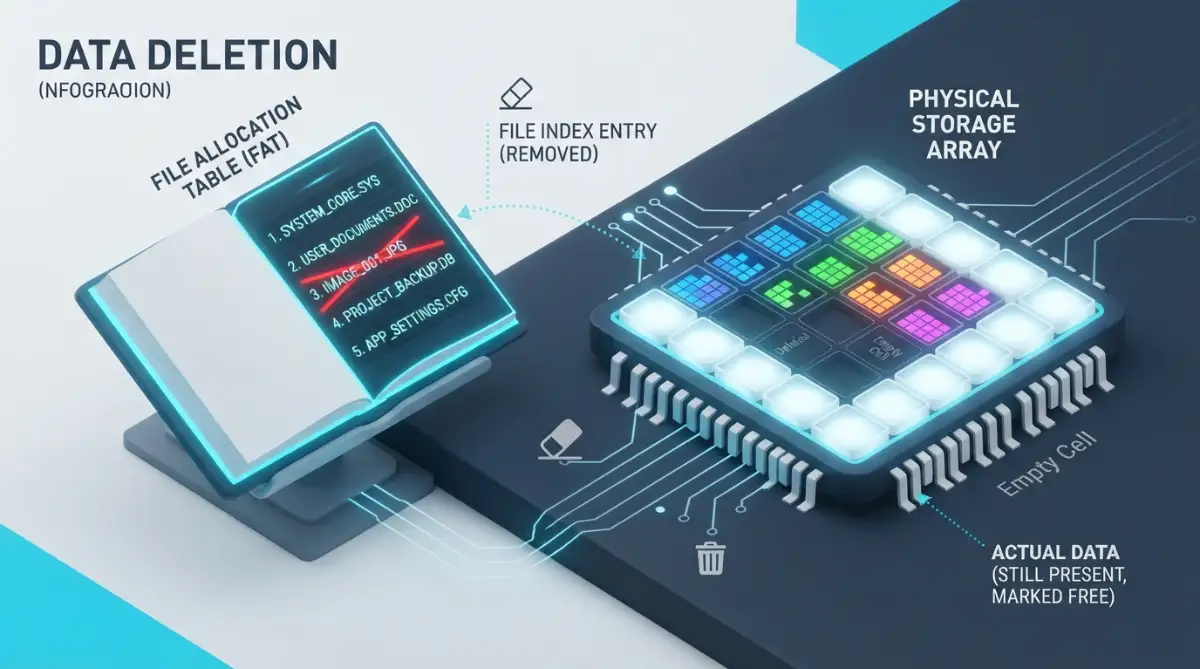
Your operating system now marks that specific storage sector as open, unallocated space. It sends an internal signal declaring that new apps, videos, or song downloads are allowed to write over that address whenever needed. Until that new data arrives and physically overwrites those exact cells, your original photo remains largely intact.
If you want a deeper explanation of why deleted photos can seem to disappear from an SD card, read our guide on why deleted photos disappear from an SD card.
For a practical step-by-step recovery process, see our complete guide on how to recover deleted photos from an SD card safely.
The Physics of Modern NAND Flash Memory
Most modern mobile devices, tablets, and solid-state drives rely on NAND flash memory chips. These microchips store your information inside microscopic arrays of floating-gate or charge-trap transistors. These tiny electronic gates hold electrical charges that represent the binary code of your pictures.
Changing an electrical charge requires a tiny burst of voltage and a small amount of physical wear on the cell. Because writing and erasing takes physical energy, storage controllers avoid scrubbing cells clean until they absolutely have to. Erasing an entire block of memory in advance slows down your phone, so the system simply leaves the old binary charges alone.
This engineering shortcut is the exact reason data recovery is possible in the first place. Your lost JPEG, PNG, or RAW picture files are usually sitting silently in dormant storage blocks. They wait in darkness, untouched, until another process claims their physical address.
The Great Barrier: Understanding the TRIM Command
While magnetic computer hard drives let ghost data sit undisturbed for months, modern Solid-State Drives (SSDs) behave differently. Modern operating systems use an automated maintenance command called TRIM to keep solid-state storage running fast.
- [Normal Delete] -> Erases Index Pointer -> Raw Data Stays Intact
- [TRIM Activated] -> Erases Index Pointer -> Instructs Cell to Zero Out Immediately
When TRIM runs, the operating system alerts the drive controller that specific unallocated blocks are no longer carrying active files. The controller schedules those cells for a complete zero-out routine to keep future write speeds snappy. Once a cell is scrubbed to zero by a TRIM cycle, retrieving the original pattern becomes nearly impossible through consumer methods.
Mobile phones handle this balancing act through aggressive power and performance profiles. Fortunately, TRIM commands do not always fire instantaneously the exact second you hit delete. There is often a window of opportunity where recovery tools can extract raw data before garbage collection cycles start.
Storage Media | Realistic Recovery Window | Best Immediate Action
Android / iPhone (Internal Flash) | Under 1 to 2 hours (TRIM commands fire quickly) | Switch on Airplane Mode, stop using apps, keep screen off
SD Card / DSLR Camera (FAT32/exFAT) | Days or weeks (No continuous TRIM triggers) | Remove the card immediately and slide the physical write-lock switch
If you are dealing with a deleted photo on an SD card, learn how to perform SD card photo recovery without formatting before taking any action that could overwrite the remaining data.
If you are dealing with a deleted photo on an SD card, learn how to perform SD card photo recovery without formatting before taking any action that could overwrite the remaining data.
External Portable SSD | Under 1 hour (Fast background cleanup cycles) | Safely unmount and disconnect the cable from your PC
Older USB Thumb Drives | Several weeks (Passive memory with no auto-erase) | Run deep sector carving directly from a desktop PC
Myth vs Reality in Photo Recovery
Practical Paths to Reclaiming Your Lost Pictures
Rescuing your images requires a clear head, fast action, and a logical plan of attack. Do not panic and start installing random mobile apps directly onto the affected phone, as that act alone can write new data over your old files. Work through the following structured methods systematically.
1. Interrogating the Hidden Trash Ecosystem
Modern operating systems have built-in safety nets designed to prevent human error from causing catastrophic data loss. Almost every phone, computer, and cloud service features a secondary quarantine folder where files wait before permanent removal.
- Check the Recently Deleted album inside Apple Photos or Samsung Gallery, where files rest for thirty days.
- Open your independent cloud gallery bins, specifically Google Photos Trash or OneDrive Recycle Bin.
- Inspect messaging application media caches, such as WhatsApp, Telegram, or Viber media storage folders.
- Review local system backup folders that might have created an automatic mirror image overnight while charging.
Many users assume they permanently deleted a picture when they only deleted it from an album view. Always verify whether the primary system trash bin has actually reached its automatic purge timeline.
Watch this comprehensive walk-through to see how deep scanning methods work in real-time on various operating systems:
2. Tapping Into the Shadow World of Local App Caches
Smartphones generate low-resolution previews, thumbnails, and cached duplicates of every picture you view. Even if your main high-resolution camera file has been completely shredded, its miniature twin might still be alive inside a hidden cache.
Android operating systems, for example, generate hidden folders named .thumbnails inside the primary DCIM directory. These database containers store small to medium copies of your gallery items so your phone can scroll smoothly without lag. Specialized file managers can explore these hidden system folders and export those preview images back into view.
While a thumbnail may not have the crisp resolution needed for a giant wall print, it preserves the memory perfectly. A recovered thumbnail is vastly better than an empty memory card and a broken heart.
3. Deploying Direct Hardware-Level File Carving
When system directories and thumbnail databases come up empty, you must rely on a technique known as raw file carving. File carving bypasses the corrupted or empty file system index entirely and inspects the raw binary sectors of your storage drive.
Every image format carries a distinct digital signature at its beginning and end, known to engineers as file headers and footers. A standard JPEG file, for instance, almost always begins with the hexadecimal bytes FF D8 FF and concludes with FF D9. Deep-scan software reads your drive block by block, searching exclusively for these bookend signatures.
When the scanner spots an image header, it collects every byte that follows until it encounters the matching footer. It then stitches those bytes back together into a viewable photo file on your desktop screen. This scientific technique can resurrect photos that your phone claims no longer exist.
4. Navigating the Realities of Device Encryption
Modern smartphones use default hardware-level encryption to protect your privacy from thieves. Each file is scrambled using unique cryptographic keys stored inside a dedicated security chip on your motherboard.
When you delete an image on a modern encrypted device, the operating system sometimes discards the specific decryption key associated with that file. Without that unique key, the remaining raw data looks like complete gibberish, even if the electrical charges are still sitting on the flash chip.
This security wall means desktop-based file carving works significantly better on external SD cards, digital cameras, and older thumb drives. For encrypted internal storage, your best bet remains software that leverages local ADB connections or cloud-side metadata mirrors.
Real-World Warning on Mobile Scams: Modern iPhones and Android devices rely on File-Based Encryption (FBE). When you permanently delete a picture from modern internal storage, the system wipes that file's unique cryptographic key. Anyone trying to sell you desktop software that promises to "deep scan internal memory without root access" is taking advantage of your panic. If the keys are gone, the raw data turns into meaningless scrambled code. Save your money and check your thumbnail caches or cloud trash bins instead.
Pro Tip: My Painful Lesson on Device Usage
I once made the terrible mistake of downloading three separate recovery apps directly onto my phone right after losing a photo set. Those new app installations wrote hundreds of megabytes of fresh code straight into the empty storage blocks where my deleted pictures were waiting. That simple move permanently crushed the exact photos I was trying to save, teaching me to always isolate a device the second a mistake happens.
Factors That Dictate Your Real Recovery Odds
Not every recovery scenario produces the exact same outcome. Your final chances depend entirely on how your hardware is built, how your software operates, and what you did right after the incident occurred.
Device Operating State and Idle Time
The simple act of leaving your device turned on allows background maintenance tasks to run silently. Operating systems constantly download software updates, sync email logs, and clean up temporary storage containers behind the scenes.
Every single background write operation risks dropping a new file on top of your dormant pictures. If you suspect an image is lost, the safest immediate move is putting the device into Airplane Mode or powering it down entirely.
Internal Storage vs. Removable Media
Removable memory cards provide a vastly superior playground for deep data recovery attempts. Standard Secure Digital (SD) cards rarely execute continuous background TRIM commands, and they usually lack aggressive internal hardware encryption.
If you lost photos from a DSLR camera or an external memory card, your statistical odds of a complete recovery are remarkably high. You can attach the card to a computer using a write-blocking card reader and scan the unallocated sectors with zero interference from background mobile processes.
File Fragmentation Levels
When a storage drive becomes nearly full, it can no longer write large picture files into single, continuous blocks. Instead, it breaks the image into separate puzzle pieces and scatters them across multiple available gaps throughout the drive.
Recovering fragmented pictures without an active file index is significantly harder for carving algorithms. If your drive had plenty of free space before the deletion occurred, the photos are likely stored in neat, unbroken lines, making recovery much simpler.
A Direct Action Checklist for Right Now
To give yourself the absolute best mathematical chance of bringing your photos back, follow these rules immediately:
- Halt all activity: Stop taking new pictures, shooting 4K videos, or streaming music right now.
- Cut network traffic: Turn off your Wi-Fi and mobile data to prevent automatic background downloads.
- Avoid direct app installs: Never install recovery utilities onto the exact drive or phone partition where the lost files lived.
- Scan from an external machine: Connect your device or memory card to a standalone PC to run read-only deep scans.
- Inspect alternative backups: Double-check linked computers, social media upload threads, and forgotten cloud accounts for secondary copies.
These five actions stop the clock on data degradation, keeping your raw storage sectors safe until you can run proper extraction tools.
Expert Forensic Strategies for Difficult Data Loss Cases
Professional recovery engineers never work directly on an original storage drive when sensitive pictures are missing. Instead, they produce a bit-by-bit physical image file of the entire storage volume before touching a single sector.
This process creates an exact replica of every sector, including all active data and empty unallocated space. If your initial scanning software crashes or corrupts a file structure, the original drive remains completely untouched. You can run hundreds of different recovery scans on the virtual clone without risking any permanent hardware wear.
Free open-source tools like ddrescue or specialized commercial forensic suites make sector-level imaging possible on desktop computers. Once you generate a complete disk image file, you mount that image in read-only mode and scan it safely. This single habit separates reckless guesswork from genuine, laboratory-grade data rescue.
Deploying Hardware Write-Blockers for Fragile Memory
Whenever an operating system connects to a USB drive or flash card, it automatically writes hidden system logs and volume metadata. These tiny background writes can land right on top of your deleted image headers before you even click a button.
Forensic examiners prevent this problem by using dedicated hardware write-blockers. A write-blocker sits physically between your computer cable and the memory device, filtering out incoming write signals while allowing outgoing read signals.
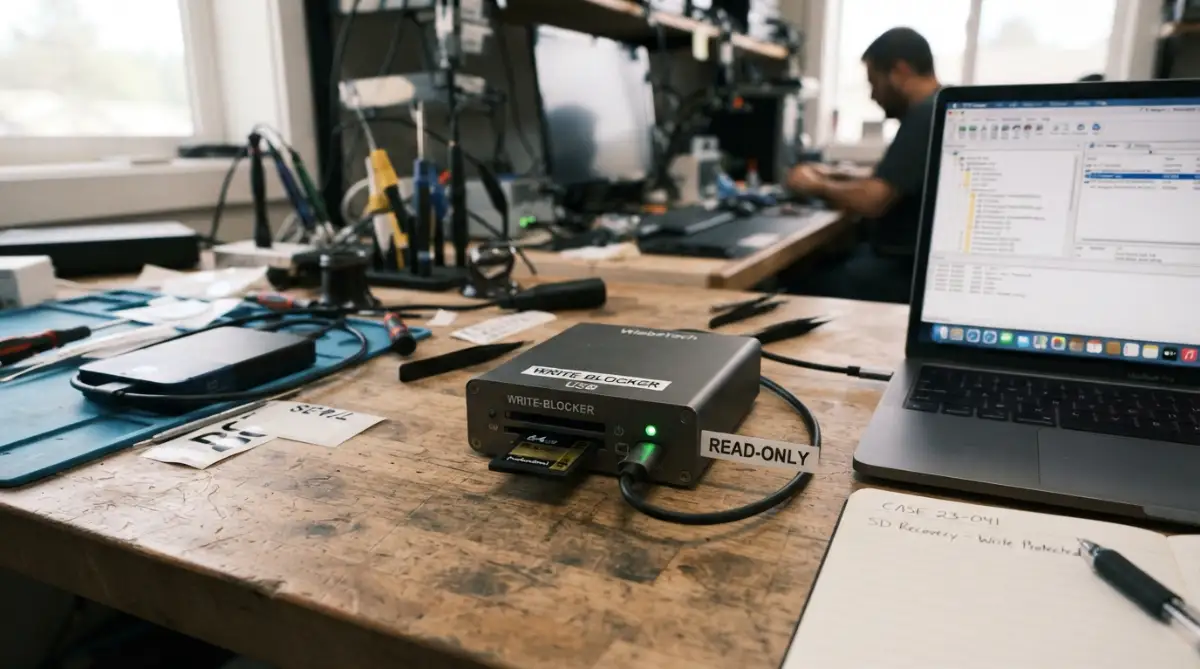
If you do not have specialized hardware, you can still enable software write-blocking through registry settings on desktop workstations. This extra precaution guarantees that your computer acts as a silent observer, never writing a stray byte into unallocated sectors. You can also explore our detailed manual on safe techniques for recovering deleted photos from an SD card to handle portable storage safely.
The Science of Media Sanitization Standards
Security agencies study data persistence extensively, and their findings offer tremendous insight into recovery probabilities. The NIST computer security guidelines on media sanitization prove that simple operating-system-level deletions leave raw physical records completely exposed on magnetic surfaces.
NAND flash memory behaves somewhat differently due to internal wear-leveling algorithms. Research presented across USENIX storage systems research papers shows that flash drives continually shuffle data blocks around to balance electrical wear.
This shuffling means a deleted picture might actually exist in multiple older retirement blocks before the chip garbage collector cleans them out. If consumer utilities fail to detect your photos, specialized lab equipment that reads physical NAND chips directly can sometimes pull those older blocks from the dead.
The Modern 3-2-1 Cold Storage Architecture
Rescuing lost pictures is an emergency measure, but keeping your media secure over decades requires a disciplined storage framework. Memory loss should never become a recurring crisis in your personal life.
Experts rely on the classic 3-2-1 backup strategy to ensure zero data loss under any circumstance. You keep three separate copies of your photo library, across two different physical media types, with one copy placed completely offsite.
One copy can live on an external solid-state drive, another on a home network drive, and the third inside a secure cloud vault. You can learn more about configuring remote backup buckets by understanding how modern cloud storage works for family albums.
Understanding True File Ingestion and Header Reconstruction
Sometimes a recovery tool restores an image, but your picture viewer displays a broken icon or an error saying the file cannot be opened. This happens when the file header was rescued, but the internal color tables or scan lines suffered partial overwrites.
Hexadecimal editors allow skilled users to open damaged image files and inspect the raw binary strings manually. By pasting a healthy header from an identical camera model into the broken file, you can often trick viewing software into rendering the remaining pixels.
This manual patching technique works wonders for RAW camera images and standard JPEGs that only suffered minor damage near their opening clusters. It takes patience, but it can turn a gray, half-rendered photo back into a complete family memory.

Fatal Missteps That Permanently Erase Your Digital Footprints
When people panic after losing photos, their instincts usually guide them to take the worst possible actions. The first hour following an accidental deletion is the most dangerous period for your data. Making a few wrong moves during this window can turn a fully recoverable mistake into permanent heartbreak.
Before attempting photo recovery, review the SD card recovery mistakes you should avoid so you do not accidentally make the situation worse.
Continuing Daily Phone Usage and Streaming
The biggest mistake is simply keeping the affected smartphone in regular daily service. Many users continue chatting on messaging apps, checking social feeds, and streaming short videos while wondering what to do next.
Every web page you browse downloads temporary graphics, cache scripts, and media buffers into your device memory. Every text message creates a tiny database entry that claims fresh storage clusters.
Even restricting background applications on your phone helps minimize hidden disk activity while you prepare your computer setup. When you use your device normally, your phone acts like a steamroller slowly paving new asphalt over your precious buried memories.
Installing Deletion Cleaner and Speed-Booster Utilities
App stores are flooded with utilities promising to clean junk files, speed up memory, and boost battery life. Downloading one of these utilities right after a deletion disaster is a catastrophic error.
These cleaning apps often scan your storage for orphan files, broken database pointers, and unlinked thumbnails. Once they find those loose fragments, they immediately purge them to show you that free space has increased.
In doing so, the cleaner permanently obliterates the exact temporary caches and raw thumbnail previews that could have saved your lost pictures. Treat all automated system-cleaner applications as high-risk hazards whenever you are trying to rescue missing media.
Forcing Defragmentation on Solid-State Media
On older mechanical spinning hard drives, defragmentation was a routine maintenance step to keep files organized in neat sequential order. Some users try running defragmentation tools on modern flash drives, thinking it will clean up broken sectors and bring pictures back.
This is completely disastrous for solid-state storage. Defragmenting a flash drive forces the controller to move thousands of blocks around at high speed, immediately overwriting any unallocated space.
You can read our guide on managing disk defragmentation and TRIM commands to understand why modern flash memory never requires traditional defragmenting. Running this process on an SSD is essentially sending an execution squad directly into your recoverable photo clusters.
Trusting Unvetted Desktop Recovery Programs
Desperation pushes many people into downloading obscure desktop programs from suspicious search results. Some of these programs are poorly written tools that write recovery logs directly onto the source drive during the scan.
Even worse, malicious actors package spyware inside fake recovery installers, taking advantage of people who are emotionally overwhelmed. A poor program can scramble your drive file tables beyond repair, making even professional laboratory recovery completely impossible.
Always stick to industry-recognized, read-only utilities with transparent track records. Before running any intensive disk utility, take the time to learn the physical differences between solid-state drives and traditional hard disks so you choose the right scanner for your hardware.
Restarting the Device Multiple Times
When a computer or phone acts strangely, our natural reaction is to turn it off and on again. In data recovery scenarios, repeated reboots are counterproductive and dangerous.
During every boot sequence, your operating system runs file-system checks, rebuilds temporary system registries, and clears swap memory spaces. The boot sequence generates thousands of read-and-write requests across internal chips within the first two minutes.
If your deleted files are sitting in unallocated sectors near the operating system partition, a reboot can easily wipe them out. If you must power down, do so cleanly and keep the device completely off until you are ready to connect it to an external recovery workstation.
Do's and Don'ts for Protecting Missing Photos
- Do: Turn on Airplane Mode immediately to stop background sync operations and network updates.
- Do: Connect your device to a computer and clone the drive before attempting deep scans.
- Do: Check alternate cloud recycling bins, shared albums, and chat backup folders first.
- Don't: Take new high-resolution pictures or record video to see if the camera still works.
- Don't: Install untrusted recovery software directly onto the damaged drive partition.
- Don't: Run disk repair commands like CHKDSK without creating a full raw drive backup first.
Building Your Long-Term Digital Protection Plan
Rescuing your images brings immense emotional relief, but the true prize is ensuring this frightening experience never happens again. You do not need expensive corporate equipment to maintain a bulletproof media archive.
Begin by automating your daily backups so human error can never destroy your peace of mind again. Most modern cloud services allow you to sync photo albums automatically whenever your phone connects to home Wi-Fi and begins charging.
Pair your cloud syncing with an offline physical hard drive kept in a fireproof drawer at home. That way, if a cloud account is accidentally closed or your local phone falls into water, your memories stay completely untouched. Integrating these simple habits into your routine is the ultimate defense against sudden digital heartbreak.
Take an evening this week to audit your existing storage setups and test your backup restoration procedures. Knowing that your favorite moments are mirrored in two secure places gives you a deep sense of confidence that no accidental screen tap can take away. You can also explore our practical strategies for building a multi-layered file backup strategy to keep all your family records safe from unexpected disasters.
I learned the value of smart backups the hard way after losing my own photos, and I never want you to experience that terrible sinking feeling again. Take five minutes right now to check your trash folders, power down the affected device, and follow these recovery steps with patience. You have the knowledge and the tools to protect your memories, so take action today and keep your precious history safe.
Real Answers to Everyday Picture Recovery Doubts
Can I recover photos after emptying the trash on my smartphone?
Yes, you can often recover photos after emptying the trash because the actual image data stays in your physical storage until new files overwrite it. You should turn off Wi-Fi immediately, stop taking pictures, and use a desktop recovery scanner to inspect the raw storage sectors before the memory gets reused.
Does a factory reset permanently delete all photos on modern phones?
On modern smartphones, a factory reset typically destroys the hardware encryption keys stored inside the device security chip. Once those cryptographic keys are erased, the remaining raw photo data becomes impossible to unscramble, meaning post-reset recovery is extremely unlikely.
Can recovery software bring back pictures from a cracked memory card?
Software utilities cannot scan a memory card if the physical circuit board or silicon wafer inside is cracked in half. If the card is simply bent or has damaged connector pins, a professional data recovery lab can sometimes remove the flash chip and read the raw memory directly using specialized chip-off equipment.
Are free photo recovery apps safe to use on mobile phones?
Downloading free recovery apps directly to your phone can overwrite the exact storage blocks where your lost photos are waiting. The safest method is always running trusted, read-only recovery software on an external computer while your phone or memory card is connected as an external drive.
Why do some recovered pictures only display gray boxes or half images?
A half-gray image indicates that only part of the original file was successfully rescued before another background task wrote new data over the remaining sectors. The file header and initial pixels survived, but the missing tail end prevents your viewing software from drawing the rest of the picture.
Disclaimer
This guide is provided for educational and informational purposes only. Data recovery results vary significantly depending on hardware conditions, operating system behavior, encryption standards, and storage wear. The author and publisher assume no responsibility for any accidental data loss, hardware damage, or software errors resulting from the application of these techniques. Always test your backup systems regularly and consult certified hardware recovery professionals for irreplaceable personal or business records.