The Day I Almost Lost Ten Years of My Life
"Losing every file on your computer feels like a punch to the gut. Whether it's a sudden ransomware attack or a spilled cup of coffee, your digital life is more fragile than you think. I'm not here to scare you; I'm here to show you exactly how I fixed my own messy setup using a simple system that keeps hackers out and memories safe. Let’s make sure you never have to pay a ransom for your own data."
A message popped up saying all my files were locked. To get them back, I had to pay hundreds of dollars in Bitcoin. My heart dropped into my stomach because I had no idea what to do. All my family photos and work files were on that machine.
I realized then that I had been lazy about my digital safety. I thought it would never happen to me, but it did. That moment of pure panic is something I never want you to feel. It changed how I look at my computer and my data forever.
"Quick Summary: How to Stay Safe Right Now
- The 3-2-1 Rule: Keep 3 copies of your files, on 2 different types of media, with 1 copy stored in a different building.
- Air-Gapping: Always unplug your backup drive when you aren't using it so viruses can't reach it.
- Versioning is Key: Only use cloud services that let you 'roll back' to an older version of your files.
- MFA: Turn on Multi-Factor Authentication on your cloud accounts or hackers can delete your backups easily."
The Hidden Stress of Living Without a Safety Net
Most of us use our computers every single day without a second thought. We save our memories, our bank details, and our hard work on a single hard drive. We trust these machines to work perfectly forever.
But deep down, there is always that small worry in the back of our minds. What if the laptop spills? What if it just stops turning on one morning? When ransomware hits, that tiny worry turns into a giant nightmare.
Losing your data is not just about losing files; it feels like losing a part of yourself. You lose those photos of your kids' first steps or your wedding day. You lose the work that helps you pay your bills and feed your family.
This stress can keep you up at night once you realize how fragile digital things are. Many people tell me they feel helpless against hackers and smart viruses. They think protecting themselves is too hard or too expensive.
The truth is, hackers want you to feel that way so you remain an easy target. When you don't have a plan, you are basically leaving your front door wide open. It creates a constant, heavy feeling of uncertainty in our modern lives.
Why Traditional Backups Are No Longer Enough
A few years ago, putting your files on a USB stick was enough to feel safe. You would copy your folders, put the stick in a drawer, and go about your day. But things have changed a lot lately.
Modern ransomware is much smarter than the old viruses we used to see. It can find your USB drive if it is plugged into your computer. It can even travel through your Wi-Fi to find other devices in your house.
If your backup is always connected to your computer, it is not a backup anymore. It is just another target for the hackers to lock up. This is the mistake I made, and it cost me dearly.
We have to think differently about how we keep our digital lives tucked away safely. It is about creating layers of protection that a virus cannot jump across easily. Think of it like a castle with many walls and a deep moat.
If one wall falls, the others are still standing to keep you safe. Most people only have one thin wall, or worse, no wall at all. We are going to change that for you today with a simple, solid plan.
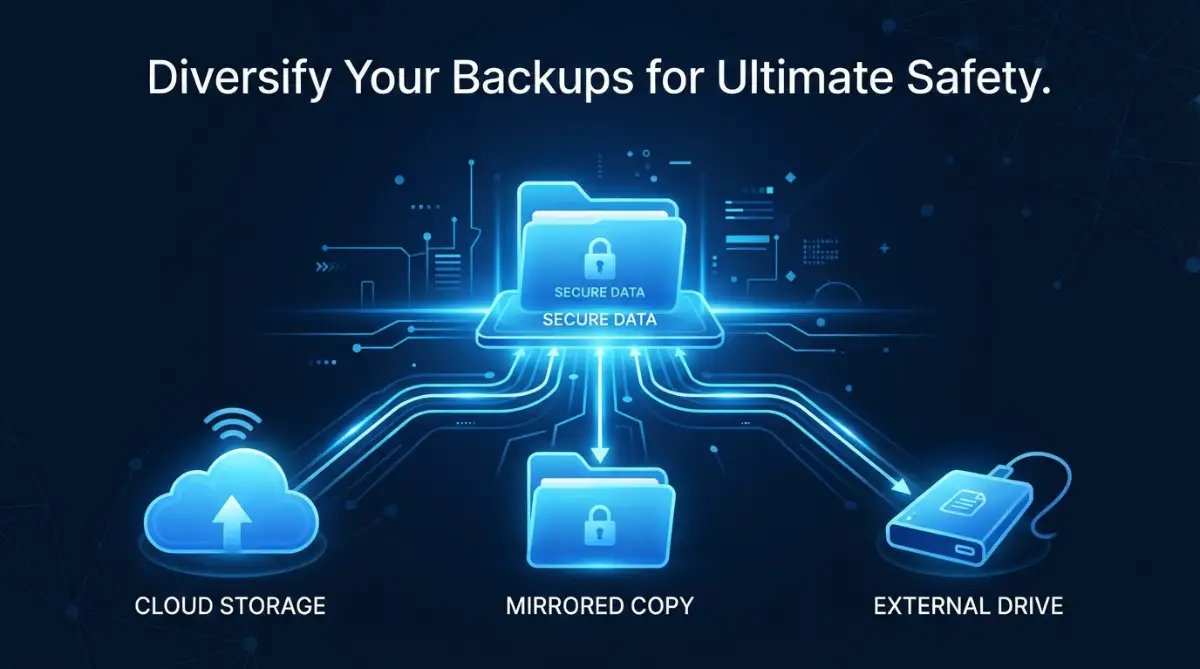
The Secret Rule for Unbeatable File Safety
I want to share something called the 3-2-1 rule that saved my digital life. It sounds technical, but it is actually very simple once you break it down. It is the gold standard for anyone who wants to sleep well at night.
The rule says you should have three copies of your data in total. This includes the original file you are working on and two extra backups. Having just one backup is simply not safe enough anymore.
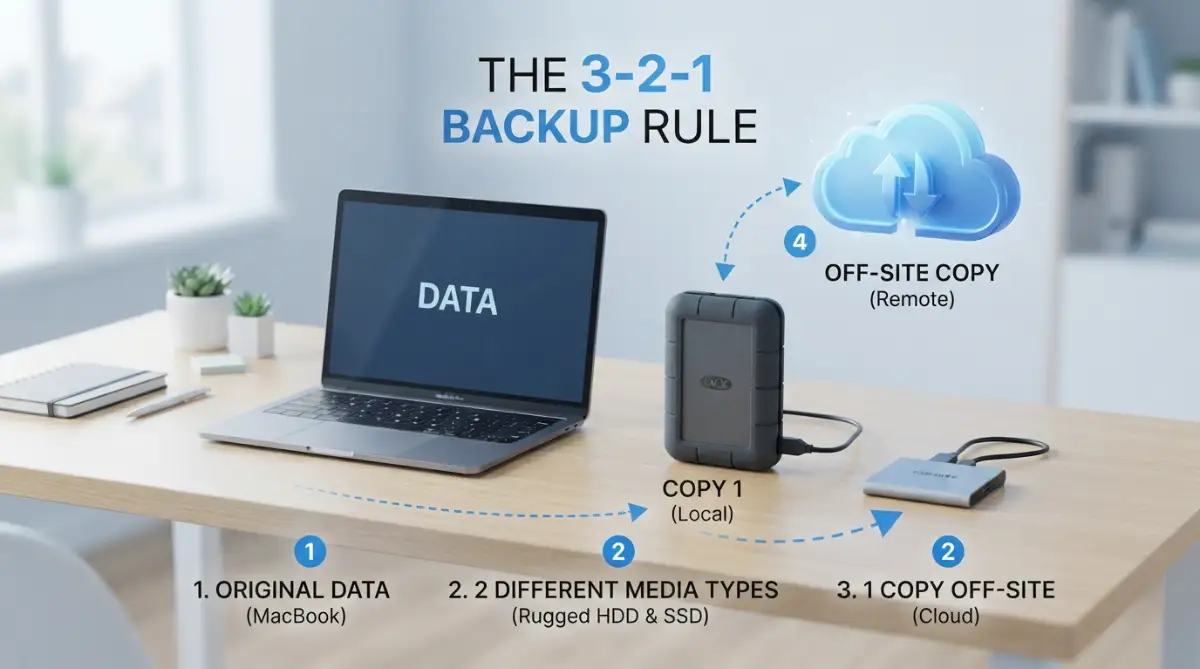
Next, you should use two different types of storage for these backups. For example, you could use a physical hard drive and a cloud service. If one technology fails or gets hacked, the other one is likely still fine.
Finally, you must keep one copy off-site, away from your home or office. This protects you from things like fire, floods, or a total house robbery. If your house disappears, your data should still exist somewhere else.
Pro Tip: I used to forget to run my backups for weeks because I was busy. Now, I use a simple "set it and forget it" tool that does it for me every night at 2 AM. My best advice is to never rely on your memory to stay safe; rely on automation instead.
Choosing the Right Physical Armor for Your Data
The first thing you need is a physical place to store your extra files. This is usually an external hard drive or a small, fast SSD. These devices are much cheaper now than they were a few years ago.
When you buy a drive, look for one that is rugged and can handle a little bit of a drop. You want something that will last for years, not just a few months. I prefer drives that use a simple USB connection so they work on any computer.
Once you have your drive, you need to decide what to put on it. I suggest backing up your entire "User" folder, which holds your photos, documents, and videos. This ensures you don't miss anything important that is hidden in a random folder.
The most important part of using a physical drive is to unplug it. After the backup is finished, pull the cable out and put the drive in a safe spot. This "air gap" means a virus on your computer cannot touch your backup.
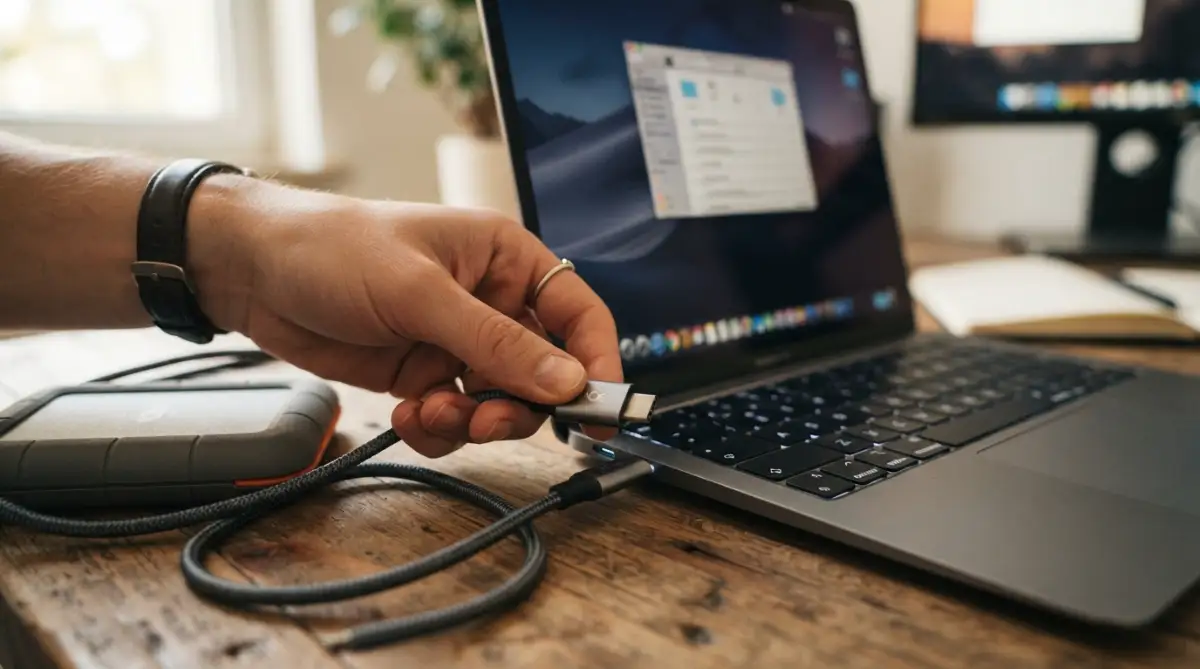
See the 3-2-1 Rule in Action
If you want to see exactly how to set up your first external drive for automatic backups, this video is a perfect place to start.
Using the Power of the Cloud Without the Risks
Cloud storage is the second layer of our "castle walls." Services like Google Drive, Dropbox, or OneDrive are great because they are easy to use. They sync your files as soon as you save them.
However, syncing is not the same thing as a true backup. If a virus encrypts a file on your computer, the cloud might sync that encrypted file immediately. This means your cloud copy is now also locked and useless.
To fix this, you need a cloud service that offers "versioning." This allows you to go back in time to a version of your file from yesterday or last week. It is like a time machine for your digital documents.
I personally use a dedicated backup service that is different from my normal cloud storage. These services are built specifically to fight ransomware and keep your data safe. They are very hard for hackers to break into.
Using the cloud also means you can get to your files from anywhere in the world. If your laptop dies while you are on vacation, you can still log in and see your photos. It gives you a sense of freedom that a physical drive cannot offer.
How Automation Removes Human Error From the Equation
The biggest reason people lose their data is that they simply forget to back it up. We all have busy lives, and clicking "Backup Now" is easy to put off until tomorrow. But tomorrow might be the day the ransomware strikes.
This is why automation is your best friend in this journey. You can set up your computer to copy your files every single day without you doing a thing. Most modern computers have this feature built right in for free.
If you use a Mac, there is a tool called Time Machine that is wonderful. If you use Windows, you can use File History to keep track of your changes. Both are easy to set up and very reliable.
Once it is set up, you will see a little icon that tells you everything is safe. It gives you a huge boost of confidence every time you see that "Backup Complete" message. You no longer have to worry if you remembered to save your work.
I often tell people that the best backup strategy is the one you don't have to think about. It should work quietly in the background like a silent bodyguard. Your job is just to check it once a month to make sure it is still running.
Testing Your Backups to Ensure They Actually Work
There is a sad story I hear too often about people who thought they were safe. They had their hard drives and their cloud storage all set up perfectly. But when their computer crashed, they found out their backups were empty or broken.
A backup is only good if you can actually use it to get your files back. This is why you must "test" your recovery process at least twice a year. It sounds boring, but it is a vital part of the plan.
To test it, try to restore a single folder or a few photos from your backup. See how long it takes and if the files open correctly. If they do, you can breathe a sigh of relief knowing your system works.
If they don't work, you have time to fix the problem before a real emergency happens. It is much better to find a mistake now than when your screen is red and a hacker is laughing. Think of it like a fire drill for your digital life.
I used to be afraid to test my backups because I thought I might break something. But I learned that being brave now prevents a lot of tears later. It only takes five minutes, but those five minutes could save your entire history.
The Importance of Keeping Your Software Shield Up
While backups are your last line of defense, keeping your computer updated is your first. Software updates often include "patches" that close the doors hackers use to get in. If you ignore these updates, you are leaving your windows unlocked.
I know those update pop-ups can be annoying when you are in the middle of work. But they are there to protect you from the latest threats. Make it a habit to install them as soon as they appear.
This includes your operating system, your web browser, and your antivirus software. Hackers are always finding new ways to break in, so the software companies are always finding new ways to stop them. It is a constant race.
By keeping everything fresh, you make your computer a much harder target. Most ransomware attacks happen to people who are running old, outdated software. Don't let yourself be the low-hanging fruit for a criminal.
Combine updated software with your 3-2-1 backup plan, and you become almost untouchable. You are no longer a victim waiting to happen. You are a smart, prepared user who knows how to handle the modern digital world.
Why a Clean Digital Space Leads to Better Security
Sometimes, we have too much "digital clutter" that makes backing up harder than it needs to be. We keep old movies, blurry photos, and files we haven't touched in years. This makes our backups huge and slow.
I found that by cleaning out my folders once a month, I saved a lot of space. I only keep the things that actually matter to me or my work. This makes my backup process much faster and easier to manage.
When you have less clutter, it is easier to see if something is wrong. You notice a weird file or a missing folder much faster. It gives you a sense of control over your digital environment.
A clean computer also runs faster and crashes less often. This reduces the chance of a "natural" data loss event from a hardware failure. Being organized is a hidden but powerful part of a good security strategy.
I started treats my digital files like my physical home. I don't want trash lying around, and I want to know where my most valuable items are kept. It simplifies my life and makes my backup strategy foolproof.
Sharing the Knowledge with Your Loved Ones
Once you have your plan in place, don't keep it a secret. Talk to your parents, your siblings, and your friends about how they save their files. Many people are still in the "it won't happen to me" phase.
You don't have to be a tech genius to help them. Just explain the 3-2-1 rule and how it helped you feel safer. You might save someone from the same heartbreak I went through.
Ransomware often spreads through families because one person's hacked computer sends emails to everyone else. By helping your family stay safe, you are also adding another layer of protection to yourself. It is a win-win for everyone.
Imagine the peace of mind you will have knowing your whole circle is protected. No more emergency phone calls about lost photos or broken hard drives. You can all enjoy your digital lives with confidence and joy.
This is the real goal of a backup strategy. It is not just about files and folders; it is about protecting the things that make us human. Our memories, our stories, and our hard-earned progress deserve to be safe.
Going Beyond the Basics: Professional Secrets for Total Safety
Now that you know the basics of the 3-2-1 rule, it is time to look at the advanced moves. These are the things experts do to make sure their data stays safe even during a massive attack. Think of these tips as adding extra locks to your digital front door.
One of the smartest things you can do is use something called "Immutable Backups." This is just a fancy way of saying a backup that cannot be changed or deleted for a set amount of time. Even if a hacker gets into your system, they cannot touch these specific files.
Some cloud providers offer this feature, and it is a total game-changer for regular users. It means your data is sitting in a digital vault that nobody can open until the timer runs out. This is the ultimate defense against ransomware that tries to wipe out your history.
Another expert secret is "Air-Gapping" your most important documents. I keep a small, high-quality drive that I only plug in once a month. When I am done, I put it in a drawer far away from my computer.
This creates a physical gap that no virus can jump across. When you are looking for the right drive for this, you might wonder about the speed. Reading about SSD vs HDD can help you decide which one fits your budget and your speed needs.
"Here is a quick look at how different storage types stack up for your 3-2-1 plan:
The Magic of Multi-Factor Authentication (MFA)
I cannot stress this enough: your backup is only as safe as the password protecting it. If a hacker guesses your cloud password, they can delete your entire backup in seconds. This is why you must turn on Multi-Factor Authentication on every single account.
MFA sends a code to your phone or uses an app to verify it is really you. It adds an extra step that stops almost all automated hacking attempts. It might take you five extra seconds to log in, but it saves you years of regret.
I remember when my cousin’s email was hacked because he used the same password everywhere. The hacker tried to get into his cloud storage, but the MFA alert on his phone stopped them. It was a close call that showed me how important this simple step is.
Most people think MFA is annoying, but I think of it like a seatbelt. You hope you never need it, but you are very glad it is there when things go wrong. It is one of the easiest ways to keep your digital life under your own control.
Encryption: Making Your Files Unreadable to Thieves
If someone steals your external hard drive, you don't want them looking at your private photos or bank statements. This is where encryption comes into play. It scrambles your data so only someone with the right "key" can read it.
Most modern operating systems have free tools to help you encrypt your drives. On Windows, it is often called BitLocker, and on Mac, it is FileVault. It runs quietly in the background and keeps your secrets safe from prying eyes.
I always encrypt my portable drives because I move them around a lot. If I ever lose a drive on a bus or in a cafe, I don't have to panic. The person who finds it will only see a bunch of random gibberish instead of my personal life.
Encryption is also a big part of why cloud storage explained is so helpful for modern security. Good cloud companies encrypt your data before it even leaves your computer. This means even the company employees cannot see what you are saving.
Setting Up an Offline Recovery Kit
I like to keep what I call a "Digital Emergency Bag." This is a physical USB drive that contains my most basic tools to fix a broken computer. It has things like a clean copy of my operating system and my backup software installer.
If your computer gets hit by ransomware, you might have to wipe everything and start over. Having these tools ready means you don't have to rely on a broken computer to fix itself. It makes the recovery process much faster and less stressful.
I keep this drive in a small fireproof box along with a printed list of my most important account names. Notice I said "account names," not passwords. You should never write your passwords down in plain text where someone can find them.
This kit has saved me twice when my laptop hard drive just decided to stop working. Instead of crying for days, I had my system back up and running in a few hours. It is all about being prepared for the worst while hoping for the best.
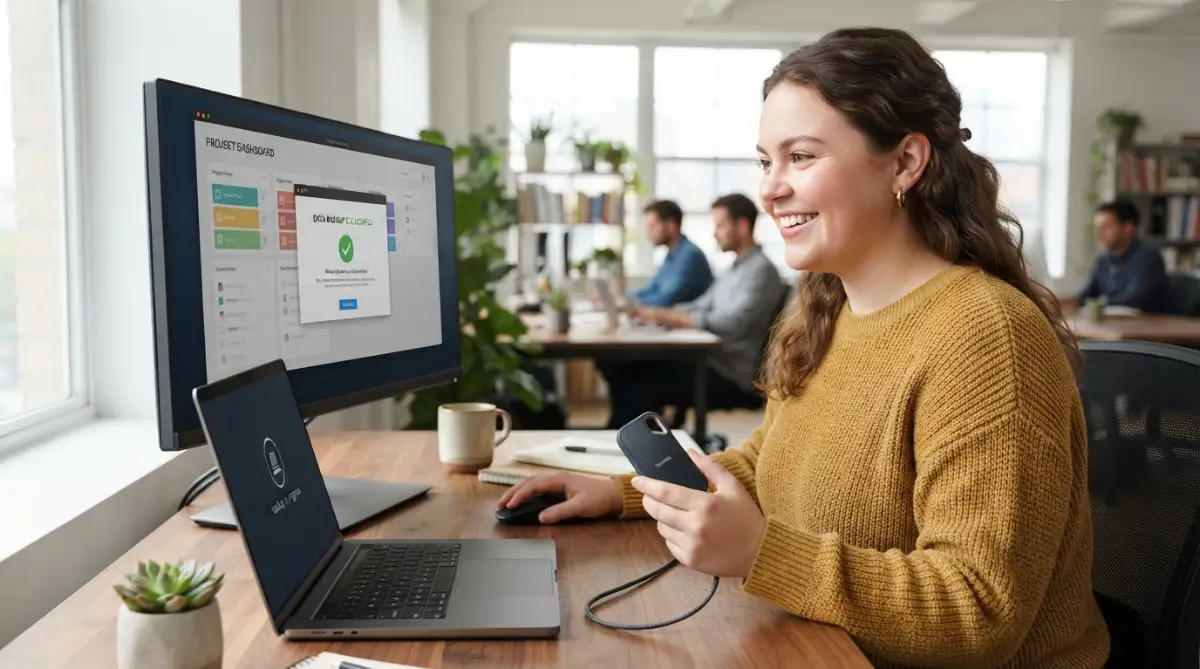
The Danger of the "Always-On" Mindset
One of the biggest mistakes people make is leaving their backup drive plugged in 24/7. I get it; it’s convenient to have it always ready. But this is exactly what ransomware looks for when it starts to spread.
If your computer is infected, the virus will immediately look for any connected drives. If it finds your backup, it will lock those files too. Your safety net is gone in an instant because you wanted to save a few seconds.
I treat my backup drive like a visitor, not a resident. I plug it in, do the work, and then I politely show it the door. Unplugging that cable is the strongest security move you can make for zero dollars.
Many of my friends lost their backups because they thought their "smart" software would protect them. The truth is, a disconnected drive is the only thing a hacker truly cannot touch. It is a simple habit that makes a massive difference in your safety.
Trusting the Wrong Type of Storage Media
Not all storage is created equal, and using the wrong kind can lead to a disaster. For example, some people use cheap USB thumb drives for their only backup. These little sticks are great for moving files, but they are very prone to failing.
Flash memory in cheap sticks can wear out or just lose data if left without power for too long. If you want a real backup, you need a high-quality SSD or a traditional hard drive. They are built to hold data much more reliably over many years.
I once lost a whole month of work because I trusted a generic USB stick I found in a drawer. It just died one day, and no computer could read it. It was a painful lesson that taught me to invest in quality hardware for my memories.
When you are thinking about how to protect your files, remember that hardware matters. You can learn more about how to recover deleted photos from SD cards if you have already run into trouble with smaller storage. It shows just how fragile these little cards can be.
Ignoring the "Hidden" Parts of Your Security
We often focus so much on our files that we forget the path the hackers use to get to them. Your home Wi-Fi is the bridge they cross to enter your digital home. If your router is not secure, your backups are at risk too.
Using a strong password on your router and hiding your network name are good first steps. You should also make sure your router's software is up to date. Hackers love finding old routers with known holes that they can crawl through.
I spent a whole afternoon recently making sure my home network was locked down tight. It made me realize that security is about the whole house, not just the safe in the bedroom. You should check out how to secure your home Wi-Fi router from hackers to see if you missed any spots.
A secure network means your cloud backups happen in a safe tunnel. It keeps your physical and digital worlds separated from people who want to do harm. It is a key part of the "big picture" strategy we are building together.
Falling for the "Syncing is Backup" Trap
This is the mistake that breaks my heart the most. Many people think that because their files are in Google Drive or Dropbox, they are backed up. But syncing is a two-way street that can carry a virus both ways.
If ransomware locks a file on your laptop, the cloud service sees a "change" to the file. It then syncs that locked file to the cloud, replacing your good copy with a broken one. Without a version history feature, your data is gone from both places.
"Don't Fall for These Common Backup Myths
- Myth: 'I use iCloud/Google Drive, so I’m backed up.'
- Reality: Nope. Those are sync tools. If you delete a file on your phone, it’s gone from the cloud too. A real backup is a separate copy that stays put.
- Myth: 'My computer is brand new, it won't fail.'
- Reality: New drives fail all the time due to factory defects. Age doesn't matter when it comes to bad luck."
I always tell people to check if their cloud service has a "rollback" feature. This lets you tell the cloud to go back to how everything looked yesterday. If they don't offer this, you don't have a backup; you only have a mirror.
Real backup software works differently by saving "snapshots" of your files at different times. It doesn't just mirror what you have now; it remembers what you had before. This distinction is what saves you when a virus tries to overwrite your hard work.
The False Sense of Security from Free Antivirus
We all love free things, but when it comes to your digital life, you get what you pay for. Many free antivirus programs only catch old, well-known viruses. They are often slow to spot the brand-new ransomware that hackers are using today.
I used to use only free tools until I realized they were slowing down my computer without giving me real peace of mind. I eventually moved to a more robust, paid solution that includes ransomware protection. It watches for "weird" behavior, like a program suddenly trying to lock a thousand files at once.
This type of "active" protection is like having a guard dog that barks when someone tries to climb the fence. It doesn't just wait for a known criminal; it looks for suspicious actions. It is a small price to pay for the security of your entire digital history.
If you are worried about your computer being slow, there are other ways to fix that. You can look into how to make your computer fast again without spending money rather than cutting corners on your safety. A fast computer is great, but a safe one is much better.
Waiting for a "Better Time" to Start
The biggest mistake of all is thinking you will set up your backup strategy next weekend. Ransomware doesn't wait for a convenient time to strike. It hits when you are busy, tired, or least expecting it.
I have seen people lose everything because they were "going to buy a hard drive tomorrow." That tomorrow never came, but the virus did. It is a gut-wrenching feeling to know you were just 24 hours away from being safe.
The best time to start was years ago, but the second-best time is right now. Even a partial backup is better than no backup at all. Start by copying your most important folders to a simple USB drive today.
You don't need a perfect plan to begin. You just need to take one small action that makes you a little bit safer than you were ten minutes ago. Your future self will thank you for being so responsible.
Your Action Plan for a Worry-Free Digital Life
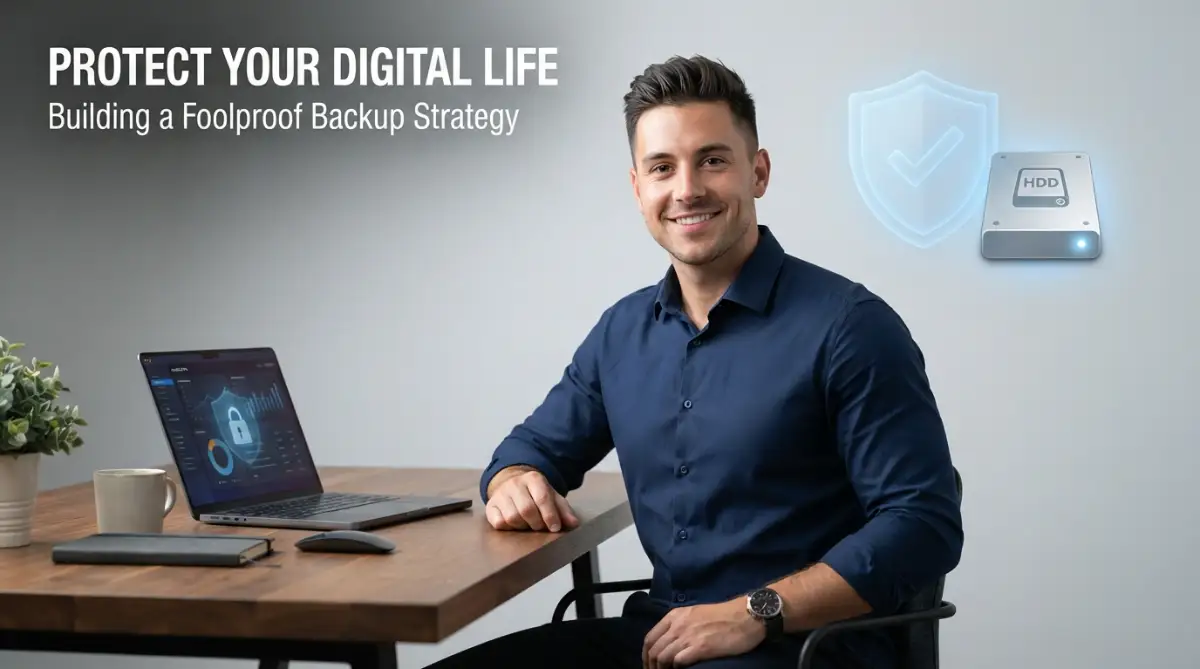
Building a backup strategy is not a one-time event; it is a way of living with technology. It starts with a simple choice to value your hard work and your memories. Once you have the system in place, it becomes a natural part of your routine.
Start by getting your hardware ready and picking a cloud service that offers versioning. Set up your automation so the heavy lifting is done while you sleep. Then, make a habit of unplugging your physical drives to keep them out of reach.
I want you to feel the same peace of mind I do when I close my laptop at night. I know that even if a lightning strike or a hacker hits my house, my life’s work is safe. That feeling of security is worth every minute of setup time.
You have the power to stop hackers in their tracks. You are no longer a target; you are a prepared and smart digital citizen. Keep learning, keep updating, and always keep a spare copy of what matters most.
Common Questions About Digital Safety
Do I need to pay for backup software?
While there are free tools like Time Machine and File History, some paid options offer better protection against ransomware. They often include extra features like cloud storage and automatic encryption that make the process much smoother.
How often should I run my backups?
For most people, a daily automatic backup is the best balance of safety and ease. If you work on very important files throughout the day, you might want to sync them to the cloud every hour. The more often you back up, the less work you lose if something goes wrong.
Can ransomware infect my phone too?
Yes, mobile phones can also be targeted by hackers, although it is less common than on computers. It is a good idea to back up your phone's photos and contacts to a cloud service like iCloud or Google One regularly.
Is a physical hard drive better than the cloud?
Neither is "better" because they both do different things. A hard drive is fast and under your physical control, while the cloud is safe from local disasters like fire. For the best safety, you should use both as part of your 3-2-1 strategy.
What should I do if I get hit by ransomware right now?
The first thing you should do is disconnect your computer from the internet and unplug any drives. This stops the virus from spreading or talking to the hackers. Then, use your backup to restore your files after you have wiped the infected system clean.
Disclaimer: This guide is for educational purposes only. While these strategies are highly effective, no method can guarantee 100% protection against all digital threats. Always stay informed by checking official resources like the CISA Ransomware Guide and the NIST Cybersecurity Framework.