The Hidden Reason Your Computer Feels So Slow Lately
Have you ever noticed your PC running totally fine one week, and then freezing up the next? I used to think I needed to buy a new laptop every three years just to keep things fast. Turns out, your hard drive is probably just suffocating from messy data files. Let me show you how to fix this right now without spending a single dime.
My computer wasn't old, but it felt like it was dying. I tried deleting files and clearing my history, but nothing worked. That is when I learned about how our disk drives actually store information.
I found out that I was treating my new computer like my old one. I was trying to fix things the wrong way because I didn't understand the difference between my drives. It was a huge wake-up call for me.
Most of us just want our tech to work without any drama. When your PC freezes or apps take years to open, it ruins your mood and your work. You feel stuck and frustrated because you just want to get things done.
Imagine your computer is like a giant library. If the books are scattered everywhere, the librarian takes forever to find what you need. This is exactly what happens inside your hard drive or your SSD.
When your storage gets messy, your computer has to work ten times harder. This extra work creates heat and slows everything down to a crawl. You might even hear your fans spinning like a jet engine.
It is not just about speed; it is about keeping your data safe. A drive that is struggling is more likely to fail when you least expect it. That is a nightmare nobody wants to face.
Quick Fixes You Can Do Right Now:
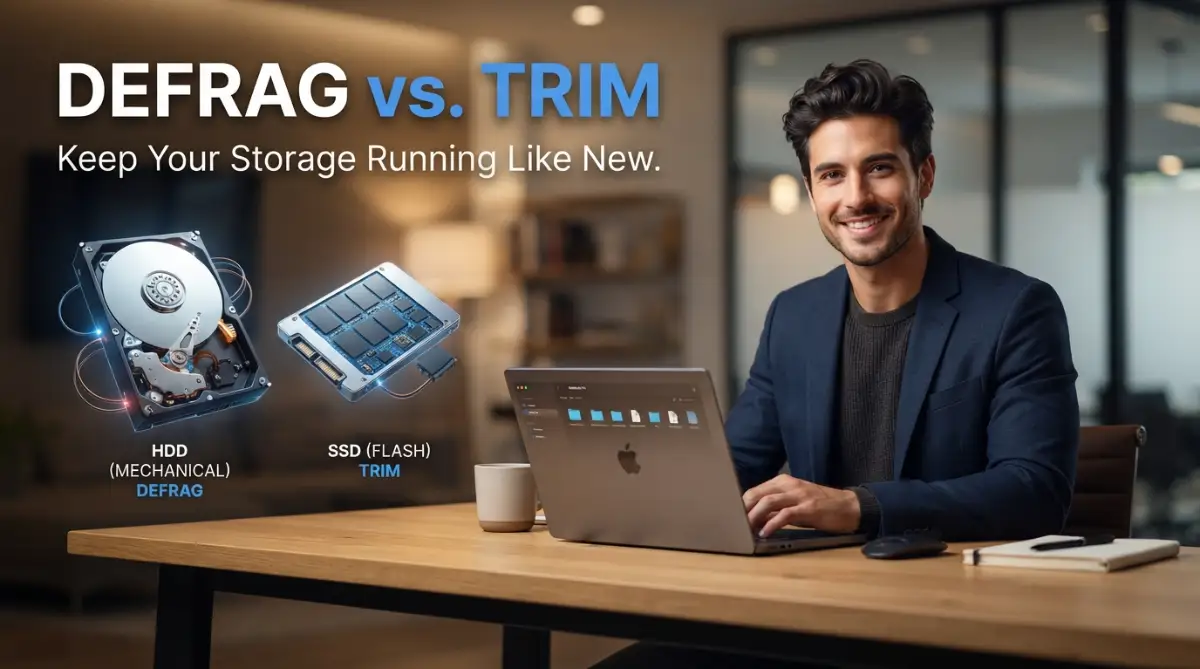
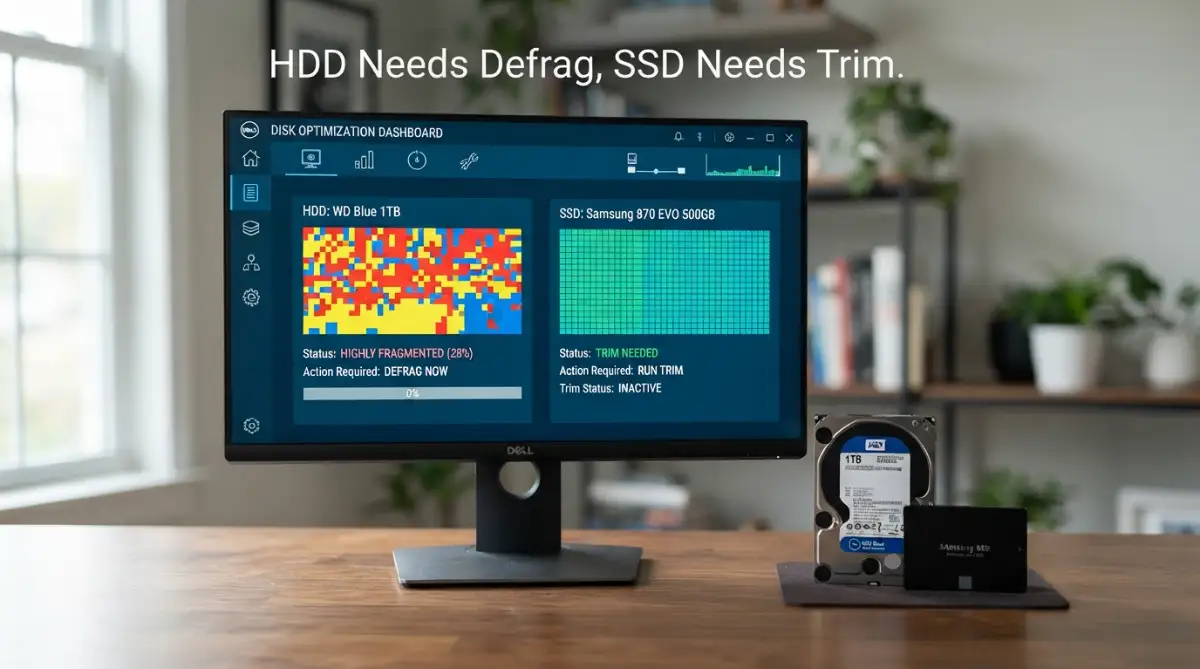
- Figure out if you own an HDD (needs defragging) or an SSD (needs trimming).
- Never defrag an SSD—it just ruins the lifespan of the drive for no reason.
- Always keep at least 15% to 20% of your storage completely empty so the drive can breathe.
- Set your Windows "Optimize Drives" tool to run on a weekly automatic schedule and forget about it.
Why Your Hard Drive Acts Like a Messy Closet
Think about your storage drive as a big closet where you keep your digital clothes. When you first get it, everything is neat and easy to find. Over time, you add new things and throw out old ones.
Eventually, you start stuffing things into any empty hole you can find. Soon, one "outfit" is spread across three different shelves. This is exactly what we call fragmentation in the world of technology.
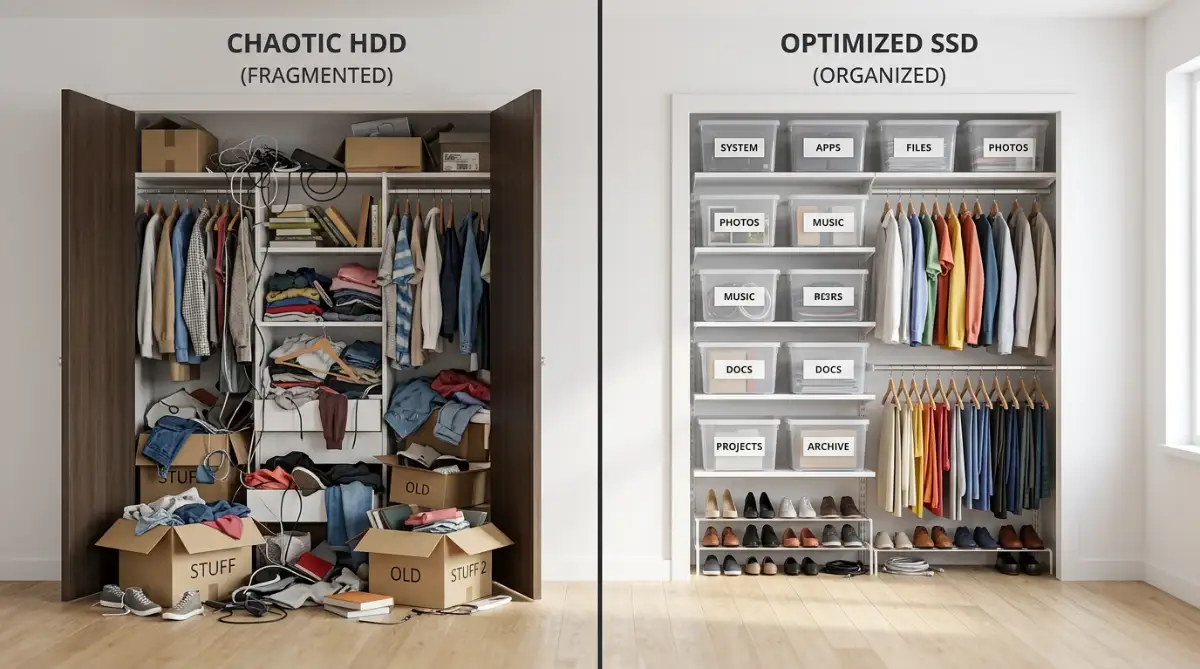
If you have an old-school Hard Disk Drive (HDD), it has a physical arm that moves to read data. If your file is split into ten pieces, that arm has to jump all over the disk. That jumping takes time and makes that clicking sound you might recognize.
The Magic of Putting Pieces Back Together
Defragmenting is the process of taking all those split pieces and putting them back together. It organizes your files so they sit right next to each other on the physical disk. This way, the drive arm doesn't have to move as much.
When I first defragged my old desktop, it felt like magic. Suddenly, things opened faster and the loud noises stopped. It was like I had given my computer a fresh breath of air.
However, you have to be careful because this "magic" is only for HDDs. If you do this to a modern SSD, you are actually doing more harm than good. You are making the drive do unnecessary work that wears it out.
Understanding the Modern Speed Demon: The SSD
Most new laptops today come with a Solid State Drive, or SSD. These don't have moving arms or spinning disks inside them. They use flash memory, which is much faster than the old way of doing things.
Because there are no moving parts, an SSD doesn't care if a file is split up. It can grab data from any "cell" instantly. This is why SSDs make your computer boot up in seconds instead of minutes.
But SSDs have a different problem that we need to talk about. They can only write data to empty cells, and they can't just "overwrite" old data easily. They have to clear out the old trash before they can put something new in.
The Secret Life of the Trim Command
This is where "Trimming" comes into play for your SSD. Trimming is like a background cleaning crew that works while you aren't looking. It tells the SSD which blocks of data are no longer needed.
Myth vs. Fact: The SSD Truth
- Myth: You should run defrag software on your SSD to make it boot faster.
- Fact: Defragging an SSD actually hurts it and wears out the memory cells. Always use the "Trim" option instead.
- Myth: SSDs just get naturally slower as they age.
- Fact: They usually slow down because they get too full! Keep 15% of your space empty, and the Trim command will keep it running like day one.
Without Trim, your SSD would have to stop and "clean" a spot every time you try to save a new file. This makes the drive slower over time as it gets full. Trim keeps those spots ready so you always get top speed.
I once forgot to check if Trim was running on my new gaming PC. After a few months, I noticed my games were loading slower than before. Once I made sure Trim was active, the speed came right back.
Pro Tip: I used to think I needed expensive software to clean my drives. I found out that Windows has a great tool built right in that handles both defragging and trimming automatically. I check it once a month just to be sure everything is running smoothly.
How to Know What Kind of Drive You Have
Before you start clicking buttons, you need to know what is inside your computer. You don't want to try defragging an SSD or ignoring an HDD. Checking this is very simple and takes less than a minute.
You can just type "Defragment" into your Windows search bar and open the "Optimize Drives" app. It will list every drive you have and tell you its "Media Type." It will clearly say "Solid state drive" or "Hard disk drive."
If you see "Solid state drive," you should see the option to "Optimize," which is just another name for Trim. If it says "Hard disk drive," you will see the option to "Defragment." Knowing this difference is the first step to a healthy PC.
Check out this helpful video to see exactly how to optimize your specific drive type safely:
The Danger of Using the Wrong Method
Many people make the mistake of using old habits on new tech. I have seen friends try to run heavy defrag software on their expensive SSDs. They thought they were helping, but they were actually shortening the life of the drive.
Each cell in an SSD has a limited number of times it can be written to. Defragmenting moves data around constantly, which uses up these "write cycles" for no reason. It doesn't make the SSD faster; it just wears it out.
On the flip side, ignoring an old HDD is also a bad idea. If you never defrag a mechanical drive, it will eventually become so slow that it feels broken. Regular care is the only way to keep that old tech running well.
Setting a Schedule for Peace of Mind
You shouldn't have to think about this every single day. The best way to handle storage health is to let your computer do the work for you. Modern operating systems are pretty smart if you let them be.
In the "Optimize Drives" menu, you can change the settings to run on a schedule. I personally set mine to run weekly. This keeps the SSD trimmed and the HDD organized without me having to remember a thing.
When you have a schedule, you stop worrying about "slow-down" days. You can just focus on your work or your hobbies. It is one less thing on your mental to-do list, which is a great feeling.
Why Storage Health Matters for Your Battery
Here is something many people don't realize: drive health affects your laptop battery. If your drive has to work harder to find files, it uses more power. A messy drive is a power-hungry drive.
When I started keeping my drives optimized, I noticed I got an extra 20 or 30 minutes of battery life. It might not seem like much, but when you are at a coffee shop without a charger, it matters.
A smooth-running drive creates less heat too. Heat is the number one enemy of laptop parts. By keeping your storage healthy, you are actually protecting the whole computer, not just your files.
Simple Steps to Boost Your Drive Health Today
You don't need to be a tech genius to start improving your computer right now. The first thing I always tell people is to delete the "big stuff" they don't need anymore. Old movies or huge downloads you never opened are just taking up space.
Once you have some free space, the optimization tools can work much better. A drive that is 99% full is very hard to organize or trim. Try to keep at least 15% of your drive empty at all times.
I noticed that when my drive gets too full, even the best optimization can't save it. It’s like trying to organize a room that is packed floor-to-ceiling with boxes. You need a little bit of "wiggle room" to move things around.
The Reality of Modern Storage Care
We live in a world where we expect everything to be instant. We want our files now, and we want our games to load fast. Understanding defragging and trimming is the best way to get that "instant" feeling back.
I used to be afraid of breaking something, but these tools are designed for regular people. You don't have to be scared of the settings. Just a few clicks can make your daily life much easier and your computer much faster.
Comparing HDD and SSD Maintenance at a Glance
Final Thoughts on Keeping Things Fast
Taking care of your computer shouldn't be a chore. Once you understand if you have an HDD or an SSD, the rest is easy. You now have the power to fix those annoying slowdowns yourself.
I felt so much better once I stopped guessing and started knowing what to do. My laptop is fast again, and I don't get that "I want to throw this" feeling anymore. You can have that same peace of mind too.
Remember to check your settings today and see what your computer is doing. It only takes a minute, but it can save you hours of frustration later. Your tech is there to help you, so help it stay healthy.
Pro Secrets for a Drive That Stays Fast Forever
Now that you know the basics of choosing between defragging and trimming, it is time to look at the expert level. Just hitting a button once a month is a great start, but there is more you can do to keep your machine flying.
I found out that the way we treat our files daily actually changes how well these tools work. For example, if you keep your drive almost full, the defrag tool has no room to move things around.
It is like trying to organize a shelf that is packed tight with no empty spaces. You need at least 15% to 20% of free space for your drive to breathe and stay healthy.
This helps your SSD perform its background cleaning much better. It also allows an HDD to group files without having to split them up into tiny pieces again.
Another secret I learned is about the temperature of your computer. Heat is a silent killer for both spinning disks and modern solid-state memory.
If your laptop is running hot, your drive might slow down its performance to protect itself from damage. You can learn more about extending laptop longevity by keeping your internal fans and heat sinks clean of dust.
A cool drive is a fast drive, and a fast drive lasts much longer than one that is constantly overheating. Sometimes, simply using a cooling pad or cleaning your vents makes your storage optimization more effective.
The Power of Clean Software and Smart Habits
Besides keeping it cool, you should look at what is actually running on your drive. Many apps start themselves up the moment you turn on your PC and they constantly read or write data.
This extra activity makes your drive work harder, which can mess with the benefits of a fresh trim or defrag. I always recommend eliminating digital clutter to make sure only the important stuff is taking up your drive's energy.
When you remove bloatware, your drive doesn't have to manage thousands of tiny, useless files in the background. This makes every "Optimize" click much more powerful and long-lasting.
I also noticed that many people ignore their hardware health until it is too late. You can use a free tool like CrystalDiskInfo to see the "health percentage" of your drive.
High-authority tech researchers at Seagate's storage labs suggest that monitoring these stats can warn you before a drive actually dies. It shows you things like "reallocated sectors" which are early warning signs of trouble.
If you see these numbers going up, no amount of trimming or defragging will save the drive. It is a signal that you should back up your data and look for a replacement soon.
Getting Creative with Drive Partitioning
One advanced trick I use is splitting my drive into two parts, which we call partitions. I keep my Windows operating system on one part and my heavy files on the other.
This is very helpful for HDDs because the system files stay in one physical area of the disk. When I run a defrag, it finishes much faster because it only has to focus on the area where the most changes happen.
For SSDs, this doesn't change the speed, but it makes managing your data much safer. If your Windows part crashes, your photos and documents are safe on the other side.
Speaking of safety, you should also think about how your CPU interacts with your drive. If your processor is struggling because it's too hot, it can't send data to your storage quickly enough.
That is why thermal paste is the secret to keeping everything running at top speed. When your whole system stays cool, your storage can reach its maximum advertised speed.
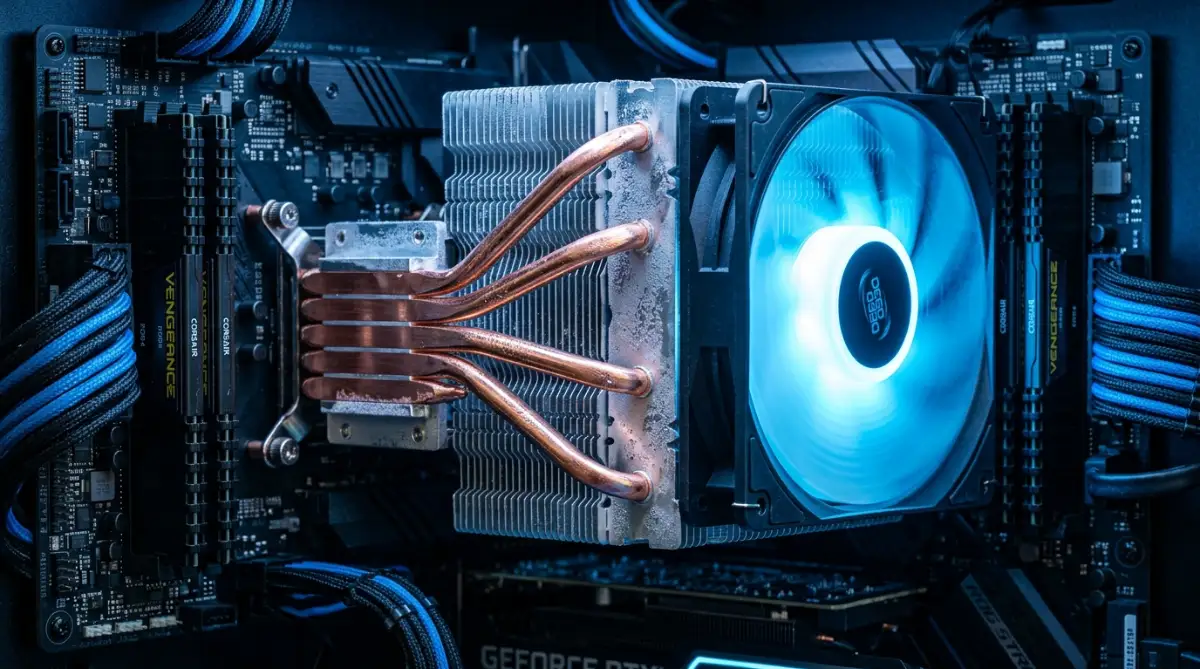
I once spent hours trying to figure out why my SSD felt slow, only to find my CPU was thermal throttling. Once I fixed the cooling, my drive speeds went back to normal instantly.

Fatal Mistakes That Could Kill Your Data
One of the biggest mistakes I see people make is using "third-party" disk cleaners that promise to speed up your PC by 500%. Most of these programs are nothing but flashy buttons that do what Windows already does for free.
Some of these apps actually try to defrag SSDs using old methods. This is dangerous because it puts thousands of unnecessary "write cycles" on your flash memory.
You should trust the built-in tools that come with your computer. Microsoft and other operating system makers spend millions of dollars to make sure their "Optimize" button knows the difference between an HDD and an SSD.
Another scary mistake is turning off your computer while a defrag is running. If you have an old HDD and you pull the plug during a defrag, you might end up with corrupted files.
The disk is literally moving data from one physical spot to another during that time. If the power cuts out, the "map" of where those files are might get lost.
This can lead to blue screens or even a drive that won't boot up at all. I always make sure my laptop is plugged in and has plenty of battery before I start any maintenance.
Also, avoid the temptation to "Force Trim" your SSD every hour. Some people get obsessed with speed and think more is better.
Trimming once a week is more than enough for almost every user. Doing it too often is just waste of your system's resources and doesn't actually make it any faster.
The Nightmare of Over-Filling Your Drive
I have a friend who kept his drive at 99% full for months. He couldn't understand why his computer felt like it was moving through mud.
When a drive is that full, it becomes "clogged." The SSD cannot find empty blocks to write new data, so it has to move old data around just to make a tiny hole.
This creates a massive amount of wear and tear on the drive. It is like trying to finish a puzzle in a room where every inch of the floor is covered in trash.
You need to give your storage some room to move things around. If you are out of space, it is better to move files to the cloud.
You can read more about how cloud storage works to help you free up local space. Using a mix of local and cloud storage is the best way to keep your physical drive healthy.
Don't let your "Red Bar" in File Explorer stay red for too long. Delete those old downloads and empty your recycle bin every single week.
Falling for "Registry Cleaner" Scams
Many people think that cleaning the "Registry" is the same as cleaning the disk. These two things are completely different.
Registry cleaners often delete important links that your computer needs to find its own files. I have seen people "clean" their registry and then find out their hard drive optimization won't even open.
This can lead to a total system failure where you have to reinstall everything. It is a painful and long process that nobody should have to go through.
If you want to make your computer fast again, stick to the safe methods like trimming and defragging. Avoid any "miracle" software that asks for money or looks like an ad.
Real maintenance is quiet, simple, and usually built right into your settings. If it sounds too good to be true, it probably is.
I once lost a whole week of work because I tried a "speed booster" that messed up my file system. I learned my lesson the hard way, so you don't have to.
A Better Way to Manage Your Digital Life
Keeping your storage healthy is really about building small, easy habits. It isn't just about one single task; it is about how you treat your whole computer.
I always tell people that their drive is the "brain" where all their memories and work live. You wouldn't ignore your own health, so don't ignore your computer's health either.
When you take these small steps, you are saving yourself from a lot of stress. A slow computer makes you feel grumpy and tired, while a fast one makes you feel productive.
You should also be aware of security while you are doing your maintenance. Sometimes a slow drive is actually caused by hidden malware or ransomware encrypting your files in the background.
If your drive is constantly busy even when you aren't doing anything, it might be a sign of a virus. Running a deep scan while you do your monthly disk optimization is a smart move.
It ensures that the files you are organizing are actually your files and not something malicious. A healthy drive should be both fast and secure from outside threats.
Building Your Weekly Maintenance Routine
I have a very simple routine that I follow every Sunday morning. It takes about five minutes of my time but keeps my PC running like new.
My 5-Minute Sunday Routine:
- Empty the trash: I clear out my recycle bin and delete those heavy, forgotten files in my "Downloads" folder.
- Check the space: I make sure my main C: drive isn't stuck in the red zone.
- Verify the optimizer: I quickly peek at the Windows "Optimize Drives" app just to confirm the weekly automatic schedule actually ran.
First, I empty my recycle bin and check my downloads folder for big files I don't need. Next, I open the "Optimize Drives" tool just to see if everything ran automatically.
If I see that my SSD was trimmed a few days ago, I leave it alone. If my secondary HDD is more than 10% fragmented, I click the defrag button and go grab a coffee.
By the time I come back, everything is organized and ready for the week. It is a great feeling to start Monday with a fresh, fast machine.
You can also check your SSD vs HDD status to see if it's time for an upgrade. If your old HDD is still bothering you after a defrag, maybe it is time to switch to an SSD.
Upgrading to an SSD is the single best thing you can do for an old computer. It makes a ten-year-old machine feel like it just came out of the box.
The Bright Future of Your Storage Health
When you take care of your storage, you are choosing to be in control of your tech. You aren't just waiting for things to break.
You are making sure your photos, your work, and your projects are safe for a long time. It feels good to know that your computer is working just as hard as you are.
I remember how stressed I used to get when my screen would freeze up. Now, I feel confident because I know my drives are trimmed, defragged, and healthy.
It only takes a little bit of knowledge to change your whole experience with technology. You don't have to be afraid of your settings or your hardware anymore.
Start today by just checking your "Optimize Drives" menu and see what it says. You might be surprised at how much better your computer can feel with just one click.
I truly believe that a little bit of care goes a long way in our digital world. I hope you take these tips and use them to make your daily life much smoother and faster.
Answers to Common Storage Questions
Is it safe to defrag my computer while I am using it?
Yes, you can keep working while the defrag tool runs in the background. However, it might make your computer feel a little bit slower until it finishes. If you are doing something heavy like gaming, it is better to wait until you are done.
Will trimming my SSD delete my personal photos?
No, trimming does not touch your actual files at all. It only cleans up the "empty" spaces that are left behind after you delete something yourself. Your photos, documents, and games are perfectly safe during the trim process.
How often should I manually check my drive health?
Once a month is usually plenty for most people if you have the "Scheduled Optimization" turned on. If you notice your computer getting slow suddenly, that is a good time to check it manually. Most modern systems handle it so well that you rarely need to do it yourself.
Does defragging help with internet speed?
Defragging will not make your internet connection faster, as that depends on your router and provider. However, it will make your browser open faster and help files download to your disk more smoothly. If your web browser feels laggy, a messy drive could be part of the reason.
Disclaimer: This guide is for educational purposes. Always back up your important files before performing any system maintenance. We are not responsible for any data loss that occurs while using these tools.