The Mystery of the Green Circuit Board
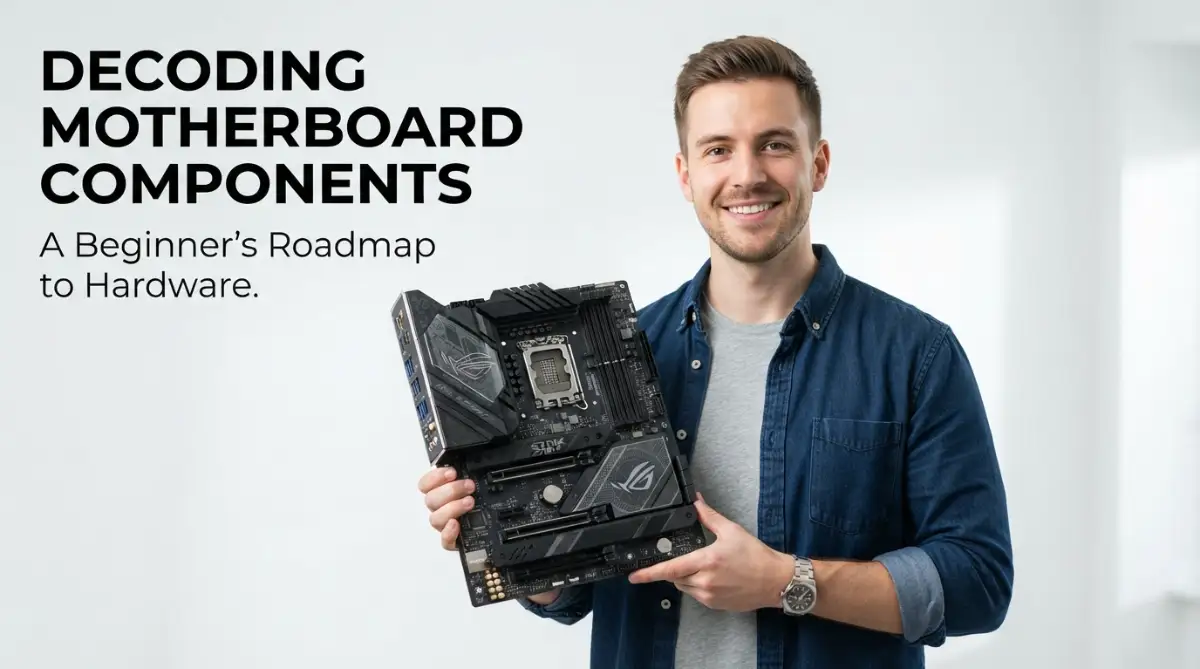
Staring at a motherboard for the first time feels like looking at an alien city. You see a maze of green circuits, random metal blocks, and tiny pins that look ready to break if you breathe too hard. But here is a secret I wish someone told me years ago: it is actually just a big Lego board for adults. Once you know what the five main pieces do, you will never feel intimidated by your PC's inside again. Let me walk you through it, part by part.
I felt like I was looking at a foreign language that I would never speak. My friends talked about "sockets" and "chipsets," and I just nodded while feeling completely lost. It felt like there was a secret club of tech people, and I was stuck outside the door. This lack of knowledge made me feel powerless whenever my computer had a small problem.
Maybe you feel the same way right now. You look at that big board inside your PC and see a mess of wires and chips. You worry that you might buy the wrong part or that you are missing out on better performance because you don't understand the "brain" of your system. It is frustrating to own something expensive but have no idea how it actually functions.
📌 Quick Breakdown: What You Will Learn Today
- How to identify the "brain" (CPU socket) and "short-term memory" (RAM slots) without guessing.
- Why plugging your graphics card into the wrong slot silently kills your gaming performance.
- The exact reason your PC clock keeps resetting (and the $2 fix for it).
- Easy, practical tips to stop static electricity from ruining your expensive parts.
Why Technical Jargon Makes Us Feel Small
When we don't understand our hardware, we are at the mercy of repair shops and sales people. I used to spend hours worrying if I was being overcharged for a simple fix. This lack of understanding creates a kind of "tech anxiety" that stays in the back of your mind every time your screen flickers.
Most of us just want our computers to work fast and stay reliable. But when we hear terms like "VRM phases" or "PCIe lanes," our brains just shut down. It feels like trying to read a book in the dark. We want to learn, but the information out there is often too complex or filled with robotic words that don't make sense.
The Main Hub Where Everything Lives
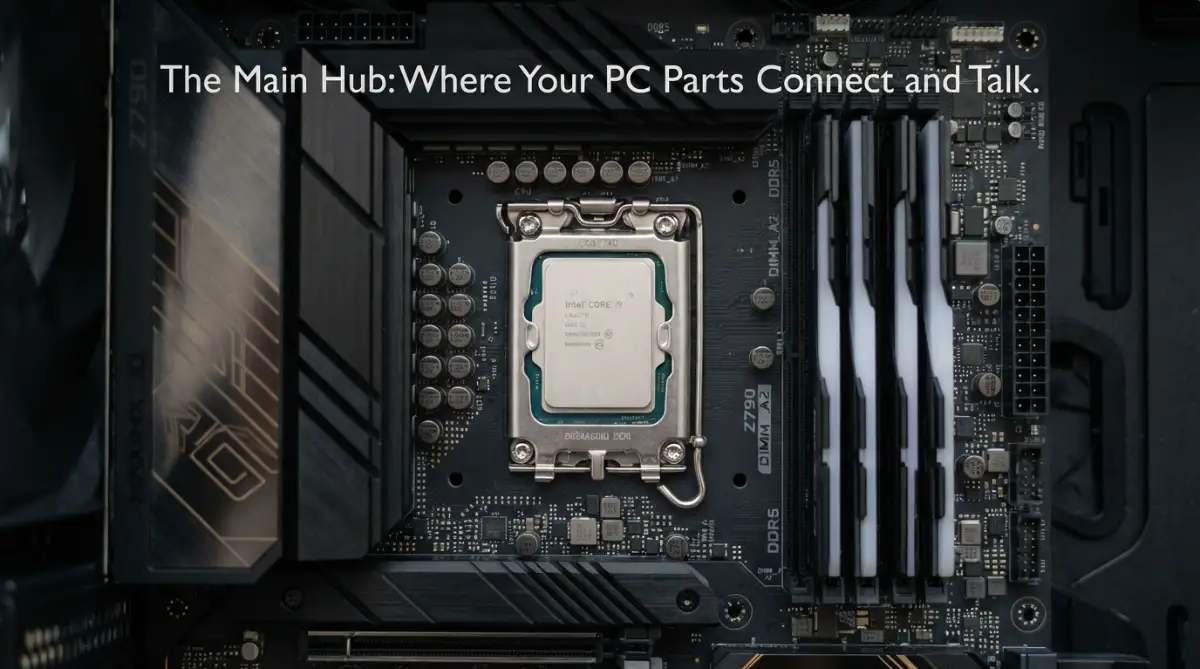
Think of your motherboard as the town square of your computer. Every piece of hardware—the brain, the memory, and the storage—must come here to talk to each other. Without the motherboard, these parts would just be expensive paperweights sitting in a box.
The first thing you will notice is a large square area, usually near the top. This is the CPU Socket. I like to call this the "throne" because it is where the King (the Processor) sits. If the processor is the brain, the socket is the nervous system connection that lets the brain control the rest of the body.
When you are decoding motherboard components, you must check if your CPU fits this specific socket. They are not all the same. If you try to put the wrong chip in the wrong socket, it is like trying to put a square peg in a round hole. You could bend the tiny pins, and that is a mistake I once made that cost me a lot of money!
🛑 Myth vs. Fact: The CPU Socket
- The Myth: You can just push a CPU hard enough, and it will snap into place.
- The Reality: The CPU should literally drop into the socket using zero force. If you have to push down, you are doing it wrong and will bend the pins. Always look for the tiny golden triangle on the corner of the CPU and match it to the triangle on the motherboard socket.
The High-Speed Memory Lanes
Right next to the CPU, you will see several long, thin slots. These are your RAM Slots. RAM stands for Random Access Memory, but you can think of it as your computer's "short-term memory." It stores the things you are working on right now, like your web browser or a game.
The motherboard uses these slots to send data back and forth to the CPU at lightning speeds. If these slots are dusty or the RAM isn't clicked in properly, your computer might not even start. I once spent two hours crying because my PC wouldn't turn on, only to realize I hadn't pushed the RAM in all the way!
Pro Tip: Always make sure you hear a "click" when installing memory. In my early days, I was too gentle because I was scared of breaking the board. But motherboards are tougher than they look. A firm press ensures a solid connection so your hardware can communicate without any errors.
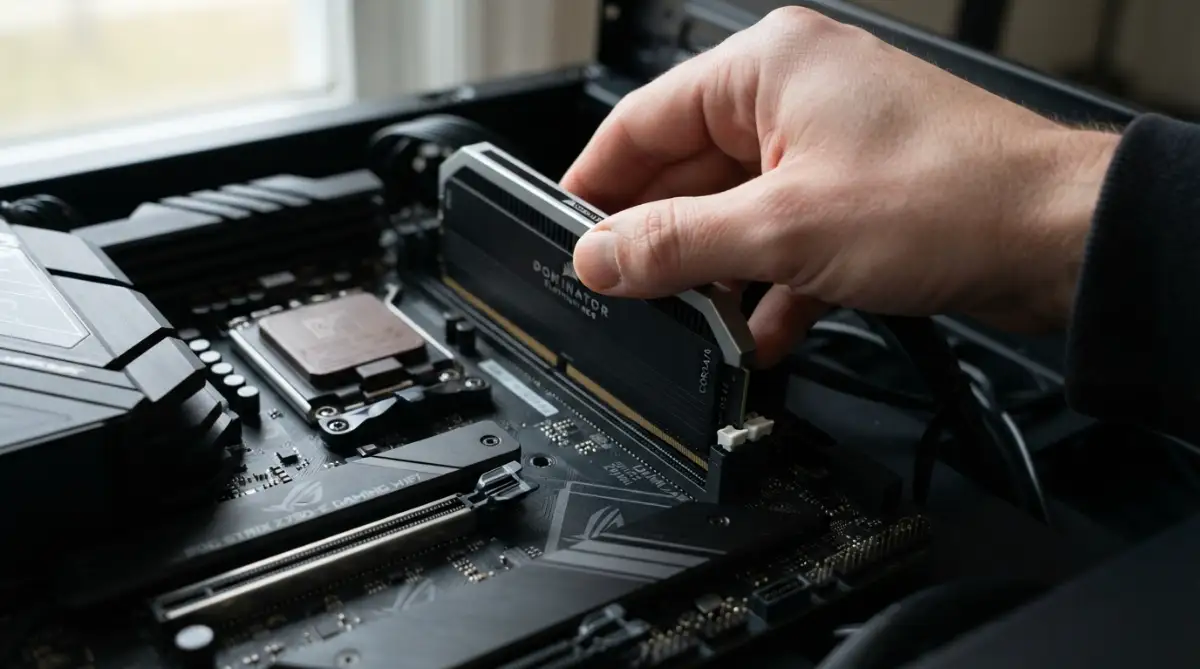
Watch this simple visual guide to see how these parts fit together perfectly.
The Power Delivery System
Have you ever wondered how the electricity from your wall gets turned into the tiny bits of energy your PC needs? This happens through the Power Connectors. There is usually one big 24-pin connector on the side and a smaller one near the top for the CPU.
But there is a hidden hero here called the VRM (Voltage Regulator Module). These are the small square bits surrounding the CPU socket. They act like a dam on a river, controlling the flow of electricity. They make sure the CPU gets exactly the right amount of power so it doesn't "drown" or "starve."
If these parts get too hot, your computer might slow down to protect itself. This is why many high-end boards have metal "heatsinks" over them. Understanding this helps you realize why keeping your computer cool is about more than just the fans; it is about protecting the flow of power itself.
The Expansion Highways for Graphics and More
Near the bottom of the board, you will see several long slots running horizontally. These are the PCIe Slots. Think of these as the highways of your motherboard. This is where you plug in your graphics card, which handles all the pretty pictures and videos you see on your screen.
These "highways" come in different speeds and sizes. The top one is usually the fastest because it has a direct path to the CPU. If you put your graphics card in the bottom slot, you might be slowing down your whole system without even knowing it. This is a common mistake that many beginners make.
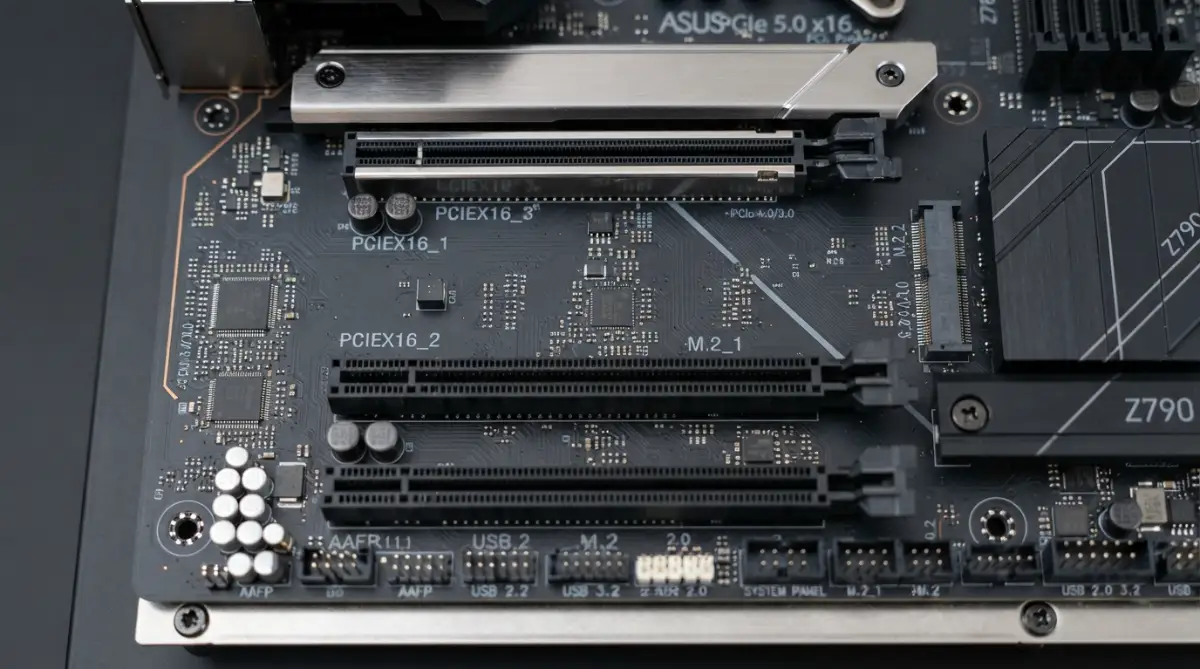
When we talk about decoding motherboard components, we are really talking about finding the best path for data. The closer a component is to the CPU, the faster it can talk. That is why the most important parts are always clustered around the center of the board.
Connecting Your Storage and Data
Now, let's look at the smaller plugs, often found on the right side. These are the SATA Ports. This is where your hard drives and older SSDs connect. They use thin cables to send your saved photos, movies, and files to the rest of the system.
However, modern boards have something even cooler called an M.2 Slot. This is a tiny slot directly on the board where you can plug in a drive that looks like a stick of gum. Because it doesn't use a cable and sits right on the board, it is much faster than the old SATA ports.
I remember switching from an old hard drive to an M.2 SSD. It felt like my computer went from a bicycle to a rocket ship. Understanding these connections helps you choose the right storage so you don't waste time waiting for your computer to load.
The Tiny Battery and the BIOS
You might notice a small, silver coin-shaped battery on the board. This is the CMOS Battery. It seems small, but it has a big job. It keeps a tiny bit of power flowing even when your computer is unplugged. This power saves your basic settings, like the date and time.
This battery supports the BIOS or UEFI, which is the very first software that runs when you hit the power button. It is like the "wake-up call" for your hardware. It tells every part to wake up and start working together. If your computer keeps forgetting the time, it usually means this little battery needs to be replaced.
🔋 3 Signs Your CMOS Battery is Dying (Quick Checklist):
- Your PC clock keeps resetting to an old date (like January 1st, 2015).
- You get a "CMOS Checksum Error" on your black screen when starting up.
- Your computer turns on, but the internet won't connect because your system time doesn't match the real-world time.
- (Fixing this takes 2 minutes and a $2 CR2032 battery from any grocery store!)
Learning about this tiny battery taught me that even the smallest parts have a huge impact. It is the silent helper that ensures your computer knows who it is every time it wakes up. Without it, your PC would be very confused every single morning.
How the Chipset Manages the Traffic
Hidden under a metal plate (usually on the bottom right) is the Chipset. If the CPU is the King, the chipset is the "Traffic Controller" or the "Secretary." It manages the communication between the slower parts, like your USB ports and hard drives, and the fast parts like the CPU.
When you are looking at different motherboards, you will see names like B550, Z790, or X670. These are the names of the chipsets. Some allow you to "overclock" (make things go faster), while others are built for basic office work. Knowing which chipset you have tells you what your computer is capable of doing.
It is amazing to think about millions of tiny signals moving through these paths every second. When you type a letter on your keyboard, the signal goes through the chipset, talks to the CPU, and then shows up on your screen. This happens so fast that we don't even feel the delay.
The Importance of the Back Panel
Finally, let's look at the part that sticks out of the back of your case. This is the I/O Panel (Input/Output). This is where you plug in your mouse, keyboard, speakers, and internet cable. Each of these ports is connected directly to the motherboard's internal circuits.
Some boards have "Integrated Graphics" ports here, like HDMI or DisplayPort. This allows you to see an image even if you don't have a separate graphics card. There are also USB ports of different colors. Usually, the blue or red ones are faster than the black ones.
I used to just plug things in wherever they fit. But once I understood the colors, I started putting my fast external drives into the blue ports. This simple bit of knowledge saved me so much time when moving large files. It is all about making the hardware work for you, rather than you working for the hardware.
Keeping the Conversation Going
Understanding these parts is the first step toward total control over your technology. You no longer have to look at your PC with fear. Instead, you can look at it with curiosity. You know where the brain sits, where the memory lives, and how the power flows through the system.
We have covered a lot of ground today, but this is just the start of your roadmap. Hardware communication is a beautiful process of teamwork. Every slot, every port, and every chip has a specific role to play in making your digital life possible.
When you feel confident about these components, you can make better choices. You won't be fooled by marketing talk because you know what actually matters. You are now a part of the group that understands the "hidden language" of the motherboard.
Preparing for the Next Step
You have successfully started decoding motherboard components. This knowledge is a tool that will stay with you for years. Whether you want to build a gaming PC, a workstation, or just keep your family computer running smoothly, you are now on the right path.
Keep exploring, keep asking questions, and never be afraid to look under the hood. The more you know, the less scary the technology becomes. Your journey into the heart of the PC is just beginning, and the rewards are well worth the effort.
Keeping the Electrical Highways Happy and Fast
Now that you know what the parts are, let’s talk about how to keep them running perfectly. I have spent years working with different boards, and I have learned that the small things make the biggest difference. If you want your hardware to communicate without any lag, you need to pay attention to the environment inside your computer case.
One of the biggest secrets to a healthy motherboard is managing the tiny vibrations and heat around the VRM area. These components work hard to change electricity for your CPU. If they get too hot, your computer will slow down to save itself from burning up.
I always recommend checking your airflow. You want fresh air to blow directly over those small squares near the processor. If you are building a new system, make sure your fans are pointing the right way. This keeps the electrical signals clean and prevents your hardware from "stuttering" during heavy tasks.
Another pro secret is keeping the board clean from dust. Dust might seem harmless, but it can actually hold a tiny bit of static or moisture. This can cause "noise" in the electrical paths, making it harder for parts to talk. I use a can of compressed air every few months to blow out the slots and ports.
When you clean your board, never use a regular vacuum cleaner. I learned this the hard way when I accidentally sucked a small jumper cap off a board! Vacuums also create static electricity that can kill your hardware instantly. Stick to air or a very soft, anti-static brush if you really need to touch the surface.
You should also think about the "software" side of your hardware. Your motherboard has its own little operating system called the BIOS. Manufacturers often release updates that help the board communicate better with newer RAM or CPUs. Staying updated is one of the best ways to make your computer fast again without spending money.
However, don't update your BIOS just for the sake of it. Only do it if you are having trouble or if the update adds a feature you really need. If the power goes out while you are updating, it can turn your expensive board into a brick. I always wait for a clear day with no storms before I run a BIOS update.
Finally, think about how you plug things in. Overloading a single USB header on the motherboard can sometimes cause power drops. If you have ten things plugged into a cheap USB hub, your motherboard might struggle to keep up. I try to spread my devices across different ports to balance the load.
Good hardware communication is about giving each part the space and power it needs. When your motherboard is happy, your whole PC experience feels smooth. It is like driving on a freshly paved road instead of a bumpy dirt path. You will feel the difference in every click and every game you play.

The Heartbreaking Mistakes That Can Kill Your PC
I have seen many people get excited and rush into building or upgrading, only to end up with a dead computer. It is a terrible feeling to press the power button and see nothing happen. Most of these problems come from simple mistakes that are very easy to avoid if you just slow down.
One of the most common "silent killers" is static electricity. You might not even feel the spark, but a tiny zap can ruin the microscopic paths on your board. I always touch a metal part of the case or wear an anti-static wrist strap before I touch the board. It is a small step that can save you hundreds of dollars. You can read more about how static electricity affects electronics to stay safe.
Another mistake is over-tightening the screws. When you put the motherboard into the case, you use small screws to hold it onto the "standoffs." If you turn them too hard, you can actually crack the board or damage the copper layers inside. I always stop turning as soon as the screw feels snug; there is no need to crank it down like a car tire.
I also see people forcing parts into slots where they don't belong. RAM and graphics cards are designed to fit only one way. If it doesn't go in with a firm but smooth push, something is wrong. I once saw someone try to force a DDR3 stick into a DDR4 slot, and it actually melted the plastic when they turned it on!
Connecting the wrong power cables is another huge risk. Modern power supplies have cables that look very similar, like the 8-pin CPU cable and the 8-pin PCIe cable. They are not the same! Plugging a graphics power cable into the motherboard's CPU slot can cause a short circuit. I always double-check the labels on the cables before I plug anything in.
Then there is the issue of thermal paste. Some people think "more is better," but that is not true. If you put too much paste on your CPU, it can spill over the sides and get into the socket pins. This is a nightmare to clean and can stop your hardware from communicating entirely. Knowing why thermal paste is the secret to a cool CPU will help you apply it correctly.
Lastly, never forget the motherboard standoffs. These are the little metal risers that keep the board from touching the metal case. If you screw the board directly to the case without them, it will short out the moment you turn it on. I have seen many beginners forget this step, and it almost always ends in a puff of smoke.
Your Path to Hardware Mastery
Building a relationship with your hardware takes time and patience. You don't have to be a genius to understand these things; you just have to be observant. Every time you open your case, you will see something new or understand a connection a little better.
Start by identifying the parts we talked about. Look at your RAM slots, find your CMOS battery, and locate your chipset. When you can name the parts, they stop being scary. You start to see the logic in how the engineers designed the board. It is a masterpiece of modern science, and you have the keys to it.
Remember that modern computers really need SSDs to talk to the motherboard at the speeds it was built for. If you are still using an old spinning drive, your motherboard is basically waiting around for data. Upgrading your storage is the fastest way to see your motherboard's true potential.
I want you to feel confident enough to troubleshoot your own problems. If your internet is acting up, you now know to check the I/O panel or the chipset drivers. If your PC is loud, you know to check the VRM cooling and airflow. This knowledge makes you the master of your own digital world.
Don't be afraid to make mistakes, as long as you are careful and do your research. Every expert was once a beginner who felt overwhelmed. The fact that you are reading this means you are already ahead of 90% of computer users. You are taking the time to learn how your tools actually work.
Common Questions About Motherboard Hardware
Can a motherboard die from old age?
Yes, but it usually takes a long time. The most common parts to fail are the "capacitors," which are the small cylinders that hold electricity. If they look bulged or leaking, the board is likely near its end. Most good boards can easily last ten years or more if kept clean and cool.
Is it okay to touch the motherboard with bare hands?
It is generally okay, but you should wash and dry your hands first to remove oils. The bigger risk is static electricity, so always ground yourself by touching something metal before reaching inside. Avoid touching the tiny pins in the CPU socket at all costs, as they are very easy to bend.
Does a more expensive motherboard make my PC faster?
Not directly. A $500 board and a $150 board will run the same CPU at the same speed in most cases. The extra money usually goes toward better power delivery, more ports, better looks, or faster technologies like PCIe 5.0. Buy the board that has the features you need, rather than just the most expensive one.
What should I do if my motherboard doesn't beep or turn on?
First, check all your power connections to make sure they are tight. Next, try taking out the RAM and putting it back in firmly. If that doesn't work, try clearing the CMOS by taking out the small coin battery for a minute and then putting it back. This resets the board to its factory settings and often fixes minor glitches.
Taking Action Today
I am so proud of you for reaching the end of this guide. You now have a solid roadmap for understanding and decoding motherboard components. This isn't just about computers; it's about gaining the confidence to handle the technology that runs our lives.
I remember when I was too scared to even look inside my case, but now I find it exciting to see how all the parts work together. You have the power to upgrade, fix, and maintain your own system now. Take that first step today—open your case (unplug it first!) and just identify three parts we talked about.
I promise that once you start looking, the mystery will turn into a fascinating hobby that stays with you forever. My best advice is to stay curious and keep learning. You are doing a great job, and your computer will thank you for the care you are giving it!
Disclaimer: Working with computer hardware involves risks of electrical shock and component damage. Always unplug your power cord and ground yourself before touching internal parts. This guide is for educational purposes only. I am not responsible for any damage to your hardware or personal injury that may occur while following these tips. If you are unsure, please consult a professional technician.