
Drowning in Busywork: My Breaking Point with Endless Admin Work
Most of us lose two to three hours every single day just sorting through inbox clutter, retyping call notes, and updating messy spreadsheets. I spent months drowning in this kind of admin chaos until I realized my job was turning me into an unpaid data entry clerk. You do not need expensive software subscriptions to reclaim your workday. Here is the exact, zero-cost setup I use every morning to clear out digital busywork in twenty minutes flat.
I had spent my entire day answering the same customer emails, typing meeting notes by hand, and copying numbers into spreadsheets. None of that work moved my real projects forward. I felt like a human copy-paste machine running out of battery power. That night, I closed my laptop and felt angry at how much energy I had wasted on simple, brainless chores.
Then you sit at your desk, and your inbox hits you like a tidal wave of small demands. A client needs a calendar invite rescheduled for the third time. A team member needs a summary of a call you finished two hours ago. You need to pull figures from three receipts and log them into an expense sheet.
Before you know it, noon arrives, and you have not spent a single minute on work that actually matters. This constant cycle drains your creative energy and steals your mental calm. You end your day feeling completely worn out, yet feeling like you accomplished nothing of real value.
The real problem is not a lack of discipline, focus, or dedication on your part. The real culprit is the heavy pile of repetitive administrative duties that modern offices demand from all of us. When you spend half your day shuffling digital paper, your brain enters survival mode. You stop thinking strategically, and you start feeling resentful toward work you once loved.
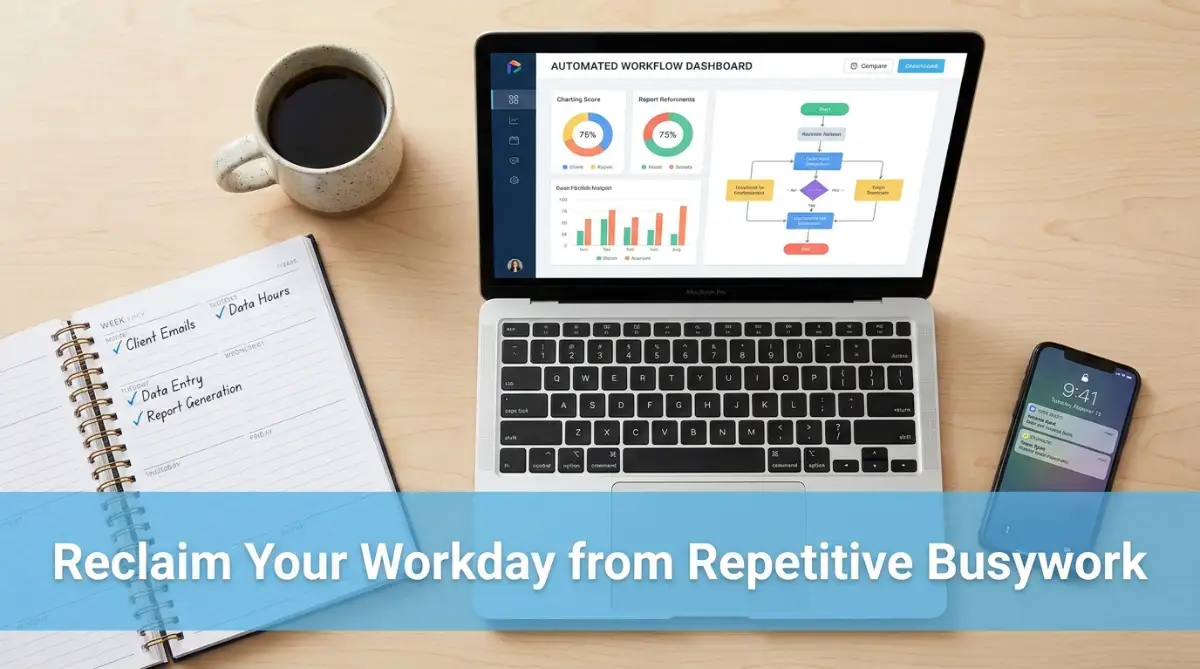
Quick Action Guide: Reclaim 5 Hours This Week
- Inbox Defense: Use basic free models to turn rambling emails into two-sentence replies in thirty seconds.
- Zero-Typing Meeting Notes: Record call audio, paste the transcript into your free assistant, and pull out tasks instantly.
- Batch Data Cleanups: Convert raw receipt text into clean spreadsheet tables without typing numbers line by line.
- The Golden Rule: Never send automated drafts without a fast 20-second human review for tone and accuracy.
The Secret Shift: Replacing Tedious Busywork with Free Smart Automation
You do not need an enterprise budget or expensive custom software to buy your time back. The rise of zero-cost artificial intelligence applications gives anyone with an internet browser the power of a private digital assistant.
When you set up simple systems that run quietly in the background, you take your hands off the steering wheel for boring tasks. Your brain gets to rest, reflect, and focus on creative work that demands real human judgment.
Let us look at the clearest ways you can put these free digital helpers to work starting right now.
Cleaning Up Your Inbox and Answering Repetitive Messages
Email remains the single biggest thief of daily productive hours in office life. Most people check their inbox twenty to thirty times every single day, breaking their focus every few minutes.
Most incoming messages fall into predictable groups: meeting requests, basic status inquiries, simple file requests, and generic newsletters. You can train free language models to read, sort, and draft responses to these messages in seconds.
Free tools like the basic versions of ChatGPT, Claude, and Google Gemini can process messy incoming text and generate polite, clear replies. Instead of staring at an angry email trying to find the right words, paste the text into your tool and ask it for a polite two-sentence reply.
- Create a master prompt document for your five most common customer inquiries.
- Feed incoming messages into your free assistant and request quick, professional answers.
- Review the draft, make tiny tweaks to match your personal voice, and press send in under thirty seconds.
Here is a quick cheat-sheet showing the exact mini-prompts I keep pinned on my desktop:
- Client Reschedule Request: "Draft a warm 2-sentence reply confirming my availability for Thursday at 2 PM, and share my booking link for alternate times."
- Generic Status Update: "Turn these three bullet points into a polite 50-word progress report for our team lead, focusing strictly on completed tasks."
- Unwanted Sales Pitch: "Write a courteous, direct one-sentence decline stating we do not have budget for external vendors this quarter."
This tiny habit change removes the emotional weight of an overflowing inbox and keeps your replies quick and helpful.
Turning Messy Meeting Audio into Instant Action Checklists
Taking notes during a live video call or in-person meeting splits your attention in half. You spend your energy typing what people just said instead of listening closely to what they actually mean.
Free transcription tools like the starter plans on Otter, Fireflies, or even built-in browser dictation features change this dynamic completely. You can record the audio stream, get an accurate word-for-word transcript, and let AI pull out the key points for you.
When the call ends, copy that rough transcript into your chosen free AI workspace. Use a clear command like: "Extract all decisions made during this call, list every assigned task, and name the person responsible for each item."
Within five seconds, you have a tidy, bulleted meeting wrap-up ready to share with your team. You walk away from the call looking sharp and organized, without having typed a single line during the discussion.
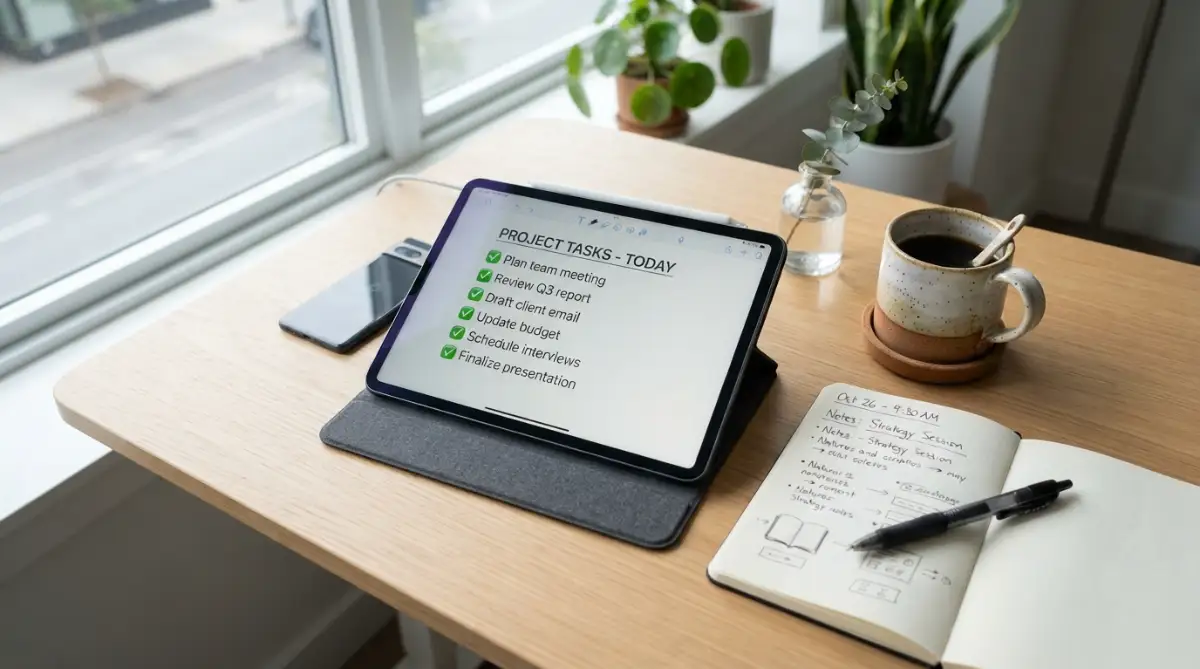
Building Instant Templates for Invoices, Reports, and Briefs
Writing project summaries, weekly progress reports, and customer proposals from scratch wastes hours of your work week. Most business documents share the exact same structural skeleton; only the specific details change from week to week.
You can build a reliable template generator using free conversational tools. Feed the tool an older report you already wrote and tell it to analyze the tone, structure, and formatting. Then provide your rough notes or raw bullet points for the new project.
The tool will structure your raw data into a clean, readable document that follows your regular style. You avoid the dread of staring at a blank white page, and your project reports go out on time every Friday.
Watch this visual guide to see how simple automated workflows run in real time:
Smart Calendar Scheduling Without the Endless Back-and-Forth
How many messages does it usually take you to set up a thirty-minute phone chat? One person suggests Tuesday morning, the other is busy, then someone forgets to mention time zones. That single meeting setup can easily generate five unnecessary emails.
Free scheduling tools like Calendly or Tidcal pair wonderfully with your daily calendar to remove that messy exchange. You connect your free calendar, set your available work hours, and share your personal booking link.
To make this workflow even faster, you can use a free AI text generator to write friendly meeting invitation snippets. Whenever a client asks for a quick phone call, paste your short snippet containing your link. The system blocks out the time, creates the video room link, and sends reminders without you touching a thing.
Fact vs. Myth: What Free AI Can and Cannot Do for You
There is massive confusion surrounding what modern software can actually achieve on a zero-dollar budget. Separating practical reality from marketing hype protects you from frustration and wasted effort.
Knowing these limits keeps your expectations grounded. You treat these tools like eager interns: capable of doing the heavy lifting, but always needing a quick check from the boss.
Practical Realities and Pro Tips from Daily Use
My biggest mistake when I first started using free automation tools was trying to hand over everything at once. I tried to automate customer support, file organization, and client contracts all in a single weekend. The system broke, several files got misplaced, and I ended up spending my entire Sunday fixing errors I created.
Start small with one simple pain point, like meeting notes, and master that routine before you touch another task.
Automating Spreadsheet Data Entry and Basic Number Crunching
Spreadsheets are the backbone of small business administration, but manually copying numbers from invoices into rows is mind-numbing work. A simple typing mistake can throw off your budget calculations and lead to serious headaches down the road.
Free AI tools can read unstructured text—like the body of a payment confirmation or an invoice receipt—and turn it into neat comma-separated values. You can paste raw text into your tool and say: "Turn this purchase receipt into a clean table with columns for Date, Vendor, Category, and Total Amount."
You take the output and paste it straight into Google Sheets or Microsoft Excel on the web. What used to take twenty minutes of manual typing takes less than twenty seconds of copying and pasting.
- Collect your digital receipts into a single folder each week.
- Copy the text details in batches and feed them to your text processor.
- Request standard tabular formatting so your data drops into your master sheet cleanly.
- Use free built-in sheet formulas to total your numbers automatically.
This simple routine keeps your financial records clean, organized, and up to date without the mental drain of manual typing.
Quick Accuracy Check Before You Hit Save:
Free text tools can occasionally mix up dates or misread blurry receipt totals. Before you paste generated table rows into your master sheet, run this 10-second spot check:
- Verify the currency symbol matches your source invoice.
- Check that day and month did not flip between US and European formats.
- Confirm tax lines are kept in separate columns from itemized totals.
Organizing Digital Files and Cluttered Download Folders
A cluttered desktop screen creates subconscious stress every time you turn on your computer. When you store every downloaded PDF, screenshot, and document on your main screen, finding critical files turns into a treasure hunt.
You can use free AI writing assistants to create an intuitive file-naming system that keeps your records clean. Give the tool a list of your projects and ask it to design a simple, consistent folder hierarchy.
Whenever you download a new file, rename it using your consistent formula: ProjectName_DocumentType_Topic. When your filenames are clear and logical, your computer's built-in search tool finds any document in less than two seconds. You never have to click through ten random folders searching for a contract ever again.
Summarizing Long Articles, PDF Manuals, and Industry Updates
Staying informed about your industry is part of your administrative responsibility, but reading sixty-page reports takes time you simply do not have. Most industry papers hide three valuable insights inside fifty pages of background fluff.
Free tools allow you to paste long articles or upload digital PDFs directly into the chat interface. You can prompt the assistant: "Provide a three-bullet summary highlighting the practical impacts of this document for a small team."
The software scans the text and pulls out the core facts, data points, and recommendations. You absorb the necessary knowledge during your morning coffee without getting bogged down in endless reading.
Transforming Raw Thoughts into Polished Team Updates
We have all experienced moments when we know what we want to say, but our brain is too tired to write a clear message. You end up writing a rambling message that confuses your team and leads to five clarification calls.
When your brain feels foggy, open a voice-to-text tool and speak your thoughts aloud in whatever messy order they come out. Do not worry about grammar, sentence structure, or polite transitions; just dump your thoughts into the text box.
Next, copy that messy transcription into your free AI tool with a simple prompt: "Clean this up into a concise, encouraging team update with clear bullet points." The software cleans the grammar, organizes the sequence of ideas, and gives you a clear update in seconds. You communicate clearly with your staff while sparing yourself the headache of editing tired prose.
The Psychology of Reclaiming Your Morning Focus
Every time you answer a routine email, rename a file, or adjust an appointment time, your brain burns a small amount of mental fuel. By the time you sit down to tackle your core creative work, your brain has already made dozens of low-value choices. You feel mentally depleted before your real workday even begins.
When you offload those low-level decisions to free automated tools, you protect your mental reserves for high-value thinking. You start your mornings working on strategy, client relationships, and business growth. Your administrative work happens quietly along the edges of your day without eating your prime creative hours.
Advanced Multi-Step Workflows to Multiply Your Output
Once you get comfortable using individual tools for single jobs, you can start connecting them into complete routines. You do not need expensive software subscriptions to build smooth administrative pipelines.
When you combine two or three basic zero-cost tools, you create a personal assembly line that handles multi-part projects from start to finish. You can discover how modern SaaS tools automate your work easily without writing a single line of computer code.
Building Chained Prompts for Weekly Project Reviews
Most people ask an assistant tool a single question and settle for whatever average answer comes out first. A much better technique is chained prompting, where you feed the output of one request directly into a second, more focused request.
For example, take your messy weekly calendar, your completed to-do lists, and your raw meeting notes. First, ask your assistant to extract only the completed milestones and delayed deadlines from that combined raw text.
Next, take that extracted summary and ask the tool to rewrite it into two separate formats. The first format is a short, upbeat note for your clients, while the second format is an internal bullet list for your team. You turn thirty minutes of stressful writing into two minutes of guided copying and pasting.
Setting Up a Reusable Admin Instruction Library
Typing out long instructions over and over defeats the whole purpose of saving time. If you spend five minutes explaining what you want every single time, you are not really saving much effort.
Keep a simple text document on your computer titled "My Assistant Rules" that holds your favorite commands and style guidelines. Whenever you need help drafting a message, paste your pre-written style rule alongside your notes.
Mastering prompt engineering for beginners helps you get sharp, usable drafts on the very first try instead of going through multiple rounds of revisions. Your prompts should specify your preferred tone, your target word count, and the exact information to leave out.
Keeping Company Data Safe While Using Zero-Cost Assistants
Using free online tools requires common sense regarding privacy and personal identity. Most free web tools use submitted information to improve their general systems unless you explicitly turn off data sharing in your account settings.
Never paste client home addresses, credit card numbers, secret passwords, or sensitive financial sheets into any public chat window. You can easily sanitize your text by replacing real client names with placeholders like "Client Alpha" or "Project Blue" before pasting.
Learning how to secure cloud storage and protect your SaaS data easily gives you peace of mind while using internet-based productivity platforms. For official safety practices, you can review data privacy guidelines on the Electronic Frontier Foundation website to understand how public web tools process user inputs.
Automating Customer Onboarding Packets
When a new client signs an agreement, sending them the right welcome materials can eat up an entire morning. You have to write an introductory note, outline the next steps, and ask for their basic project assets.
You can set up a repeatable system using free document templates and pre-written assistant instructions. Feed your client intake notes into your free tool and ask it to assemble a customized welcome packet based on your standard template.
The tool fills in their specific project dates, lists their required deliverables, and drafts a warm welcome message. You review the final document for accuracy, export it as a clean PDF, and send it off in under five minutes.
The Two-Screen Organization System for Faster Daily Operations
A practical physical setup makes your automated workflows significantly faster and reduces mental friction. If you keep opening and closing browser tabs on a single small screen, you will quickly lose your place and get annoyed.
Try splitting your workspace so your source materials sit on the left side of your screen while your assistant chat window stays open on the right. You can swiftly drag text, paste notes, and verify outputs without constantly searching through open windows.
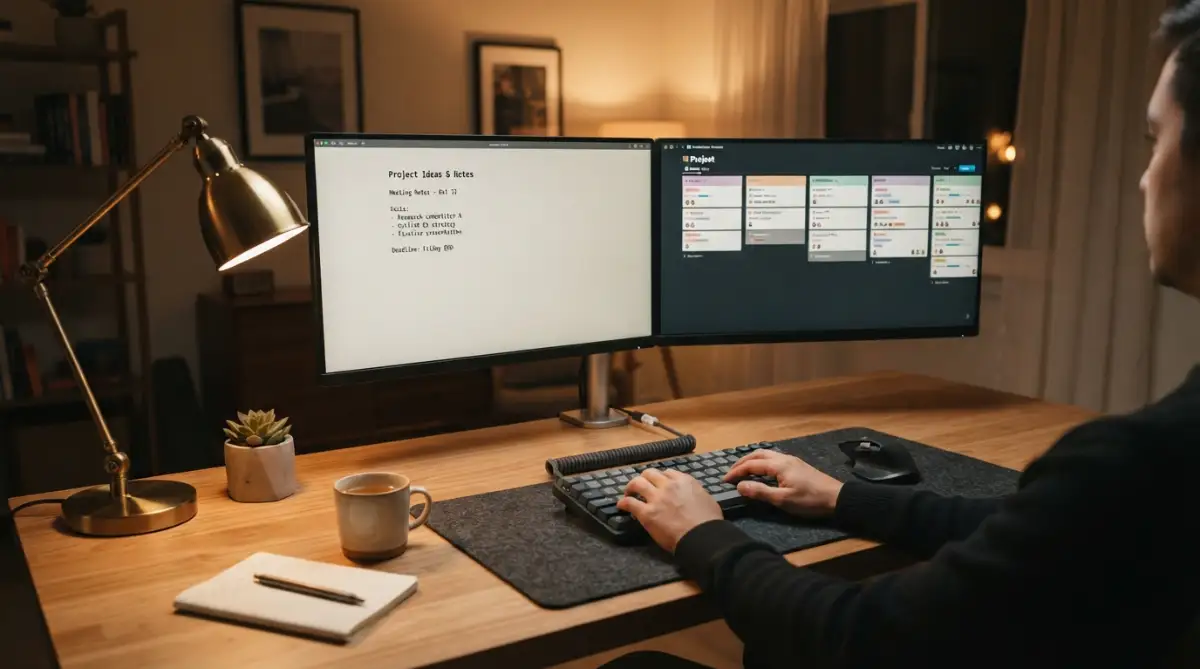
According to research shared by the Association for Psychological Science, minimizing desktop clutter and visual distraction directly protects your working memory throughout long workdays. This simple visual layout keeps your focus steady and turns repetitive data handling into a quick, painless process.

Traps That Turn Automated Systems into Daily Nightmares
It is easy to get overly excited about digital helpers and make mistakes that damage your professional reputation. When people discover these tools, they often rush ahead and create embarrassing situations for their business.
Understanding these common pitfalls will keep your automated administrative workflows dependable, professional, and completely safe.
The "Set and Forget" Blind Trust Trap
The most dangerous mistake you can make is copying text directly from a digital assistant and sending it out without reading it. Language models are text prediction engines; they do not possess common sense or true human understanding.
Sometimes these tools invent completely fake facts, miscalculate basic sums, or use strange words that sound unnatural. If you send an automated email with incorrect pricing or made-up project dates, your client will instantly notice.
Always treat automated drafts as a rough first pass that demands your human eyes before leaving your desk. Spend thirty seconds reading every generated sentence out loud to ensure the numbers match reality and the tone sounds like you.
Turning Meaningful Messages into Cold Robotic Monologues
Administrative work is not just about moving text; it is also about nurturing human relationships with coworkers and clients. When people replace every personal note with overly formal, emotionless automated messages, their professional relationships suffer.
If a client sends an email sharing good news or mentioning a family emergency, a generic automated response feels cold and insulting. You should never automate moments that call for genuine empathy, gratitude, or personal care.
Using robotic text without editing can also harm your overall online visibility, similar to the real reason your AI content workflow is not ranking on Google. Keep automated shortcuts for dry data processing, and reserve your personal voice for human conversations.
Over-Automating Tasks That Only Take Five Seconds
Another common pitfall is spending three hours trying to automate a simple chore that only takes ten seconds to do by hand. Not every little action in your day needs a custom workflow or a multi-step digital pipeline.
If you only send one invoice per month, setting up a complex automated document system is a complete waste of your afternoon. You end up spending more time managing and fixing the tool than doing the actual work.
Focus your automation energy only on tasks that happen multiple times every day or steal hours of your time each week. If an administrative task occurs rarely, doing it manually is usually the smartest choice.
Essential Habits: What to Embrace and What to Skip
Managing digital productivity tools requires a balanced approach between smart automation and active human oversight. Here is a clear guide to help you build reliable daily habits.
- Do review every generated email draft before you hit the send button.
- Do keep a secure local folder of tested instructions and templates on your desktop.
- Do sanitize personal customer information before feeding text into free web processors.
- Don't let automated tools send unscheduled live messages directly to important clients.
- Don't try to overhaul your entire business routine in a single afternoon.
- Don't rely on free web tools to do complex financial math without checking the figures with a calculator.
Following these simple rules keeps your daily operations smooth and shields your business from embarrassing operational errors.
The Hidden Trap of Cognitive Laziness
When you hand over your administrative writing and thinking to digital tools, your own critical thinking muscles can grow weak over time. You might find yourself struggling to write a basic paragraph on your own because you rely on software for every single sentence.
Studies highlighted by the MIT Sloan Management Review show that cognitive offloading can reduce deep comprehension if workers never practice active problem-solving themselves. Use automated tools to eliminate mind-numbing busywork, not to replace your ability to think clearly.
Keep writing your core business plans, strategic notes, and sensitive personal letters entirely by hand. Let digital assistants handle the boring data entry so your brain stays fresh for high-level decision-making.
Your Morning Action Blueprint: Taking Control of Your Workday
You do not need to change your entire work life overnight to enjoy the benefits of modern digital automation. Trying to implement twenty new tools at the same time is the fastest recipe for burnout and frustration.
True long-term productivity comes from making small, permanent improvements to your daily habits one step at a time. To build a smarter, stress-free work lifestyle, you can explore more resources on smartinfo36.com to sharpen your digital skills.
The One-Task Rule for Quick Success
Tomorrow morning, do not attempt to automate your calendar, your inbox, and your spreadsheets all at once. Pick the single administrative task that annoys you the most every morning and focus only on that.
If you hate writing meeting recaps, use a free transcription tool for your very next team call. Test the process, refine your prompts, and see how much lighter your afternoon feels.
Once that single routine feels natural and effortless, pick a second task to tackle the following week. This gentle progression builds lasting confidence and prevents you from feeling overwhelmed by new technology.
Protecting Your Deep Work Hours
The ultimate purpose of eliminating administrative busywork is to reclaim your time for meaningful, creative endeavors. When you save two hours each day, do not fill that new space with more low-value digital chores.
Block out that saved time on your calendar for deep, uninterrupted work on your primary business goals. Use those quiet hours to build new products, connect with key clients, or study new skills that advance your career.
Administrative work supports your career, but your creative output defines your true success. Let free digital tools shoulder the burden of repetitive chores so you can build something you are genuinely proud of.
My own journey from feeling exhausted by paperwork to having a calm, organized workday started with a single five-minute experiment on a free text assistant. I realized that technology is not here to replace us; it is here to take out the digital trash so we can do our finest human work. Take that first tiny step with one simple chore tomorrow morning, and you will never look at your workday the same way again.
Everyday Questions About Free Office Automation
Are free AI tools safe to use for confidential business records?
Free web-based tools usually process user entries to train their systems unless you adjust your privacy settings. You should never enter customer passwords, bank details, or private contracts into unverified free interfaces. Always remove names, addresses, and sensitive figures by replacing them with generic placeholders before pasting text.
Can free software tools completely replace a human administrative assistant?
No, free software cannot replace the intuition, emotional judgment, and strategic thinking of a real human assistant. These tools act as helpful digital assistants that handle rough drafts, data organization, and basic formatting. They excel at doing heavy mechanical tasks, but they always require human direction and review.
How much time can an average office worker save using these free methods?
Most professionals spend between two and three hours every day on repetitive emails, note-taking, and manual data sorting. By setting up simple automated drafting and transcription routines, you can easily save five to ten hours of busywork every week. That extra time can go straight into strategic projects or well-deserved rest.
Do I need any coding knowledge to set up basic administrative automations?
You do not need any coding or programming experience to use these productivity systems. Modern free tools use everyday conversational language, allowing you to give instructions just like you would to a coworker. If you know how to copy, paste, and type clear instructions into a web browser, you can run these workflows.
Will automated email replies sound too robotic to my important clients?
They will only sound robotic if you copy and paste raw drafts without making quick adjustments. The best workflow is to let the tool generate an eighty percent draft in seconds, and then spend twenty seconds adding your own warm touches. This keeps your communication fast, helpful, and unmistakably human.
Reader and Platform Disclaimer
This article is prepared for educational and informational purposes only. The software tools, web platforms, and productivity techniques discussed represent general methods for workflow organization and do not constitute formal business, legal, or data security advice. Software features, pricing tiers, and terms of service change frequently; always review the specific privacy policies and user agreements of any online platform before handling sensitive business information. Neither the author nor the publisher is affiliated with or sponsored by any third-party productivity software mentioned in this guide.