Waking Up to Numb Fingers: My Battle with Typing Agony
Ever tried to hold your morning coffee cup, only to feel a sharp pain shooting up your arm? That was my everyday reality a few months ago. Working on a totally flat, standard keyboard had slowly turned my hands into a numb, painful mess. If you catch yourself constantly shaking out your wrists after typing a few emails, you are not alone. More importantly, you do not have to live with that pain. Let's talk about what is really happening to your hands and how a simple desk swap can fix it.
My fingers would go completely numb after just an hour of answering basic client emails. I found myself shaking my hands out every ten minutes, hoping the tingling sensation would just magically disappear. It did not go away, and I realized my daily work setup was silently destroying my hands.
The worst part of this experience was the mental fog that came with the physical ache. You simply cannot focus on writing good emails or finishing big projects when your body is constantly screaming for a break. I was missing my personal deadlines, and my overall productivity completely crashed.
I started worrying about permanent nerve damage, imagining a future where I could not even use a computer anymore. Simple daily tasks, like twisting a doorknob or carrying groceries, became a genuine struggle for me. I felt incredibly frustrated because my career depends entirely on my ability to type comfortably.
Nobody should have to choose between earning a living and having healthy, pain-free hands. The reality is that our bodies were never designed to keep our hands locked flat and pushed together for hours on end.
 Quick Summary: What You Will Learn Today
-
Why standard flat keyboards naturally cause nerve pinching and finger numbness.
-
How simply splitting your keys apart stops awkward and painful wrist bending.
-
The correct way to use padded palm rests (never rest your actual wrists on them!).
-
Simple, free tweaks you can make to your current desk setup for instant comfort.
The Hidden Mechanics of Hand Discomfort
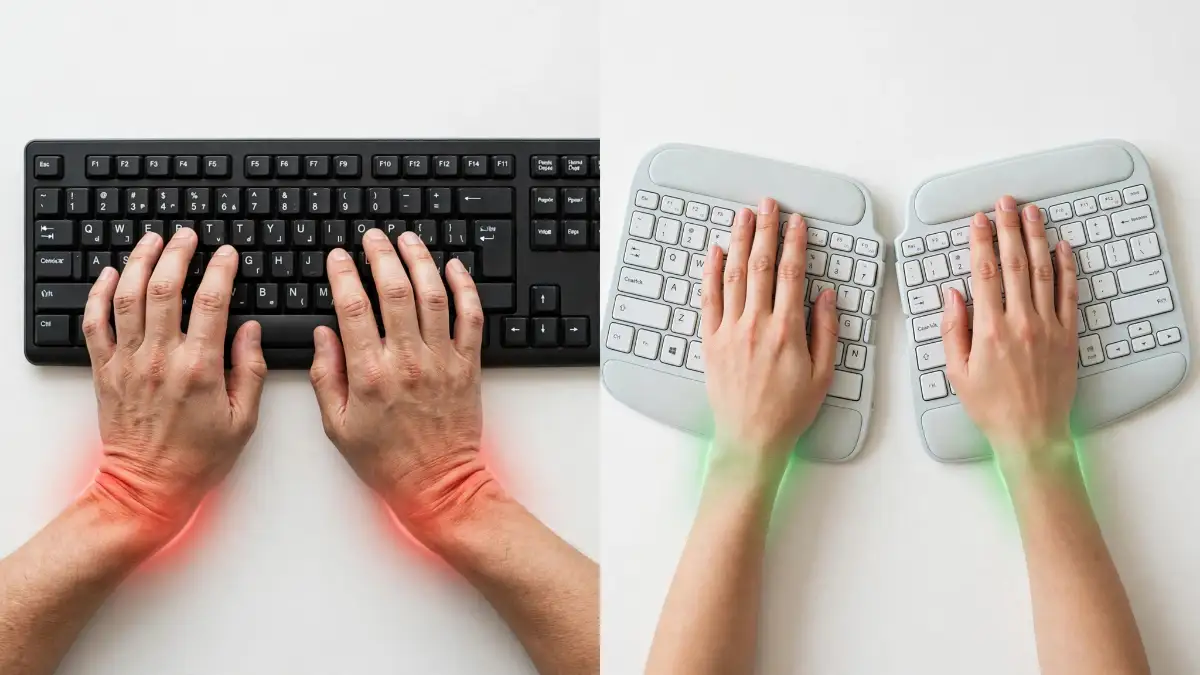
Before we look at the solutions, we need to understand exactly why traditional flat keyboards cause so much damage. When you place your hands on a standard keyboard, you are forced to bend your wrists outward. This awkward outward bending is a medical condition known as ulnar deviation.
Alongside ulnar deviation, flat keyboards force your palms to face completely downward. This flat downward position is called pronation, and it places immense pressure on the delicate nerves traveling through your forearm. Over time, this constant pressure restricts blood flow and inflames your tendons.
 Finding Relief: How Wireless Ergonomic Boards Change Everything
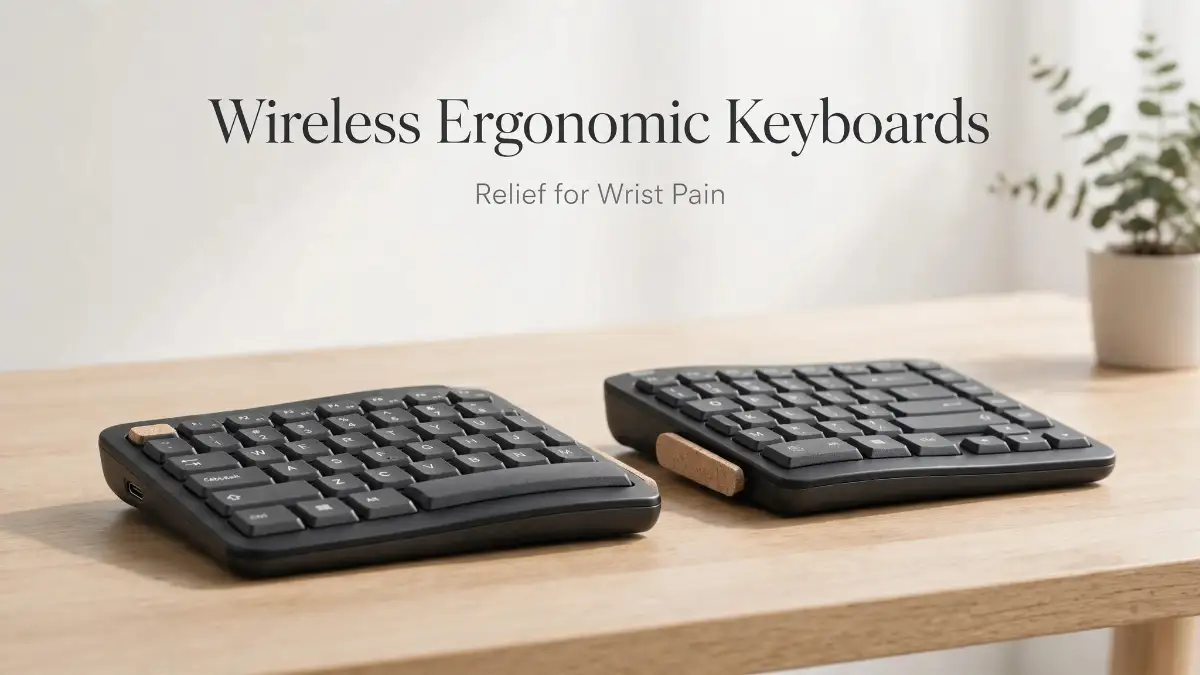
This is where a wireless ergonomic keyboard steps in to save your hands. Unlike standard flat boards, an ergonomic keyboard is specifically engineered to respect the natural resting position of the human body. They allow your hands, wrists, and shoulders to rest in a relaxed, neutral posture while you work.
You might be wondering why the wireless aspect is so important for pain management. A wireless connection gives you the ultimate freedom to position the keyboard exactly where your body needs it. You are no longer chained to the short length of a USB cable that forces you to sit too close to your monitor.
With a wireless setup, you can push the keyboard back, pull it closer, or even rest it on your lap to find your perfect typing angle. This freedom of movement is a game-changer for maintaining a healthy posture throughout a long workday.
Exploring the Split Keyboard Design
The most common and effective feature of an ergonomic keyboard is the split design. Instead of keeping all the keys in one tight rectangular block, a split keyboard divides the keys into two separate halves. This brilliant design allows your hands to stay shoulder-width apart while you type.
By keeping your hands separated, you instantly eliminate the painful ulnar deviation we talked about earlier. Your wrists no longer have to bend outward at sharp angles just to reach the middle keys. Highly rated models like the Logitech Ergo K860 and the Microsoft Sculpt use this fixed split design beautifully.
You can easily find these trusted models at major electronics retailers like Best Buy, Target, or through direct manufacturer websites. They are incredibly popular because they offer a gentle introduction to ergonomic typing without feeling totally alien.
The Magic of Tenting Angles
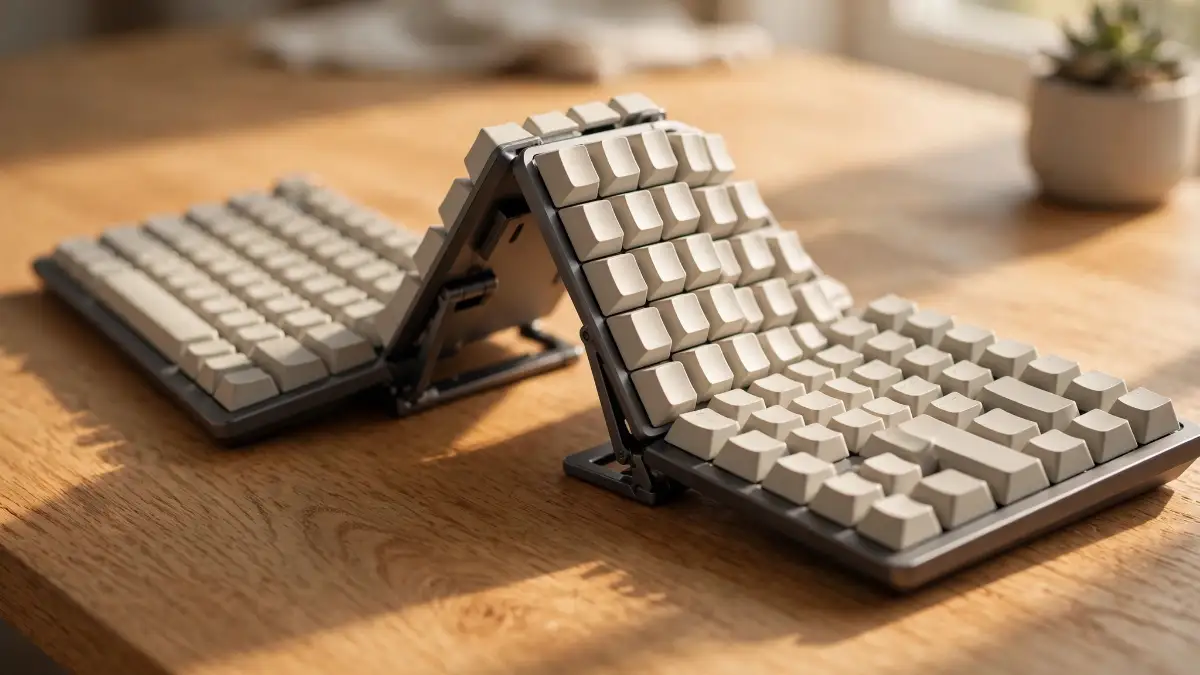 Another major feature to look for in these devices is called a tenting angle. Tenting means the middle of the keyboard is raised higher than the outside edges, almost like a small rooftop on your desk. This sloping shape prevents your hands from sitting entirely flat.
Watch this visual breakdown before adjusting your own workspace.
When you type on a tented keyboard, your hands rest at a slight vertical angle, similar to a natural handshake position. This simple elevation takes the nasty pressure off your forearm nerves and completely removes the strain of pronation.
My personal realization came after three weeks of using a heavily tented board. I realized I was no longer stretching my fingers awkwardly, and the sharp nerve pain in my forearm had almost entirely vanished. It is amazing how raising the center of your keyboard by just a few degrees can make your entire upper body relax.
Fully Adjustable Split Systems
If you want the ultimate customized experience, you should look into fully separated two-piece keyboards. These models are split into two completely unattached halves connected only by a wire or a wireless signal. The Kinesis Freestyle2 is a fantastic example of this highly flexible design.
Because the two halves are completely separate, you can position them exactly according to your specific shoulder width. If you have broad shoulders, you can push the halves far apart to keep your chest open and relaxed. You can also adjust the tenting angle of each half independently to match your exact wrist comfort level.
Myth vs Reality in the World of Ergonomics
There are a lot of misconceptions floating around about ergonomic desk equipment. Let us clear up a few of the most common myths right now.
Myth: Ergonomic keyboards will instantly cure all your existing medical conditions overnight.
Reality: These tools are designed to remove daily strain and promote healing, but they are not magic medical devices. They work best when combined with regular stretching and proper desk height adjustments.
Myth: Learning to type on a split layout will permanently ruin your typing speed.
Reality: While there is a brief learning curve, most people regain their original typing speed within a week. In fact, many users report typing even faster because their hands are finally comfortable.
The Importance of Built-In Wrist Rests
When you are browsing for a new wireless ergonomic keyboard, pay very close attention to the wrist rest. A high-quality ergonomic board should always come with a supportive, cushioned palm rest attached to the bottom.
Notice that I called it a palm rest, not a wrist rest. You should never actually rest your delicate wrists directly on any surface while typing, as this compresses the nerves. Instead, the padded cushion is designed to support the fleshy lower part of your palms during brief breaks from typing.
Many premium models use a pillowy memory foam covered in stain-resistant fabric for their palm rests. This provides a soft, warm surface that keeps your hands elevated at the perfect angle relative to the keys.
Mechanical vs Membrane Switches
Another major factor that affects wrist fatigue is the type of switches located underneath the keys. Most standard office keyboards use cheap rubber dome membranes that require a heavy, forceful press to register a letter. This constant heavy tapping sends tiny shockwaves up your fingers and into your wrists.
Many modern ergonomic keyboards now offer low-profile mechanical switches instead of rubber membranes. Mechanical switches are incredibly smooth and require very little physical effort to press down. This light touch significantly reduces finger fatigue during those incredibly long typing sessions.
If you prefer a quieter workspace, you can choose tactile mechanical switches that offer a gentle bump without the loud clicking noise. Your fingers will glide over the keys naturally, saving your tendons from unnecessary impact trauma.
Quick Switch Guide for Pain-Free Typing:
-
Linear Switches (Usually Red): These go straight down smoothly. They are the best choice if you have severe finger fatigue.
-
Tactile Switches (Usually Brown): A tiny bump lets you feel when the key is pressed. Great if you are a heavy typist trying to learn a lighter touch.
-
Clicky Switches (Usually Blue): Loud and require a heavier press. Honestly, try to avoid these if you are recovering from wrist pain.
Comparing Layouts: Traditional vs Ergonomic
To make things easier to understand, let us look at a simple comparison between a regular keyboard and an ergonomic setup.
-
Hand Position: Traditional boards force hands together. Ergonomic boards keep hands shoulder-width apart.
-
Wrist Angle: Traditional boards bend wrists outward. Ergonomic boards keep wrists perfectly straight.
-
Forearm Posture: Traditional boards force flat pronation. Ergonomic boards offer natural tenting.
-
Key Placement: Traditional boards use staggered straight rows. Ergonomic boards often use curved or wave layouts matching finger lengths.
Overcoming the Initial Learning Curve
I will be completely honest with you about the first few days of using a split ergonomic keyboard. It is going to feel very strange, and you will probably make a lot of typos. Your brain has spent years memorizing the layout of a flat board, and muscle memory takes a little time to rewrite.
Do not let this initial awkward phase discourage you from protecting your hands. The trick is to practice typing slowly and smoothly without looking down at your fingers. Trust that your hands will naturally find their way to the new key positions.
Most ergonomic layouts are actually designed to force you into proper touch-typing habits. For example, if you have a bad habit of reaching your left hand over to hit the 'Y' key, a split board will physically stop you from doing that. Within just a few days, your typing technique will become much cleaner and far more efficient.
The Role of Negative Tilt
Here is a fascinating feature you will rarely find on standard keyboards: negative tilt. Most traditional keyboards have little plastic feet at the back that pop up to angle the keys toward you. Ergonomics experts agree that this positive tilt is actually terrible for your hands.
Angling the keyboard up toward you forces your wrists to bend aggressively backward, putting maximum strain on your tendons. The best wireless ergonomic keyboards do the exact opposite. They offer attachable risers for the front edge of the keyboard, creating a slope that drops away from you.
This negative tilt allows your hands to drape naturally downward over the keys. It perfectly aligns your forearms with your wrists, creating a straight, relaxed line from your elbow all the way to your fingertips.
Real Talk: A 10-Second Desk Posture Checklist
Before you buy a new keyboard, double-check your current setup right now:
-
Your Feet: Are they flat on the floor? If your legs are dangling, your body will naturally pull your shoulders forward, putting heavy weight onto your wrists.
-
Your Monitor: Is the top of your screen at eye level? Looking downward constantly causes neck strain that shoots straight down into your forearms.
Building the Ultimate Comfort Ecosystem
Buying a fantastic wireless ergonomic keyboard is an amazing first step, but it is only one piece of the puzzle. To truly eliminate wrist pain, you need to look at your entire desk setup as a complete ecosystem. Your chair height, monitor placement, and mouse choice all interact with your new keyboard.
If your desk is sitting too high, you will end up shrugging your shoulders and pinching your neck, no matter how good your keyboard is. Your elbows should naturally rest at a 90-degree angle, slightly above the height of the typing surface.
You should also seriously consider pairing your new wireless keyboard with an ergonomic vertical mouse. A vertical mouse keeps your right hand in that same comfortable handshake position we talked about earlier. Using an ergonomic keyboard while still gripping a tiny, flat mouse will only solve half of your pain problem.
Evaluating Battery Life and Connectivity
Since we are focusing entirely on wireless models, battery life is an important detail to check before making a decision. Nothing is more annoying than having your keyboard die right in the middle of an important project.
Most high-quality ergonomic keyboards from trusted brands run on simple AA batteries that can easily last for up to two years. Other models feature built-in rechargeable batteries that you can top up using a standard USB-C cable once every few months.
You should also look for keyboards that offer multiple connection options. Many modern boards allow you to connect via a secure USB receiver or directly through Bluetooth. Some advanced models even let you pair with up to three different devices at once, letting you switch seamlessly between your laptop, tablet, and desktop computer.
Taking Charge of Your Health Today
Ignoring persistent wrist pain will never make it go away. Pushing through the discomfort only guarantees that the injury will get worse over time. Investing in a high-quality wireless ergonomic keyboard is an investment in your long-term health and your career longevity.
You spend a massive portion of your life touching a keyboard, so it makes absolute sense to use tools that respect your body. Start visiting local computer stores to test out different shapes and tenting angles in person. Your hands work incredibly hard for you every single day, and they truly deserve a comfortable place to rest.
Beyond the Basics: Mastering Your Pain-Free Setup
Many people buy a high-quality setup and still feel a slight ache after a few weeks of use. This happens because buying the hardware is only the very first step of your journey toward total comfort. You also need to physically change how you interact with your computer on a daily basis. Most of us have deeply ingrained bad habits from years of hunching over cheap laptops. Unlearning those habits requires a little bit of conscious effort and some smart strategies.
One of my absolute favorite secrets is learning to rely heavily on programmable macro keys. Every time you stretch your pinky finger aggressively to hit a complicated shortcut, you strain your delicate tendons. By programming a single button to perform those complex actions, you save your hands thousands of painful micro-movements every single day. I personally mapped my most common email responses and video editing cuts to the thumb cluster on my split board. This tiny adjustment reduced my daily typing effort drastically, giving my overused fingers a much-needed break. If your macro software feels heavy and slows down your PC, you should learn how to safely remove bloatware to keep your system running perfectly smooth.
Another pro-level habit is practicing dynamic repositioning throughout your long workday. The greatest advantage of a wireless board is that you do not have to keep it locked in one static spot on your desk. I frequently push the two halves of my keyboard slightly wider right after my lunch break. This subtle physical shift targets completely different muscle groups in my forearms and prevents localized fatigue from building up. You can even angle them slightly inward or outward depending on how your shoulders naturally fall when you sit back in your chair. The Occupational Safety and Health Administration heavily emphasizes changing your physical position regularly to avoid repetitive strain injuries in the office.
You must also respect the powerful connection between your eyes, your neck, and your hands. If your computer monitor is sitting too low or glowing too brightly, you will subconsciously lean forward and tense your shoulders. That heavy shoulder tension travels straight down your arms and ends up causing massive pressure right inside your wrists. Sometimes, simply fixing your monitor height or adjusting how your screen settings are quietly hurting you can magically fix what you thought was entirely a keyboard problem. When you sit upright with a beautifully relaxed neck, your hands naturally hover at the perfect typing angle.
Let us briefly talk about managing your new wireless devices properly to avoid completely random headaches. Dealing with dead batteries or spotty wireless connections is incredibly frustrating when you are trying to meet a tight client deadline. I highly recommend buying high-quality rechargeable batteries and keeping a fully charged spare set right in your top desk drawer. You can also build incredibly simple habits for a longer battery life by simply remembering to flick the power switch off at the end of your workday. Treating your devices with a little bit of respect goes a very long way.
Sometimes, a choppy wireless connection can cause missing keystrokes, forcing you to retype entire sentences and literally double your workload. If your keyboard relies heavily on a Bluetooth connection, ensure your computer tower or laptop is relatively close to your main desk surface. You might also want to spend five minutes understanding how Bluetooth codecs impact your other wireless accessories so they do not accidentally interfere with your keyboard signal. Having a completely flawless connection means you only have to type every word exactly once, saving your hands from unnecessary double-duty. To completely avoid major productivity killers while typing, you should also figure out how to stop software freezes instantly by managing your heavy background apps.
Micro-breaks are another incredibly powerful secret weapon in your daily fight against joint discomfort. You do not need to step away for a full hour to see massive health benefits in your daily comfort levels. According to detailed research from the Cornell University Ergonomics Web, taking a tiny 30-second resting break every ten minutes significantly reduces upper body strain. I use a simple, quiet timer on my phone to remind me to drop my hands into my lap and wiggle my fingers gently. It feels a little silly doing this on the first day, but this regular blood flow keeps the joints properly lubricated and totally pain-free.
 The Hidden Traps: Why Your Wrist Discomfort Keeps Returning
When we finally decide to do something about our physical pain, we often rush into making decisions without doing enough proper research. This blind rush leads to a few massive mistakes that can actually make your hand condition significantly worse. The most common trap I see people falling into is buying a cheap "wave" keyboard that only pretends to be ergonomic. These budget boards have a slight curve to the plastic layout, but they do not actually split the keys into two distinct shoulder-width halves. You end up spending good money on a device that still forces your hands together, leaving you with the exact same nerve pressure as before.
Another incredibly dangerous mistake is resting your delicate wrists heavily on the desk pad while you are actively typing out a document. I cannot emphasize enough how damaging this single habit is to your long-term nerve health. When you plant your wrists firmly on a hard surface and stretch your fingers to reach the keys, you are crushing the median nerve. This specific type of repeated nerve crushing is exactly what leads to severe medical issues down the road. According to the National Institute of Neurological Disorders and Stroke, applying constant pressure to this area is a primary trigger for intense tingling and numbness. Your hands should literally float above the keys like a professional piano player while you type.
The soft padded cushions attached to your new keyboard are designed strictly for resting your palms during your quick breaks. I actually learned this lesson the extremely hard way during my early days of freelance writing. I used my brand-new gel pad as a pivot point for my wrists, and within two weeks, my right thumb went completely numb. The moment I started floating my hands and using the pad only between paragraphs, the feeling in my thumb slowly returned. Please do not make the same stubborn mistake I made; use the resting pads exactly as they were intended.
A lot of people also make the tragic mistake of giving up on their new split layout way too early in the process. I have seen friends pack up their expensive new keyboards and return them to the store after just two frustrating days. They complain that their typing speed dropped in half and they could not stop hitting the wrong spacebar with their thumbs. You have to understand that you are actively rewriting years of deep muscle memory, and your brain is going to throw a minor tantrum. Pushing through this initial awkward phase is absolutely required if you want to save your hands.
If you throw in the towel and go back to your flat keyboard, the sharp pain will return almost instantly. You are essentially telling your body that momentary typing convenience is much more important than your physical well-being. Give yourself at least two full weeks of grace, type a little slower, and watch how quickly your brain adapts to the healthy new layout. Medical professionals at the American Academy of Orthopaedic Surgeons highly recommend combining these ergonomic adjustments with daily gentle stretching routines. Buying the gear is completely useless if you do not have the patience to let your body adjust to it properly.
The final major mistake to watch out for is aggressively over-tenting your keyboard on the very first day. Many premium models allow you to raise the middle section extremely high, almost to a completely vertical handshake position. If you jump straight from a completely flat board to a maximum vertical tent, your forearm muscles will completely freak out. Start with the lowest possible elevation setting for a few days to let your tendons gently stretch out. You can slowly increase the middle height over the next month until you find that perfectly comfortable sweet spot.
Your Personal Action Plan for Happy Hands
Taking control of your physical health at the computer desk is one of the most rewarding decisions you will ever make. You no longer have to accept tingling fingers and burning forearms as a normal part of your professional working life. By switching to a highly rated wireless split setup, you are directly investing in your ability to work comfortably for decades to come. Combining the right hardware with smart daily habits, like micro-breaks and floating your hands, will transform your entire relationship with your computer. The days of shaking out your tired hands every ten minutes are finally coming to a wonderful end.
Common Questions About Healthy Typing Posture
Do wireless ergonomic keyboards cause input lag while typing fast?
Modern high-quality wireless boards use incredibly fast connection protocols that completely eliminate noticeable input lag for normal typing. Unless you are playing highly competitive video games at a professional level, you will never notice a delay between pressing a key and seeing the letter appear. They are perfectly optimized for heavy office work and fast touch-typing.
Can I travel easily with a split keyboard layout?
Most heavily tented or fully separated models are quite bulky and not ideally suited for tossing into a small coffee shop backpack. However, there are a few compact, low-profile ergonomic models designed specifically for frequent travelers who want to protect their hands on the go. You just have to make sure you purchase a hard-shell protective case to keep the keys safe in your luggage.
How exactly should my arms rest while I am typing on these devices?
Your elbows should be resting gently at your sides, bent at an open angle of roughly 90 to 100 degrees. Your forearms should be completely parallel to the floor, allowing your hands to naturally float right above the center of the keycaps. You should never have to reach upward or shrug your shoulders to hit the backspace button.
Is it totally normal for my forearms to feel sore during the first week?
Yes, experiencing a mild, dull muscle soreness during the first few days is incredibly common and totally normal. You are finally using a completely new set of small forearm muscles to stabilize your fingers in this healthier posture. This light muscle soreness is very different from sharp nerve pain, and it will naturally fade away within a week as you build strength.
Can using a trackpad completely ruin my new ergonomic setup?
Yes, using a tiny, flat trackpad directly beside a highly tented keyboard will quickly reverse all your great ergonomic progress. Reaching over to pinch and swipe on a flat glass surface forces your wrist right back into that dangerous downward pronation we want to avoid. Always pair your new keyboard with a matching vertical mouse to keep your right hand in a safe, upright position.
Disclaimer: This article is for informational and educational purposes only and does not constitute professional medical advice. If you are experiencing severe or chronic joint pain, numbness, or tingling in your hands, please consult with a qualified physical therapist or healthcare professional immediately. The author and publisher are not responsible for any adverse effects resulting from the use of the information provided in this article.